> ## Documentation Index
> Fetch the complete documentation index at: https://docs.shiga.io/llms.txt
> Use this file to discover all available pages before exploring further.
# KYC
> This guide will walk you through the step-by-step process of completing your KYC verification on Shiga to unlock all platform features including instant, compliant on and off-ramps.
### **Purpose of KYC Verification**
Shiga is required by financial regulations to verify the identity of all users. This process:
* Ensures the security of your account and transactions.
* Complies with anti-money laundering (AML) and counter-terrorism financing (CTF) requirements.
* Enables full access to all platform features and higher transaction limits.
 ***
## Prerequisites
Before you begin, ensure you have:
* A valid government-issued ID (National ID, Driver's License, Passport, or Residence Permit).
* A document showing your current address (utility bill, bank statement, or government-issued document from the last 3 months).
* Access to your registered email address.
* A device with a camera for the liveness check (computer webcam or smartphone)
***
## Step-by-Step Verification Process
### Step 1: Access the KYC Verification
1. Log in to your Shiga account
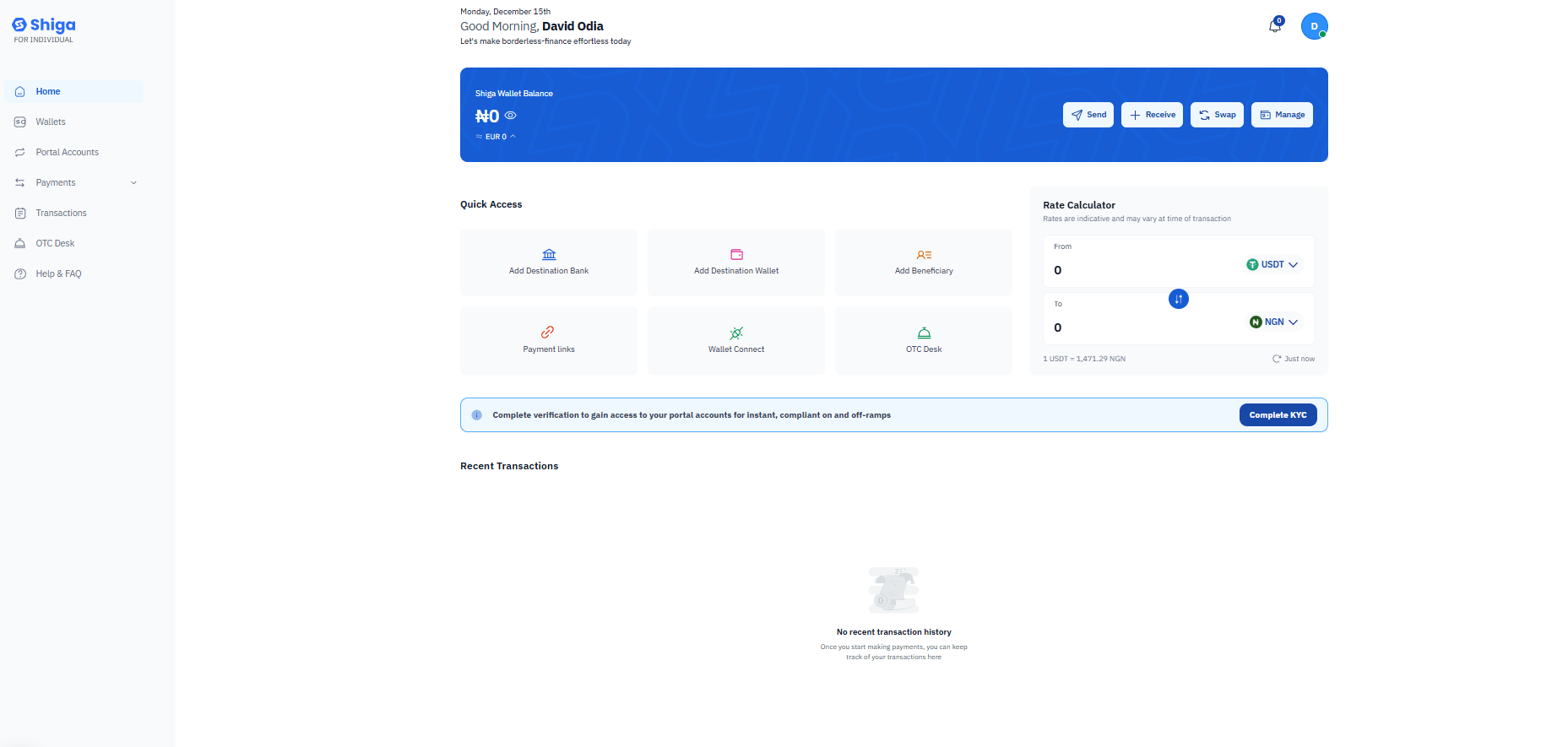
2. On your dashboard, you'll see a notification banner that says: **"Complete verification to gain access to your portal accounts for instant, compliant on and off-ramps".**
3. Click the **"Complete KYC"** button in the blue notification banner.
***
### Step 2: Enter Identity Details
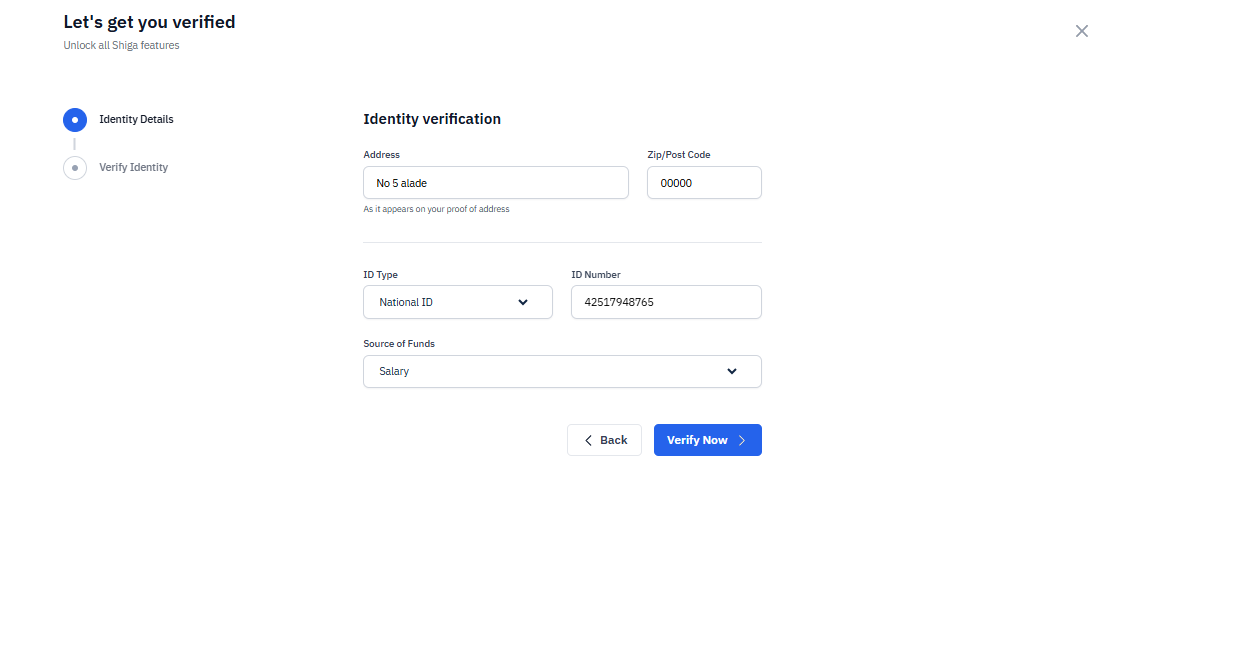
You'll be directed to the **Identity Details** page where you need to provide:
**Required Information:**
* **Address**: Enter your residential address exactly as it appears on your proof of address (e.g., "No 5 alade").
* **Zip/Post Code**: Enter your postal code (e.g., "00000").
* **ID Type**: Select "National ID" from the dropdown menu.
* **ID Number**: Enter your National ID number (e.g., "42517948765").
* **Source of Funds**: Select "Salary" or your applicable source from the dropdown menu.
4. Once all fields are completed, click **"Verify Now".**
***
## Prerequisites
Before you begin, ensure you have:
* A valid government-issued ID (National ID, Driver's License, Passport, or Residence Permit).
* A document showing your current address (utility bill, bank statement, or government-issued document from the last 3 months).
* Access to your registered email address.
* A device with a camera for the liveness check (computer webcam or smartphone)
***
## Step-by-Step Verification Process
### Step 1: Access the KYC Verification
1. Log in to your Shiga account
2. On your dashboard, you'll see a notification banner that says: **"Complete verification to gain access to your portal accounts for instant, compliant on and off-ramps".**
3. Click the **"Complete KYC"** button in the blue notification banner.
***
### Step 2: Enter Identity Details
You'll be directed to the **Identity Details** page where you need to provide:
**Required Information:**
* **Address**: Enter your residential address exactly as it appears on your proof of address (e.g., "No 5 alade").
* **Zip/Post Code**: Enter your postal code (e.g., "00000").
* **ID Type**: Select "National ID" from the dropdown menu.
* **ID Number**: Enter your National ID number (e.g., "42517948765").
* **Source of Funds**: Select "Salary" or your applicable source from the dropdown menu.
4. Once all fields are completed, click **"Verify Now".**
 ### Step 3: Email Verification
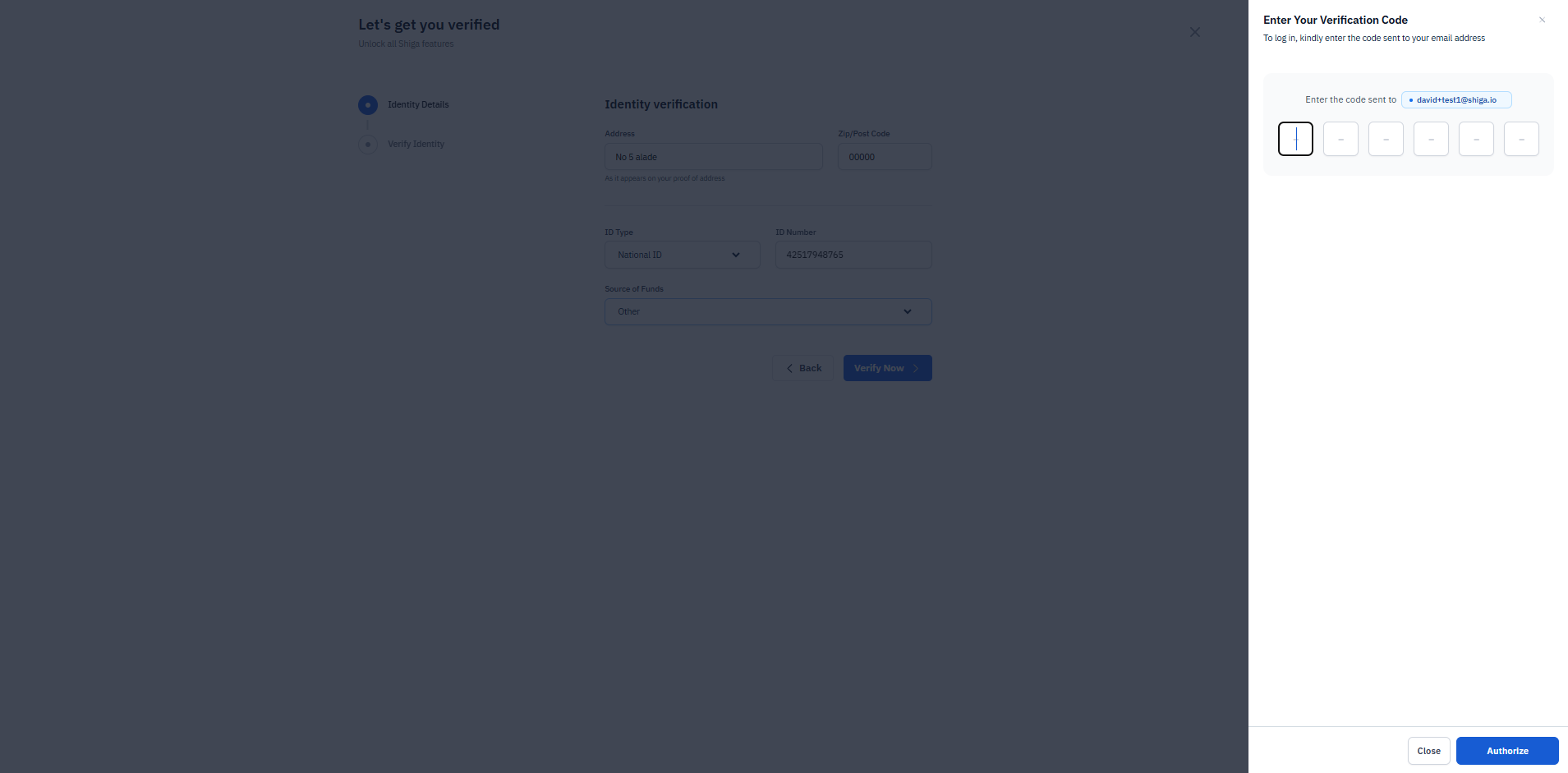
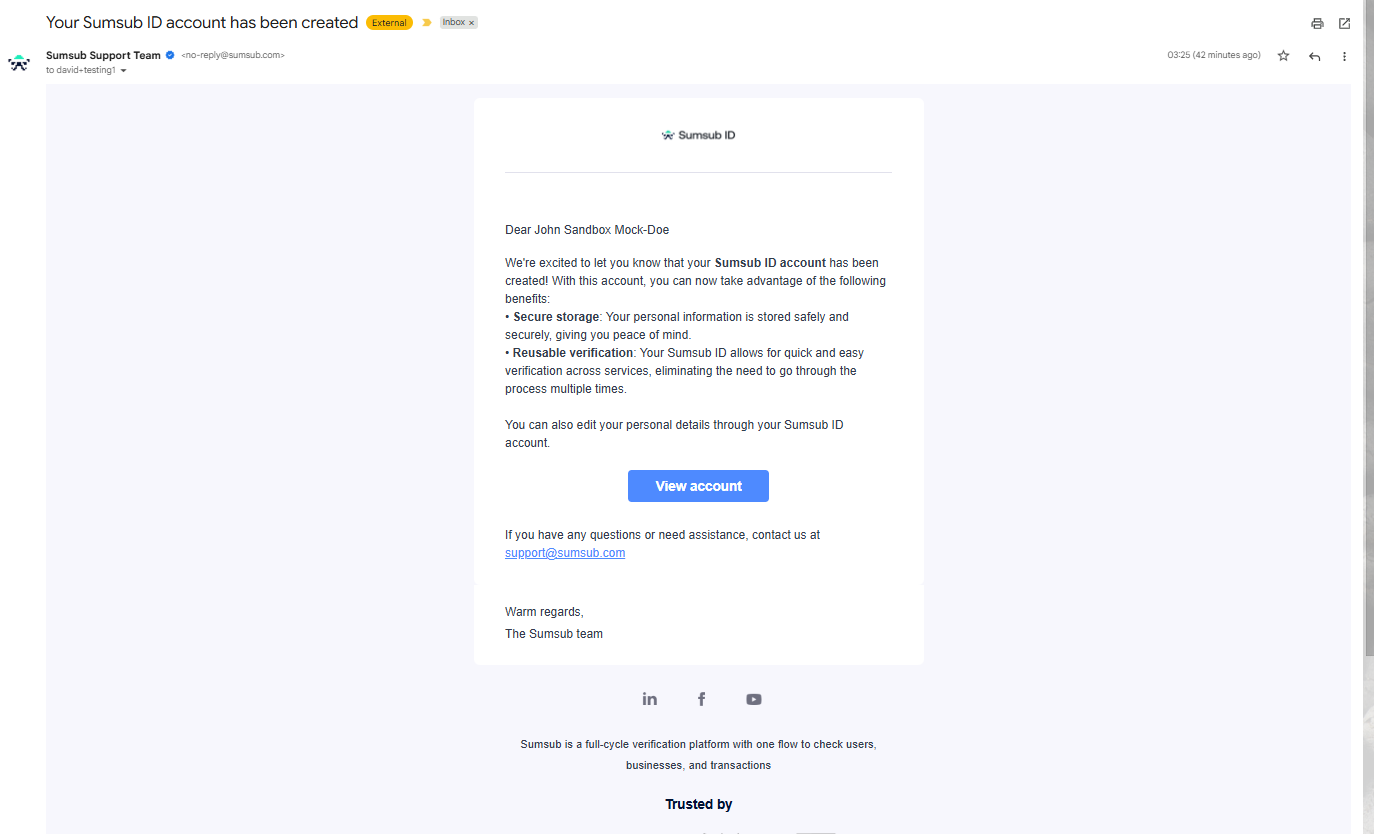
1. A verification code will be sent to your registered email address .
2. Check your email inbox for the 6-digit verification code.
3. Enter the code in the six boxes provided.
4. Click **"Authorize"** to proceed.
**Note**: If you don't receive the code, check your spam folder or click to resend.
### Step 3: Email Verification
1. A verification code will be sent to your registered email address .
2. Check your email inbox for the 6-digit verification code.
3. Enter the code in the six boxes provided.
4. Click **"Authorize"** to proceed.
**Note**: If you don't receive the code, check your spam folder or click to resend.
 ### Step 4: Choose Verification Method
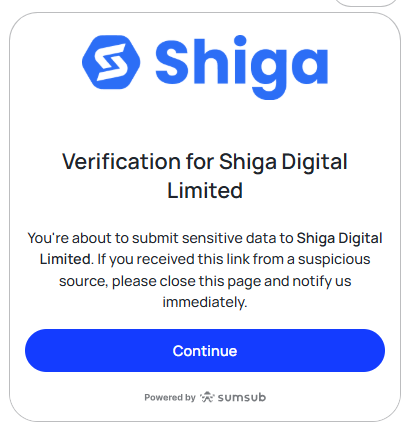
You'll see a page titled **"Verification for Shiga Digital Limited"** with important security information.
**Important Security Notice:**
* You're about to submit sensitive data to Shiga Digital Limited
* If you received this link from a suspicious source, close the page immediately and notify Shiga support
5. Click **"Continue"** to proceed with verification.
### Step 5: ID Option (Faster Verification)
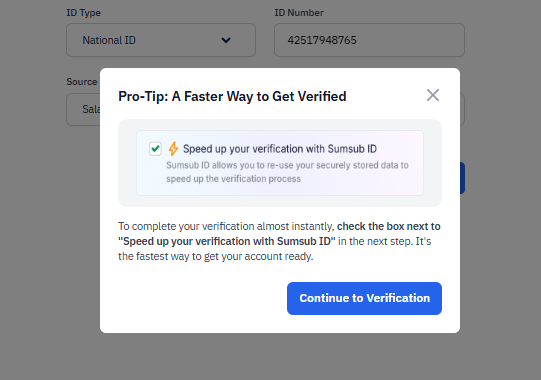
A **Pro-Tip** popup will appear offering faster verification:
**Speed up your verification with Sumsub ID**
* Allows you to re-use your securely stored data
* Speeds up the verification process
6. Check the box next to **"Speed up your verification with Sumsub ID"** if you want faster processing
7. Click **"Continue to Verification"**
**Alternative**: You can proceed without Sumsub ID if you prefer.
### Step 4: Choose Verification Method
You'll see a page titled **"Verification for Shiga Digital Limited"** with important security information.
**Important Security Notice:**
* You're about to submit sensitive data to Shiga Digital Limited
* If you received this link from a suspicious source, close the page immediately and notify Shiga support
5. Click **"Continue"** to proceed with verification.
### Step 5: ID Option (Faster Verification)
A **Pro-Tip** popup will appear offering faster verification:
**Speed up your verification with Sumsub ID**
* Allows you to re-use your securely stored data
* Speeds up the verification process
6. Check the box next to **"Speed up your verification with Sumsub ID"** if you want faster processing
7. Click **"Continue to Verification"**
**Alternative**: You can proceed without Sumsub ID if you prefer.
 ### Step 6: Review Verification Steps
The **"Let's get you verified"** page outlines the process:
**Three Simple Steps:**
1. **Provide identity document** - Upload your ID
2. **Perform a liveness check** - Complete facial verification
3. **Provide address information** - Upload proof of address
**Optional Enhancement:**
* You can check the box for **"Speed up your verification with Sumsub ID"** to use securely stored data for faster processing
8. Click **"Start verification"** to begin.
### Step 6: Review Verification Steps
The **"Let's get you verified"** page outlines the process:
**Three Simple Steps:**
1. **Provide identity document** - Upload your ID
2. **Perform a liveness check** - Complete facial verification
3. **Provide address information** - Upload proof of address
**Optional Enhancement:**
* You can check the box for **"Speed up your verification with Sumsub ID"** to use securely stored data for faster processing
8. Click **"Start verification"** to begin.
 ### Step 7: Create Sumsub ID Account (Optional but Recommended)
If you selected the Sumsub ID option, you'll see:
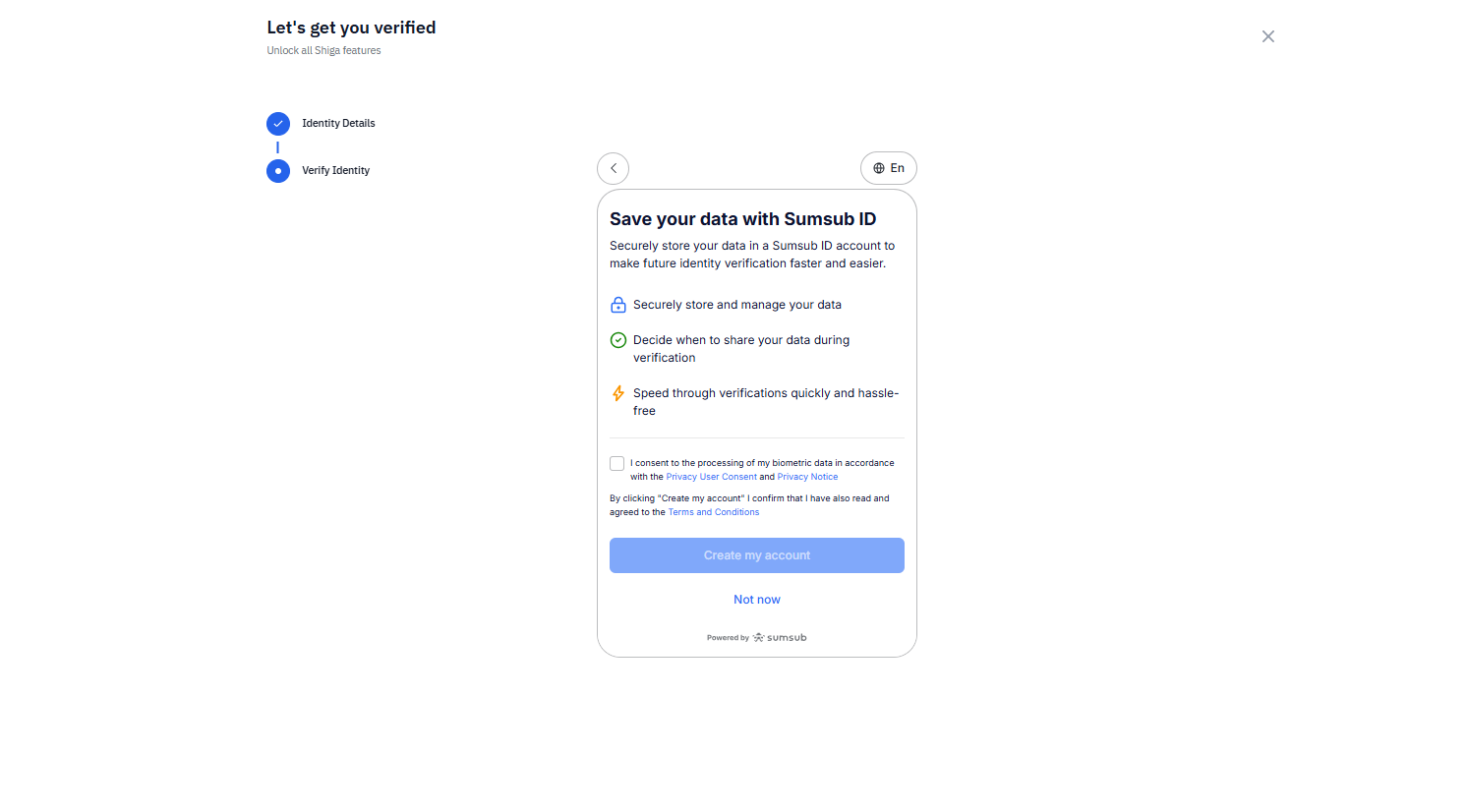
**Save your data with Sumsub ID**
**Benefits:**
* Securely store and manage your data
* Decide when to share your data during verification
* Speed through verifications quickly and hassle-free
**Requirements:**
* Check the consent box: "I consent to the processing of my biometric data in accordance with the Privacy User Content and Privacy Notice"
* Confirm you've read and agreed to the Terms and Conditions
9. Click **"Create my account"** or **"Not now"** to skip.
### Step 7: Create Sumsub ID Account (Optional but Recommended)
If you selected the Sumsub ID option, you'll see:
**Save your data with Sumsub ID**
**Benefits:**
* Securely store and manage your data
* Decide when to share your data during verification
* Speed through verifications quickly and hassle-free
**Requirements:**
* Check the consent box: "I consent to the processing of my biometric data in accordance with the Privacy User Content and Privacy Notice"
* Confirm you've read and agreed to the Terms and Conditions
9. Click **"Create my account"** or **"Not now"** to skip.
 ### Step 8: Select Identity Document Type
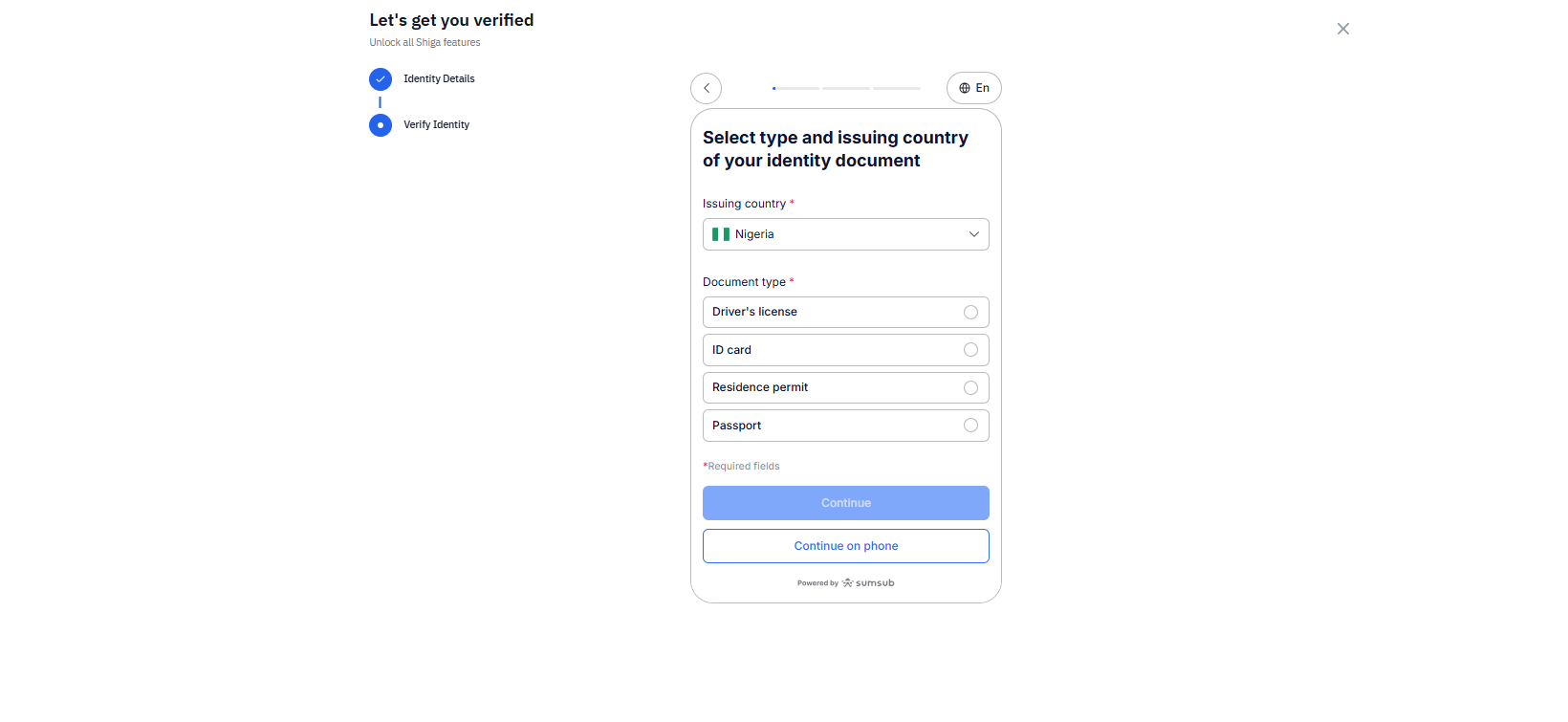
**Select type and issuing country of your identity document**
10. **Issuing country**: Confirm or select "Nigeria" from the dropdown
11. **Document type**: Choose from:
* Driver's license.
* ID card.
* Residence permit.
* Passport.
12. Select your document type by clicking the radio button.
13. Click **"Continue"** to proceed.
**Alternative**: Click **"Continue on phone"** if you prefer to complete verification on your mobile device.
### Step 8: Select Identity Document Type
**Select type and issuing country of your identity document**
10. **Issuing country**: Confirm or select "Nigeria" from the dropdown
11. **Document type**: Choose from:
* Driver's license.
* ID card.
* Residence permit.
* Passport.
12. Select your document type by clicking the radio button.
13. Click **"Continue"** to proceed.
**Alternative**: Click **"Continue on phone"** if you prefer to complete verification on your mobile device.
 ***
### Step 9: Prepare for Liveness Check
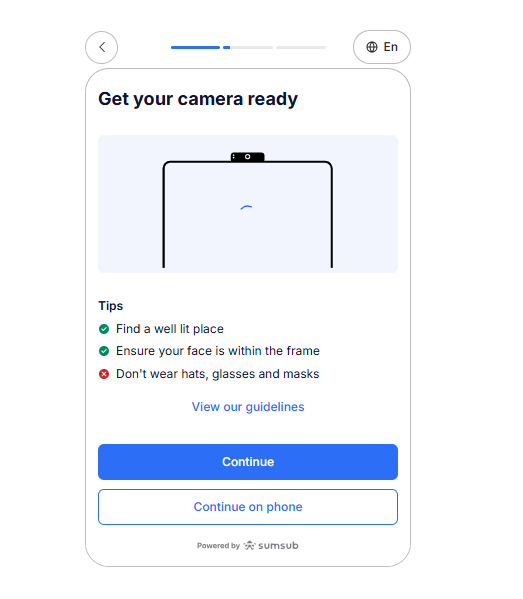
**Get your camera ready**
The system will guide you to complete a facial verification.
**Tips for Success:**
* Find a well-lit place.
* Ensure your face is within the frame.
* Don't wear hats, glasses, or masks.
14. Review the guidelines by clicking **"View our guidelines"** if needed.
15. Click **"Continue"** to start the liveness check.
**Alternative**: Click **"Continue on phone"** to use your smartphone camera.
***
### Step 9: Prepare for Liveness Check
**Get your camera ready**
The system will guide you to complete a facial verification.
**Tips for Success:**
* Find a well-lit place.
* Ensure your face is within the frame.
* Don't wear hats, glasses, or masks.
14. Review the guidelines by clicking **"View our guidelines"** if needed.
15. Click **"Continue"** to start the liveness check.
**Alternative**: Click **"Continue on phone"** to use your smartphone camera.
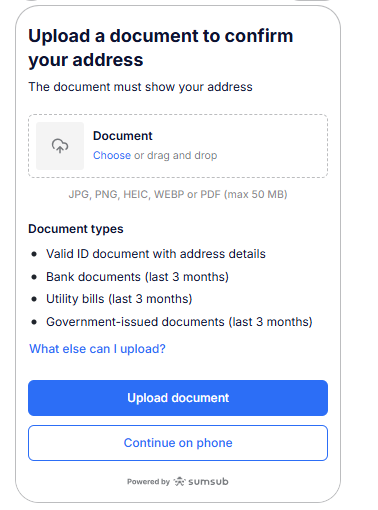 ***
### Step 10: Upload Proof of Address
**Upload a document to confirm your address**
The document must show your current address.
**Accepted Document Types:**
* Valid ID document with address details.
* Bank documents (last 3 months).
* Utility bills (last 3 months).
* Government-issued documents (last 3 months).
**File Requirements:**
* Formats: JPG, PNG, HEIC, WEBP, or PDF.
* Maximum size: 50 MB.
16. Click **"Choose"** or drag and drop your document into the upload area.
17. Click **"What else can I upload?"** if you need more information about acceptable documents.
18. Once uploaded, click **"Upload document".**
**Alternative**: Click **"Continue on phone"** to upload from your mobile device.
***
### Step 10: Upload Proof of Address
**Upload a document to confirm your address**
The document must show your current address.
**Accepted Document Types:**
* Valid ID document with address details.
* Bank documents (last 3 months).
* Utility bills (last 3 months).
* Government-issued documents (last 3 months).
**File Requirements:**
* Formats: JPG, PNG, HEIC, WEBP, or PDF.
* Maximum size: 50 MB.
16. Click **"Choose"** or drag and drop your document into the upload area.
17. Click **"What else can I upload?"** if you need more information about acceptable documents.
18. Once uploaded, click **"Upload document".**
**Alternative**: Click **"Continue on phone"** to upload from your mobile device.
 ### Step 11: Verification Complete
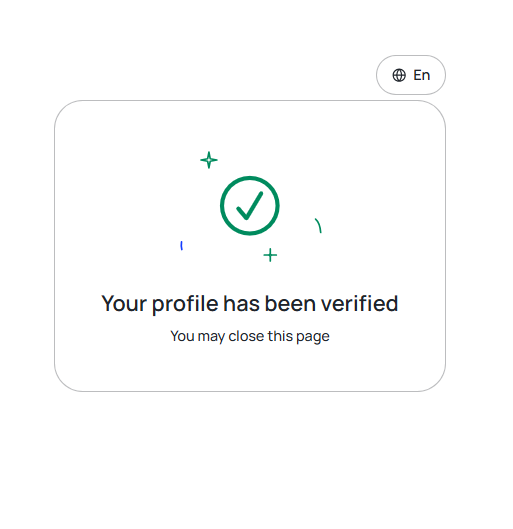
**Success!**
You'll see a confirmation page with a green checkmark:
**"Your profile has been verified"**
19. You may now close this page and return to your Shiga dashboard.
### Step 11: Verification Complete
**Success!**
You'll see a confirmation page with a green checkmark:
**"Your profile has been verified"**
19. You may now close this page and return to your Shiga dashboard.
 ## Troubleshooting
**Verification Code Issues:**
* Check your spam/junk folder
* Ensure the email address is correct
* Request a new code if expired
**Document Upload Problems:**
* Ensure file size is under 50 MB
* Use accepted file formats (JPG, PNG, PDF)
* Make sure document is clear and readable
**Liveness Check Fails:**
* Find better lighting
* Remove glasses, hats, or masks
* Ensure your face is centered in the frame
* Try using your phone camera instead
## Important Security Reminders
* Never share your verification codes with anyone
* Only complete verification through official Shiga links
* Shiga will never ask for your password during KYC
* Report suspicious verification requests immediately
**Proof of Address**
**Accepted Documents:**
* Recent utility bill (within last 3 months)
* Bank or credit card statement
* Government-issued tax document
* Lease agreement
**Requirements:**
* Must show your full name and current residential address
* Must be dated within the last 3 months
* Must be an original document (no screenshots)
**"Please note that completing your registration grants you access to self-custodial wallets with free stablecoin transactions. To unlock all of Shiga's features, you'll need to complete your KYC verification."**
## Troubleshooting
**Verification Code Issues:**
* Check your spam/junk folder
* Ensure the email address is correct
* Request a new code if expired
**Document Upload Problems:**
* Ensure file size is under 50 MB
* Use accepted file formats (JPG, PNG, PDF)
* Make sure document is clear and readable
**Liveness Check Fails:**
* Find better lighting
* Remove glasses, hats, or masks
* Ensure your face is centered in the frame
* Try using your phone camera instead
## Important Security Reminders
* Never share your verification codes with anyone
* Only complete verification through official Shiga links
* Shiga will never ask for your password during KYC
* Report suspicious verification requests immediately
**Proof of Address**
**Accepted Documents:**
* Recent utility bill (within last 3 months)
* Bank or credit card statement
* Government-issued tax document
* Lease agreement
**Requirements:**
* Must show your full name and current residential address
* Must be dated within the last 3 months
* Must be an original document (no screenshots)
**"Please note that completing your registration grants you access to self-custodial wallets with free stablecoin transactions. To unlock all of Shiga's features, you'll need to complete your KYC verification."**