> ## Documentation Index
> Fetch the complete documentation index at: https://docs.shiga.io/llms.txt
> Use this file to discover all available pages before exploring further.
# Set Up 2FA in Under 2 Minutes
> Stay Protected.
Two-Factor Authentication (2FA) adds an extra layer of protection to your account by requiring **two forms of verification** before granting access. Instead of just a password, you’ll also need a **temporary code** (sent via SMS, email, or an authenticator app) .
### **Why Use 2FA?**
**Stronger Security** – Even if your password is compromised, hackers can’t access your account without the second factor.\
**Prevents Unauthorized Access** – Protects sensitive data from phishing, breaches, and identity theft.\
**Widely Recommended** – Used by banks, social media, and crypto platforms for maximum safety.
### **How It Works:**
1. **Enter your password** (first factor – something you know).
2. **Verify with a code or biometric** (second factor – something you have or are).
3. **Access granted securely!**
Enable 2FA today to keep your account **safe and secure!**
*"Boost your account’s defense with 2FA—hackers won’t stand a chance!"*
## Set Up Two-Factor Authentication (2FA)
* Download an Authenticator App (Google Authenticator or Microsoft Authenticator).
* Scan the QR Code.
Enter the six digit code from your authenticator app.
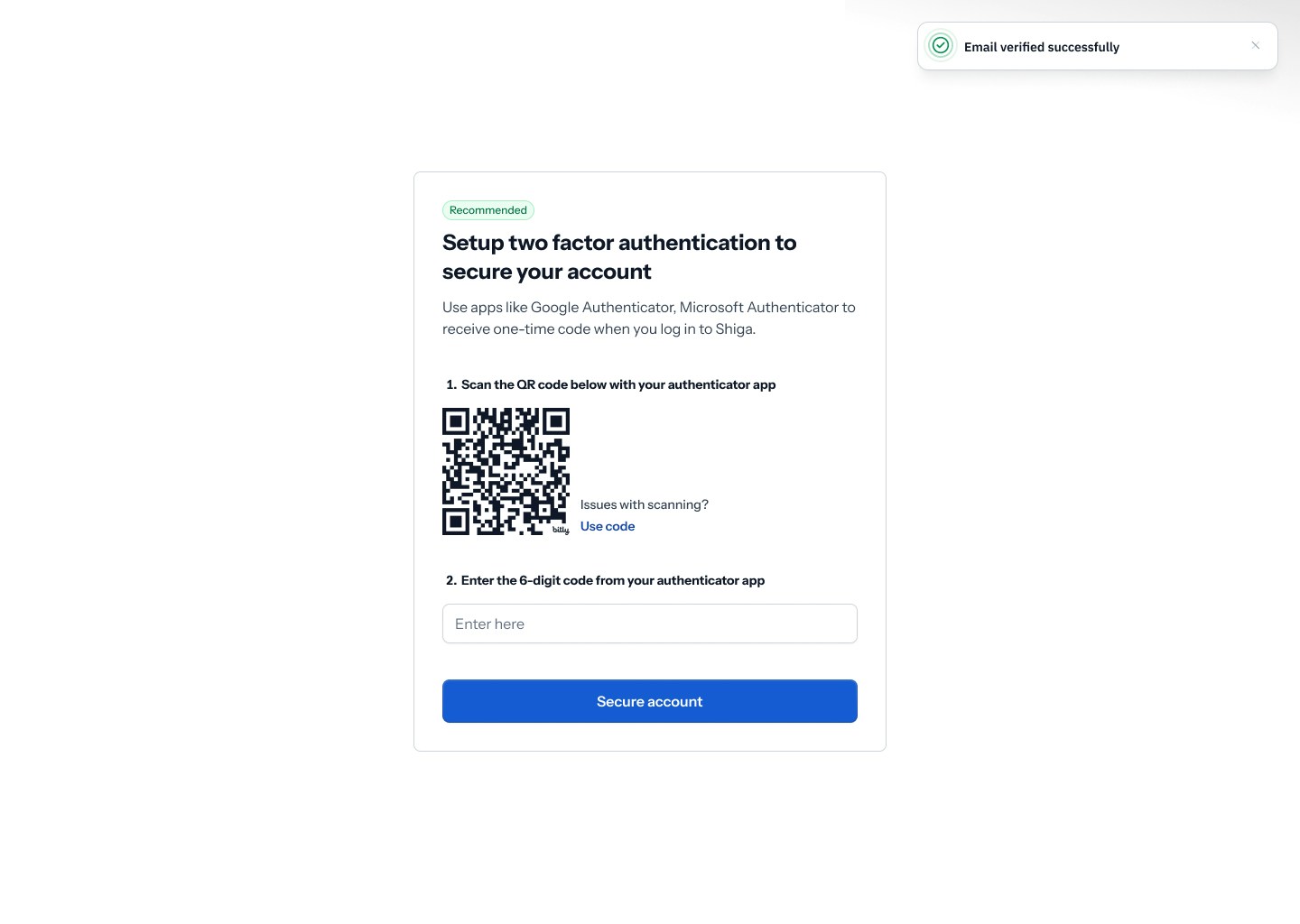 If scanning doesn’t work, manually enter the code on the screen. For example, JFRDAY21GRQVMS355IN53GE3U
* Click Verify to confirm your 2FA peference.
## **Accessing the Security Settings**
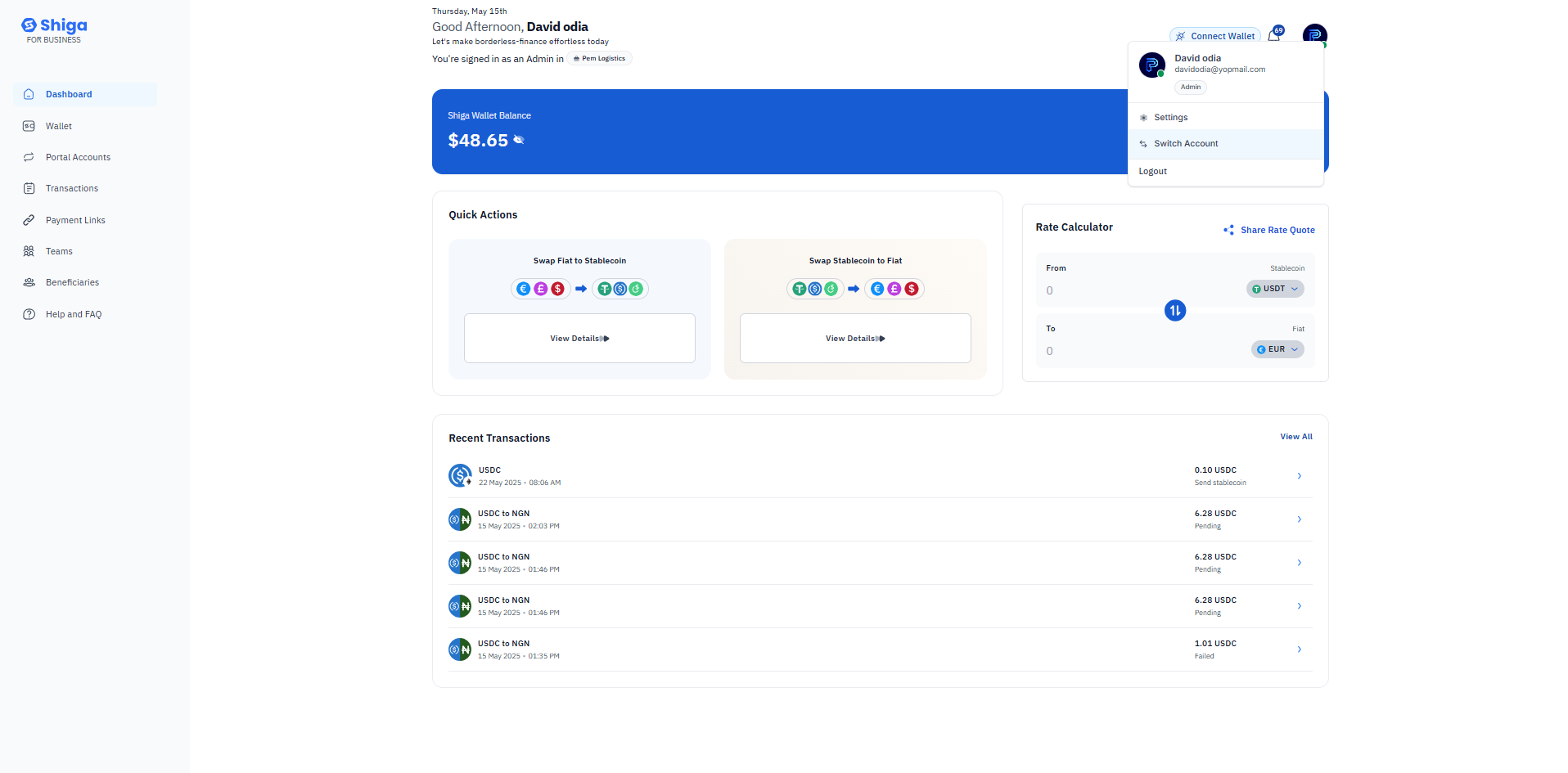
1. **Log in** to your **Shiga Dashboard**.
2. Navigate to **Account Settings** (visible in the left-hand menu).
3. Under **Security**, you will find the **Two-Factor Authentication (2FA) options**.
If scanning doesn’t work, manually enter the code on the screen. For example, JFRDAY21GRQVMS355IN53GE3U
* Click Verify to confirm your 2FA peference.
## **Accessing the Security Settings**
1. **Log in** to your **Shiga Dashboard**.
2. Navigate to **Account Settings** (visible in the left-hand menu).
3. Under **Security**, you will find the **Two-Factor Authentication (2FA) options**.
 ## **Choosing Your 2FA Method**
Shiga offers **two secure methods** for 2FA:
## **Choosing Your 2FA Method**
Shiga offers **two secure methods** for 2FA:
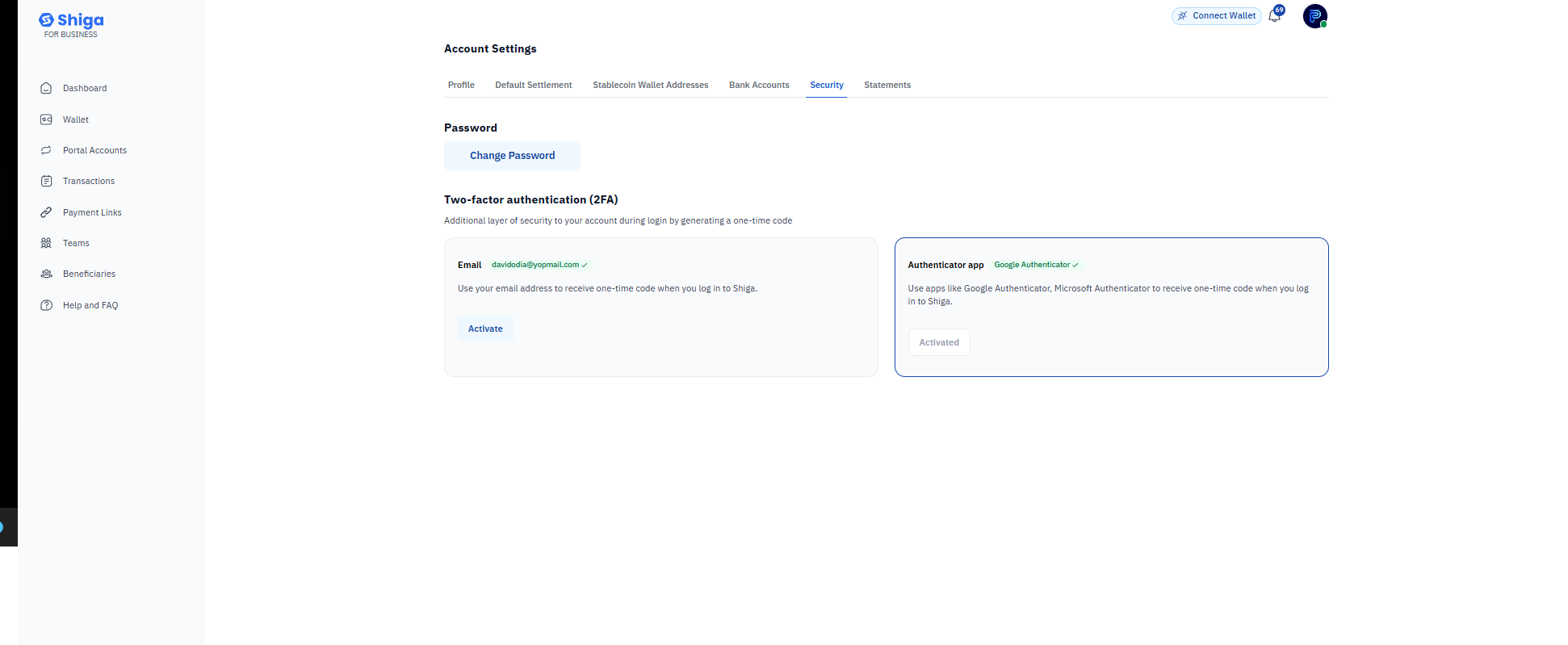 ### **Option 1: Email-Based Verification**
* **How it works:** A one-time code will be sent to your registered email ([**olivera@gmail.com)**](mailto:olivera@gmail.com)
* **Best for:** Users who prefer simplicity and do not use an authenticator app.
### **Option 2: Authenticator App (Recommended for Higher Security)**
* **Supported apps:** Google Authenticator and Microsoft Authenticator.
* **How it works:** Generates time-sensitive 6-digit codes that refresh every 30 seconds.
* **Best for:** Enhanced security, as it does not rely on SMS/email (which can be intercepted).
### **Option 1: Email-Based Verification**
* **How it works:** A one-time code will be sent to your registered email ([**olivera@gmail.com)**](mailto:olivera@gmail.com)
* **Best for:** Users who prefer simplicity and do not use an authenticator app.
### **Option 2: Authenticator App (Recommended for Higher Security)**
* **Supported apps:** Google Authenticator and Microsoft Authenticator.
* **How it works:** Generates time-sensitive 6-digit codes that refresh every 30 seconds.
* **Best for:** Enhanced security, as it does not rely on SMS/email (which can be intercepted).
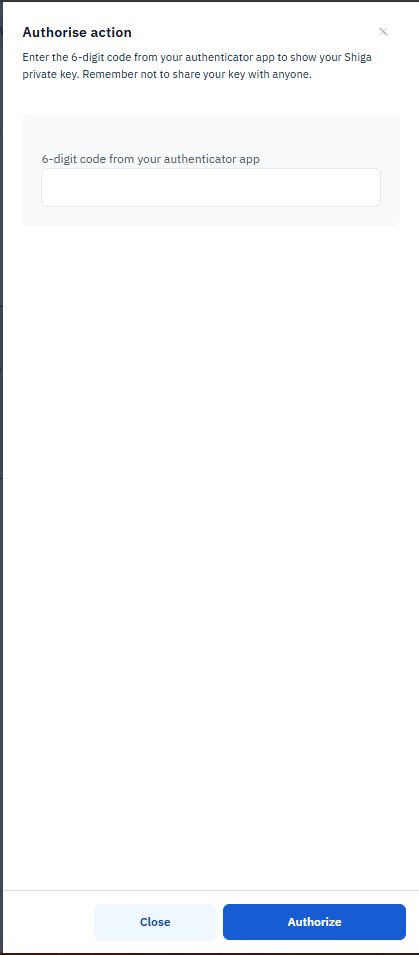 **Authorizing 2FA Setup**
1. Once you select an authentication method, you will be prompted to:
1. **Enter a 6-digit verification code** from your chosen method (email or authenticator app).
2. **Confirm the action** by clicking **"Authorize"**.
3. **Confirm Your 2fa is set.**
Never share your **private key** or **2FA codes** with anyone.
If you lose access to your 2FA method, account recovery may be difficult hence ensure backup options are in place.
## **Why Enable 2FA?**
**Prevents unauthorized access** even if your password is compromised.
\
**Protects sensitive transactions** and account changes.
\
**Industry-standard security** used by banks and top financial platforms.
You can only **switch between email and authenticator app once every 24 hours.**
This prevents rapid changes that could indicate account compromise.
**Authorizing 2FA Setup**
1. Once you select an authentication method, you will be prompted to:
1. **Enter a 6-digit verification code** from your chosen method (email or authenticator app).
2. **Confirm the action** by clicking **"Authorize"**.
3. **Confirm Your 2fa is set.**
Never share your **private key** or **2FA codes** with anyone.
If you lose access to your 2FA method, account recovery may be difficult hence ensure backup options are in place.
## **Why Enable 2FA?**
**Prevents unauthorized access** even if your password is compromised.
\
**Protects sensitive transactions** and account changes.
\
**Industry-standard security** used by banks and top financial platforms.
You can only **switch between email and authenticator app once every 24 hours.**
This prevents rapid changes that could indicate account compromise.