> ## Documentation Index
> Fetch the complete documentation index at: https://docs.shiga.io/llms.txt
> Use this file to discover all available pages before exploring further.
# One-Click Logins
> Say goodbye to passwords and hello to seamless security (Biometrics)
Passkeys provide a secure and convenient way to sign in to your Shiga account using biometric authentication (fingerprint, face scan) or your phone’s screen lock (PIN). Follow the steps below to activate Passkey on the Shiga web application.
## **Access Account Settings**
1. Log in to your Shiga web application.
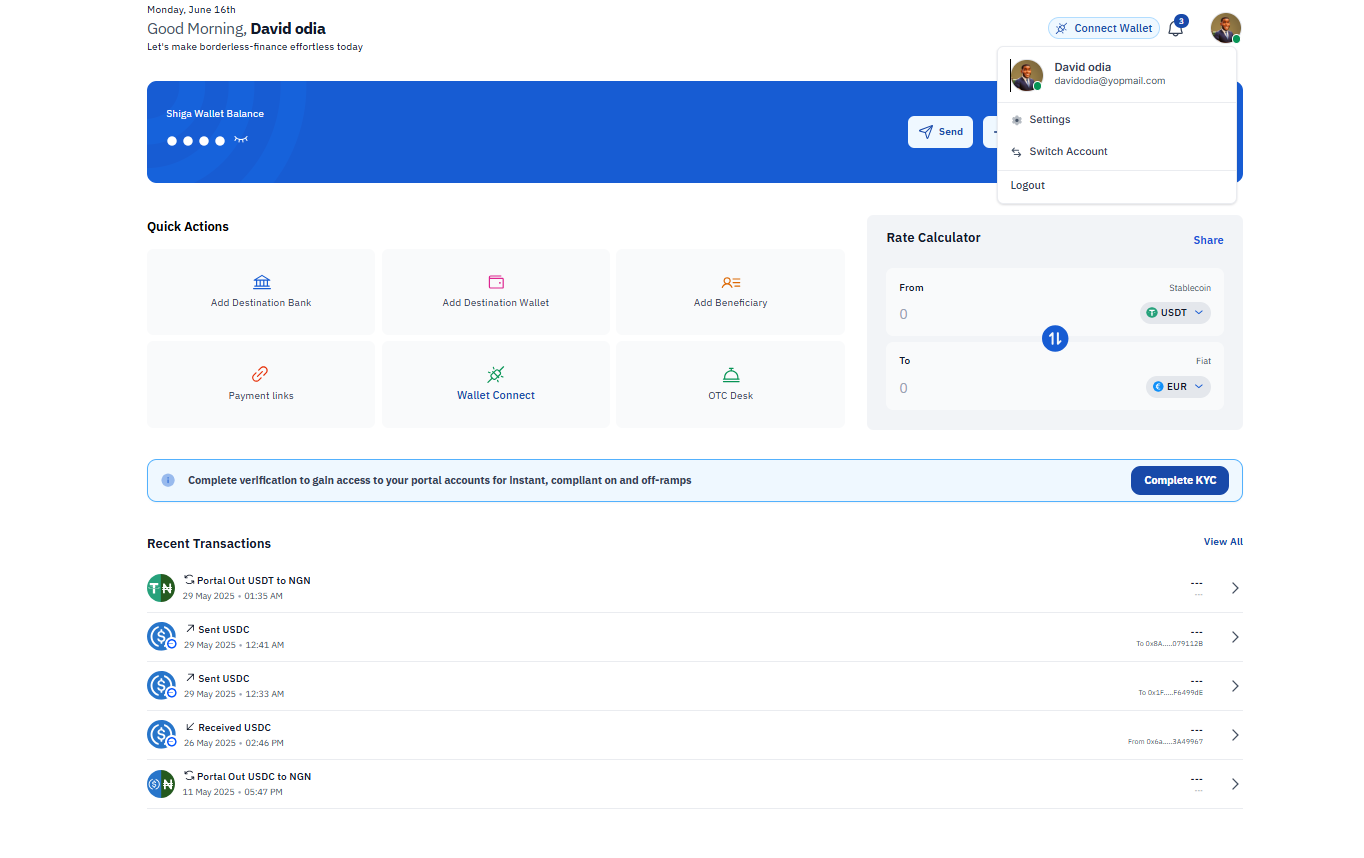
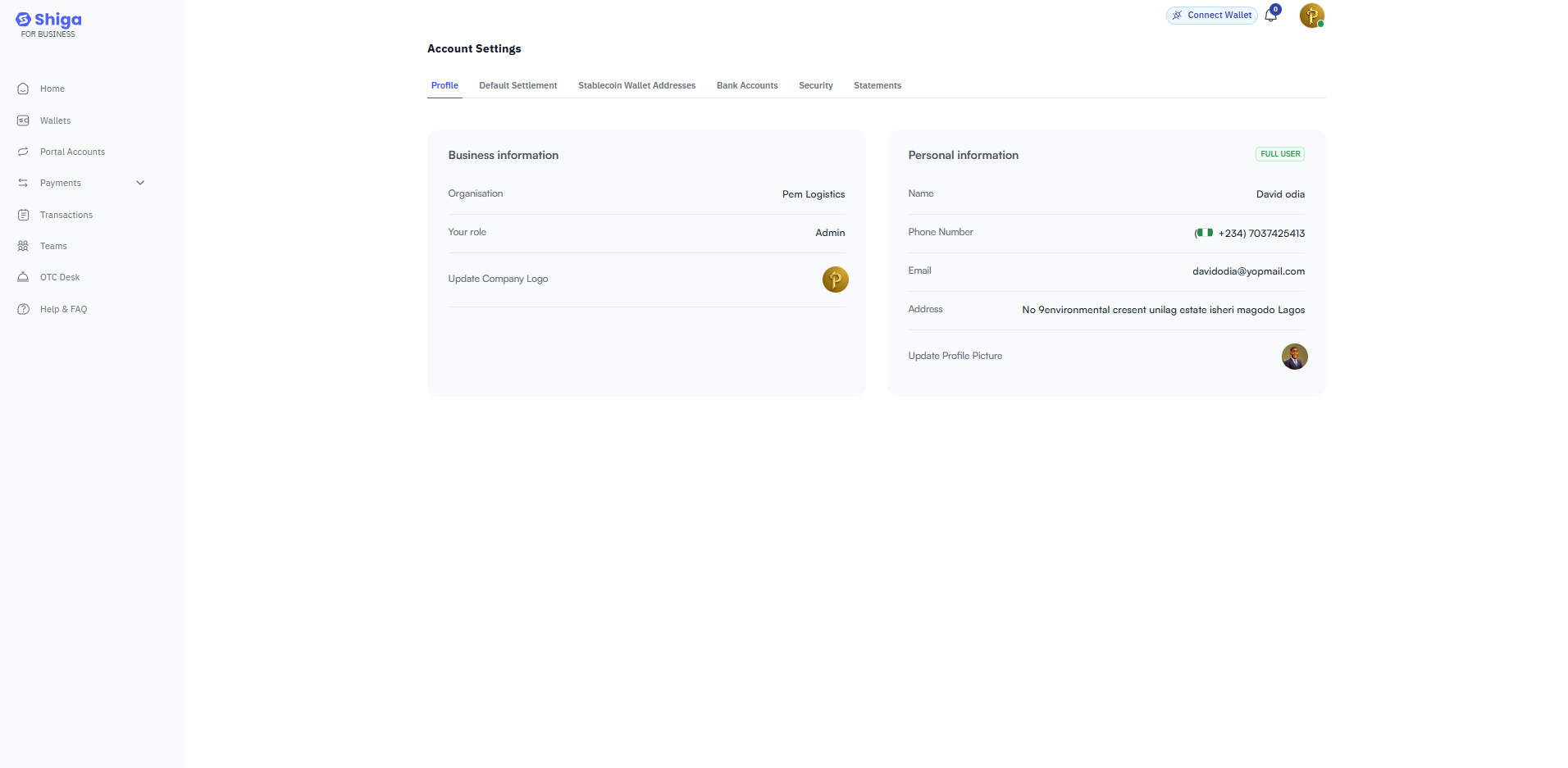
2. Navigate to **Account Settings** from the dashboard or profile menu.
## **Navigate to Security Settings**
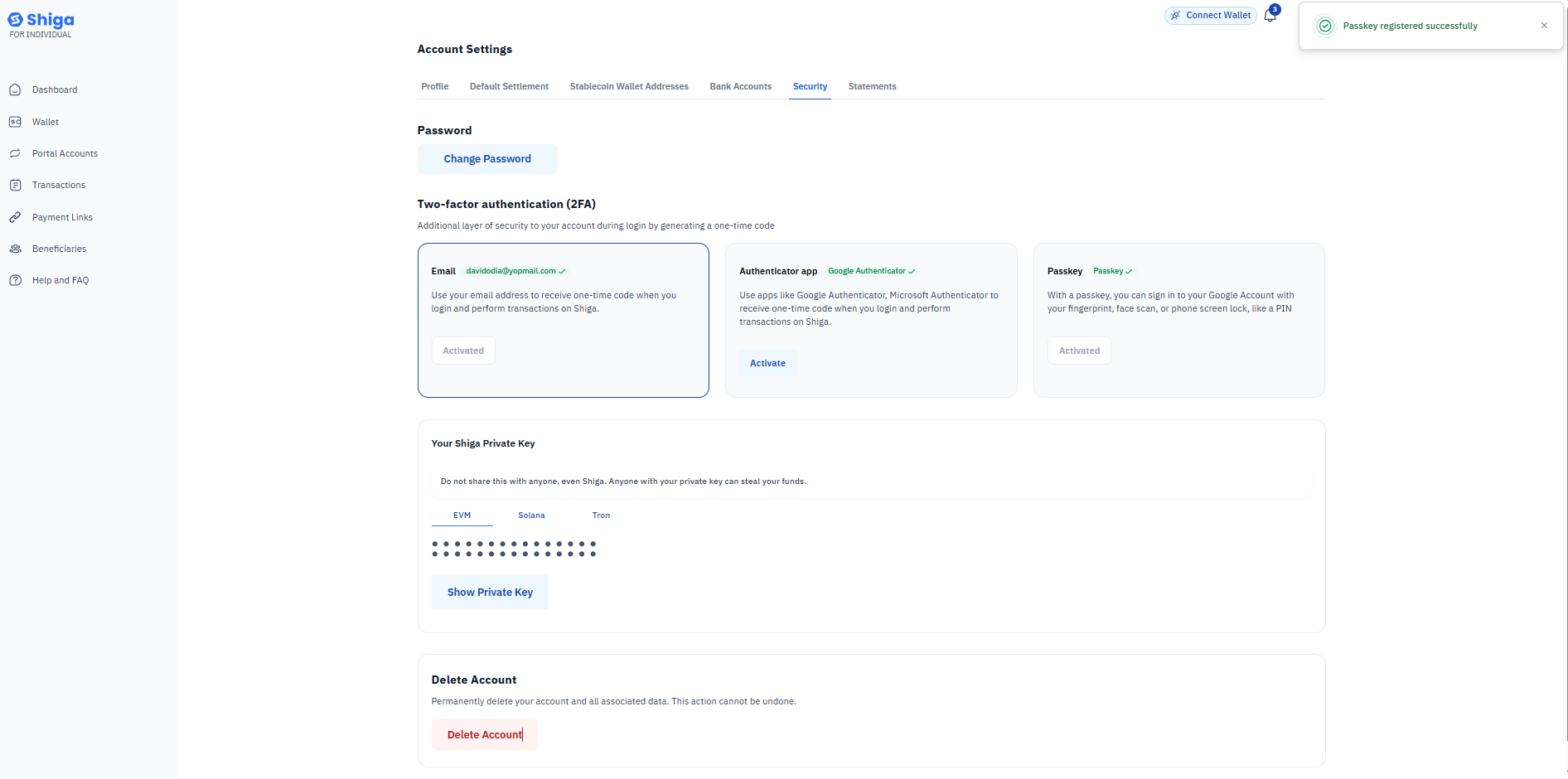
Under **Account Settings**, locate and select the **Security** tab.
 ## **Enable Passkey Registration**
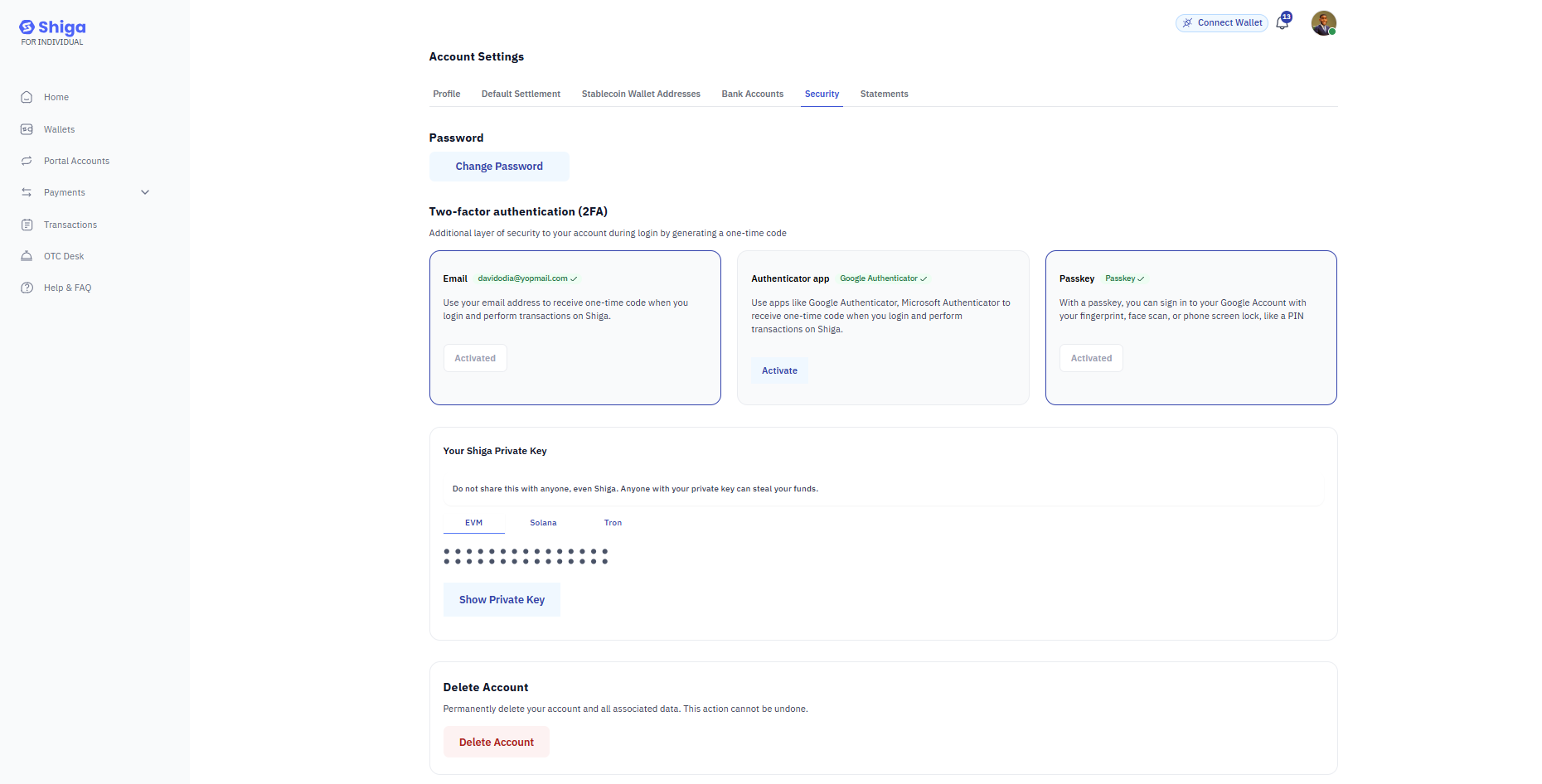
1. Scroll down to the **Passkey** section.
2. Click on **Enable Passkey** or **Register Passkey**.
## **Enable Passkey Registration**
1. Scroll down to the **Passkey** section.
2. Click on **Enable Passkey** or **Register Passkey**.
 ## **Verify Your Email**
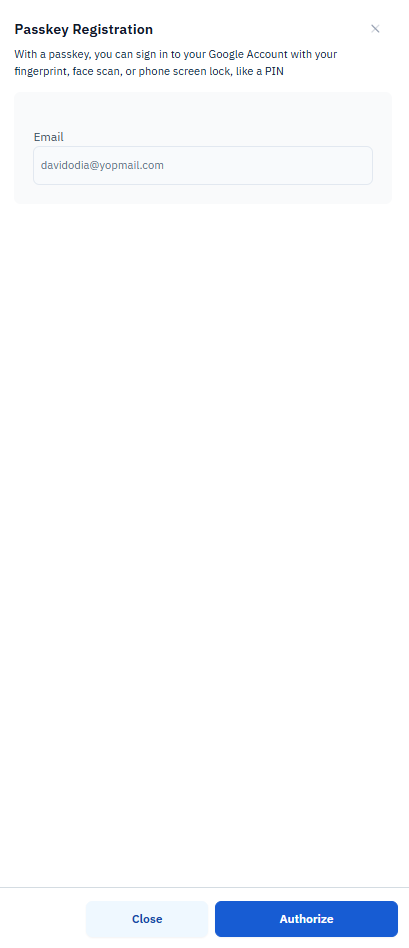
1. Ensure the displayed email [**Olivera@gmail.com**](mailto:davidodia@yppmail.com) in this example) is correct.
2. Click **Authorize** to proceed.
## **Verify Your Email**
1. Ensure the displayed email [**Olivera@gmail.com**](mailto:davidodia@yppmail.com) in this example) is correct.
2. Click **Authorize** to proceed.
 ## **Set Up Biometric or Device Authentication**
1. Follow your device’s prompts to register a biometric (fingerprint/face scan) or screen lock (PIN).
2. Confirm the setup when prompted.
## **Set Up Biometric or Device Authentication**
1. Follow your device’s prompts to register a biometric (fingerprint/face scan) or screen lock (PIN).
2. Confirm the setup when prompted.
 ## **Confirmation**
Once completed, you will see a confirmation message. Your Passkey is now active and can be used for secure logins.
## **Confirmation**
Once completed, you will see a confirmation message. Your Passkey is now active and can be used for secure logins.
 Use your Passkey for faster, more secure logins.
Ensure your device’s biometric or lock screen is set up for seamless authentication.
Passkeys replace traditional passwords and are tied to your device.
If you switch devices, you may need to re-register your Passkey.
Never share your authentication details with anyone.
Use your Passkey for faster, more secure logins.
Ensure your device’s biometric or lock screen is set up for seamless authentication.
Passkeys replace traditional passwords and are tied to your device.
If you switch devices, you may need to re-register your Passkey.
Never share your authentication details with anyone.