> ## Documentation Index
> Fetch the complete documentation index at: https://docs.shiga.io/llms.txt
> Use this file to discover all available pages before exploring further.
# Bank Account to Bank Account (Fiat Swap)
> Move Money: converting one currency to another between bank accounts — sending from one currency and having it arrive as a different currency in someone else's bank account, start to finish.
# Bank Account to Bank Account (Fiat Swap)
This Move Money path covers currency exchange between bank accounts — you transfer money in one currency (e.g. Naira) from your bank, and it arrives converted into a different currency (e.g. Euro or Pound) in a recipient's bank account. No crypto or Shiga wallet balance is involved on either end.
This is a different guide from [Shiga Wallet to Shiga Wallet (Swap)](/MoveMoney/walletswap), [Shiga Wallet to External Address (Withdrawal)](/MoveMoney/externalwithdrawal), [My Shiga Wallet to Bank Account (Offramp)](/MoveMoney/offramp), [External Wallet to My Shiga Wallet (Swap)](/MoveMoney/externaldeposit), [External Wallet to External Address (Send)](/MoveMoney/externalsend), [External Wallet to Bank Account (Offramp)](/MoveMoney/externaloffframp), [Bank Account to My Shiga Wallet (Onramp)](/MoveMoney/bankonramp), and [Bank Account to External Address](/MoveMoney/bank2address). This is the only Move Money path that's entirely fiat-to-fiat — both ends are bank accounts, and crypto only exists briefly behind the scenes as the settlement rail.
***
## 1. Open your home screen and tap Move Money
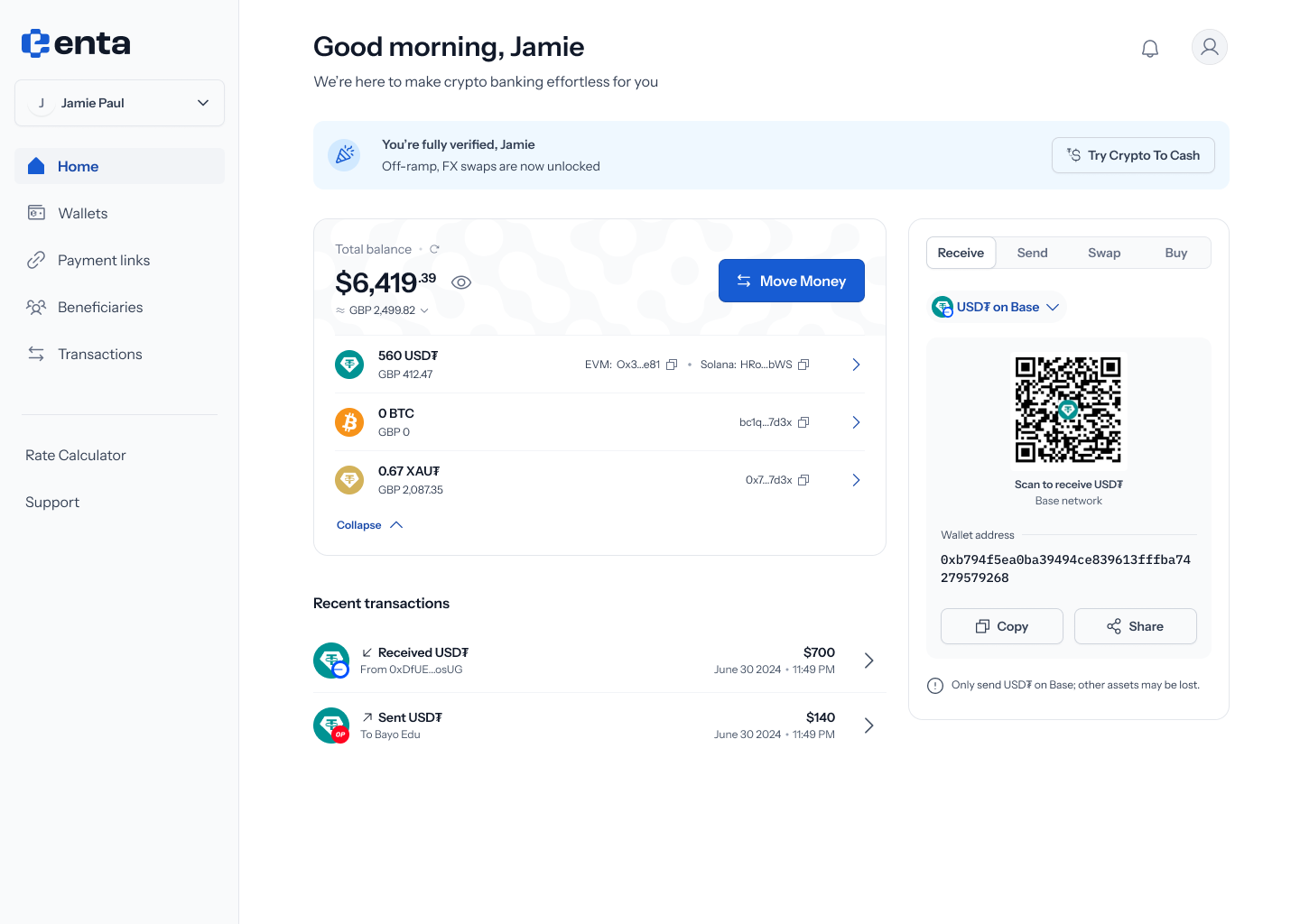 Every Move Money flow starts here, on your Enta home screen — tap **Move Money** to begin.
## 2. Choose Bank account as the source
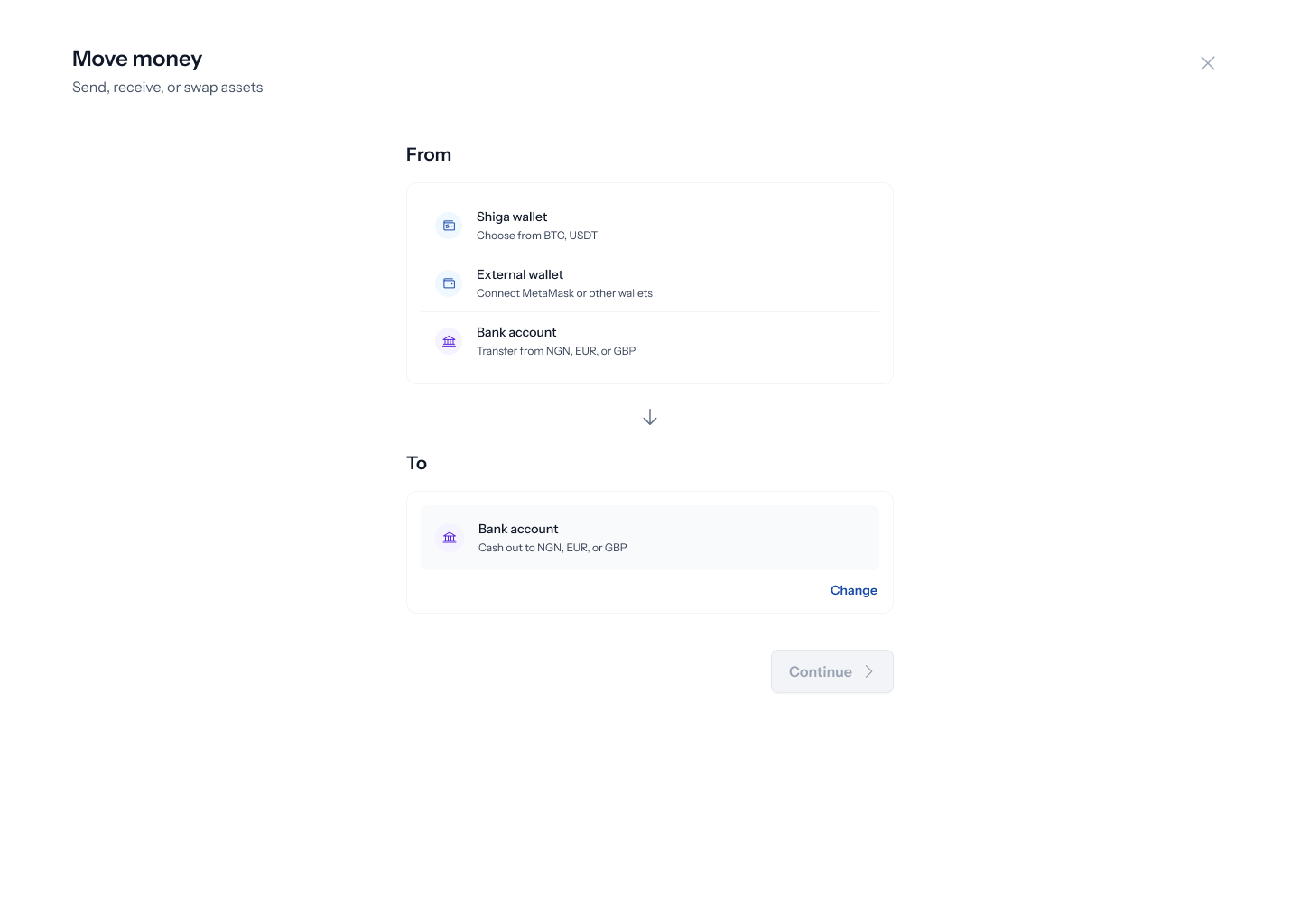
Tapping **Move Money** opens a panel titled **"Move money"** — *"Send, receive, or swap assets"*. Tap **Change** on the **From** field to pick where the money's coming from: **Shiga wallet** (*"Choose from BTC, USDT"*), **External wallet** (*"Connect MetaMask or other wallets"*), or **Bank account** (*"Transfer from NGN, EUR, or GBP"*). Pick **Bank account**.
Every Move Money flow starts here, on your Enta home screen — tap **Move Money** to begin.
## 2. Choose Bank account as the source
Tapping **Move Money** opens a panel titled **"Move money"** — *"Send, receive, or swap assets"*. Tap **Change** on the **From** field to pick where the money's coming from: **Shiga wallet** (*"Choose from BTC, USDT"*), **External wallet** (*"Connect MetaMask or other wallets"*), or **Bank account** (*"Transfer from NGN, EUR, or GBP"*). Pick **Bank account**.
 ## 3. Choose Bank account as the destination
With **Bank account** set as From, tap **Change** on the **To** field to see: **Shiga wallet** (*"Receive as BTC, USDT"*), **External address** (*"Send to any wallet address"*), or **Bank account** (*"Cash out to NGN, EUR, or GBP"*). Pick **Bank account** again — this time as the destination.
## 3. Choose Bank account as the destination
With **Bank account** set as From, tap **Change** on the **To** field to see: **Shiga wallet** (*"Receive as BTC, USDT"*), **External address** (*"Send to any wallet address"*), or **Bank account** (*"Cash out to NGN, EUR, or GBP"*). Pick **Bank account** again — this time as the destination.
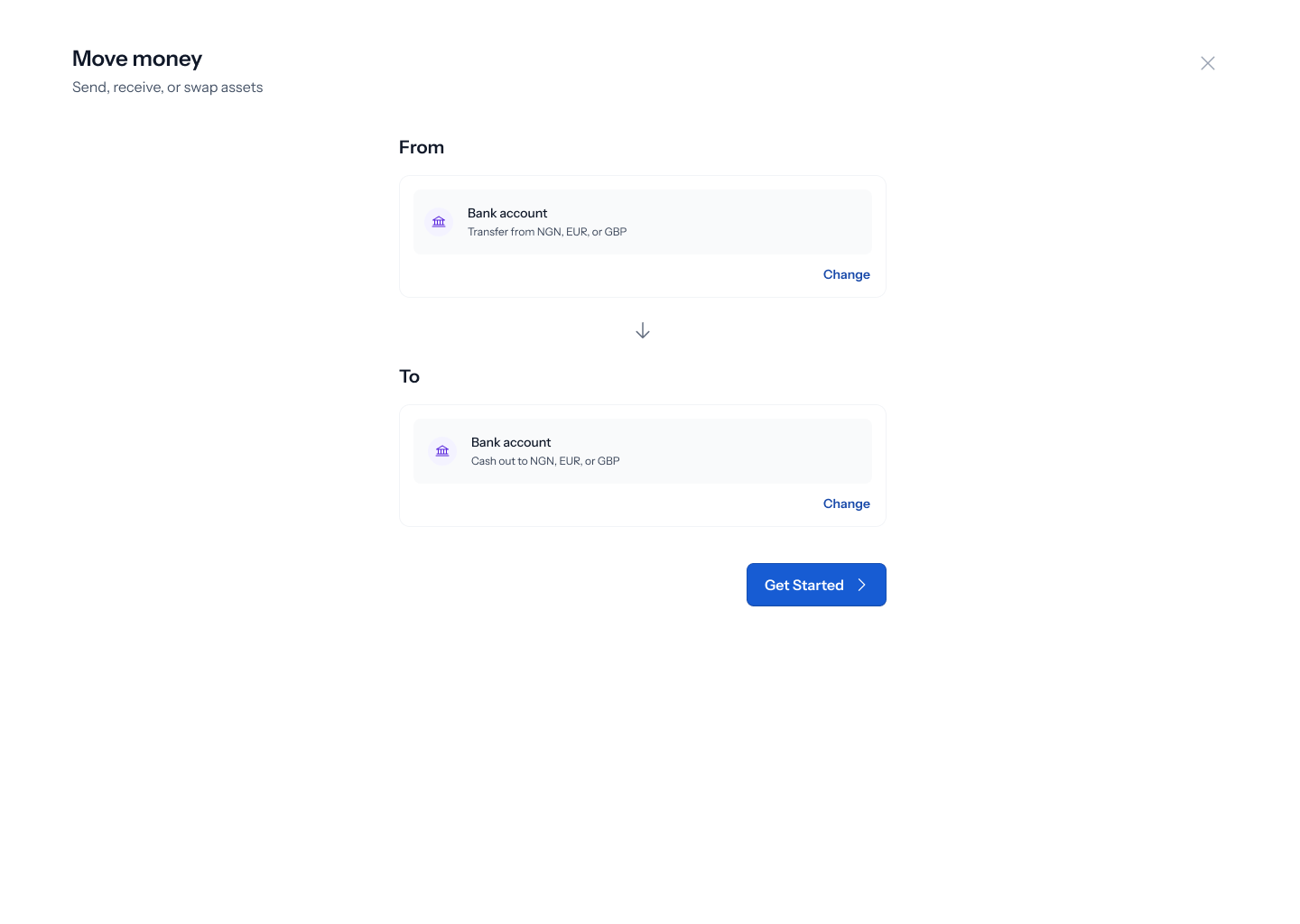
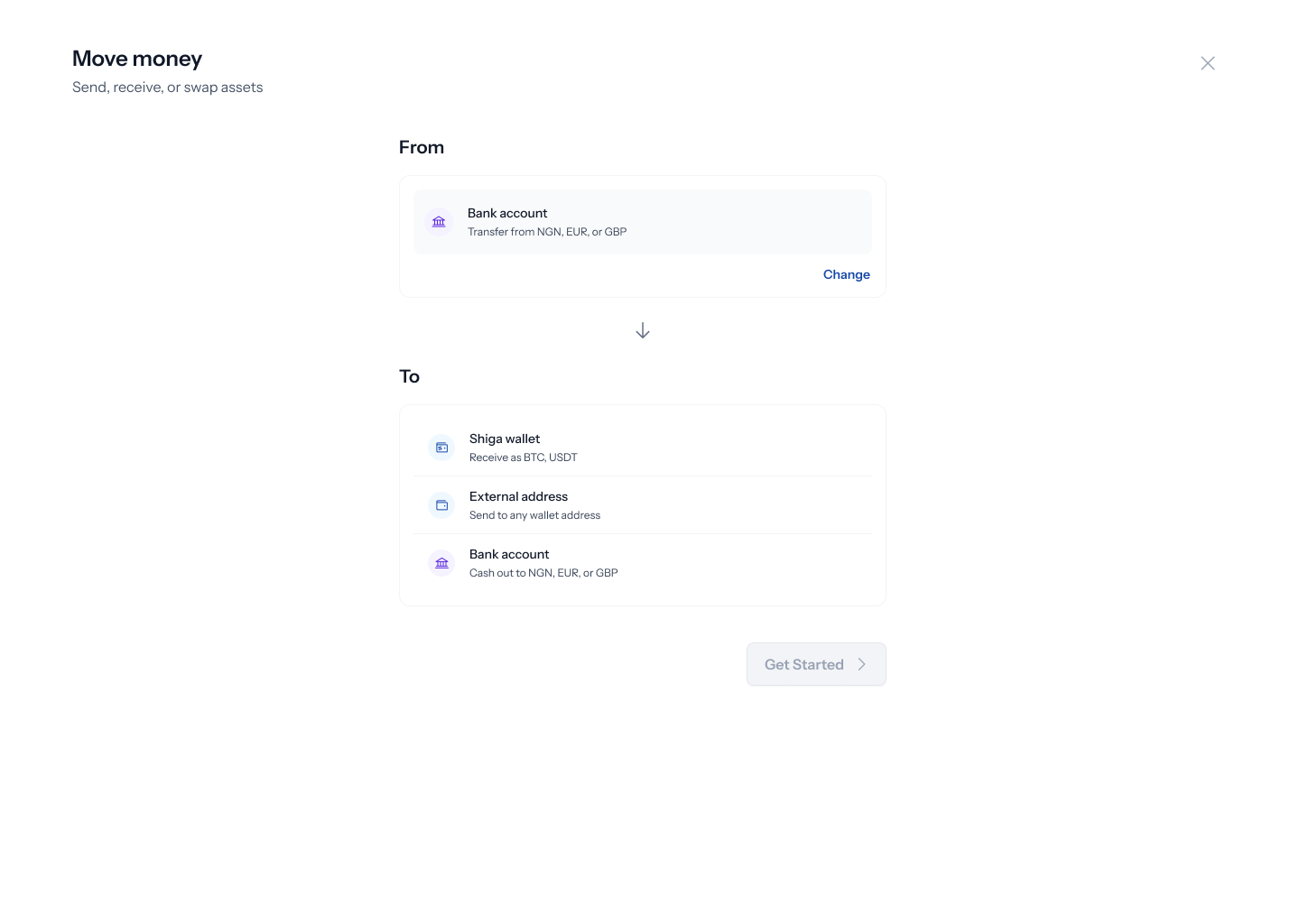 Once both fields are set, the panel updates to show your full selection, and the **Get started** button becomes active.
 ## 4. Choose your send and receive currencies
Tapping **Get started** opens a **Swap currencies** screen — *"Currency exchange between bank accounts"* — with a three-step tracker down the left: **Recipient**, **Amount**, **Review & Pay**. Despite the step being called "Recipient," this first screen asks *"Who are you sending to?"* and starts with currency selection: a **Send** currency (defaulting to **Naira**) and a **Receive** currency, offered as **Euro** or **Pound**. Pick your receive currency.
## 4. Choose your send and receive currencies
Tapping **Get started** opens a **Swap currencies** screen — *"Currency exchange between bank accounts"* — with a three-step tracker down the left: **Recipient**, **Amount**, **Review & Pay**. Despite the step being called "Recipient," this first screen asks *"Who are you sending to?"* and starts with currency selection: a **Send** currency (defaulting to **Naira**) and a **Receive** currency, offered as **Euro** or **Pound**. Pick your receive currency.
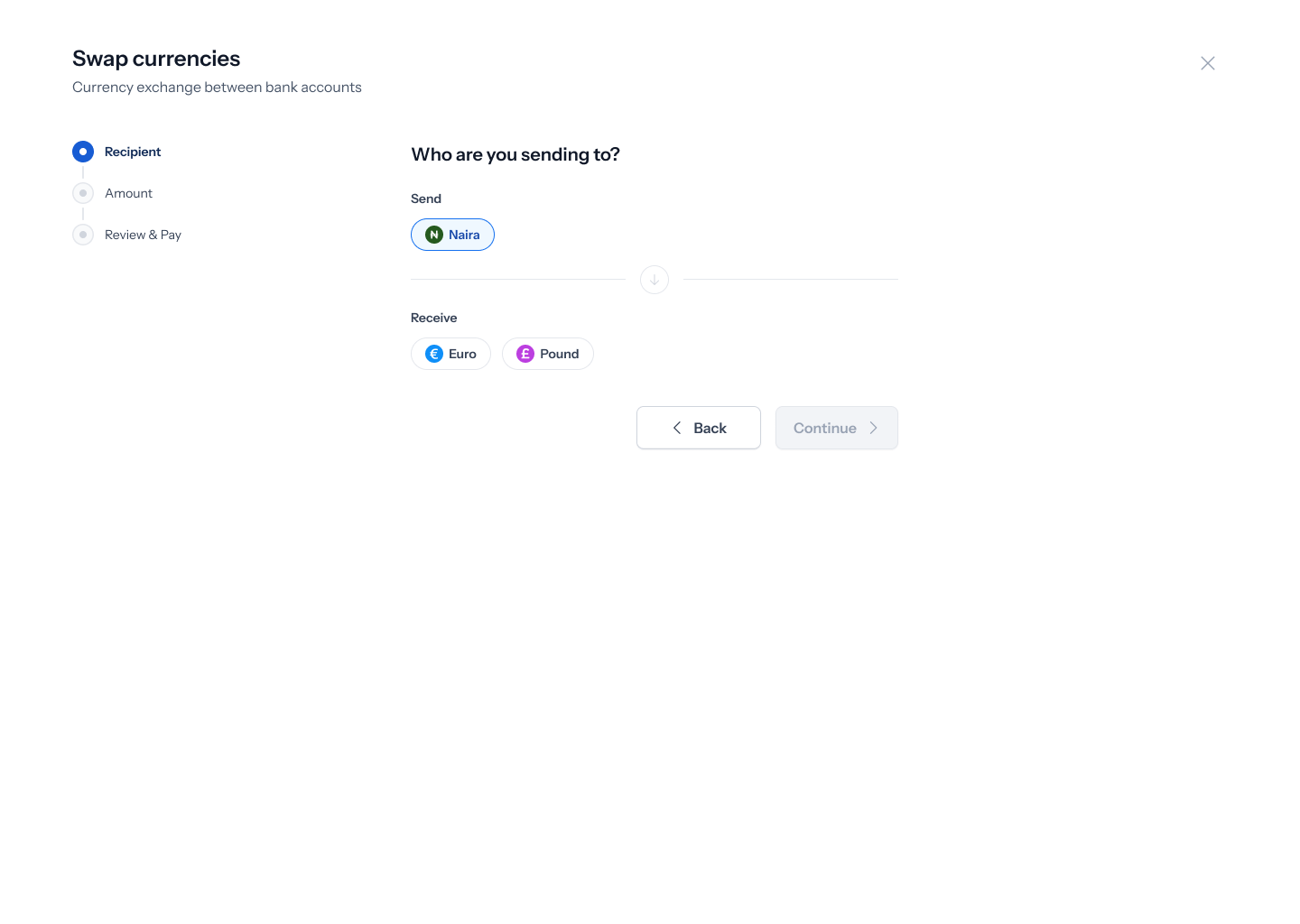 Below the currency pickers, **Recent** and **Beneficiary** tabs let you pick a previously used recipient account — if you've never sent this way before, this shows *"No transactions yet"* (*"Complete a transaction and we'll show your most recent ones here"*). Next to those tabs, a **New Bank Account** button (with a plus icon) lets you add a fresh recipient account in your chosen receive currency.
## 5. Add the recipient's bank account
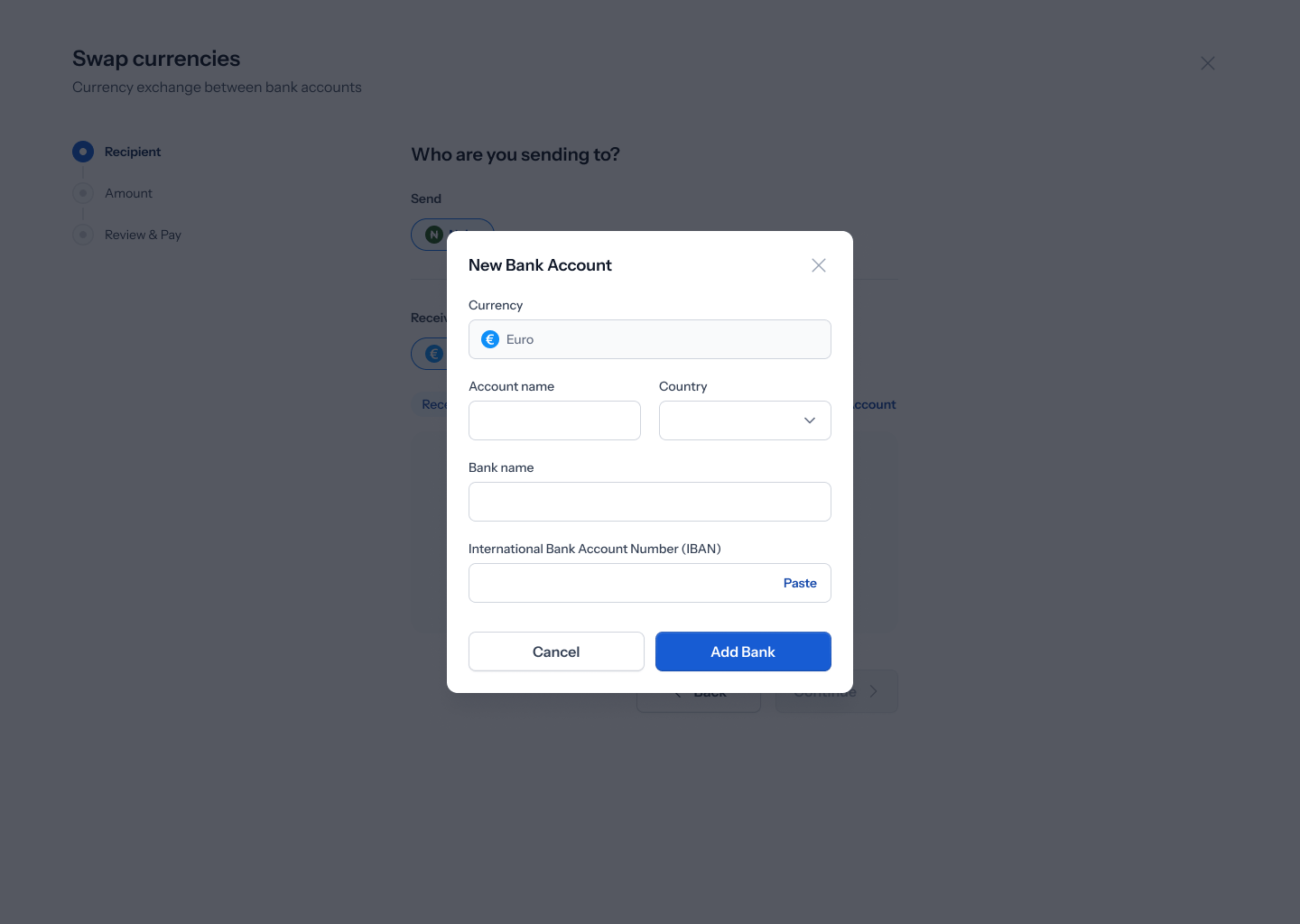
Tapping **New Bank Account** opens a form scoped to your chosen currency — for Euro, this means **Currency** (locked to your selection), **Account name**, **Country**, **Bank name**, and **International Bank Account Number (IBAN)** (with a **Paste** shortcut). Tap **Add Bank** to save it, or **Cancel** to back out.
Below the currency pickers, **Recent** and **Beneficiary** tabs let you pick a previously used recipient account — if you've never sent this way before, this shows *"No transactions yet"* (*"Complete a transaction and we'll show your most recent ones here"*). Next to those tabs, a **New Bank Account** button (with a plus icon) lets you add a fresh recipient account in your chosen receive currency.
## 5. Add the recipient's bank account
Tapping **New Bank Account** opens a form scoped to your chosen currency — for Euro, this means **Currency** (locked to your selection), **Account name**, **Country**, **Bank name**, and **International Bank Account Number (IBAN)** (with a **Paste** shortcut). Tap **Add Bank** to save it, or **Cancel** to back out.
 Adding a new beneficiary triggers a **Verification required** step — a 6-digit code sent to your email to confirm the new account, with a **Resend via Email** option if it doesn't arrive. You can't proceed until this code is entered. No screenshot is wired in for this verification modal yet since one hasn't been uploaded.
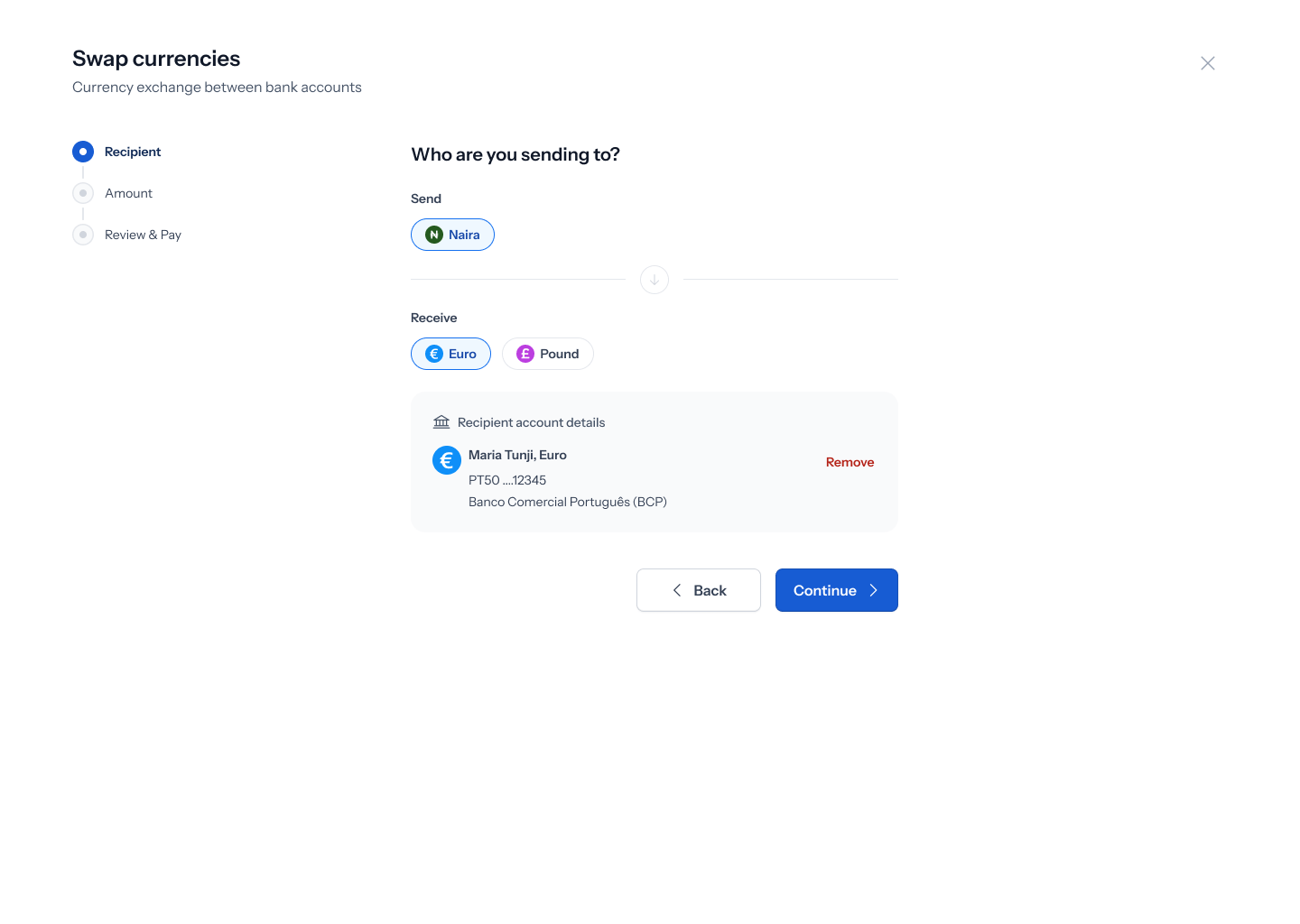
Once verified, your new recipient account appears filled in — showing the account holder's name, currency, masked account number, and bank name — with a **Remove** option if you need to detach it. Tap **Continue**.
Adding a new beneficiary triggers a **Verification required** step — a 6-digit code sent to your email to confirm the new account, with a **Resend via Email** option if it doesn't arrive. You can't proceed until this code is entered. No screenshot is wired in for this verification modal yet since one hasn't been uploaded.
Once verified, your new recipient account appears filled in — showing the account holder's name, currency, masked account number, and bank name — with a **Remove** option if you need to detach it. Tap **Continue**.
 ## 6. Enter an amount
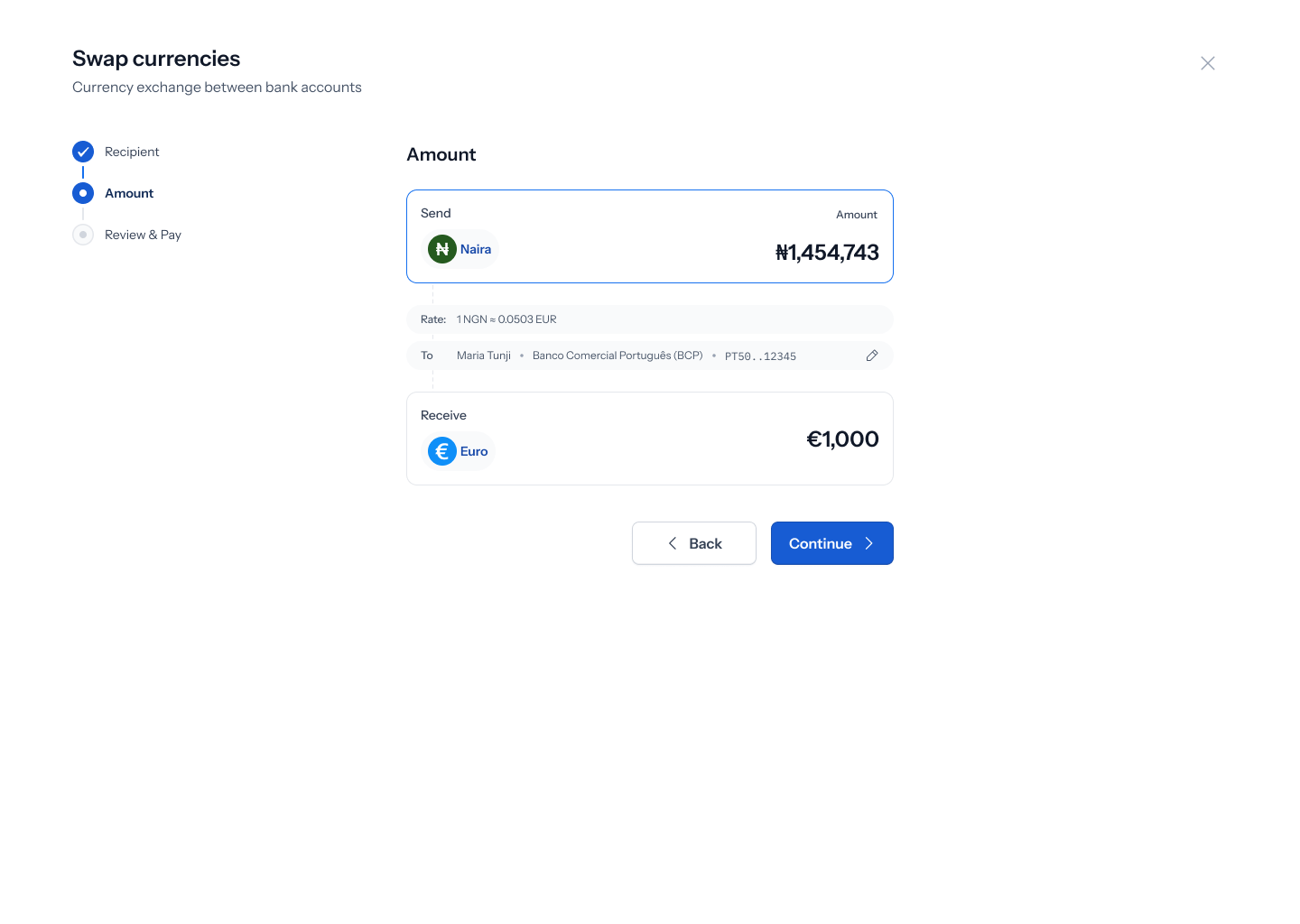
The **Amount** step shows a **Send** card (your source currency and amount) and a **Receive** card (the converted currency and amount), along with a live **Rate** and a **To** row confirming your recipient's name, bank, and masked account — with a pencil icon to edit it. Enter how much you want to send; the receive amount calculates automatically. Tap **Continue**.
## 6. Enter an amount
The **Amount** step shows a **Send** card (your source currency and amount) and a **Receive** card (the converted currency and amount), along with a live **Rate** and a **To** row confirming your recipient's name, bank, and masked account — with a pencil icon to edit it. Enter how much you want to send; the receive amount calculates automatically. Tap **Continue**.
 ## 7. Review and pay
The **Review & Pay** step shows your swap as a summary — both currencies and amounts, the **Rate**, and **To** (your recipient and their bank, tagged **Bank Account**). Below that, a **Transfer to this account** section gives you a one-time virtual account to send your source currency to: **Amount**, **Account name**, **Bank**, and **Account number** — each with a copy icon, plus a **Copy All Details** shortcut. A banner spells out exactly what happens: transferring the stated amount to that virtual account triggers the converted amount being sent to your recipient. Tap **Back** to change anything, or **Close** to finish once you've made the transfer.
## 7. Review and pay
The **Review & Pay** step shows your swap as a summary — both currencies and amounts, the **Rate**, and **To** (your recipient and their bank, tagged **Bank Account**). Below that, a **Transfer to this account** section gives you a one-time virtual account to send your source currency to: **Amount**, **Account name**, **Bank**, and **Account number** — each with a copy icon, plus a **Copy All Details** shortcut. A banner spells out exactly what happens: transferring the stated amount to that virtual account triggers the converted amount being sent to your recipient. Tap **Back** to change anything, or **Close** to finish once you've made the transfer.
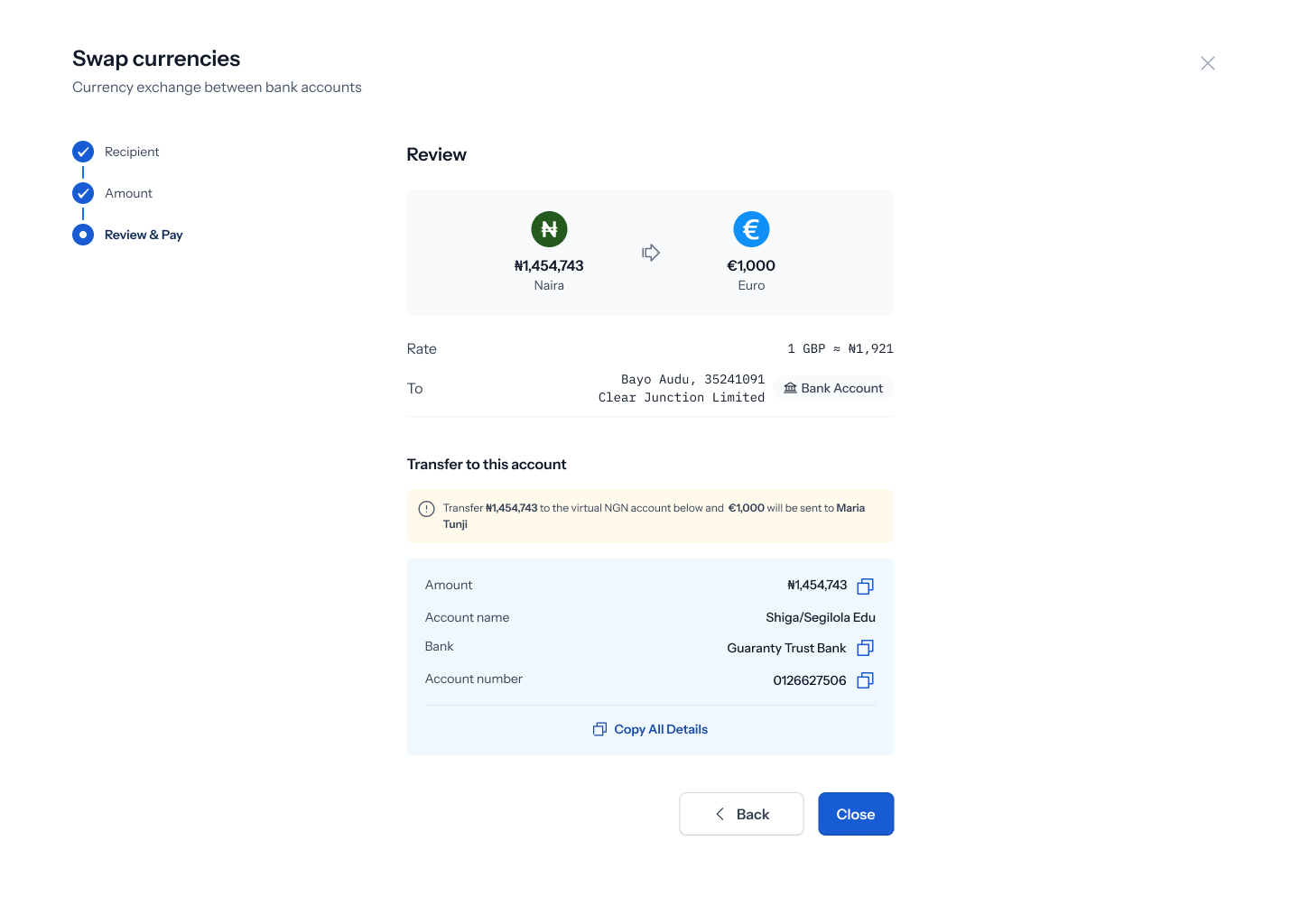 A few things in the current Figma file are worth flagging as sample-data inconsistencies rather than real behavior: the example exchange rate on the Review screen is denominated in GBP (*"1 GBP ≈ ₦1,921"*) even when the flow shown is a Naira-to-Euro swap, and the recipient name shown in the transfer summary ("Bayo Audu") doesn't match the name used earlier in the flow ("Maria Tunji"). Also, the final action button reads **Close** rather than **Pay**, despite the step being labeled "Review & Pay." None of this affects how the real flow works — it's just placeholder content worth a design pass.