> ## Documentation Index
> Fetch the complete documentation index at: https://docs.shiga.io/llms.txt
> Use this file to discover all available pages before exploring further.
# External Wallet to Bank Account (Offramp)
> Move Money: cashing out crypto from an external wallet like MetaMask directly to a bank account, start to finish.
# External Wallet to Bank Account (Offramp)
This Move Money path covers cashing out crypto that's still sitting in an external wallet — like MetaMask — straight to a bank account, without first bringing it into your Shiga wallet.
This is a different guide from [Shiga Wallet to Shiga Wallet (Swap)](/MoveMoney/walletswap), [Shiga Wallet to External Address (Withdrawal)](/MoveMoney/externalwithdrawal), [My Shiga Wallet to Bank Account (Offramp)](/MoveMoney/offramp), [External Wallet to My Shiga Wallet (Swap)](/MoveMoney/externaldeposit), and [External Wallet to External Address (Send)](/MoveMoney/externalsend). Here, crypto moves from an external wallet you connect straight to a bank account, without touching your Shiga wallet balance.
***
## 1. Open your home screen and tap Move Money
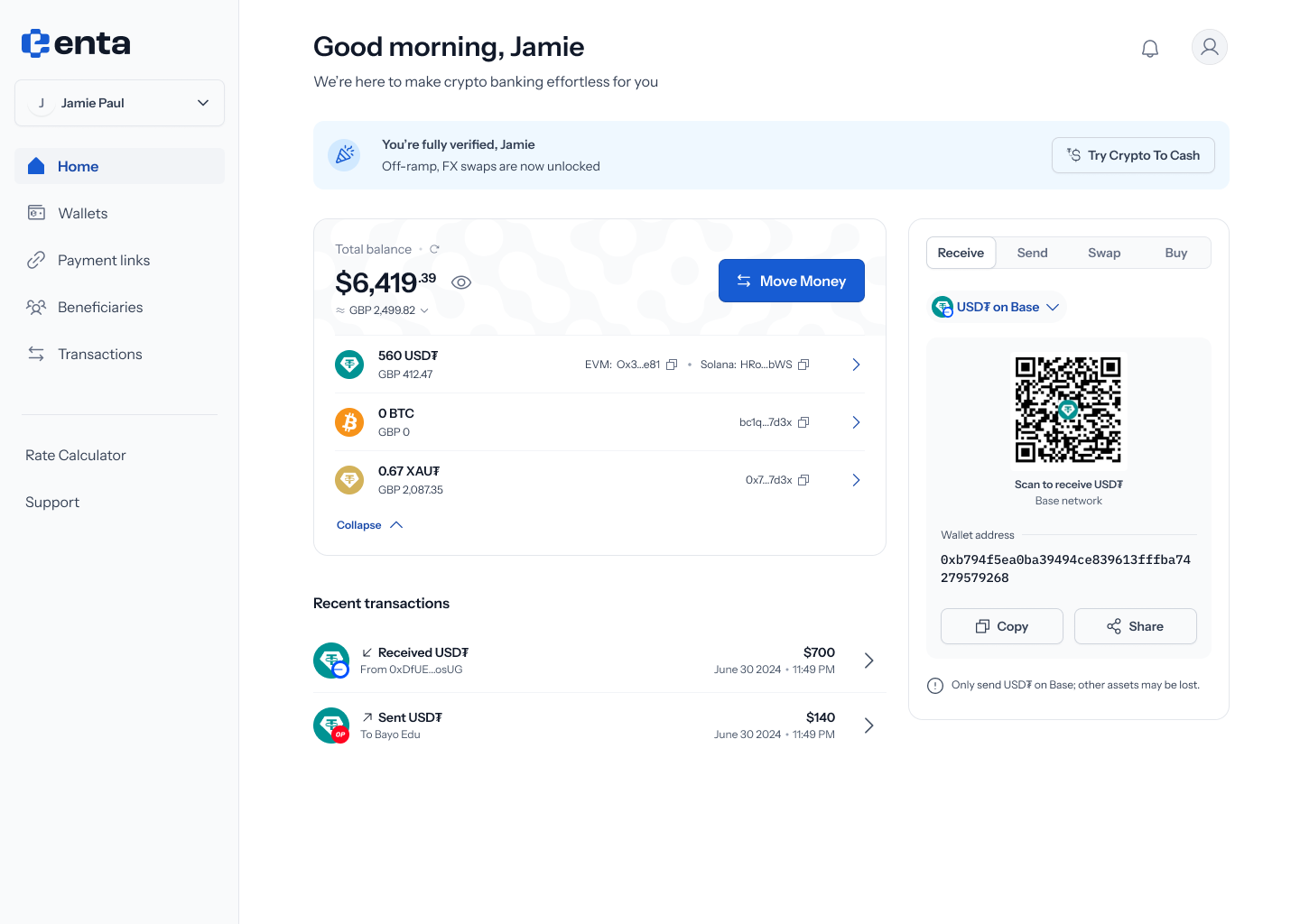 Every Move Money flow starts here, on your Enta home screen — tap **Move Money** to begin.
## 2. Choose External wallet as the source
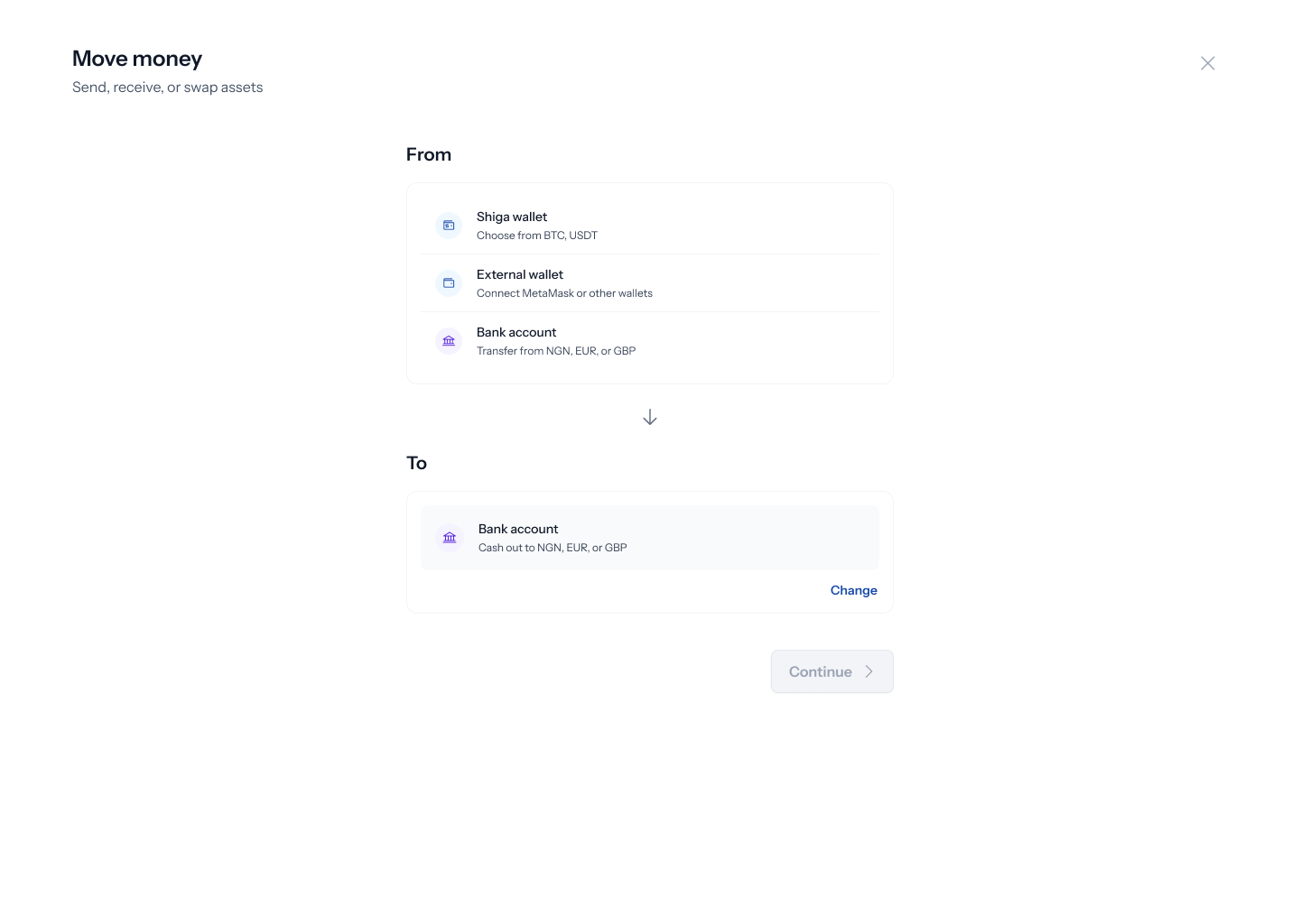
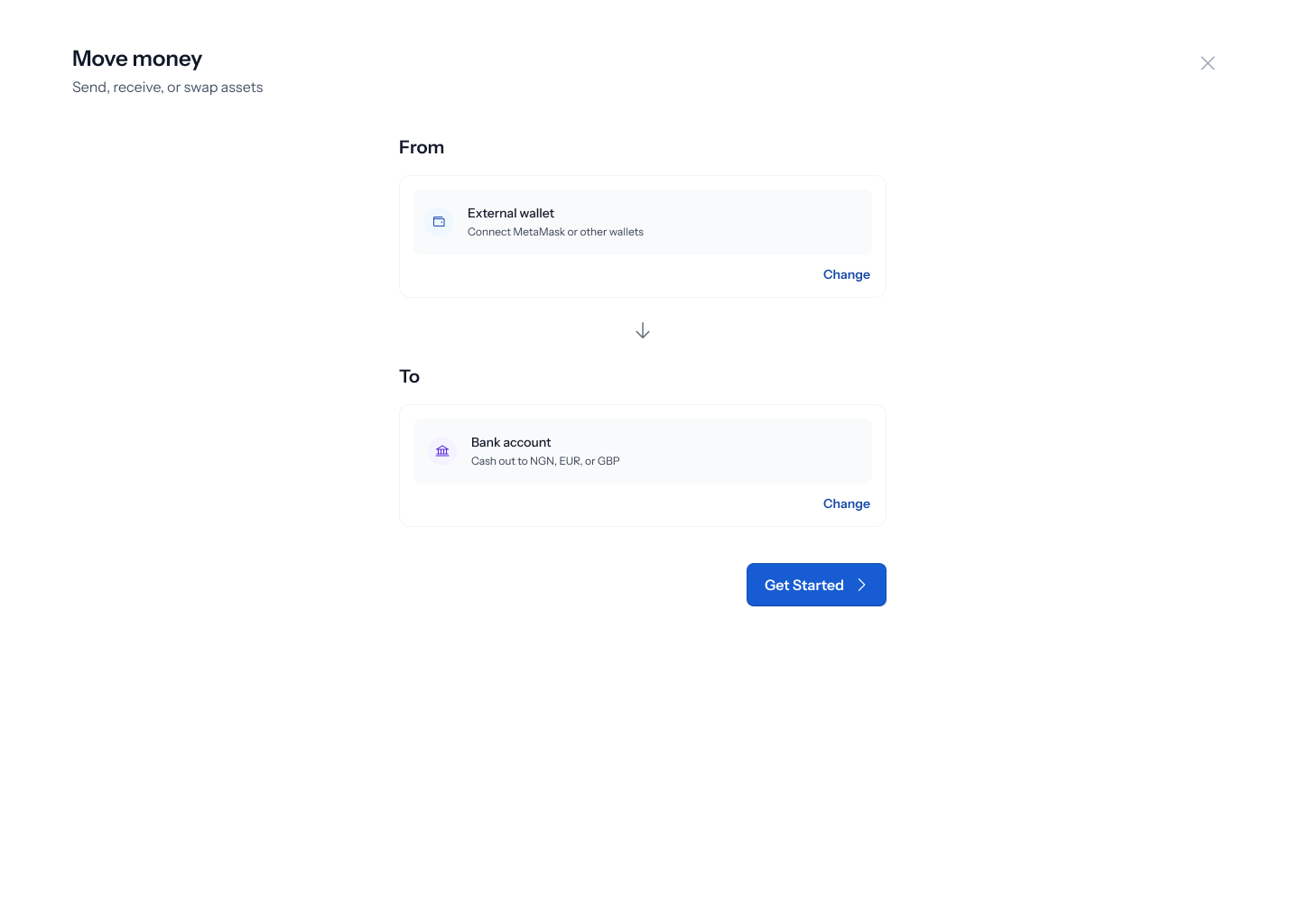
Tapping **Move Money** opens a panel titled **"Move money"** — *"Send, receive, or swap assets"*. Tap **Change** on the **From** field to pick where the money's coming from: **Shiga wallet** (*"Choose from BTC, USDT"*), **External wallet** (*"Connect MetaMask or other wallets"*), or **Bank account** (*"Transfer from NGN, EUR, or GBP"*). Pick **External wallet**.
Every Move Money flow starts here, on your Enta home screen — tap **Move Money** to begin.
## 2. Choose External wallet as the source
Tapping **Move Money** opens a panel titled **"Move money"** — *"Send, receive, or swap assets"*. Tap **Change** on the **From** field to pick where the money's coming from: **Shiga wallet** (*"Choose from BTC, USDT"*), **External wallet** (*"Connect MetaMask or other wallets"*), or **Bank account** (*"Transfer from NGN, EUR, or GBP"*). Pick **External wallet**.
 ## 3. Choose Bank account as the destination
With **External wallet** set as From, tap **Change** on the **To** field to see: **Shiga wallet** (*"Receive as BTC, USDT"*), **External address** (*"Send to any wallet address"*), or **Bank account** (*"Cash out to NGN, EUR, or GBP"*). Pick **Bank account**.
## 3. Choose Bank account as the destination
With **External wallet** set as From, tap **Change** on the **To** field to see: **Shiga wallet** (*"Receive as BTC, USDT"*), **External address** (*"Send to any wallet address"*), or **Bank account** (*"Cash out to NGN, EUR, or GBP"*). Pick **Bank account**.
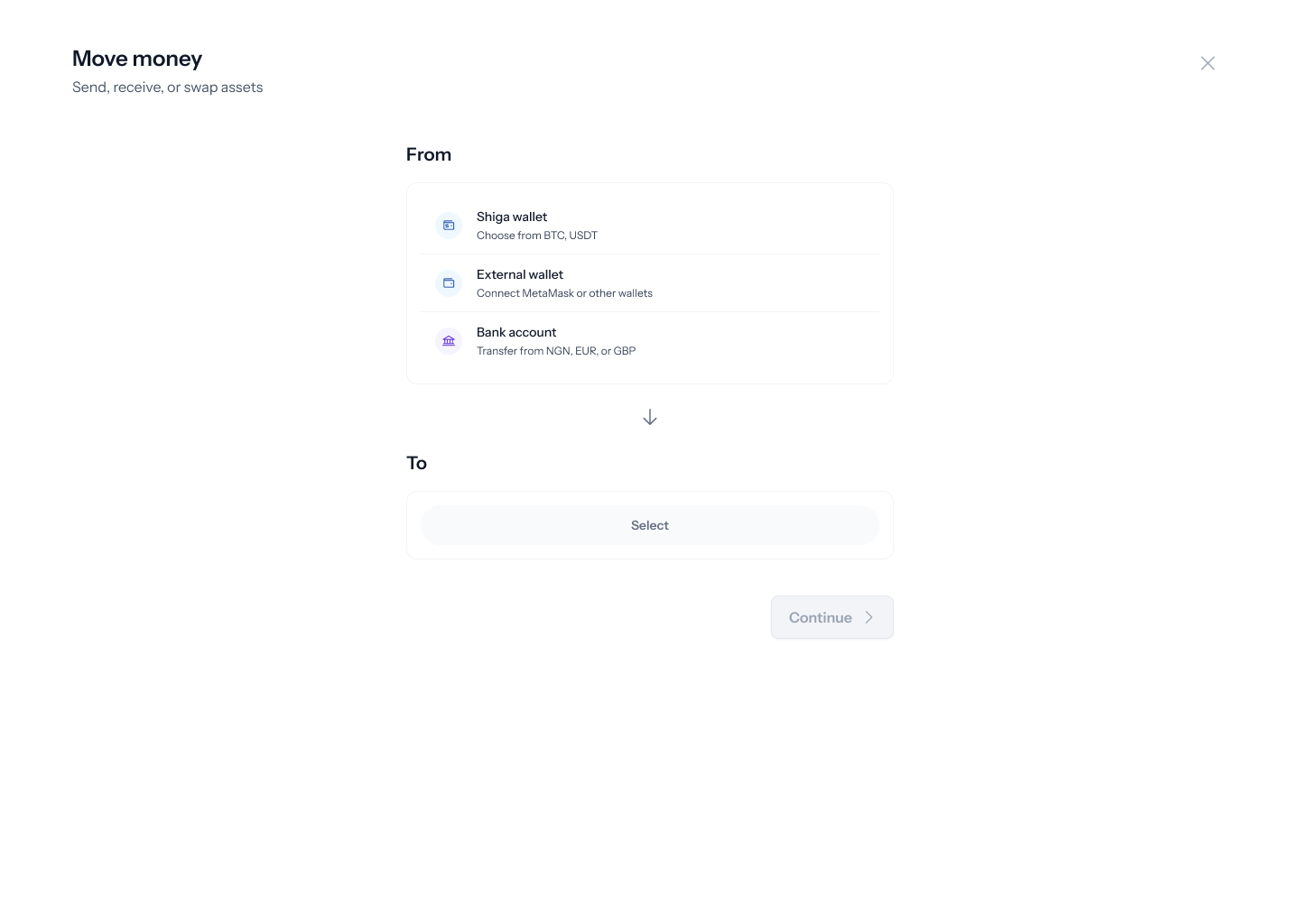 Once both fields are set, the panel updates to show your full selection, and the **Get started** button becomes active.
 ## 4. Enter your bank account details
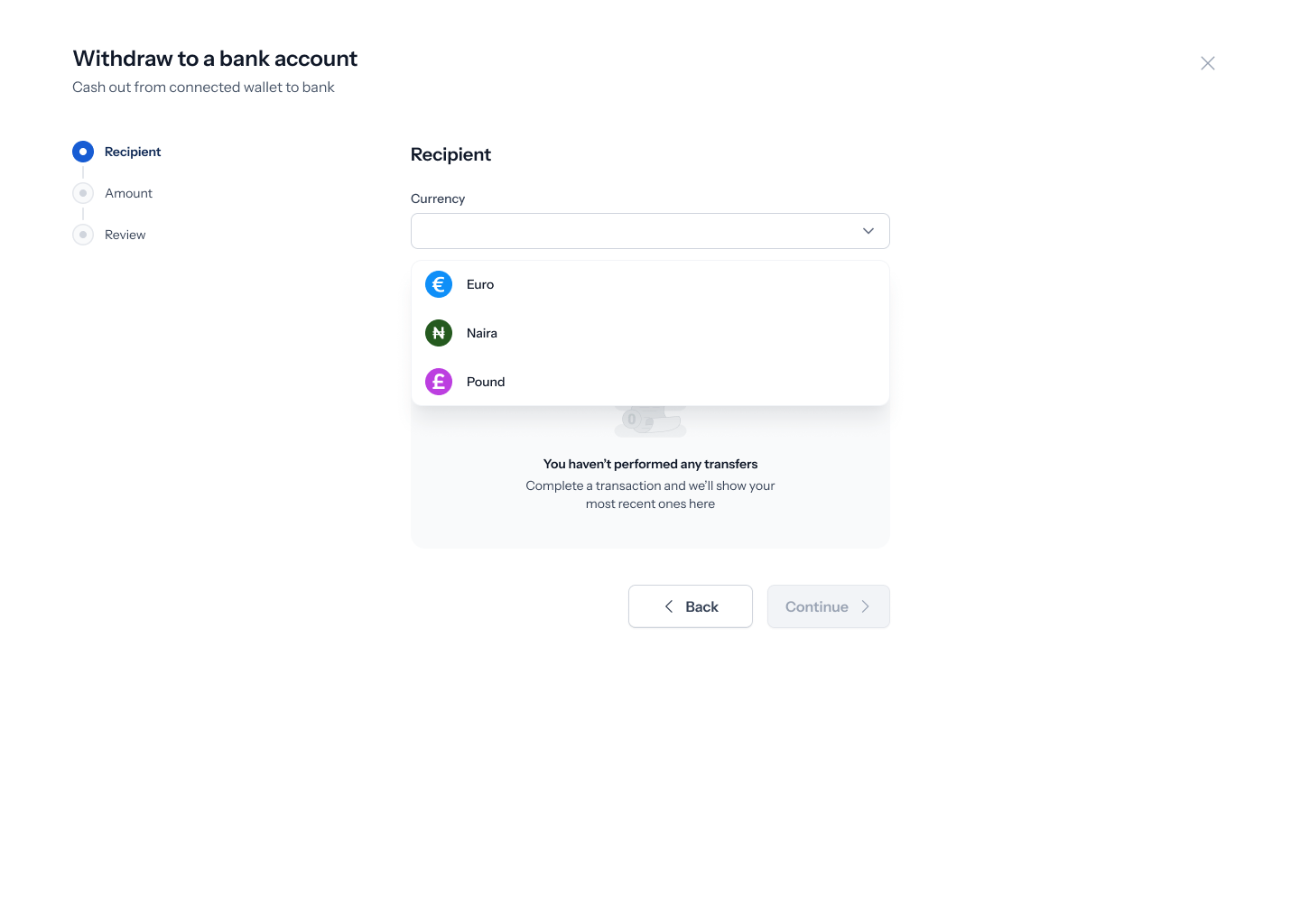
Tapping **Get started** opens a **Withdraw to a bank account** screen — *"Cash out from connected wallet to bank"* — with a three-step tracker down the left: **Recipient**, **Amount**, **Review**. Tap the **Currency** dropdown to choose **Naira**, **Euro**, or **Pound**. Below that, an **or** divider offers **Recent** or **Beneficiary** tabs to pick a saved destination instead — if you've never cashed out before, this shows *"No transactions yet"* (*"Complete a transaction and we'll show your most recent ones here"*).
## 4. Enter your bank account details
Tapping **Get started** opens a **Withdraw to a bank account** screen — *"Cash out from connected wallet to bank"* — with a three-step tracker down the left: **Recipient**, **Amount**, **Review**. Tap the **Currency** dropdown to choose **Naira**, **Euro**, or **Pound**. Below that, an **or** divider offers **Recent** or **Beneficiary** tabs to pick a saved destination instead — if you've never cashed out before, this shows *"No transactions yet"* (*"Complete a transaction and we'll show your most recent ones here"*).
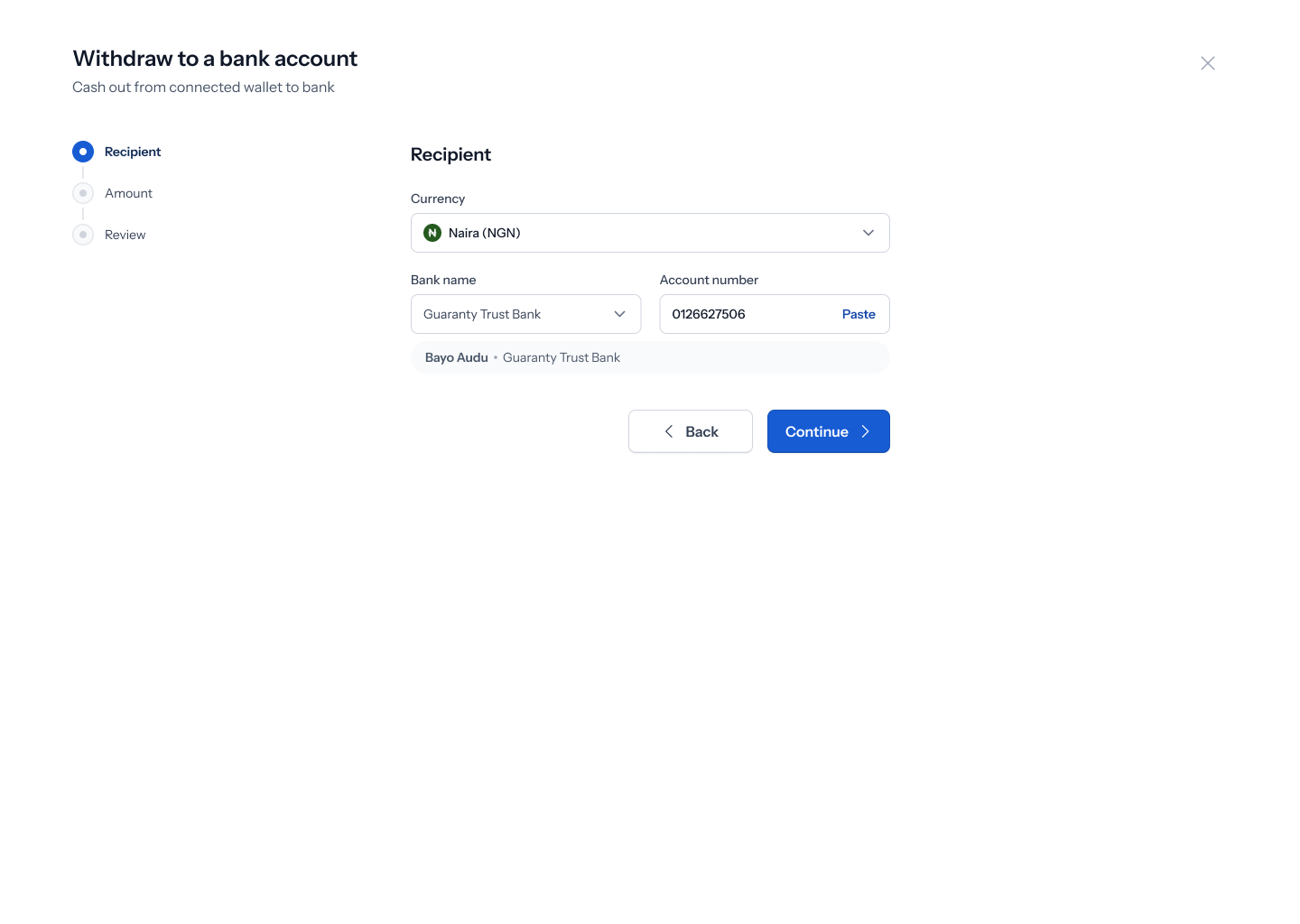
 Picking **Naira** reveals **Bank name** and **Account number** fields. Enter or **Paste** your account number, and once it resolves to a valid account, Enta shows a confirmation pill with the account holder's name and bank (e.g. *"Bayo Audu ⋅ Guaranty Trust Bank"*). Tap **Continue**.
 Tapping **Continue** with required fields empty shows *"Bank name is required"* and/or *"Account number is required"* under each empty field. For Naira accounts, an account number that isn't exactly 10 digits shows *"Account number must be 10 digits."*
**Euro** and **Pound** work the same way but with their own account formats — Euro accounts are validated as IBANs (checksum and country-prefix checks), and Pound accounts require exactly 8 digits.
## 5. Connect your external wallet
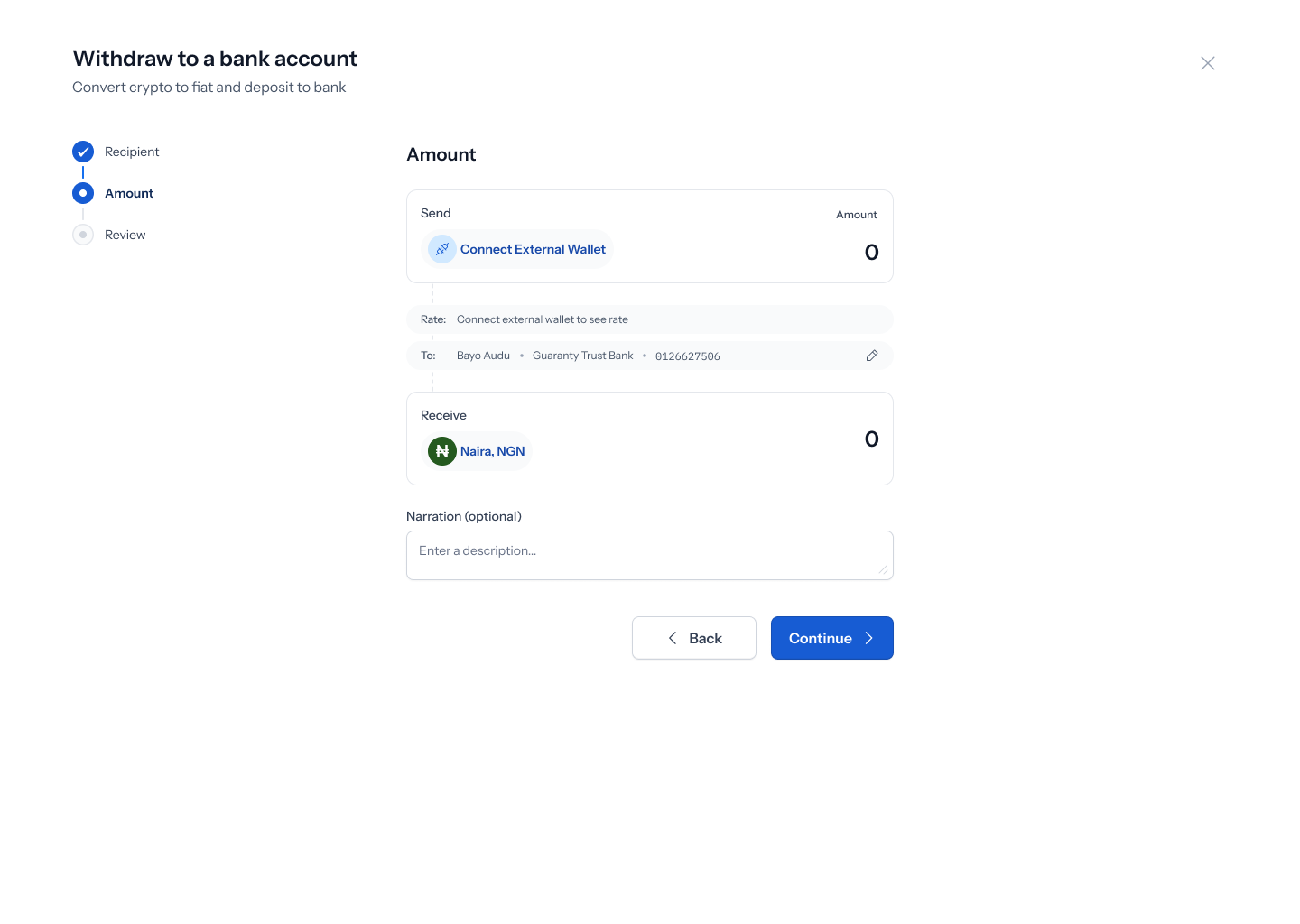
Continuing lands you on the **Amount** step, shown as a swap-style screen with a **Send** card and a **Receive** card. The **Receive** side already shows your chosen currency and confirmed bank details (e.g. *"Naira, NGN"* and *"Bayo Audu, Guaranty Trust Bank"*), but the **Send** side needs a wallet connected — it shows a **Connect External Wallet** button instead of an asset picker. A **Narration (optional)** field sits below for adding a description to the transfer.
Tapping **Continue** with required fields empty shows *"Bank name is required"* and/or *"Account number is required"* under each empty field. For Naira accounts, an account number that isn't exactly 10 digits shows *"Account number must be 10 digits."*
**Euro** and **Pound** work the same way but with their own account formats — Euro accounts are validated as IBANs (checksum and country-prefix checks), and Pound accounts require exactly 8 digits.
## 5. Connect your external wallet
Continuing lands you on the **Amount** step, shown as a swap-style screen with a **Send** card and a **Receive** card. The **Receive** side already shows your chosen currency and confirmed bank details (e.g. *"Naira, NGN"* and *"Bayo Audu, Guaranty Trust Bank"*), but the **Send** side needs a wallet connected — it shows a **Connect External Wallet** button instead of an asset picker. A **Narration (optional)** field sits below for adding a description to the transfer.
 ## 6. Pick the asset to send and enter an amount
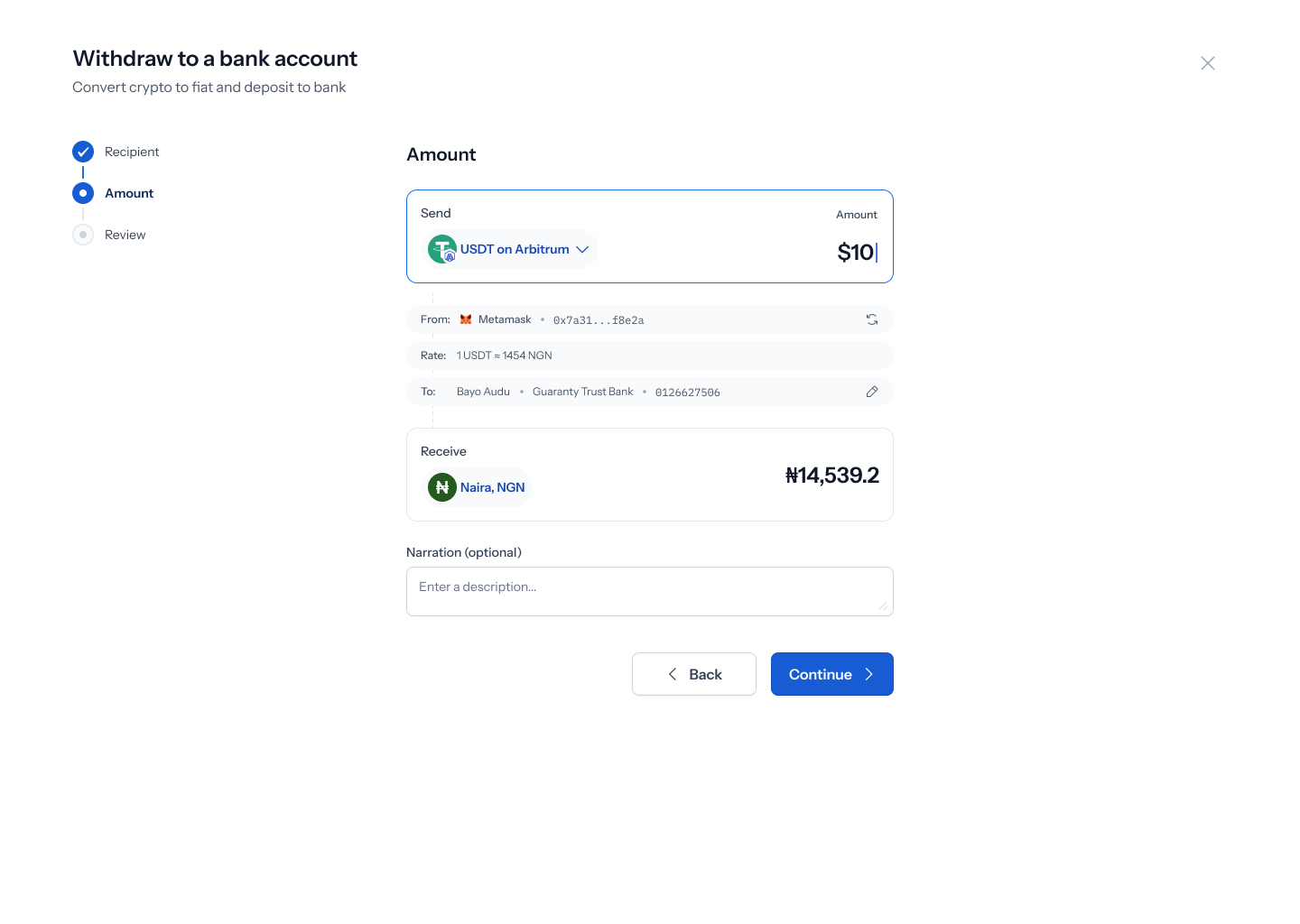
Once connected, the **Send** card shows the wallet's asset (e.g. **USDT on Arbitrum**) with a live rate against the destination currency (e.g. *"1 USDT ≈ 1454 NGN"*), plus a **From:** row naming the connected wallet (e.g. **Metamask**) and its truncated address. Type an **Amount** in the Send card — the Receive card calculates automatically (e.g. sending \$10 computes to roughly ₦14,539.2). Tap **Continue**.
## 6. Pick the asset to send and enter an amount
Once connected, the **Send** card shows the wallet's asset (e.g. **USDT on Arbitrum**) with a live rate against the destination currency (e.g. *"1 USDT ≈ 1454 NGN"*), plus a **From:** row naming the connected wallet (e.g. **Metamask**) and its truncated address. Type an **Amount** in the Send card — the Receive card calculates automatically (e.g. sending \$10 computes to roughly ₦14,539.2). Tap **Continue**.
 ## 7. Review before you authorize
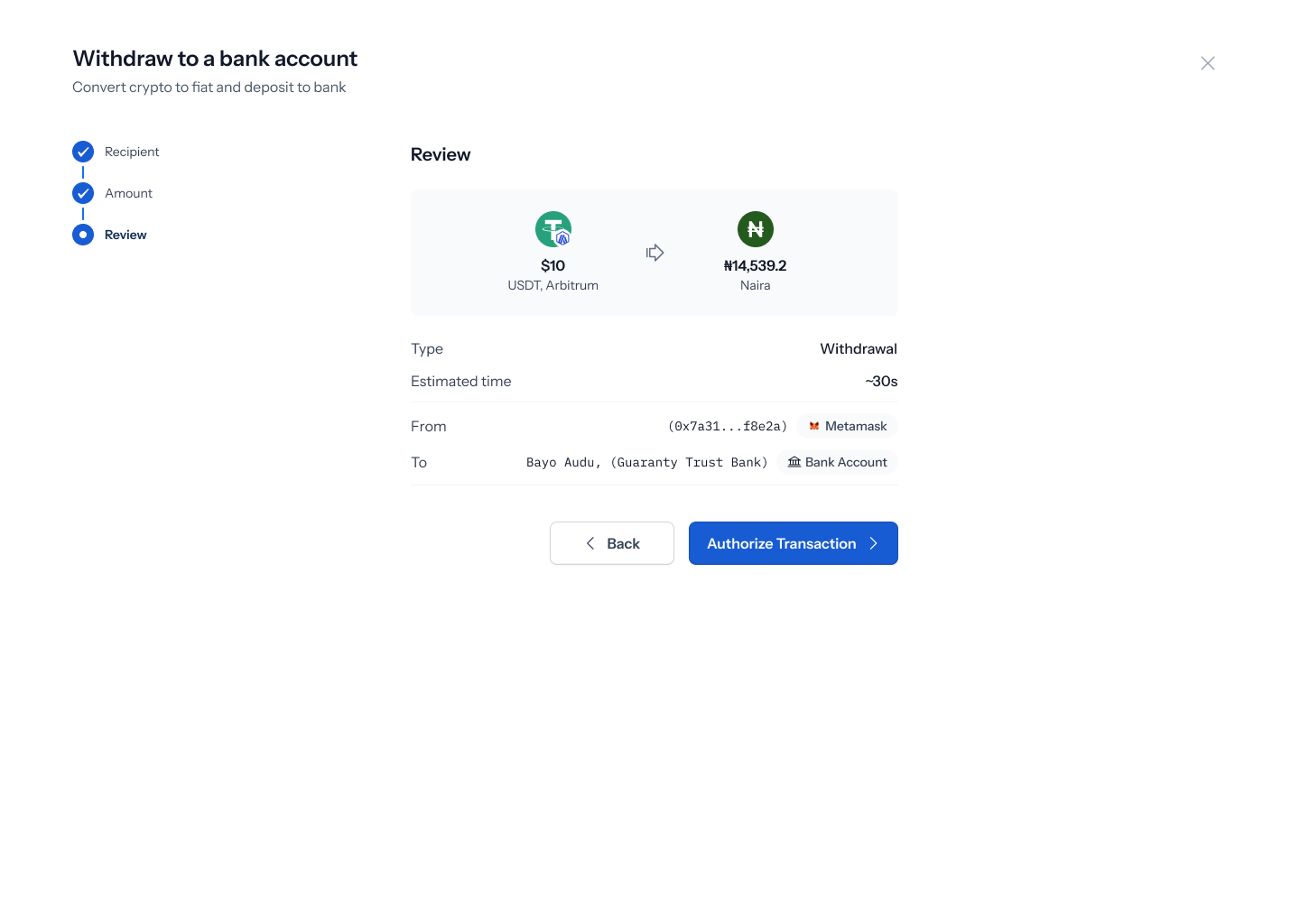
The **Review** screen shows your withdrawal as a single summary — for example, \$10 USDT (Arbitrum) → ₦14,539.2 Naira — along with **Type: Withdrawal**, **Estimated time: \~30s**, **From** (your connected wallet, address truncated), and **To** (the recipient name and bank, tagged **Bank Account**). Tap **Back** to change anything, or **Authorize Transaction** to continue.
## 7. Review before you authorize
The **Review** screen shows your withdrawal as a single summary — for example, \$10 USDT (Arbitrum) → ₦14,539.2 Naira — along with **Type: Withdrawal**, **Estimated time: \~30s**, **From** (your connected wallet, address truncated), and **To** (the recipient name and bank, tagged **Bank Account**). Tap **Back** to change anything, or **Authorize Transaction** to continue.
 ## 8. Authorize the transaction
As with the rest of Move Money, authorization is done with your device's **passkey** — Face ID, Touch ID, or your device's biometric/PIN unlock. There's no code to type in; the native prompt appears on top of the review screen, and confirming it submits the withdrawal.
## 9. Confirmation
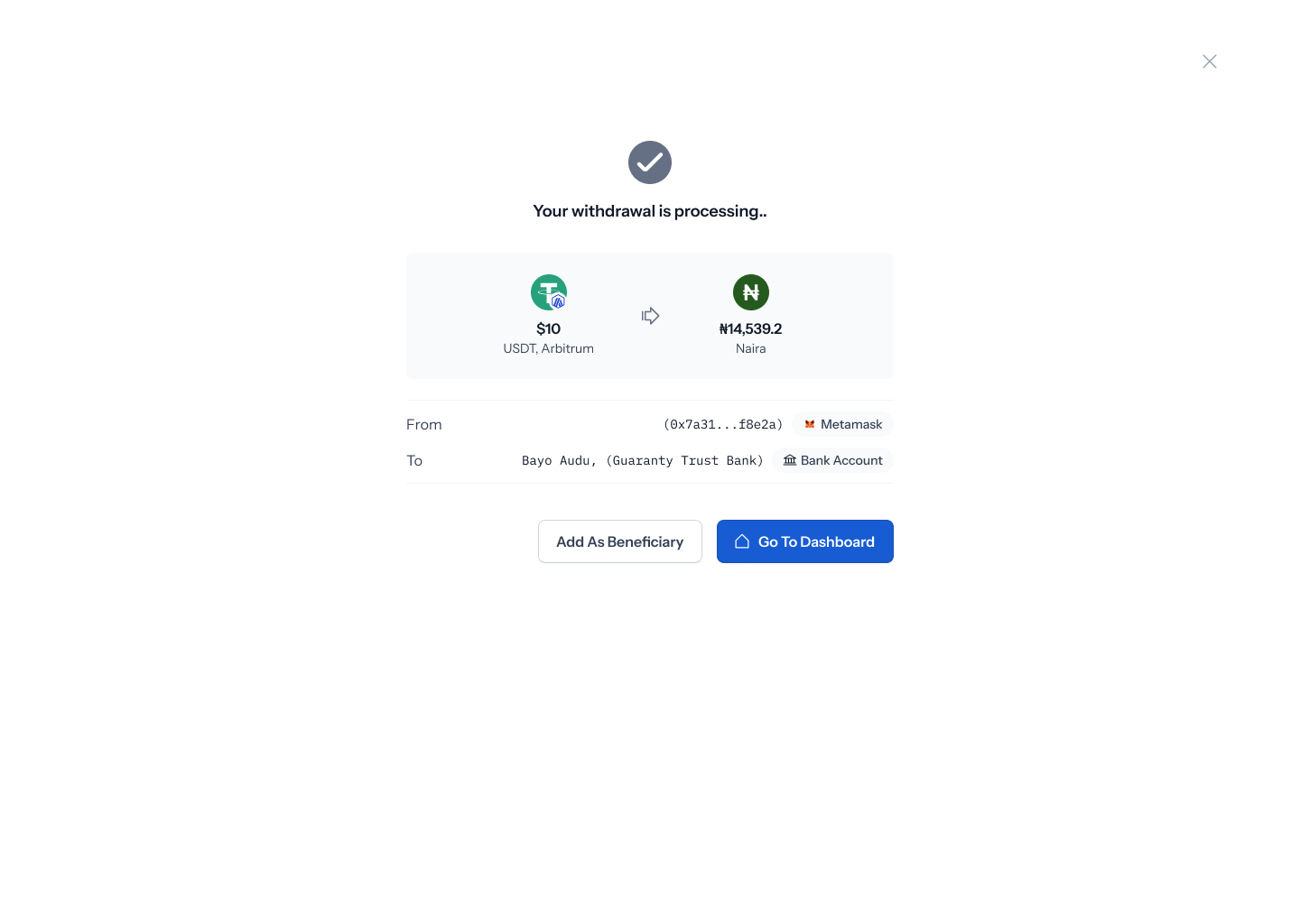
Once you authorize, you'll land on a confirmation screen reading **"Your withdrawal is processing.."**, showing the same summary (amount, From, To), with **Add as Beneficiary** or **Go to Dashboard** to finish up.
## 8. Authorize the transaction
As with the rest of Move Money, authorization is done with your device's **passkey** — Face ID, Touch ID, or your device's biometric/PIN unlock. There's no code to type in; the native prompt appears on top of the review screen, and confirming it submits the withdrawal.
## 9. Confirmation
Once you authorize, you'll land on a confirmation screen reading **"Your withdrawal is processing.."**, showing the same summary (amount, From, To), with **Add as Beneficiary** or **Go to Dashboard** to finish up.