> ## Documentation Index
> Fetch the complete documentation index at: https://docs.shiga.io/llms.txt
> Use this file to discover all available pages before exploring further.
# External Wallet to External Address (Send)
> Move Money: sending crypto from an external wallet like MetaMask directly to another external wallet address, start to finish.
# External Wallet to External Address (Send)
This Move Money path covers sending crypto that's still sitting in an external wallet — like MetaMask — straight out to another external wallet address, without first bringing it into your Shiga wallet.
This is a different guide from [Shiga Wallet to Shiga Wallet (Swap)](/MoveMoney/walletswap), [Shiga Wallet to External Address (Withdrawal)](/MoveMoney/externalwithdrawal), [My Shiga Wallet to Bank Account (Offramp)](/MoveMoney/offramp), and [External Wallet to My Shiga Wallet (Swap)](/MoveMoney/externaldeposit). Here, both ends of the transaction are external to Shiga — crypto moves from an external wallet you connect straight to any external wallet address you specify, without touching your Shiga wallet balance.
***
## 1. Open your home screen and tap Move Money
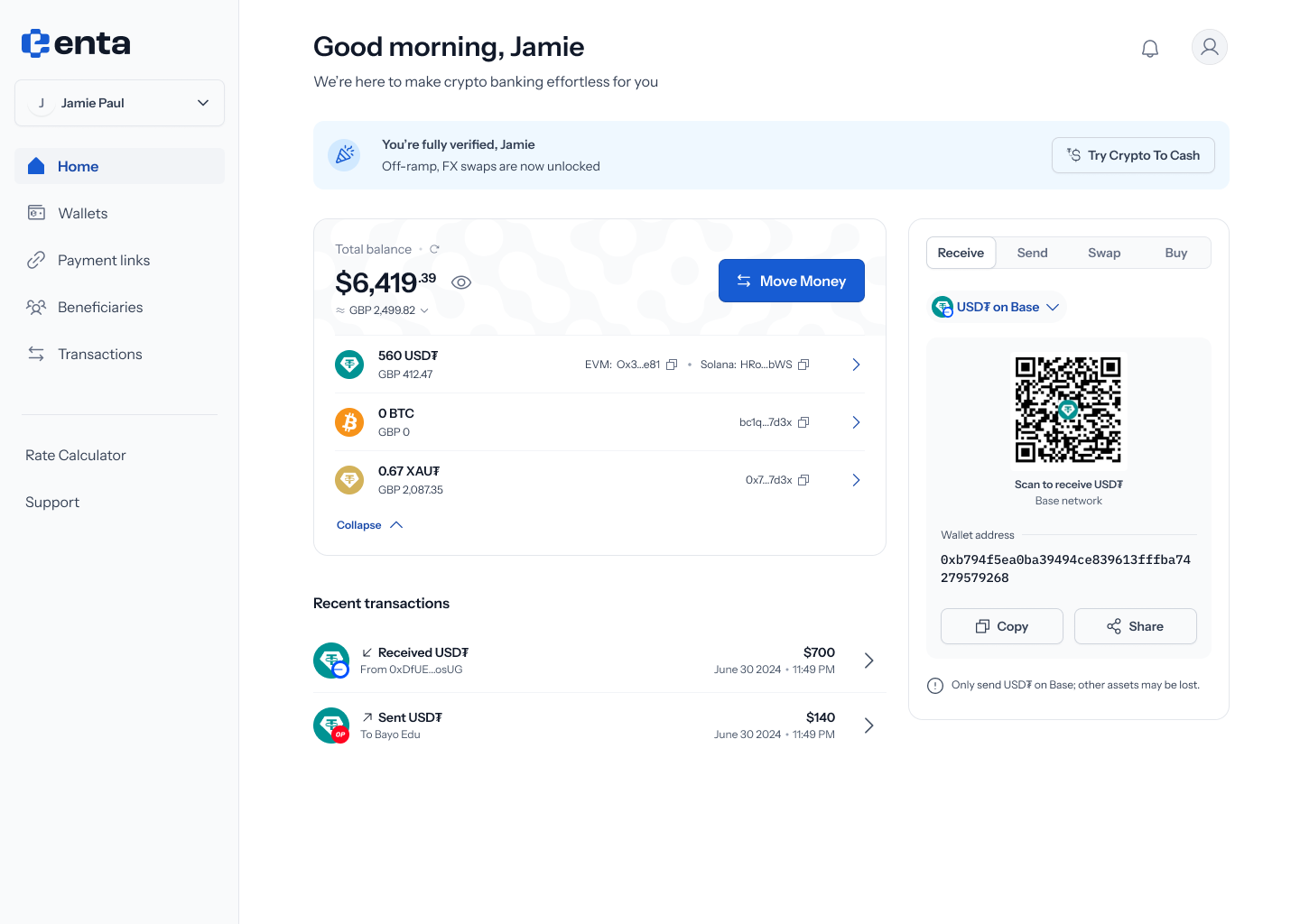 Every Move Money flow starts here, on your Enta home screen — tap **Move Money** to begin.
## 2. Choose External wallet as the source
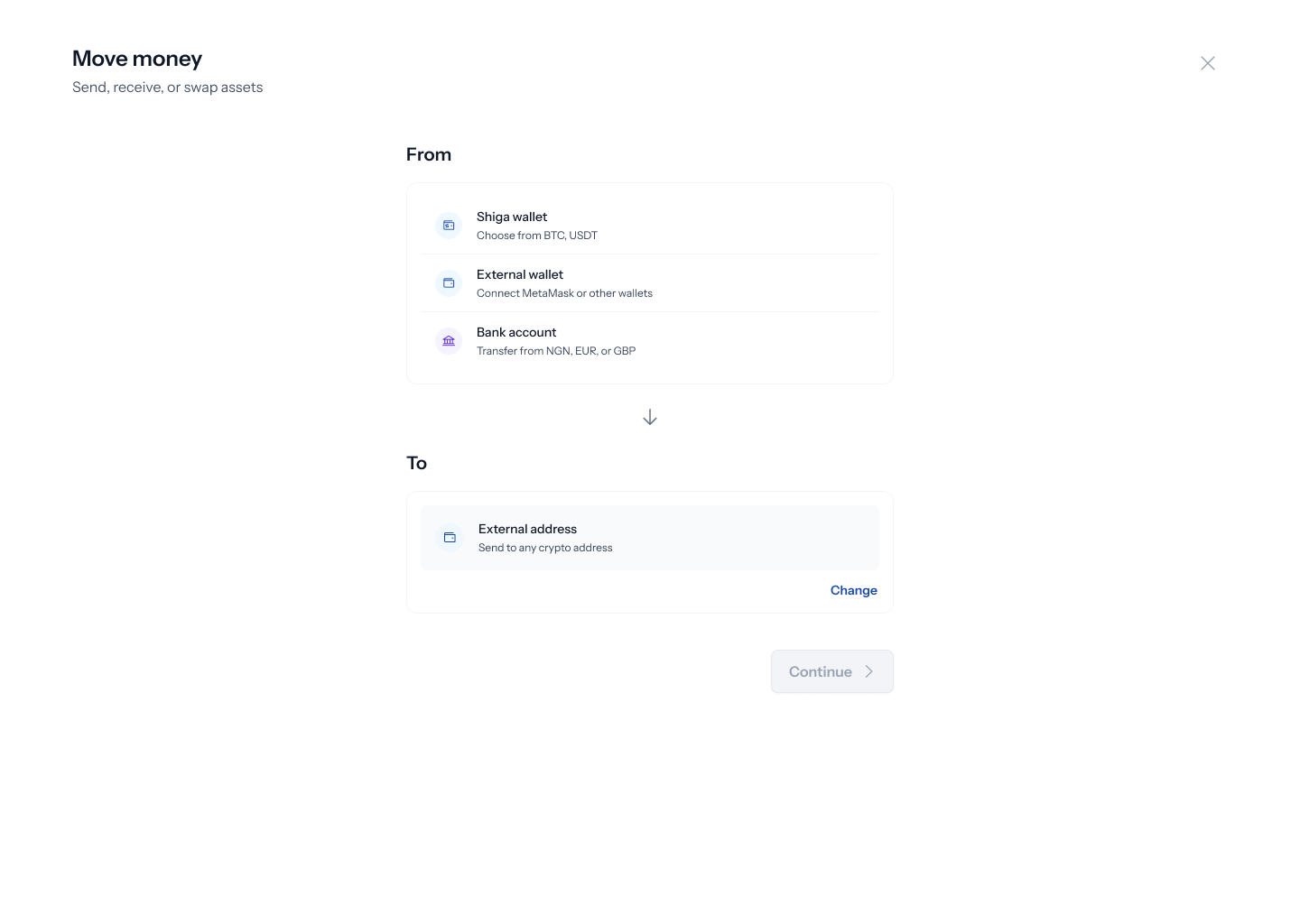
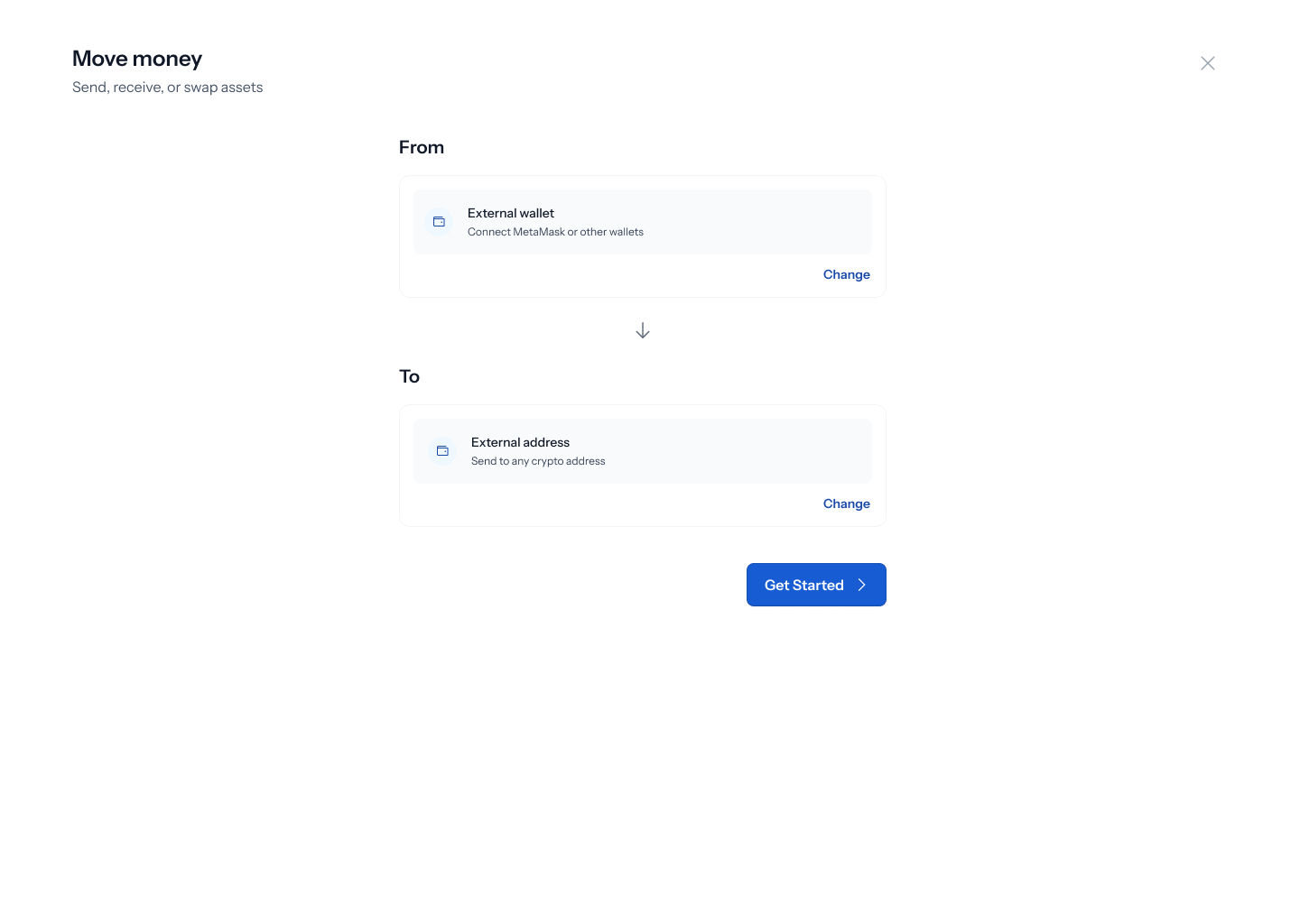
Tapping **Move Money** opens a panel titled **"Move money"** — *"Send, receive, or swap assets"*. Tap **Change** on the **From** field to pick where the money's coming from: **Shiga wallet** (*"Choose from BTC, USDT"*), **External wallet** (*"Connect MetaMask or other wallets"*), or **Bank account** (*"Transfer from NGN, EUR, or GBP"*). Pick **External wallet**.
Every Move Money flow starts here, on your Enta home screen — tap **Move Money** to begin.
## 2. Choose External wallet as the source
Tapping **Move Money** opens a panel titled **"Move money"** — *"Send, receive, or swap assets"*. Tap **Change** on the **From** field to pick where the money's coming from: **Shiga wallet** (*"Choose from BTC, USDT"*), **External wallet** (*"Connect MetaMask or other wallets"*), or **Bank account** (*"Transfer from NGN, EUR, or GBP"*). Pick **External wallet**.
 ## 3. Choose External address as the destination
With **External wallet** set as From, tap **Change** on the **To** field to see: **Shiga wallet** (*"Receive as BTC, USDT"*), **External address** (*"Send to any wallet address"*), or **Bank account** (*"Cash out to NGN, EUR, or GBP"*). Pick **External address**.
## 3. Choose External address as the destination
With **External wallet** set as From, tap **Change** on the **To** field to see: **Shiga wallet** (*"Receive as BTC, USDT"*), **External address** (*"Send to any wallet address"*), or **Bank account** (*"Cash out to NGN, EUR, or GBP"*). Pick **External address**.
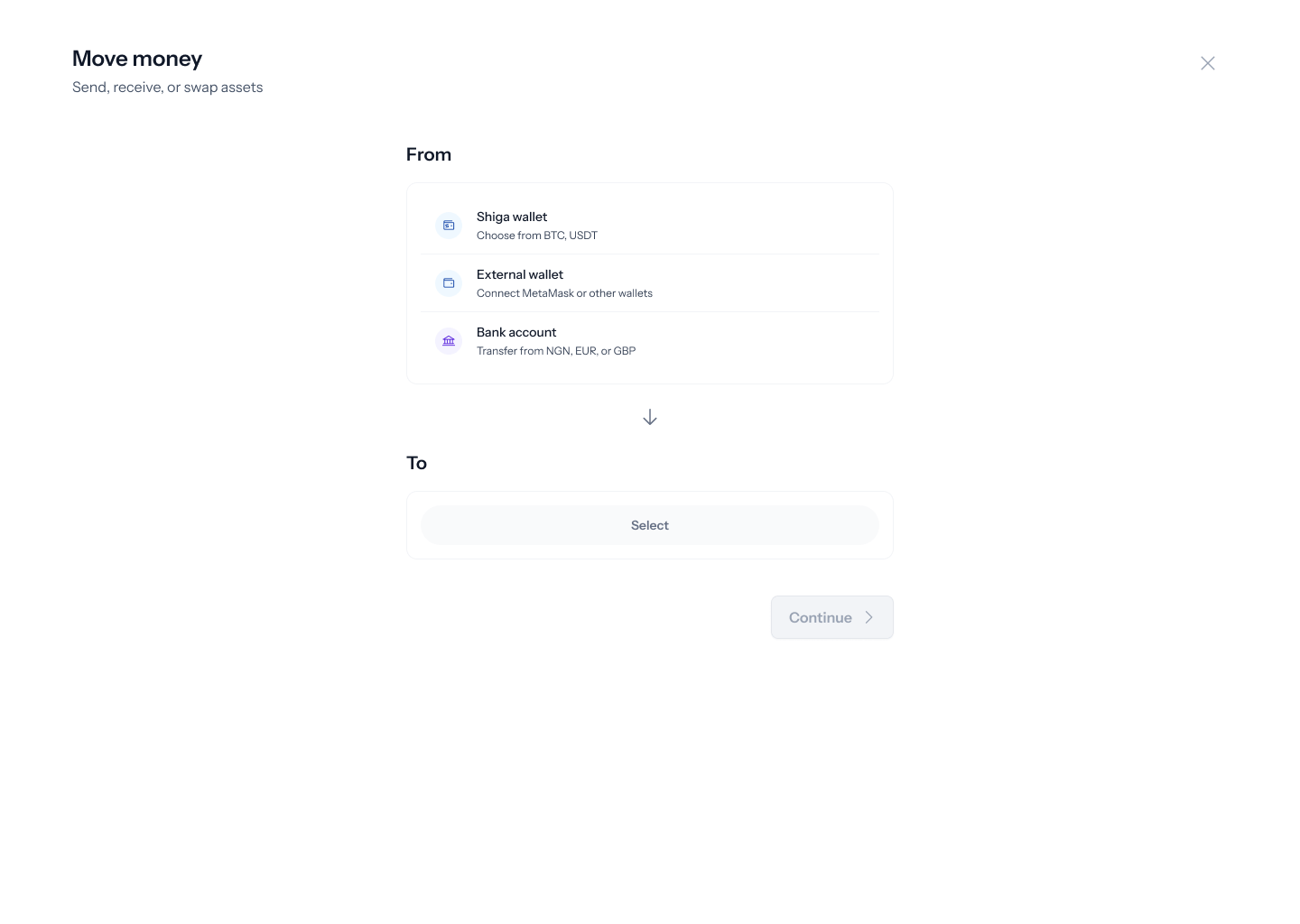 Once both fields are set, the panel updates to show your full selection, and the **Get started** button becomes active.
 ## 4. Enter the recipient's wallet address
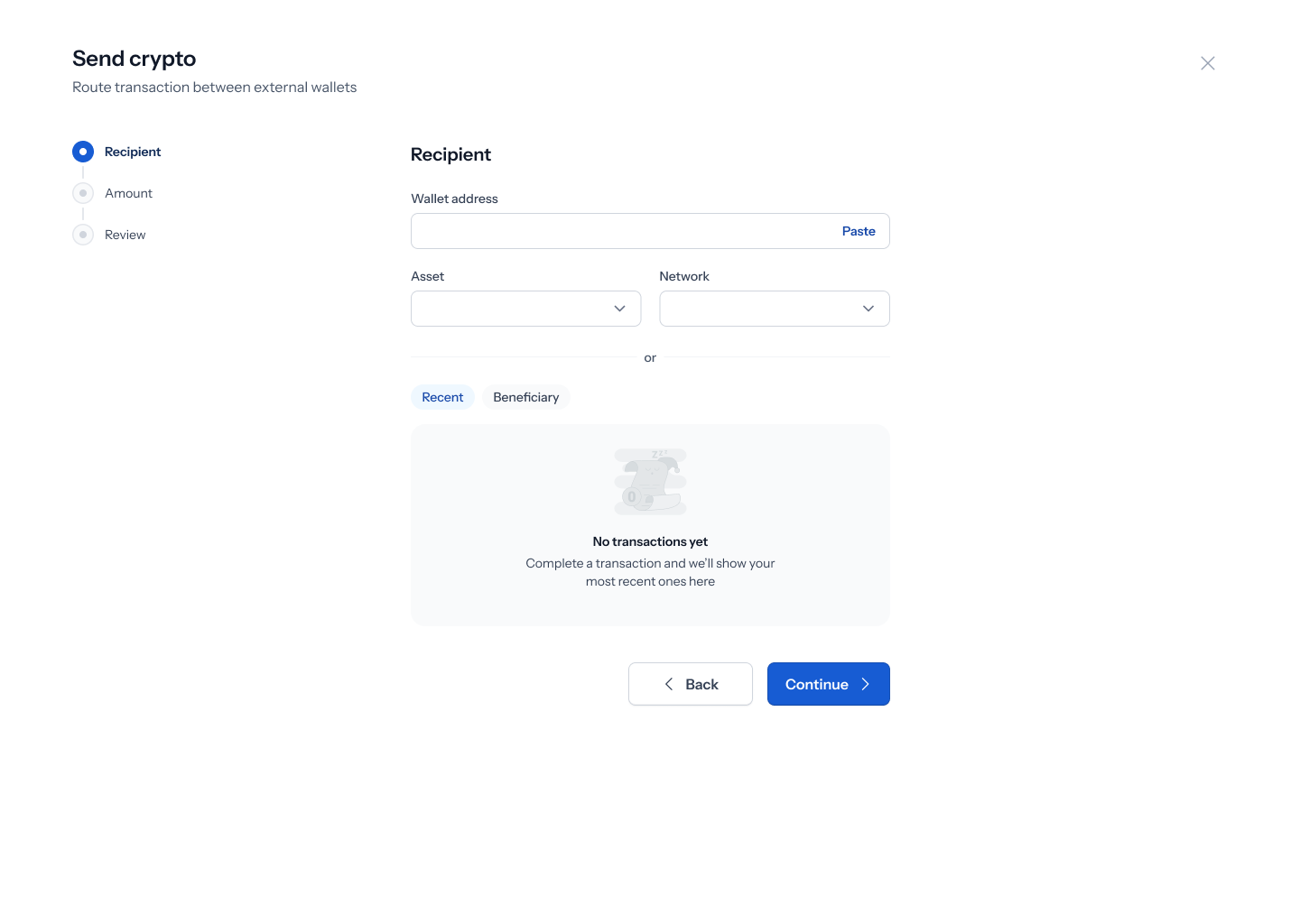
Tapping **Get started** opens a **Send crypto** screen — *"Route transaction between external wallets"* — with a three-step tracker down the left: **Recipient**, **Amount**, **Review**. On the **Recipient** step, type or **Paste** a **Wallet address**, then set the **Asset** and **Network** it's on. Below that, an **or** divider offers **Recent** or **Beneficiary** tabs to pick a saved recipient instead — if you've never sent anywhere before, this shows *"No transactions yet"* (*"Complete a transaction and we'll show your most recent ones here"*).
## 4. Enter the recipient's wallet address
Tapping **Get started** opens a **Send crypto** screen — *"Route transaction between external wallets"* — with a three-step tracker down the left: **Recipient**, **Amount**, **Review**. On the **Recipient** step, type or **Paste** a **Wallet address**, then set the **Asset** and **Network** it's on. Below that, an **or** divider offers **Recent** or **Beneficiary** tabs to pick a saved recipient instead — if you've never sent anywhere before, this shows *"No transactions yet"* (*"Complete a transaction and we'll show your most recent ones here"*).
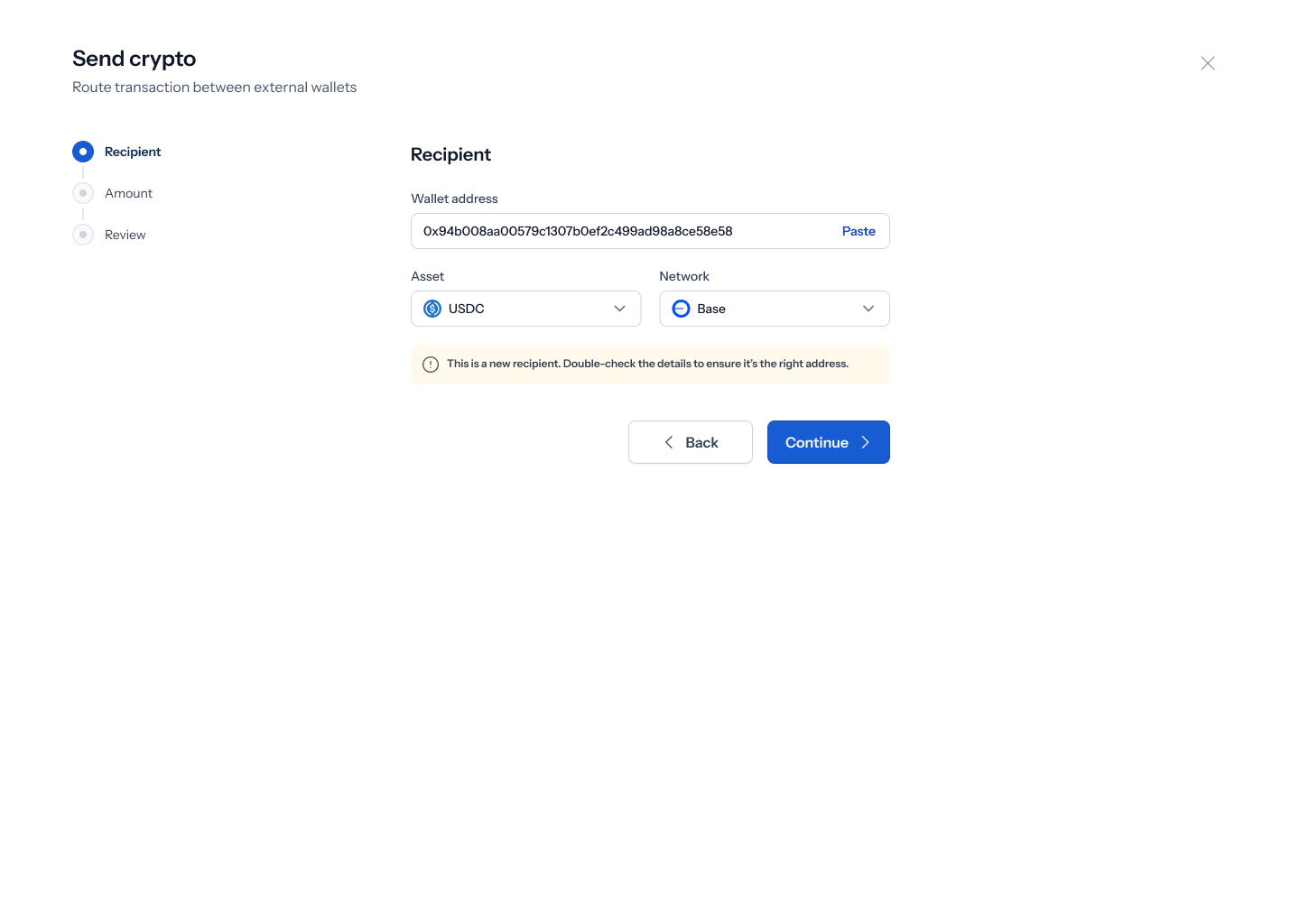
 Once a full address is entered, Enta auto-fills the **Asset** and **Network** if you've sent to that address before (here, **USDC** on **Base**), and shows a caution: *"This is a new recipient. Double-check the details to ensure it's the right address."* Tap **Continue**.
 Two validation errors can show up on this step. Entering an address that's too short shows *"Wallet address is too short. Enter the full address to continue"* under the field. Entering an address in the wrong format for the selected network — for example, an EVM address with Bitcoin selected — shows *"This address doesn't match the selected asset/network. Check the address or switch the asset/network."* Both keep you on the same screen to fix the address or change the Asset/Network before continuing.
## 5. Connect your external wallet
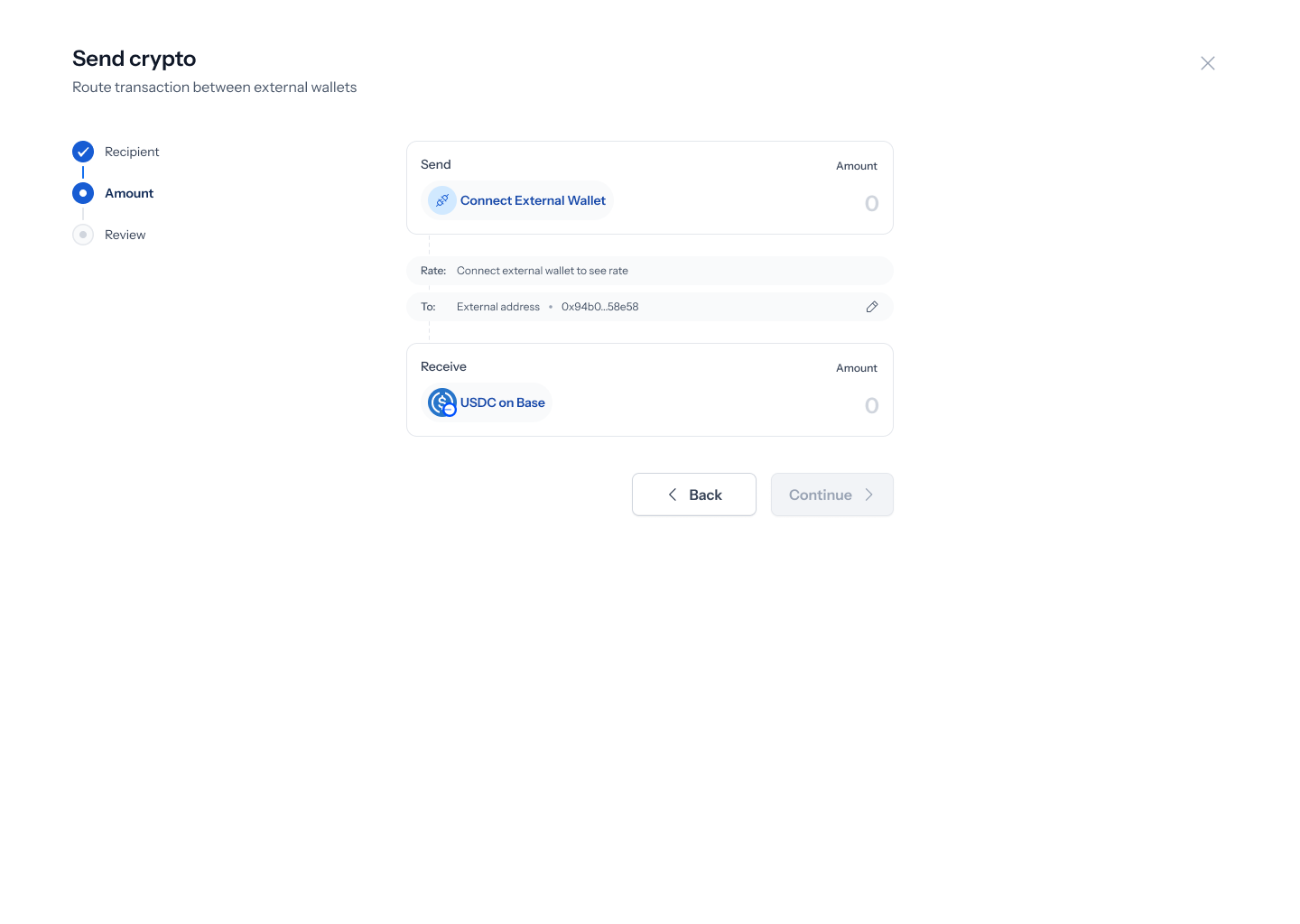
Continuing lands you on the **Amount** step, shown as a swap-style screen with a **Send** card and a **Receive** card. The **Receive** side is already set to your recipient and asset (e.g. *"USDC on Base"*), but the **Send** side needs a wallet connected — it shows a **Connect External Wallet** button instead of an asset picker, and **Continue** stays disabled until a wallet is linked.
Two validation errors can show up on this step. Entering an address that's too short shows *"Wallet address is too short. Enter the full address to continue"* under the field. Entering an address in the wrong format for the selected network — for example, an EVM address with Bitcoin selected — shows *"This address doesn't match the selected asset/network. Check the address or switch the asset/network."* Both keep you on the same screen to fix the address or change the Asset/Network before continuing.
## 5. Connect your external wallet
Continuing lands you on the **Amount** step, shown as a swap-style screen with a **Send** card and a **Receive** card. The **Receive** side is already set to your recipient and asset (e.g. *"USDC on Base"*), but the **Send** side needs a wallet connected — it shows a **Connect External Wallet** button instead of an asset picker, and **Continue** stays disabled until a wallet is linked.
 ## 6. Pick the asset to send and enter an amount
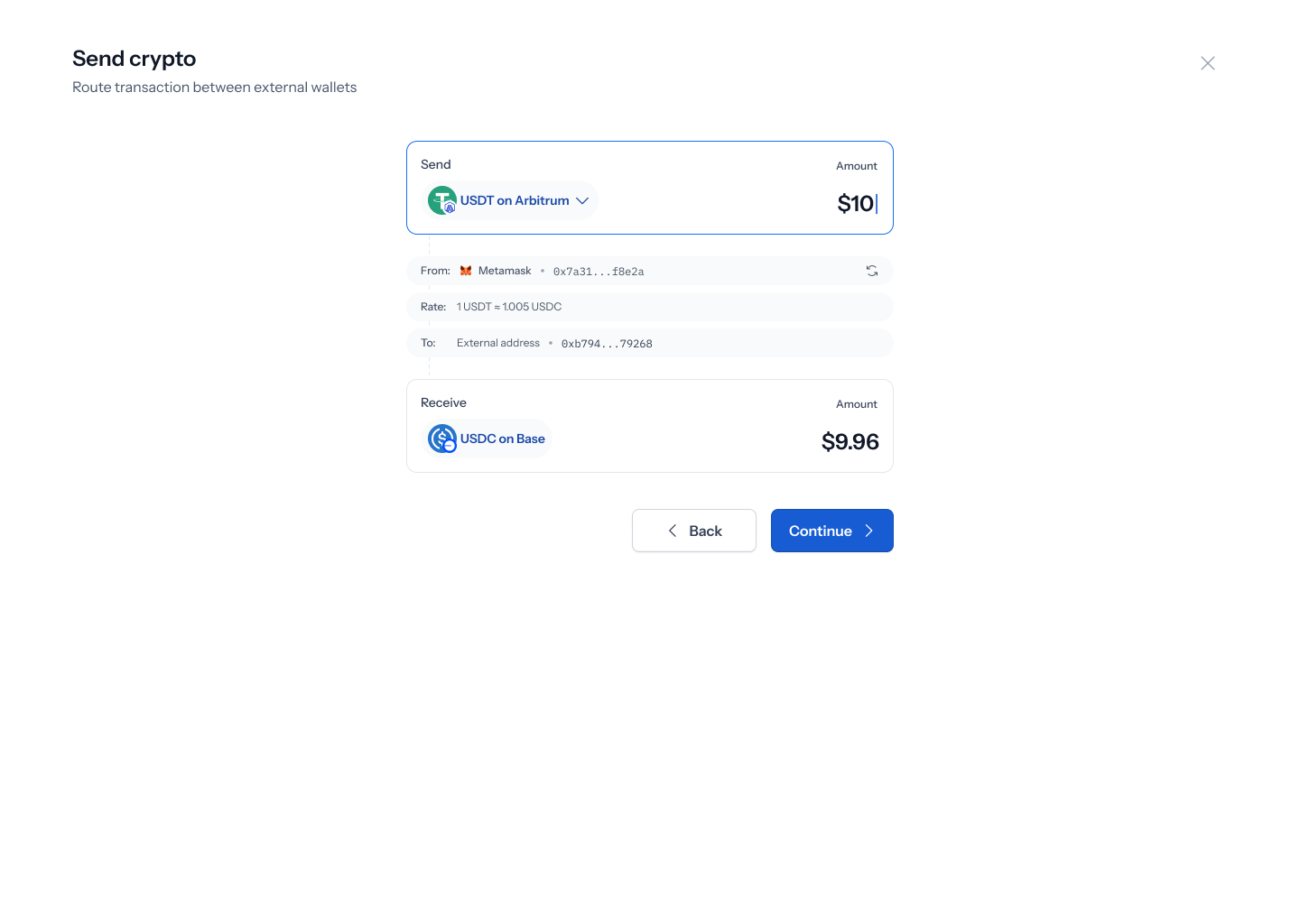
Once connected, the **Send** card shows the wallet's asset (e.g. **USDT on Arbitrum**) with a live rate against the receiving asset (e.g. *"1 USDT ≈ 1.005 USDC"*), plus a **From:** row naming the connected wallet (e.g. **Metamask**) and its truncated address, and a **To:** row with the recipient's truncated address. Type an **Amount** in the Send card — the Receive card calculates automatically, for example turning an entered amount into roughly a 0.4% smaller amount on the receiving side after conversion. Tap **Continue**.
## 6. Pick the asset to send and enter an amount
Once connected, the **Send** card shows the wallet's asset (e.g. **USDT on Arbitrum**) with a live rate against the receiving asset (e.g. *"1 USDT ≈ 1.005 USDC"*), plus a **From:** row naming the connected wallet (e.g. **Metamask**) and its truncated address, and a **To:** row with the recipient's truncated address. Type an **Amount** in the Send card — the Receive card calculates automatically, for example turning an entered amount into roughly a 0.4% smaller amount on the receiving side after conversion. Tap **Continue**.
 ## 7. Review before you confirm
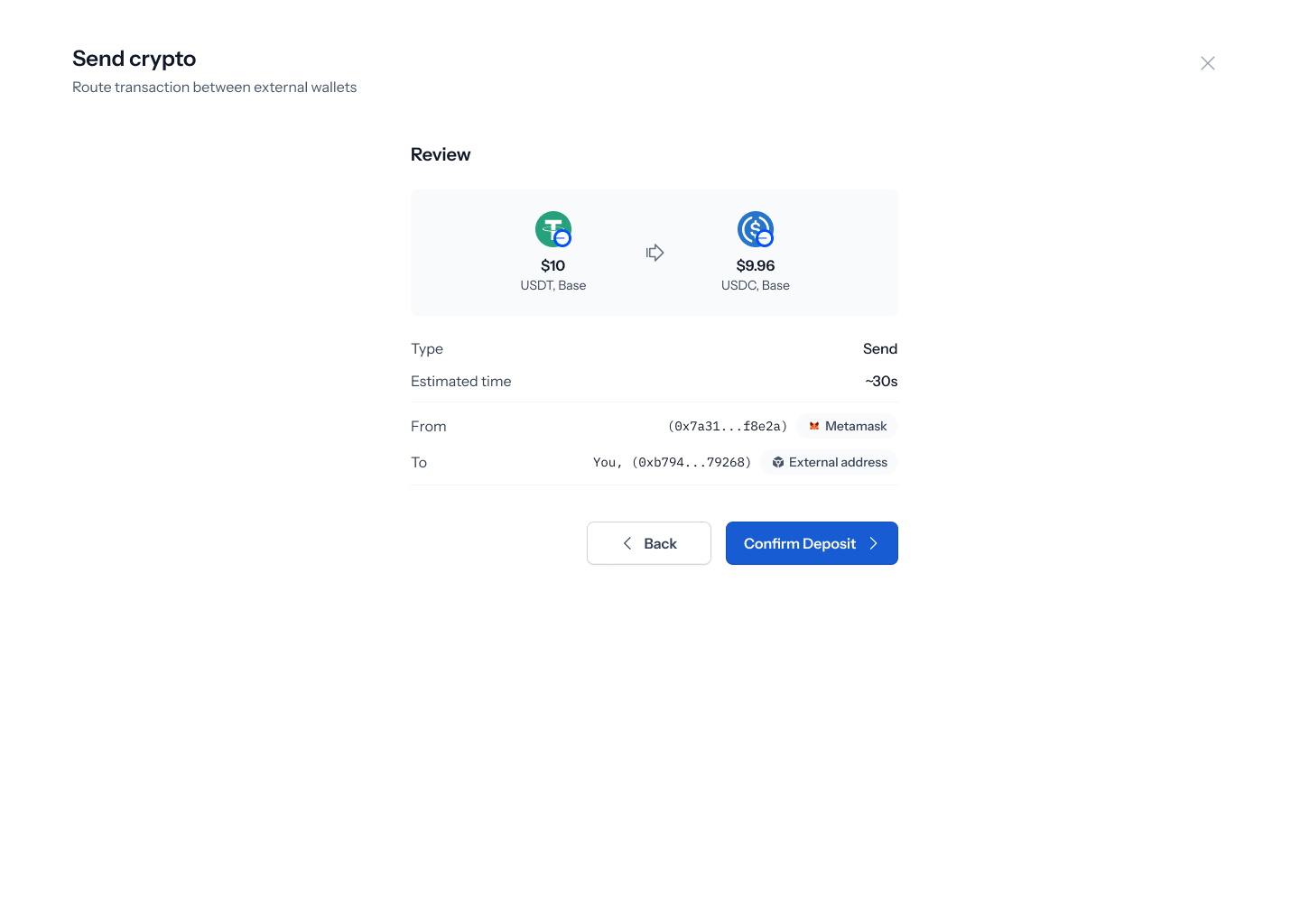
The **Review** screen shows your send as a single summary — for example, $10 USDT (Base) → $9.96 USDC (Base) — along with **Type: Send**, **Estimated time: \~30s**, **From** (your connected wallet, address truncated), and **To** (the recipient's address, truncated). Tap **Back** to change anything, or **Confirm Send** to continue.
## 7. Review before you confirm
The **Review** screen shows your send as a single summary — for example, $10 USDT (Base) → $9.96 USDC (Base) — along with **Type: Send**, **Estimated time: \~30s**, **From** (your connected wallet, address truncated), and **To** (the recipient's address, truncated). Tap **Back** to change anything, or **Confirm Send** to continue.
 ## 8. Authorize the transaction
As with the rest of Move Money, authorization is done with your device's **passkey** — Face ID, Touch ID, or your device's biometric/PIN unlock. There's no code to type in; the native prompt appears on top of the review screen, and confirming it submits the send.
The authorization screen for this specific flow hasn't been designed in Figma yet (it's currently just a placeholder link), so there's nothing screen-specific to show here beyond the passkey behavior shared across Move Money.
## 9. Processing and confirmation
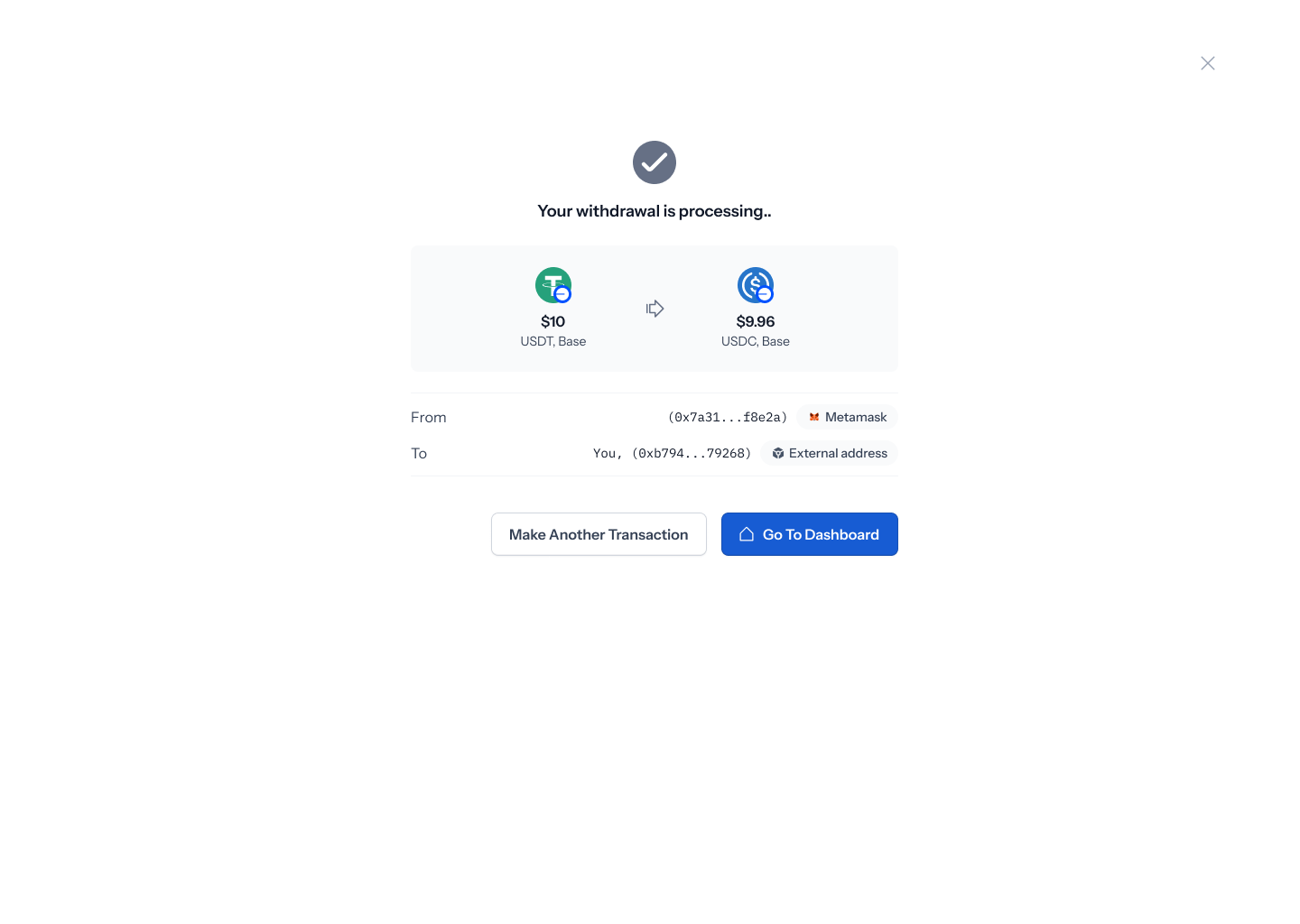
Once you authorize, a loading screen reads **"Processing your transaction..."** with your send summary still visible underneath — the token conversion, and the **From**/**To** wallet details.
## 8. Authorize the transaction
As with the rest of Move Money, authorization is done with your device's **passkey** — Face ID, Touch ID, or your device's biometric/PIN unlock. There's no code to type in; the native prompt appears on top of the review screen, and confirming it submits the send.
The authorization screen for this specific flow hasn't been designed in Figma yet (it's currently just a placeholder link), so there's nothing screen-specific to show here beyond the passkey behavior shared across Move Money.
## 9. Processing and confirmation
Once you authorize, a loading screen reads **"Processing your transaction..."** with your send summary still visible underneath — the token conversion, and the **From**/**To** wallet details.
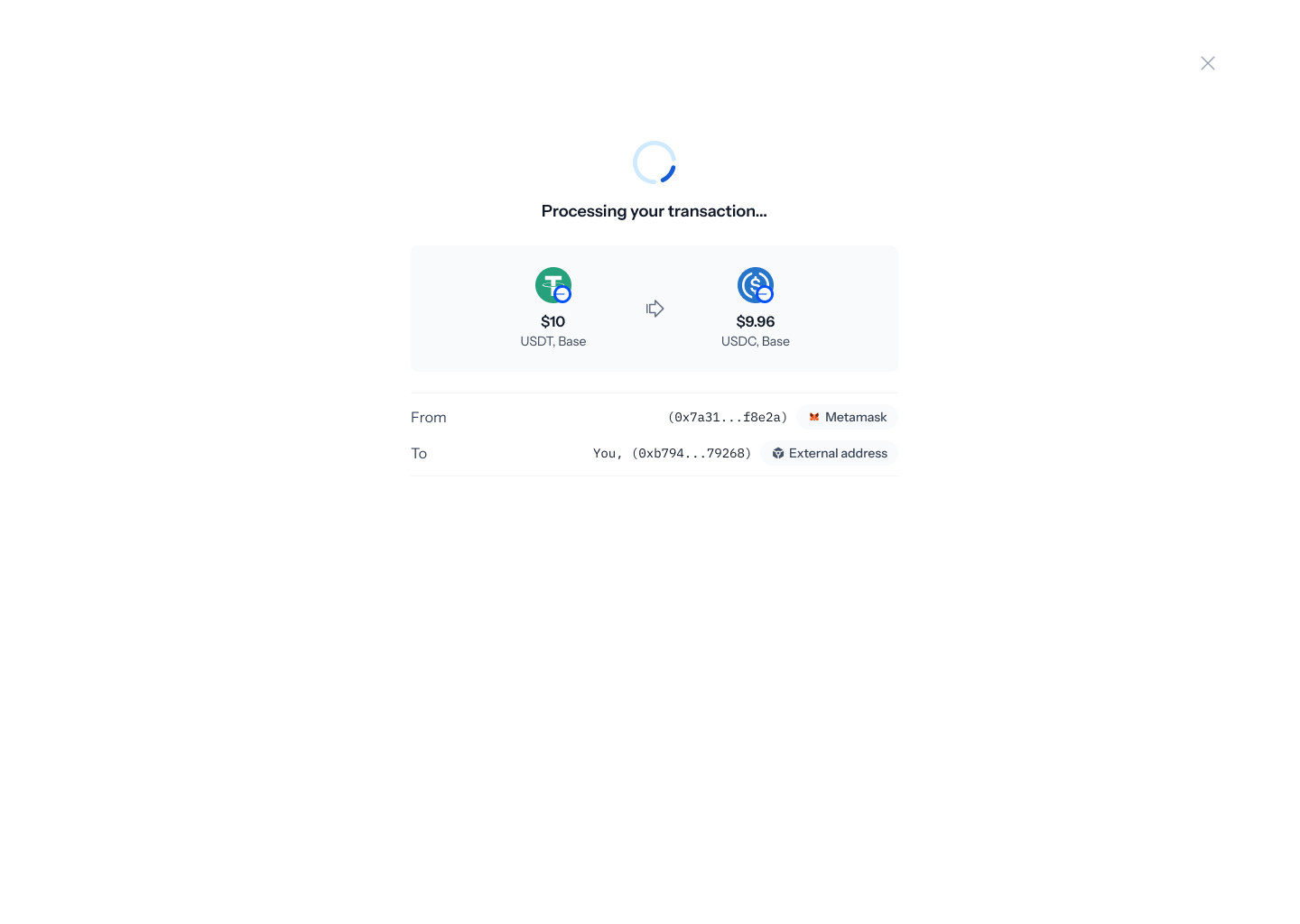 When it's done, you'll land on a confirmation screen reading **"Your send is complete"**, showing the same summary, plus **Make another transaction** or **Go to Dashboard** to finish up.