> ## Documentation Index
> Fetch the complete documentation index at: https://docs.shiga.io/llms.txt
> Use this file to discover all available pages before exploring further.
# Shiga Wallet to Shiga Wallet (Swap)
> Move Money: converting one asset to another within your own Shiga wallet, start to finish.
# Shiga Wallet to Shiga Wallet (Swap)
**Move Money** is Enta's engine for moving funds anywhere — between your own wallet assets, to another wallet, or to a bank account. This guide covers one of those paths: converting one asset you hold into another, without the funds ever leaving your own Shiga wallet.
Move Money supports several other paths (sending to an external wallet, cashing out to a bank account, and more) — each gets its own guide. This page covers **Shiga wallet → Shiga wallet** only.
***
## 1. Open your home screen and tap Move Money
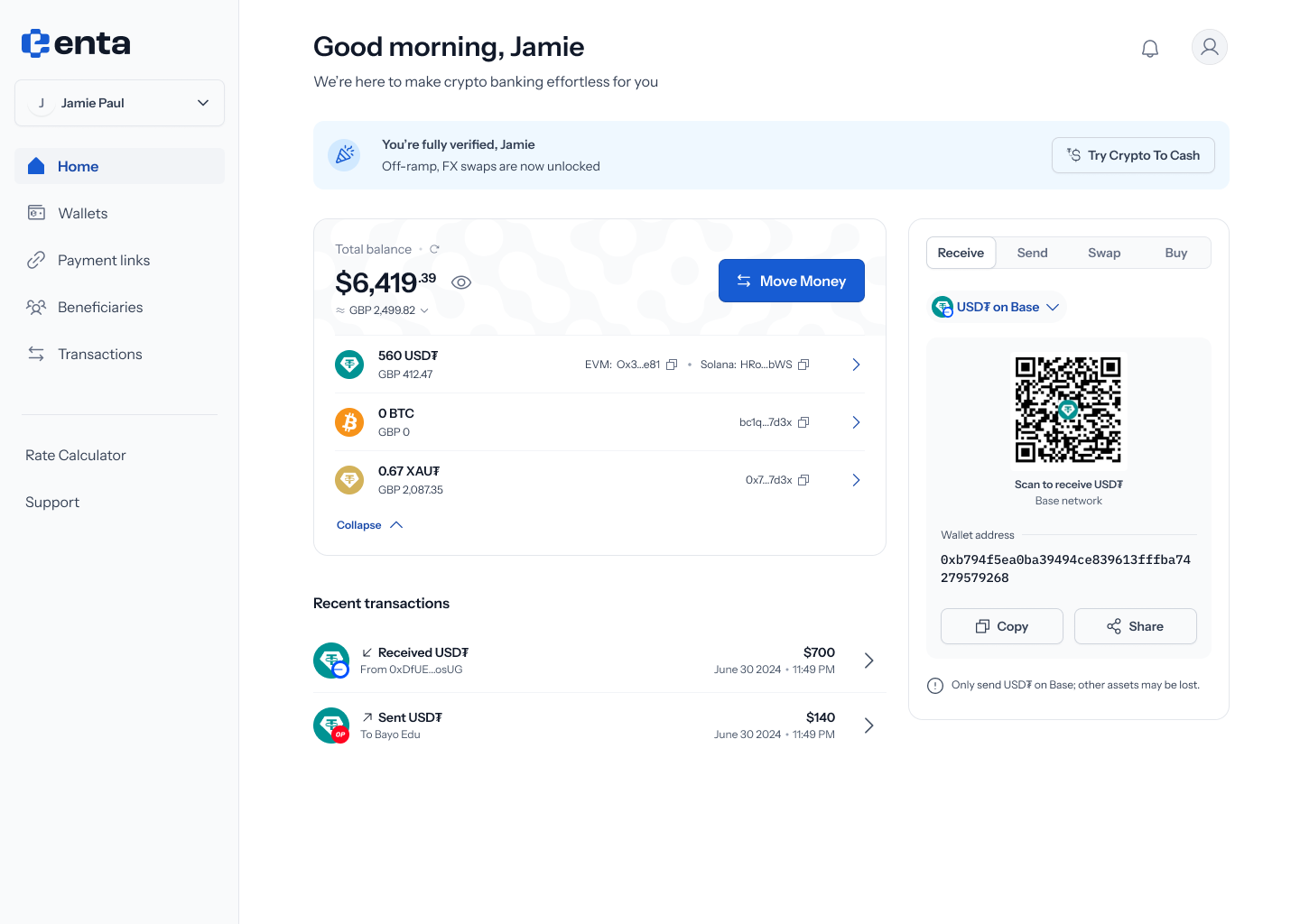 Every Move Money flow starts here, on your Enta home screen — tap **Move Money** to begin.
## 2. Choose where the funds are coming from
Every Move Money flow starts here, on your Enta home screen — tap **Move Money** to begin.
## 2. Choose where the funds are coming from
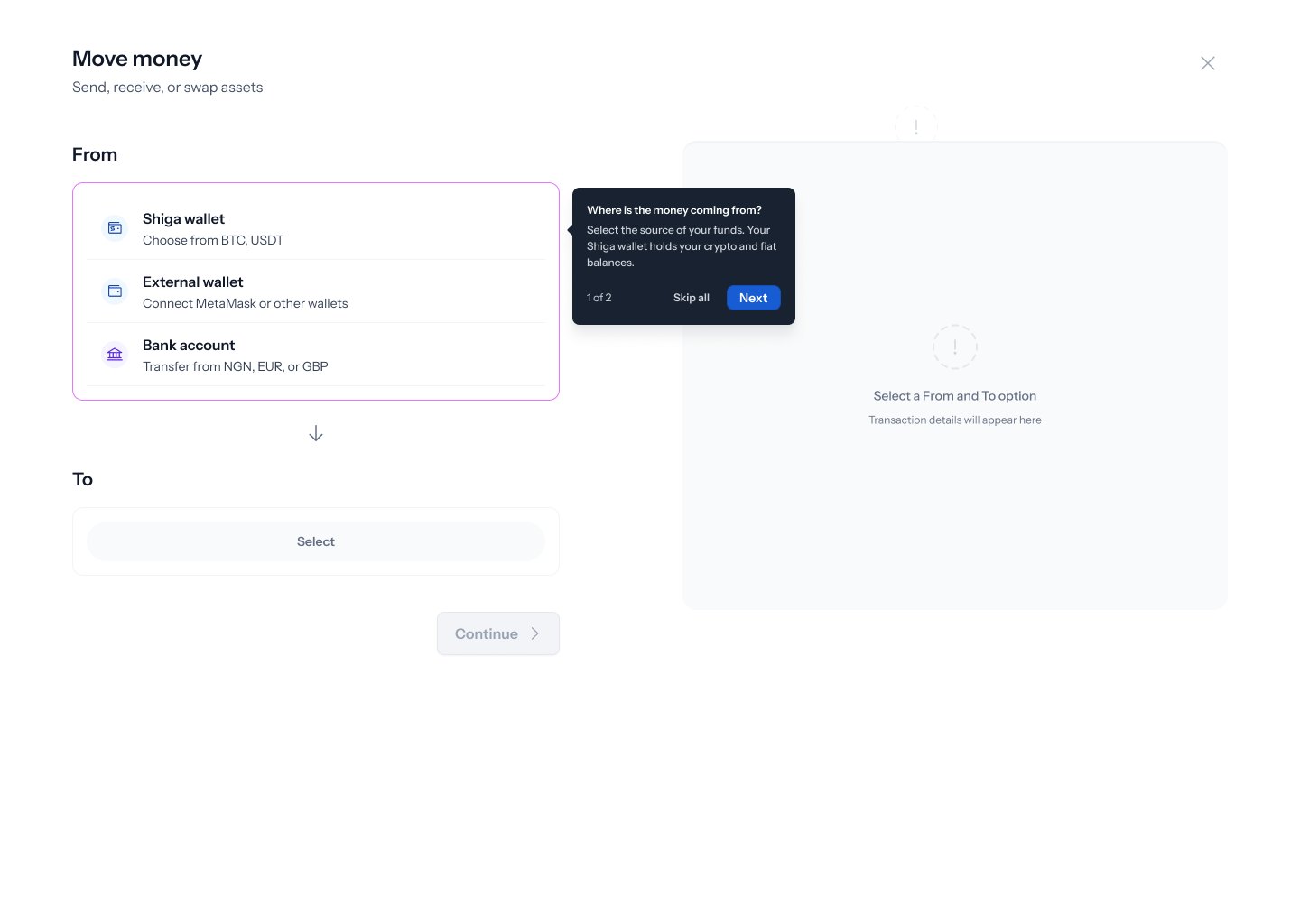 Tapping **Move Money** opens a panel titled **"Move money"** — *"Send, receive, or swap assets"*. The first field is **From** — where the money is coming from: **Shiga wallet** (*"Choose from BTC, USDT"*), **External wallet** (*"Connect MetaMask or other wallets"*), or **Bank account** (*"Transfer from NGN, EUR, or GBP"*).
## 3. Choose where it's going
Tapping **Move Money** opens a panel titled **"Move money"** — *"Send, receive, or swap assets"*. The first field is **From** — where the money is coming from: **Shiga wallet** (*"Choose from BTC, USDT"*), **External wallet** (*"Connect MetaMask or other wallets"*), or **Bank account** (*"Transfer from NGN, EUR, or GBP"*).
## 3. Choose where it's going
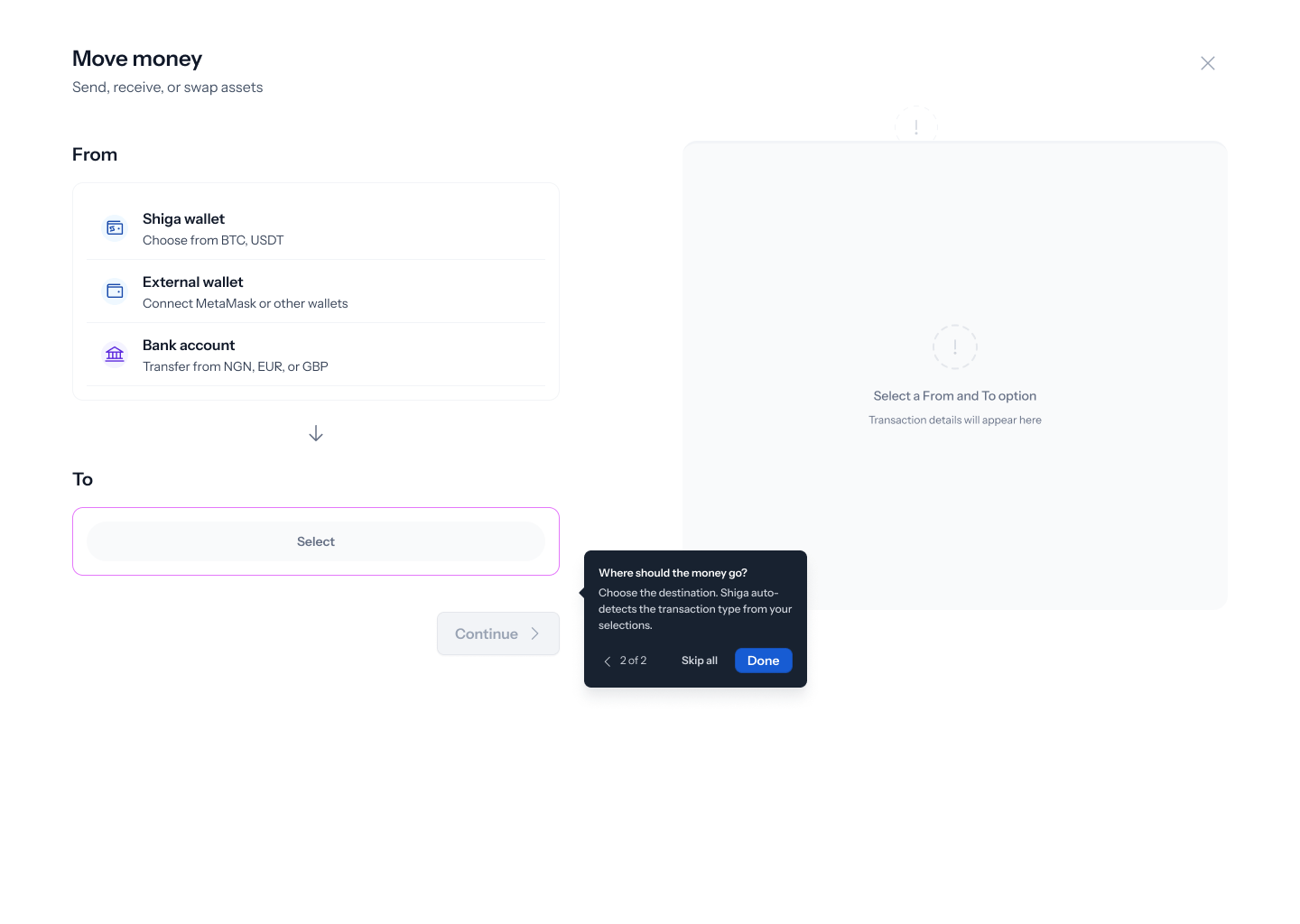 Next, the **To** field: **Shiga wallet** (*"Receive as BTC, USDT"*), **External address** (*"Send to any wallet address"*), or **Bank account** (*"Cash out to NGN, EUR, or GBP"*). Enta figures out what kind of transaction you're doing from this From/To pair — picking **Shiga wallet** for both is what puts you on the swap path this guide covers. Once both are set, tap **Get started**.
First time using Move Money? A short guided tour points out the From and To fields one at a time, with **Skip all** and **Next** in the corner if you'd rather explore on your own.
## 4. Pick your assets
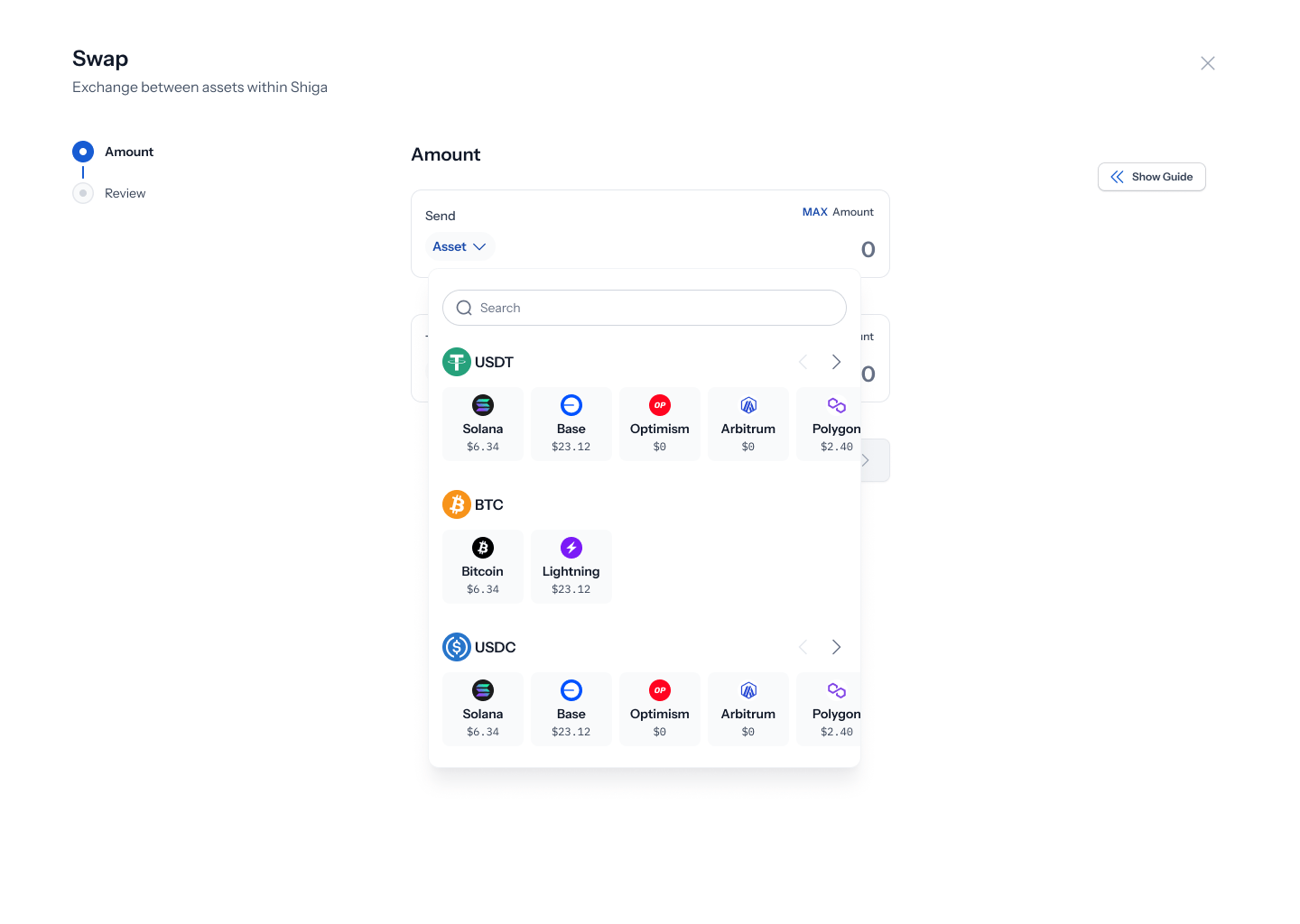
With **Shiga wallet → Shiga wallet** selected, you land on a **Swap** screen — *"Convert one asset to another without leaving your Shiga wallet"*. Tap each asset field to open a searchable list — Enta supports **USDT**, **BTC**, and **USDC**, each across several networks (USDT and USDC on Solana, Base, Optimism, Arbitrum, or Polygon; BTC on Bitcoin or Lightning). Pick what you're converting from, then what you want to receive.
Next, the **To** field: **Shiga wallet** (*"Receive as BTC, USDT"*), **External address** (*"Send to any wallet address"*), or **Bank account** (*"Cash out to NGN, EUR, or GBP"*). Enta figures out what kind of transaction you're doing from this From/To pair — picking **Shiga wallet** for both is what puts you on the swap path this guide covers. Once both are set, tap **Get started**.
First time using Move Money? A short guided tour points out the From and To fields one at a time, with **Skip all** and **Next** in the corner if you'd rather explore on your own.
## 4. Pick your assets
With **Shiga wallet → Shiga wallet** selected, you land on a **Swap** screen — *"Convert one asset to another without leaving your Shiga wallet"*. Tap each asset field to open a searchable list — Enta supports **USDT**, **BTC**, and **USDC**, each across several networks (USDT and USDC on Solana, Base, Optimism, Arbitrum, or Polygon; BTC on Bitcoin or Lightning). Pick what you're converting from, then what you want to receive.
 A **Guide** panel on the right explains how swapping works and gives example pairs (e.g. *"USDT on Base → USDC on Optimism"*) — tap **Hide Guide** any time to collapse it, or **Show Guide** to bring it back.
## 5. Enter an amount
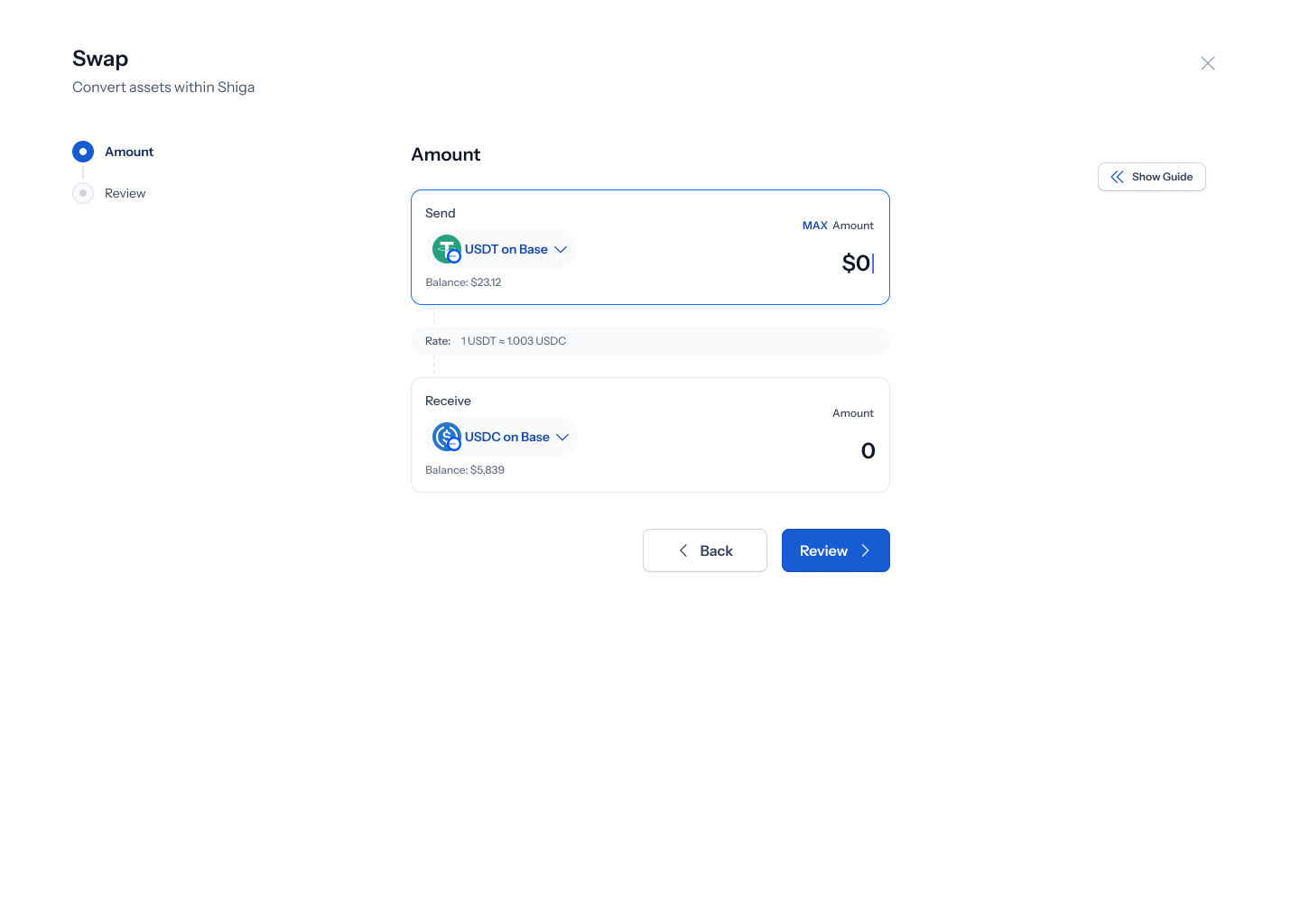
Both sides of the swap show as cards — **Send** (what you're giving up) and **Receive** (what you'll get) — each with the asset, your available **Balance**, and a **MAX** button to fill your entire balance in one tap. As soon as both assets are picked, a live rate appears (e.g. *"Rate: 1 USDT ≈ 1.003 USDC"*) — before that, it reads *"Rate: Select asset to see rate."*
Type an amount into **Send**, and **Receive** calculates automatically at the live rate. Tap **Continue** once you're happy with it.
A **Guide** panel on the right explains how swapping works and gives example pairs (e.g. *"USDT on Base → USDC on Optimism"*) — tap **Hide Guide** any time to collapse it, or **Show Guide** to bring it back.
## 5. Enter an amount
Both sides of the swap show as cards — **Send** (what you're giving up) and **Receive** (what you'll get) — each with the asset, your available **Balance**, and a **MAX** button to fill your entire balance in one tap. As soon as both assets are picked, a live rate appears (e.g. *"Rate: 1 USDT ≈ 1.003 USDC"*) — before that, it reads *"Rate: Select asset to see rate."*
Type an amount into **Send**, and **Receive** calculates automatically at the live rate. Tap **Continue** once you're happy with it.
 A few things can stop you here: entering more than your balance (*"Amount exceeds your available balance. Enter a lower amount or top up your wallet"*), going below the minimum (*"Enter an amount above the minimum amount of \$10"*), leaving it at zero (*"Enter an amount to continue"*), or the network for your asset being unavailable (*"The network for this asset is currently unavailable. Try again later or select a different asset"*) or its rate failing to load (*"Couldn't load the exchange rate. Check your connection and try again."*).
## 6. Review before you authorize
The **Review** screen shows your swap as a single summary — for example, **\$430 USDC (Base) → \$429.6 USDT (Base)** — along with **Type: Swap**, **Estimated time: \~30s**, a **Network fee**, and both **From** and **To** confirmed as your own **Shiga Wallet** (with your wallet address shown, truncated). Nothing is submitted yet — tap **Back** to change anything, or **Authorize Transaction** to continue.
A few things can stop you here: entering more than your balance (*"Amount exceeds your available balance. Enter a lower amount or top up your wallet"*), going below the minimum (*"Enter an amount above the minimum amount of \$10"*), leaving it at zero (*"Enter an amount to continue"*), or the network for your asset being unavailable (*"The network for this asset is currently unavailable. Try again later or select a different asset"*) or its rate failing to load (*"Couldn't load the exchange rate. Check your connection and try again."*).
## 6. Review before you authorize
The **Review** screen shows your swap as a single summary — for example, **\$430 USDC (Base) → \$429.6 USDT (Base)** — along with **Type: Swap**, **Estimated time: \~30s**, a **Network fee**, and both **From** and **To** confirmed as your own **Shiga Wallet** (with your wallet address shown, truncated). Nothing is submitted yet — tap **Back** to change anything, or **Authorize Transaction** to continue.
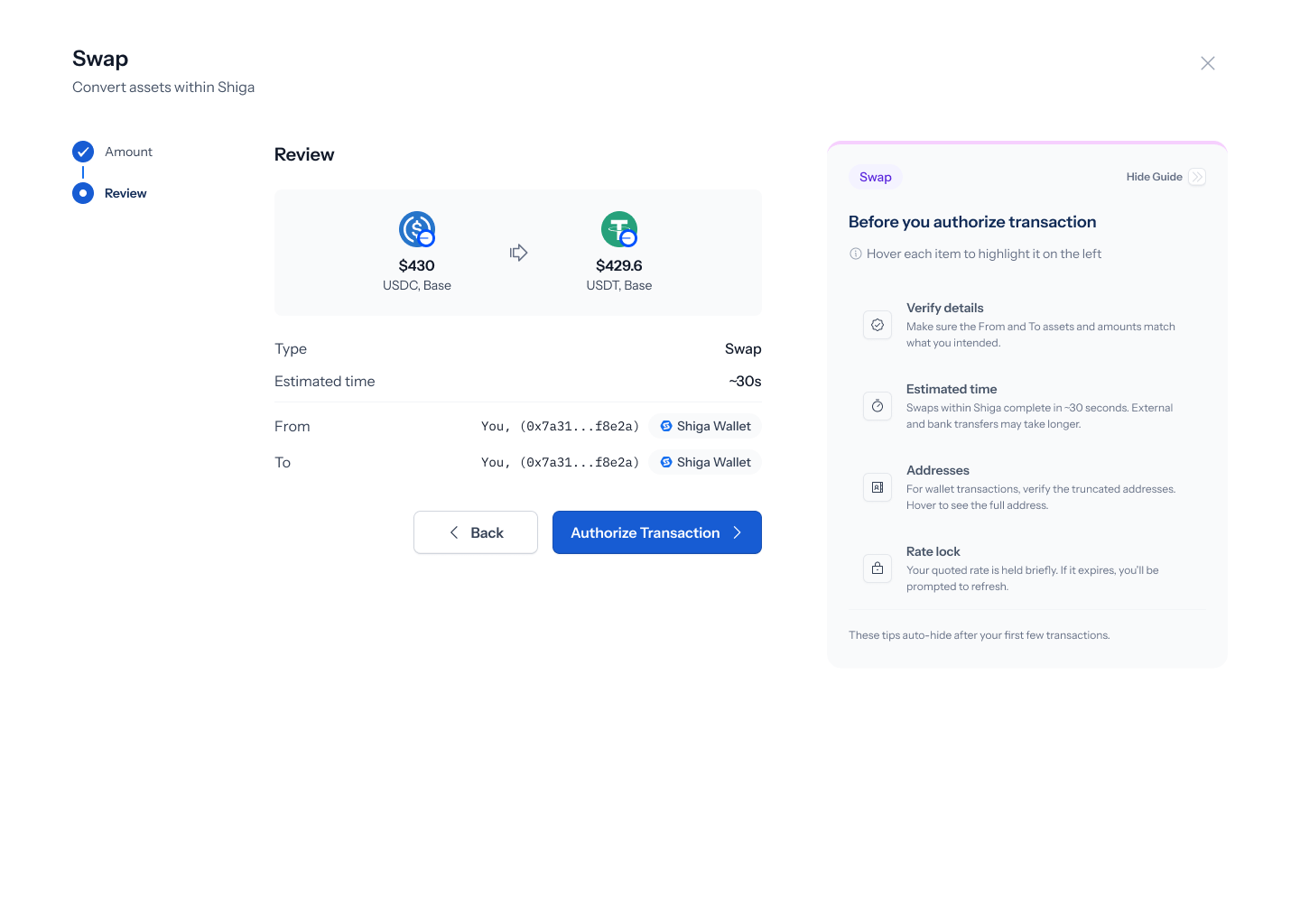 The **Guide** panel here reminds you to double-check the amounts, that swaps within Shiga complete in about 30 seconds, and that your quoted rate is only held briefly — if it expires, you'll be asked to refresh it.
## 7. Authorize the transaction
The **Guide** panel here reminds you to double-check the amounts, that swaps within Shiga complete in about 30 seconds, and that your quoted rate is only held briefly — if it expires, you'll be asked to refresh it.
## 7. Authorize the transaction
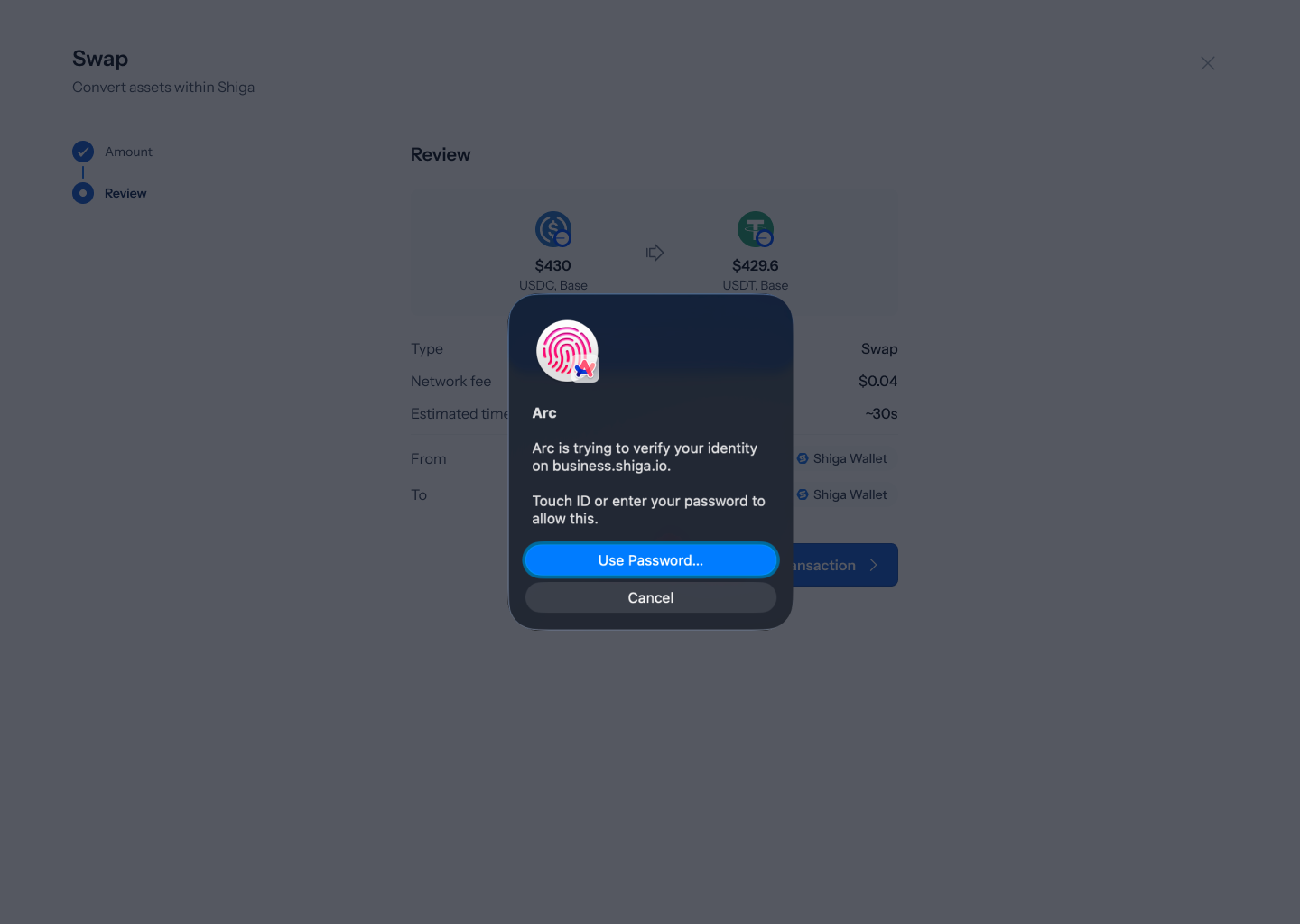 Every Move Money transaction is authorized with your device's **passkey** — Face ID, Touch ID, or whatever biometric/PIN unlock your device uses. There's no code to type in — the native prompt appears right on top of the review screen, and confirming it submits the transaction.
If your device's passkey prompt fails or you cancel it, you'll see a **"Passkey verification failed"** message with a **Use Passkey** button to try again. If authorization fails for any other reason, you'll see a general error — **"Authorization couldn't be completed. Try again or contact support if this continues."**
## 8. Processing and confirmation
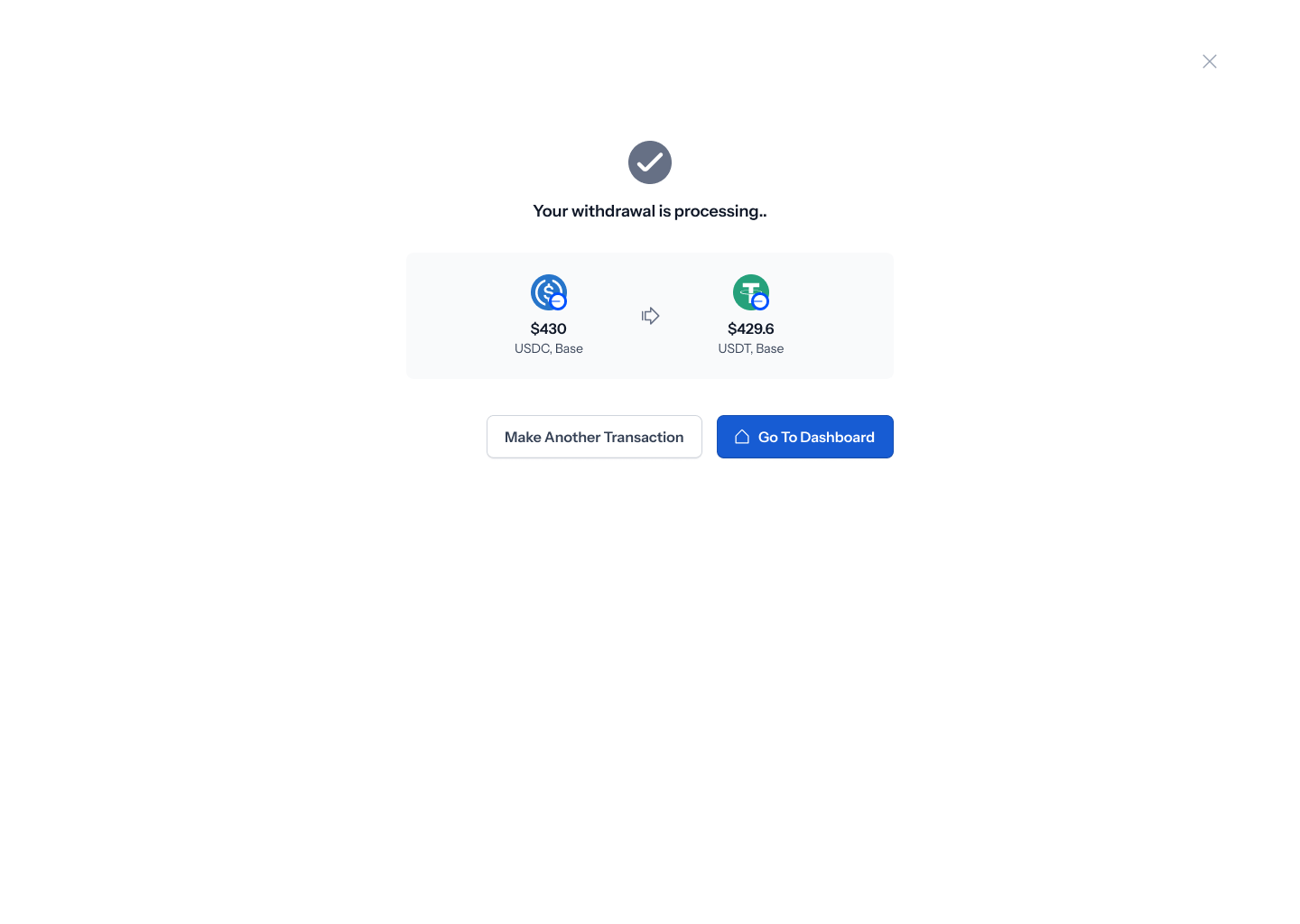
Once you authorize, a loading screen reads **"Processing your transaction..."** with your swap summary still visible underneath. When it's done, you'll land on a confirmation screen — **"Your withdrawal is processing.."** — showing the same summary, with **Make another transaction** or **Go to Dashboard** to finish up.
Every Move Money transaction is authorized with your device's **passkey** — Face ID, Touch ID, or whatever biometric/PIN unlock your device uses. There's no code to type in — the native prompt appears right on top of the review screen, and confirming it submits the transaction.
If your device's passkey prompt fails or you cancel it, you'll see a **"Passkey verification failed"** message with a **Use Passkey** button to try again. If authorization fails for any other reason, you'll see a general error — **"Authorization couldn't be completed. Try again or contact support if this continues."**
## 8. Processing and confirmation
Once you authorize, a loading screen reads **"Processing your transaction..."** with your swap summary still visible underneath. When it's done, you'll land on a confirmation screen — **"Your withdrawal is processing.."** — showing the same summary, with **Make another transaction** or **Go to Dashboard** to finish up.