> ## Documentation Index
> Fetch the complete documentation index at: https://docs.shiga.io/llms.txt
> Use this file to discover all available pages before exploring further.
# Individual Onboarding Overview
> What it takes to open a personal Enta account, and what you can do at each stage.
# Individual Onboarding Overview
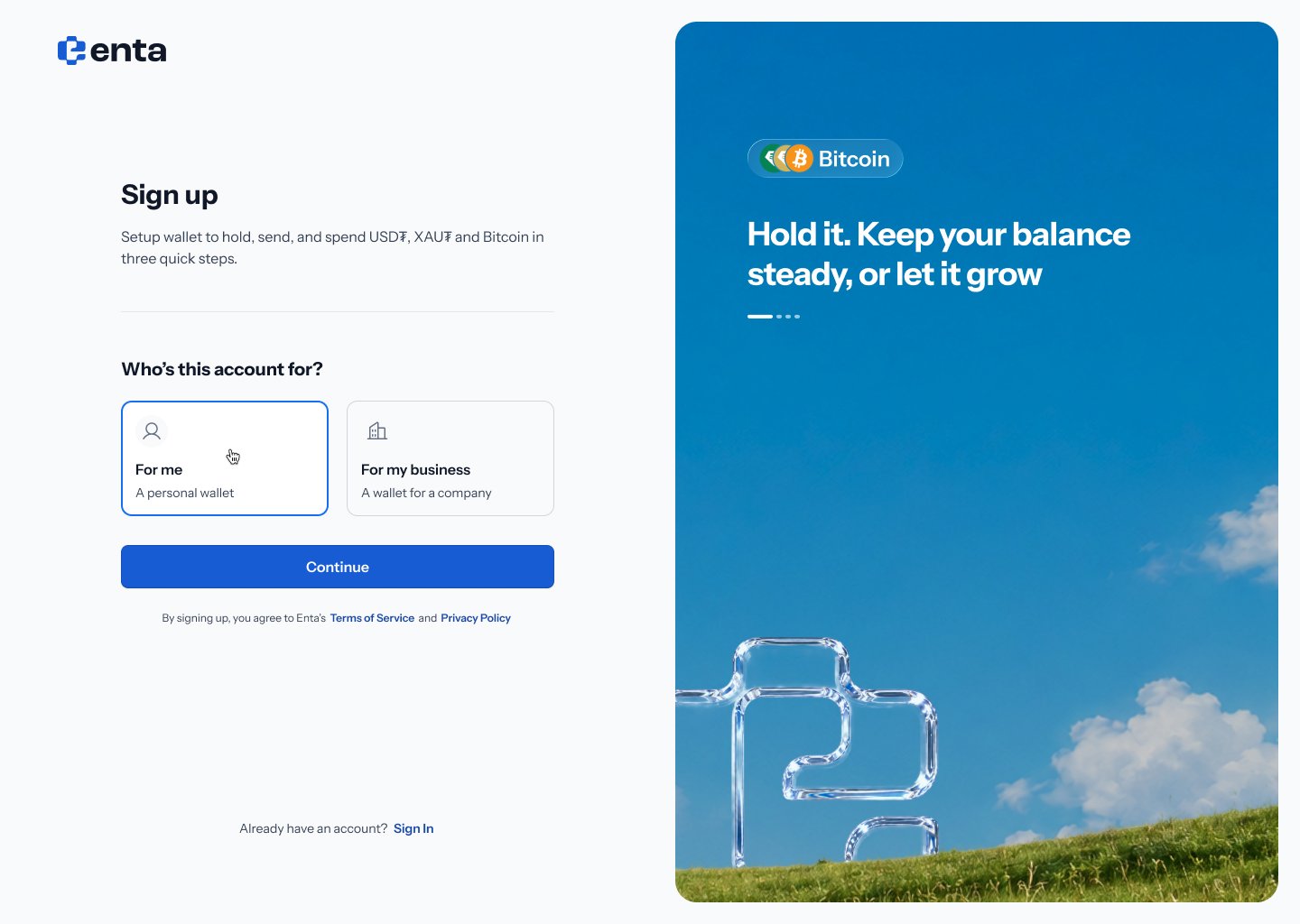
Opening a personal Enta account gives you a crypto wallet that can hold, send and spend **USD₮**, **XAU₮** and **Bitcoin**. The sign-up screen puts it plainly: *"Setup wallet to hold, send, and spend USD₮, XAU₮ and Bitcoin in three quick steps."*
This is the individual path. If you're opening an account for a company, start with [Business Overview](/Onboarding/corporate/overview) instead — that route adds business verification and owner invitations.
***
## The two stages
Getting fully set up happens in two stages, and you can use Enta between them.
**Stage 1 — create your account.** You choose a personal account, confirm your email, and create a passkey. At the end of this you have a working wallet and you're a **Tier 1** user. See [Sign up](/Onboarding/individual/signup).
 **Stage 2 — verify your identity.** You add your personal details, your address, and a selfie with a government ID. Once this clears you're a **Tier 2** user. See [KYC](/Onboarding/individual/kyc).
## What each tier can do
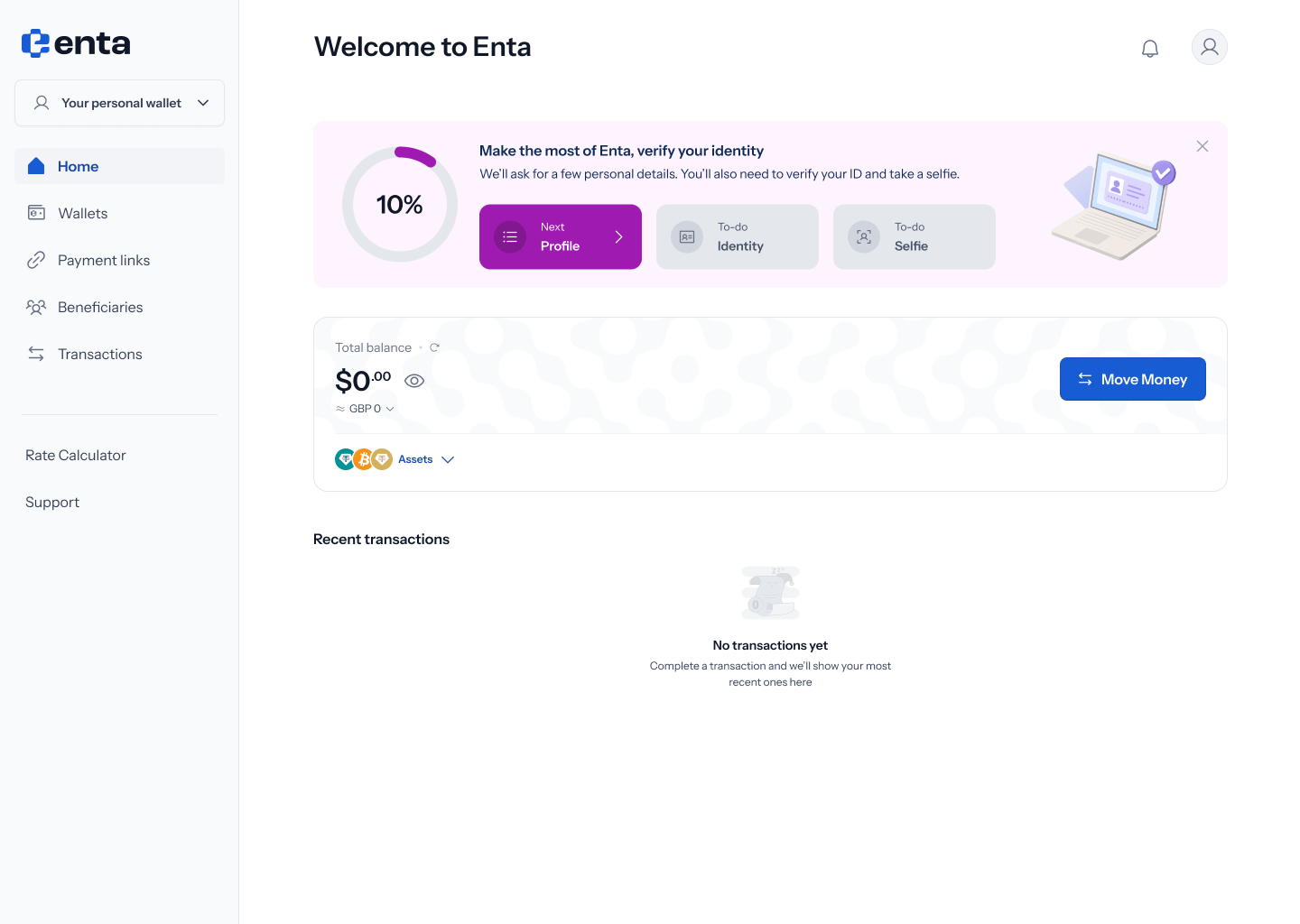
**Tier 1** — your wallet works immediately. You can send, swap and receive crypto, and your Dashboard shows a zero balance until you fund it. A prompt sits at the top of the page headed **"Make the most of Enta, verify your identity"**, tracking how far through verification you are.
**Stage 2 — verify your identity.** You add your personal details, your address, and a selfie with a government ID. Once this clears you're a **Tier 2** user. See [KYC](/Onboarding/individual/kyc).
## What each tier can do
**Tier 1** — your wallet works immediately. You can send, swap and receive crypto, and your Dashboard shows a zero balance until you fund it. A prompt sits at the top of the page headed **"Make the most of Enta, verify your identity"**, tracking how far through verification you are.
 **Tier 2** — verification unlocks moving between crypto and regular money. The confirmation banner reads **"You're fully verified"** — *"Off-ramp, FX swaps are now unlocked"* — with a **Try Crypto to Cash** button. See [Dashboard](/Onboarding/individual/homescreen) for what changes.
.png?fit=max&auto=format&n=Baykm_7aZyi0IY2t&q=85&s=2c2c2d23db7d000f73553a198b68912c) You don't have to verify straight away. The wallet is usable the moment your passkey is created, and the verification prompt can be minimised — hovering the control shows **"Hide for now"**. It reappears until you finish.
## No passwords
Enta doesn't use passwords at all. Your account is locked to your device with your face or fingerprint, using a **passkey**. The explainer panel during sign-up describes it as *"a safer way to sign in. Your device or password manager stores it securely, and you unlock it with your face or fingerprint."*
Two things follow from that. Passkeys can sync across your devices — *"Apple, Google or your password manager can sync it for you"* — and they're **phishing-proof**, because *"Passkeys only work on the real Enta site"*.
You need a device that supports biometric unlock. If yours doesn't, sign-up stops with **"This device can't sign you up"** and offers to hand off to your phone. [Sign up](/Onboarding/individual/signup#7-if-your-device-can-t-create-a-passkey) covers what to do.
## What you'll need before you start
* An email address you can open right now — the first step sends you a link
* A device with Face ID, Touch ID, fingerprint, or Windows Hello
* For verification: your legal name and date of birth as they appear on your ID, your address, a government-issued ID, and a few minutes to take a selfie
* For Naira transactions specifically: your **BVN** and **NIN**
You don't have to verify straight away. The wallet is usable the moment your passkey is created, and the verification prompt can be minimised — hovering the control shows **"Hide for now"**. It reappears until you finish.
## No passwords
Enta doesn't use passwords at all. Your account is locked to your device with your face or fingerprint, using a **passkey**. The explainer panel during sign-up describes it as *"a safer way to sign in. Your device or password manager stores it securely, and you unlock it with your face or fingerprint."*
Two things follow from that. Passkeys can sync across your devices — *"Apple, Google or your password manager can sync it for you"* — and they're **phishing-proof**, because *"Passkeys only work on the real Enta site"*.
You need a device that supports biometric unlock. If yours doesn't, sign-up stops with **"This device can't sign you up"** and offers to hand off to your phone. [Sign up](/Onboarding/individual/signup#7-if-your-device-can-t-create-a-passkey) covers what to do.
## What you'll need before you start
* An email address you can open right now — the first step sends you a link
* A device with Face ID, Touch ID, fingerprint, or Windows Hello
* For verification: your legal name and date of birth as they appear on your ID, your address, a government-issued ID, and a few minutes to take a selfie
* For Naira transactions specifically: your **BVN** and **NIN**