> ## Documentation Index
> Fetch the complete documentation index at: https://docs.shiga.io/llms.txt
> Use this file to discover all available pages before exploring further.
# Get Started
> How to create your individual Enta account — every screen, explained.
# Get Started
Creating your Enta account takes about a minute and needs no password. This guide walks through every screen you'll see when signing up as an **individual** — including the screens that only show up in edge cases, like when a device can't create a passkey, or a resend gets rate-limited — so you always know what's happening and why.
There are 4 steps in the flow (you'll see a step counter at the top of most screens), made up of 15 individual screens.
***
## 1. Choose who this account is for
 This is the first screen you land on. It reads **"Sign up on Enta"** with the subtext **"Three steps to a wallet that holds USD₮ and Bitcoin. Takes one minute"**.
Under **"Who's this account for?"** you'll see two cards:
* **For me** — *A personal wallet*
* **For my business** — *A wallet for a company*
Pick **For me** to go through the individual flow this guide covers. On the right, a panel reminds you what you're getting: **"Your wallet, ready in minutes"**, with two callouts — *"Hold, send, receive straight away — ready as soon as your passkey is set"* and *"You hold the keys — we never see them, locked to your device"*.
Already have an account? Use **Sign in** in the top-right corner instead of signing up again.
## 2. Confirm your selection and continue
This is the first screen you land on. It reads **"Sign up on Enta"** with the subtext **"Three steps to a wallet that holds USD₮ and Bitcoin. Takes one minute"**.
Under **"Who's this account for?"** you'll see two cards:
* **For me** — *A personal wallet*
* **For my business** — *A wallet for a company*
Pick **For me** to go through the individual flow this guide covers. On the right, a panel reminds you what you're getting: **"Your wallet, ready in minutes"**, with two callouts — *"Hold, send, receive straight away — ready as soon as your passkey is set"* and *"You hold the keys — we never see them, locked to your device"*.
Already have an account? Use **Sign in** in the top-right corner instead of signing up again.
## 2. Confirm your selection and continue
 Once you tap **For me**, the card highlights to show it's selected, and a short helper note appears underneath it: **"Hold, send, and receive USD₮ and Bitcoin as soon as you finish signup. Verify identity later if you want fiat accounts."**
This is confirming two things upfront: you get full use of your crypto wallet the moment you finish signing up, and identity verification (to unlock NGN/GBP/EUR fiat accounts) is a separate, optional step you can do later — it never blocks you from using the wallet.
Click **Continue** to move on.
Enta checks at this point whether your current device can create a passkey. If it can, you'll go straight to Step 3 below (entering your email). If it can't, you'll see the screen described next.
## 3. If your device can't create a passkey
Once you tap **For me**, the card highlights to show it's selected, and a short helper note appears underneath it: **"Hold, send, and receive USD₮ and Bitcoin as soon as you finish signup. Verify identity later if you want fiat accounts."**
This is confirming two things upfront: you get full use of your crypto wallet the moment you finish signing up, and identity verification (to unlock NGN/GBP/EUR fiat accounts) is a separate, optional step you can do later — it never blocks you from using the wallet.
Click **Continue** to move on.
Enta checks at this point whether your current device can create a passkey. If it can, you'll go straight to Step 3 below (entering your email). If it can't, you'll see the screen described next.
## 3. If your device can't create a passkey
 If Enta detects your device or browser doesn't support passkeys, you'll see **"This device can't sign you up"**, with the explanation: *"Enta uses passkey instead of a password. We couldn't find any of those on this computer. We have alternative(s) below."*
You're given two ways forward:
* **Use your phone** — scan a QR code and approve on your phone with Face ID or Touch ID
* **Use a different device** — another laptop with Touch ID or Windows Hello
A side panel explains **why** this is necessary: your Enta wallet is locked to your device using your face or fingerprint, the same way you unlock your phone — without that, there's no safe way to hold funds on this device. It also lists what does work: an iPhone or Android phone with Face ID/fingerprint, a Mac with Touch ID, or a Windows PC with Windows Hello.
This screen only appears if your current device genuinely can't support passkeys — most modern phones, Macs, and Windows PCs are already covered.
## 4. Continue on your phone
If Enta detects your device or browser doesn't support passkeys, you'll see **"This device can't sign you up"**, with the explanation: *"Enta uses passkey instead of a password. We couldn't find any of those on this computer. We have alternative(s) below."*
You're given two ways forward:
* **Use your phone** — scan a QR code and approve on your phone with Face ID or Touch ID
* **Use a different device** — another laptop with Touch ID or Windows Hello
A side panel explains **why** this is necessary: your Enta wallet is locked to your device using your face or fingerprint, the same way you unlock your phone — without that, there's no safe way to hold funds on this device. It also lists what does work: an iPhone or Android phone with Face ID/fingerprint, a Mac with Touch ID, or a Windows PC with Windows Hello.
This screen only appears if your current device genuinely can't support passkeys — most modern phones, Macs, and Windows PCs are already covered.
## 4. Continue on your phone
 If you tap **Use your phone** from the previous screen, a QR code dialog pops up on top: **"Create a passkey on a phone or tablet"** with the instruction *"Scan this QR code with a camera on the device you want to create a passkey for Enta"*.
Point your phone's camera at the code, and your phone picks up where your computer left off — you'll finish creating your passkey there with Face ID or Touch ID, and the session syncs back automatically once you're done. You can back out at any time with **Use a different device** or **Cancel**.
## 5. Enter your email — Step 2 of 4
If you tap **Use your phone** from the previous screen, a QR code dialog pops up on top: **"Create a passkey on a phone or tablet"** with the instruction *"Scan this QR code with a camera on the device you want to create a passkey for Enta"*.
Point your phone's camera at the code, and your phone picks up where your computer left off — you'll finish creating your passkey there with Face ID or Touch ID, and the session syncs back automatically once you're done. You can back out at any time with **Use a different device** or **Cancel**.
## 5. Enter your email — Step 2 of 4
 This is where the step counter first appears, showing **Step 2 of 4**. The screen asks **"What's your email?"** with the note *"We'll send a one-tap link."*
Enter your email address and click **Send me the link**. There's no password field anywhere — Enta signs you in and up using a secure link sent straight to your inbox.
Already have an account? Click **Sign in** in the top-right corner instead.
## 6. Check your inbox
This is where the step counter first appears, showing **Step 2 of 4**. The screen asks **"What's your email?"** with the note *"We'll send a one-tap link."*
Enter your email address and click **Send me the link**. There's no password field anywhere — Enta signs you in and up using a secure link sent straight to your inbox.
Already have an account? Click **Sign in** in the top-right corner instead.
## 6. Check your inbox
 After you submit your email, you'll land on **"Check your inbox"**, confirming *"Link sent to \[your email address]"*.
Open your email app, find the message from Enta, and tap the link — it brings you straight back into the sign-up flow. Underneath, you'll see two helper prompts: *"Didn't get it? Check spam"* and *"Wrong email address? Use a different email"*. The **Resend** option is disabled at first, showing a countdown like **"Resend in 0:45"**.
## 7. Resend once the timer runs out
After you submit your email, you'll land on **"Check your inbox"**, confirming *"Link sent to \[your email address]"*.
Open your email app, find the message from Enta, and tap the link — it brings you straight back into the sign-up flow. Underneath, you'll see two helper prompts: *"Didn't get it? Check spam"* and *"Wrong email address? Use a different email"*. The **Resend** option is disabled at first, showing a countdown like **"Resend in 0:45"**.
## 7. Resend once the timer runs out
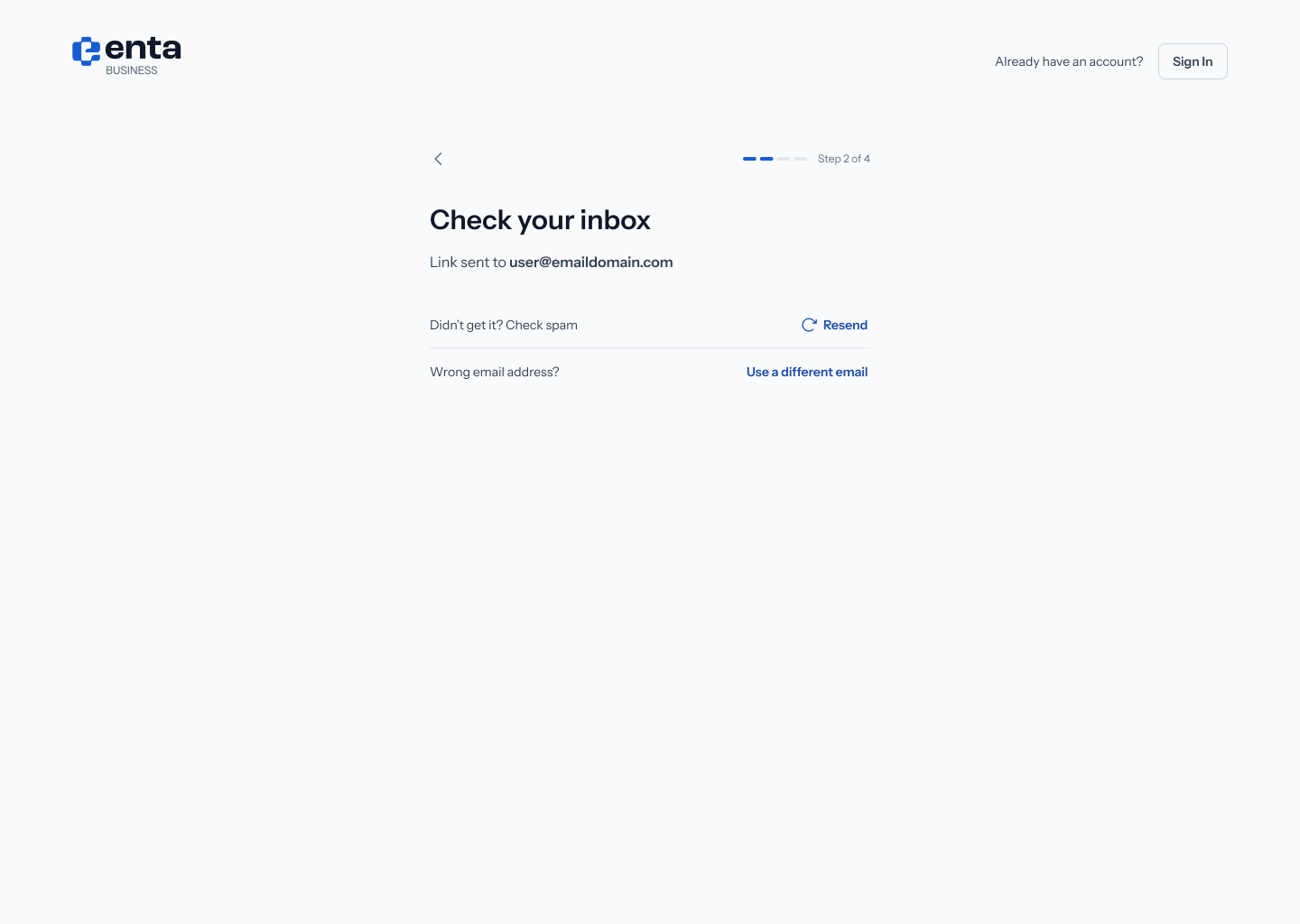 Once the 45-second countdown finishes, **Resend** turns active (blue, clickable). Everything else on the screen — the email address, the spam/wrong-email helper text — stays the same. Tap **Resend** if the original link never arrived.
## 8. If you resend too many times
Once the 45-second countdown finishes, **Resend** turns active (blue, clickable). Everything else on the screen — the email address, the spam/wrong-email helper text — stays the same. Tap **Resend** if the original link never arrived.
## 8. If you resend too many times
 If you hit **Resend** repeatedly in a short window, Enta temporarily blocks further resends to protect your inbox from spam. You'll see a red banner: **"Too many resends. Try again in \[x] minutes"**, and the **Resend** button greys out again until that cool-off period passes.
If you're stuck here, double-check you're looking in the right inbox and your spam folder before waiting out the cool-off — or use **Use a different email** to start over with another address.
## 9. Secure your wallet — Step 3 of 4
If you hit **Resend** repeatedly in a short window, Enta temporarily blocks further resends to protect your inbox from spam. You'll see a red banner: **"Too many resends. Try again in \[x] minutes"**, and the **Resend** button greys out again until that cool-off period passes.
If you're stuck here, double-check you're looking in the right inbox and your spam folder before waiting out the cool-off — or use **Use a different email** to start over with another address.
## 9. Secure your wallet — Step 3 of 4
 After verifying your email, you'll reach **Step 3 of 4**: **"Secure your wallet"**, with the explanation *"Create a passkey so only you can unlock your account. No password needed."*
You'll see a card for your current device (e.g. **"This Mac"** — *"Use this device biometrics to sign in"*) with a badge noting it **takes less than 30 seconds**. Click **Create passkey** to continue — your device or browser will now ask you to confirm.
A side panel explains what a passkey actually is: *"A passkey is a safer way to sign in. Your device or password manager stores it securely, and you unlock it with your face or fingerprint."* Two reasons it's worth it: it **can work across devices** (Apple, Google, or your password manager can sync it for you), and it's **phishing-proof** (passkeys only work on the real Enta site — never on a fake copy).
## 10. Confirm in your browser (Mac / Chrome)
After verifying your email, you'll reach **Step 3 of 4**: **"Secure your wallet"**, with the explanation *"Create a passkey so only you can unlock your account. No password needed."*
You'll see a card for your current device (e.g. **"This Mac"** — *"Use this device biometrics to sign in"*) with a badge noting it **takes less than 30 seconds**. Click **Create passkey** to continue — your device or browser will now ask you to confirm.
A side panel explains what a passkey actually is: *"A passkey is a safer way to sign in. Your device or password manager stores it securely, and you unlock it with your face or fingerprint."* Two reasons it's worth it: it **can work across devices** (Apple, Google, or your password manager can sync it for you), and it's **phishing-proof** (passkeys only work on the real Enta site — never on a fake copy).
## 10. Confirm in your browser (Mac / Chrome)
 On a Mac using Chrome, clicking **Create passkey** brings up your browser's own dialog on top of the Enta screen: **"Create a passkey for Enta"**, showing the email address you signed up with and the note *"This passkey will only be saved on this device."* The main button behind it now reads **"Awaiting browser input"** while it waits for you.
Choose **Continue** to proceed, or **Use a different device** / **Cancel** if you want to create the passkey somewhere else.
## 11. Confirm with Windows Security (Windows)
On a Mac using Chrome, clicking **Create passkey** brings up your browser's own dialog on top of the Enta screen: **"Create a passkey for Enta"**, showing the email address you signed up with and the note *"This passkey will only be saved on this device."* The main button behind it now reads **"Awaiting browser input"** while it waits for you.
Choose **Continue** to proceed, or **Use a different device** / **Cancel** if you want to create the passkey somewhere else.
## 11. Confirm with Windows Security (Windows)
 If you're on a Windows PC instead, you'll see the native **Windows Security** dialog: **"Making sure it's you"** — *"Let's save a passkey on this device to sign in to Enta as \[your email]. This request comes from the app Enta by Shiga."* Windows then actively looks for your fingerprint or face with a **"Looking for you..."** prompt.
Follow your device's prompt (fingerprint, face, or PIN) and click **OK** to finish, or **Cancel** to back out. A **More choices** link is available if you'd rather use a different sign-in method Windows supports.
## 12. Confirm with Touch ID (Mac / Chrome)
If you're on a Windows PC instead, you'll see the native **Windows Security** dialog: **"Making sure it's you"** — *"Let's save a passkey on this device to sign in to Enta as \[your email]. This request comes from the app Enta by Shiga."* Windows then actively looks for your fingerprint or face with a **"Looking for you..."** prompt.
Follow your device's prompt (fingerprint, face, or PIN) and click **OK** to finish, or **Cancel** to back out. A **More choices** link is available if you'd rather use a different sign-in method Windows supports.
## 12. Confirm with Touch ID (Mac / Chrome)
 Back on Mac/Chrome, after the browser dialog in step 10, Chrome asks you to actually verify it's you: **"'Google Chrome' is trying to verify your identity on Enta. Touch ID or enter your password to allow this."**
Use your fingerprint on Touch ID, or click **Use Password…** to confirm with your Mac login password instead. Once confirmed, your passkey is created and stored on this device — you won't need to repeat this step to sign in again.
## 13. Add a recovery email — Step 4 of 4
Back on Mac/Chrome, after the browser dialog in step 10, Chrome asks you to actually verify it's you: **"'Google Chrome' is trying to verify your identity on Enta. Touch ID or enter your password to allow this."**
Use your fingerprint on Touch ID, or click **Use Password…** to confirm with your Mac login password instead. Once confirmed, your passkey is created and stored on this device — you won't need to repeat this step to sign in again.
## 13. Add a recovery email — Step 4 of 4
 The last step, **Step 4 of 4**: **"Add recovery email"**, explained as *"In case you lose access to your primary email or passkey, you'll use this to recover your account."*
Enter a **recovery email** — ideally different from the one you signed up with — then click **Send Code**. Enta sends a one-time verification code to confirm it's really yours. Prefer to use a phone number instead? Toggle **Use phone number instead** to switch.
Keep your recovery email (or phone) accessible and up to date. If you ever lose both your primary email and your passkey, this is your way back into your account — Enta can't override it for you.
## 14. Confirm your recovery email
The last step, **Step 4 of 4**: **"Add recovery email"**, explained as *"In case you lose access to your primary email or passkey, you'll use this to recover your account."*
Enter a **recovery email** — ideally different from the one you signed up with — then click **Send Code**. Enta sends a one-time verification code to confirm it's really yours. Prefer to use a phone number instead? Toggle **Use phone number instead** to switch.
Keep your recovery email (or phone) accessible and up to date. If you ever lose both your primary email and your passkey, this is your way back into your account — Enta can't override it for you.
## 14. Confirm your recovery email
 Next, you'll see **"Enter recovery email OTP"** with *"We've sent verification code to \[your recovery email]"*. Type the 6-digit code into the boxes provided — it submits automatically once all six digits are entered.
The same helper prompts from email verification reappear here: *"Didn't get it? Check spam"* with a **Resend** countdown, and *"Wrong email address?"* with a **Use a different email** link, in case you need to correct it.
## 15. You're in
Once your recovery email is confirmed, your account is fully set up and you land on your **Dashboard** — your wallet home screen. While you were completing these steps, Enta was setting up your wallet in the background: no seed phrase, no manual wallet configuration, nothing extra for you to do.
From here, you have **immediate, full access to your crypto wallet** — you can hold, send, and receive USD₮ and Bitcoin right away, gas-free. Unlocking fiat accounts (NGN, GBP, EUR) is a separate, optional step you can complete whenever you're ready, and it never blocks the wallet features you already have.
Want to unlock fiat accounts next? Head to the [Onboarding](/Overview/onboarding) guide for the identity verification (KYC) walkthrough.
Next, you'll see **"Enter recovery email OTP"** with *"We've sent verification code to \[your recovery email]"*. Type the 6-digit code into the boxes provided — it submits automatically once all six digits are entered.
The same helper prompts from email verification reappear here: *"Didn't get it? Check spam"* with a **Resend** countdown, and *"Wrong email address?"* with a **Use a different email** link, in case you need to correct it.
## 15. You're in
Once your recovery email is confirmed, your account is fully set up and you land on your **Dashboard** — your wallet home screen. While you were completing these steps, Enta was setting up your wallet in the background: no seed phrase, no manual wallet configuration, nothing extra for you to do.
From here, you have **immediate, full access to your crypto wallet** — you can hold, send, and receive USD₮ and Bitcoin right away, gas-free. Unlocking fiat accounts (NGN, GBP, EUR) is a separate, optional step you can complete whenever you're ready, and it never blocks the wallet features you already have.
Want to unlock fiat accounts next? Head to the [Onboarding](/Overview/onboarding) guide for the identity verification (KYC) walkthrough.