> ## Documentation Index
> Fetch the complete documentation index at: https://docs.shiga.io/llms.txt
> Use this file to discover all available pages before exploring further.
# Onboarding
> How individual identity verification (KYC) works — every screen, explained.
# Onboarding
Signing up already gives you full access to your crypto wallet — you can hold, send, and receive USD₮, Bitcoin, and other assets right away. Identity verification (KYC) is a separate, optional step you only need when you want to convert between crypto and a fiat currency like EUR, GBP, or NGN.
This guide walks through all 8 real screens in that flow — including what happens if you start and don't finish, what changes when you pick Naira, and what happens if a selfie check fails.
Once you start, there are 3 steps: **Profile → Address → Identity**, shown as a stepper at the top of most screens.
***
## 1. Your home screen nudges you to verify
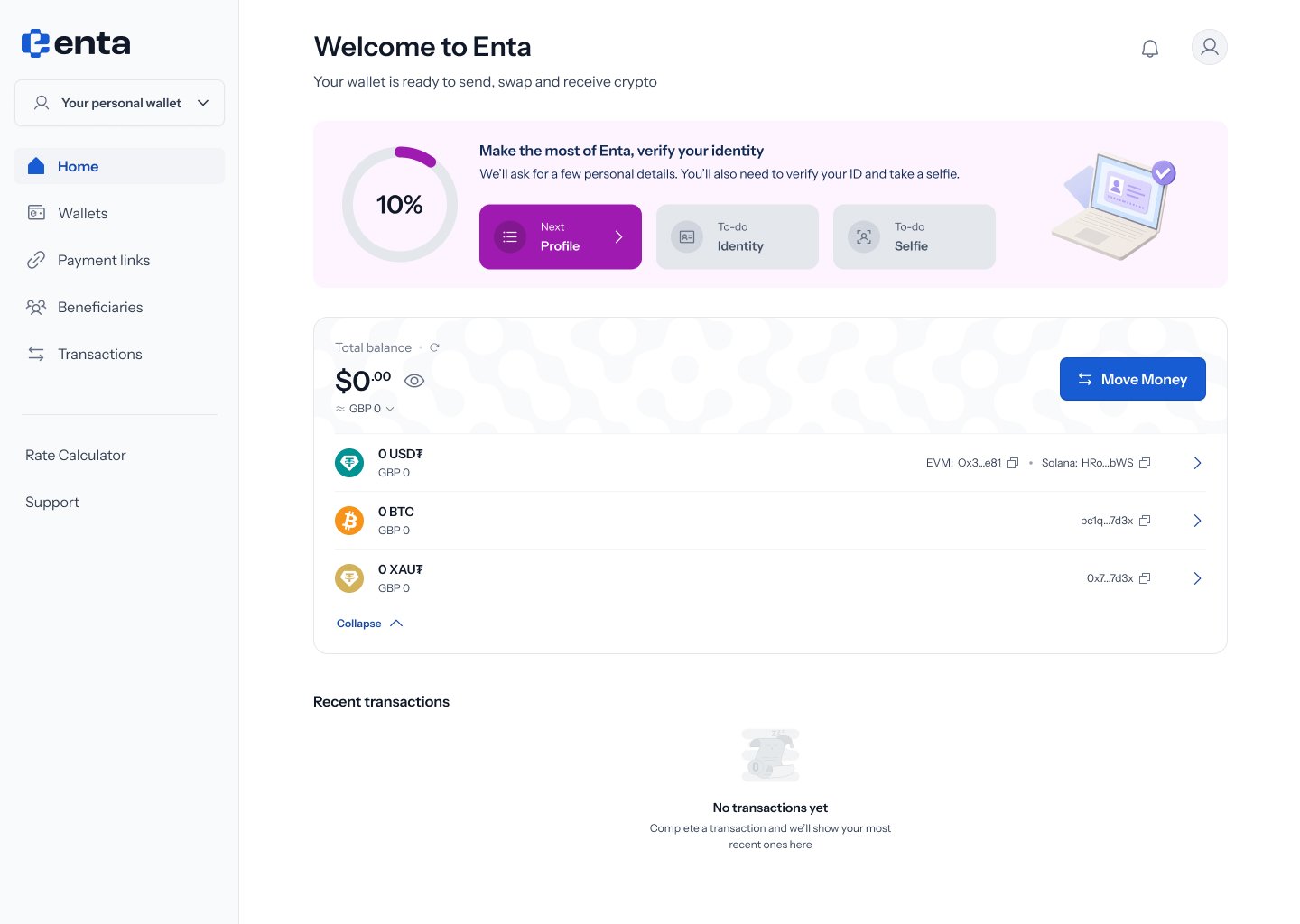 After signing up, your home screen reads **"Welcome to Enta"** with **"Your wallet is ready to send, swap and receive crypto."** Underneath, a banner reads **"Make the most of Enta, verify your identity"** — *"We'll ask for a few personal details. You'll also need to verify your ID and take a selfie."*
The banner shows three steps as a mini progress list: **Next: Profile** (active), **To-do: Identity**, **To-do: Selfie**.
This banner is just a nudge — your wallet balance, transactions, and **Move Money** button all work normally whether or not you've verified.
## 2. If you started and didn't finish
After signing up, your home screen reads **"Welcome to Enta"** with **"Your wallet is ready to send, swap and receive crypto."** Underneath, a banner reads **"Make the most of Enta, verify your identity"** — *"We'll ask for a few personal details. You'll also need to verify your ID and take a selfie."*
The banner shows three steps as a mini progress list: **Next: Profile** (active), **To-do: Identity**, **To-do: Selfie**.
This banner is just a nudge — your wallet balance, transactions, and **Move Money** button all work normally whether or not you've verified.
## 2. If you started and didn't finish
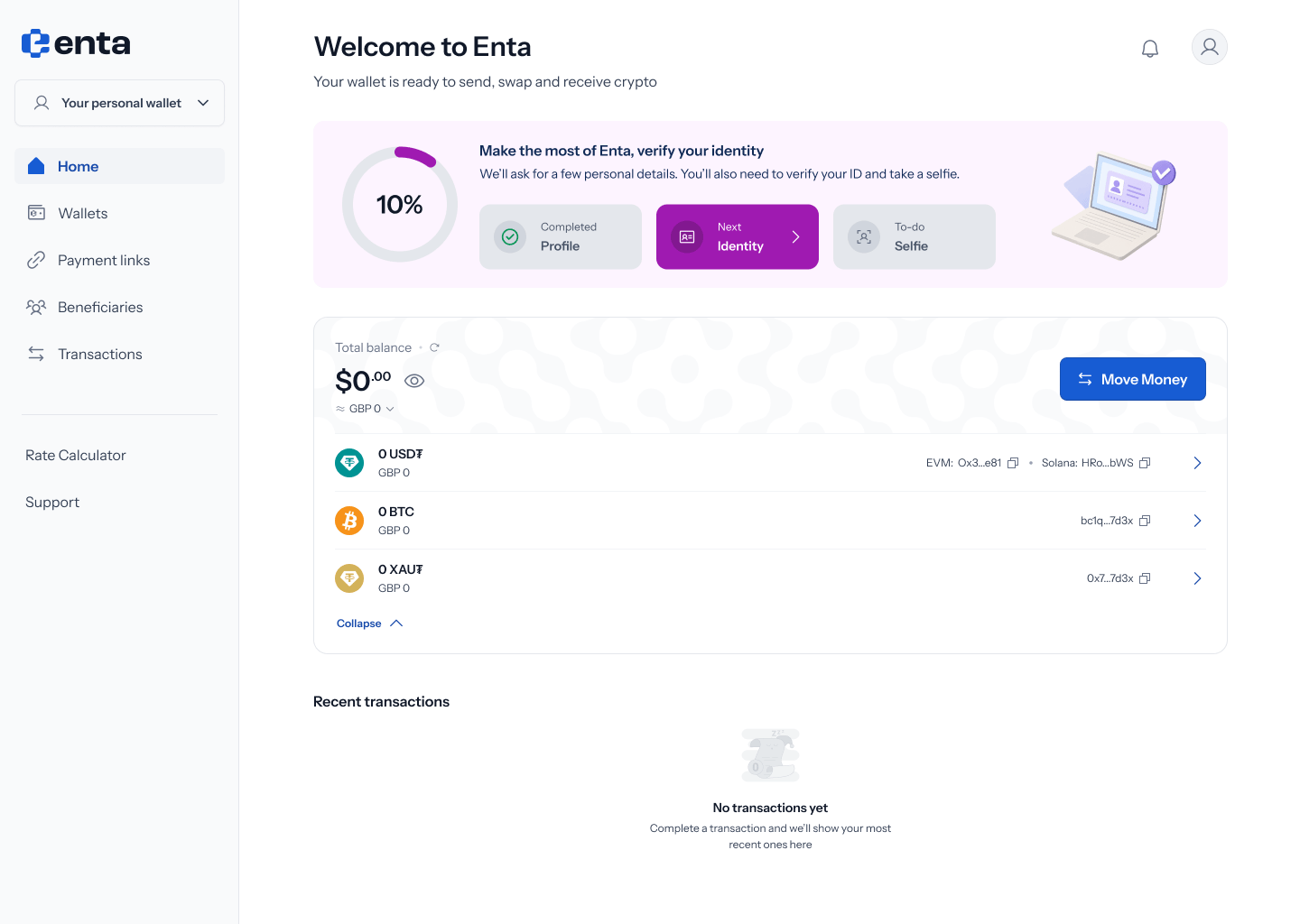 If you'd already started verification and left partway through, the same home screen banner updates to show your real progress: **Profile** now shows as completed (with a checkmark), and **Next: Identity** becomes the active step instead.
There's no restart — tapping the banner picks up exactly where you left off.
## 3. Choosing a currency to unlock
If you'd already started verification and left partway through, the same home screen banner updates to show your real progress: **Profile** now shows as completed (with a checkmark), and **Next: Identity** becomes the active step instead.
There's no restart — tapping the banner picks up exactly where you left off.
## 3. Choosing a currency to unlock
 Tapping the verification banner opens **"Unlock currency transactions"** — *"Convert from EUR, GBP, NGN and more to crypto and back."*
Under **Select currency needed**, you'll see cards for **Euro**, **Pound**, and **Naira** — pick whichever ones you actually plan to use. Below that, **What you'll need** lists exactly what verification involves:
* **Add profile information** — name, date of birth, phone number
* **Add address details** — full address information
* **Capture identity** — selfie and a government ID
Click **Get started** once you've picked your currencies.
## 4. What changes if you pick Naira
Tapping the verification banner opens **"Unlock currency transactions"** — *"Convert from EUR, GBP, NGN and more to crypto and back."*
Under **Select currency needed**, you'll see cards for **Euro**, **Pound**, and **Naira** — pick whichever ones you actually plan to use. Below that, **What you'll need** lists exactly what verification involves:
* **Add profile information** — name, date of birth, phone number
* **Add address details** — full address information
* **Capture identity** — selfie and a government ID
Click **Get started** once you've picked your currencies.
## 4. What changes if you pick Naira
 If you select **Naira** specifically, two things change on this same screen: the **Add profile information** requirement expands to *"Name, date of birth, phone number, BVN, NIN"*, and a consent checkbox appears — **"I understand that BVN and NIN are required for Naira transactions."**
BVN and NIN are only required if you select Naira. Sticking with EUR or GBP alone won't ask for them.
## 5. Step 1 of 3 — Profile information
If you select **Naira** specifically, two things change on this same screen: the **Add profile information** requirement expands to *"Name, date of birth, phone number, BVN, NIN"*, and a consent checkbox appears — **"I understand that BVN and NIN are required for Naira transactions."**
BVN and NIN are only required if you select Naira. Sticking with EUR or GBP alone won't ask for them.
## 5. Step 1 of 3 — Profile information
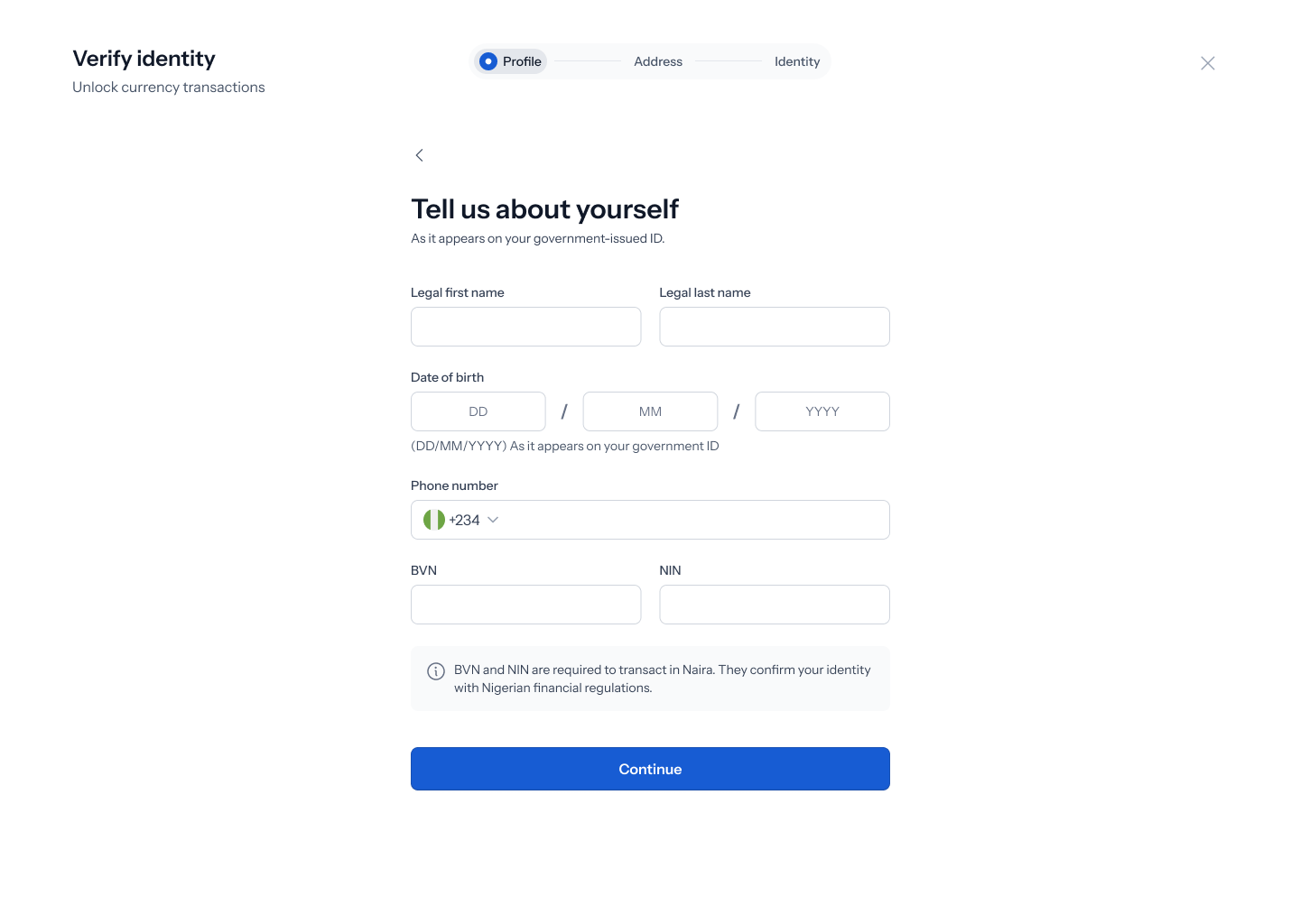 The first step asks **"Tell us about yourself"** — *"As it appears on your government-issued ID."*
Fill in:
* **Legal first name** and **legal last name**
* **Date of birth** (DD/MM/YYYY) — must match your government ID
* **Phone number** (with a country code selector)
* **BVN** and **NIN** — only shown if you selected Naira in the previous step
An info banner reminds you why: *"BVN and NIN are required to transact in Naira. They confirm your identity with Nigerian financial regulations."*
Click **Continue** once everything's filled in.
## 6. Step 2 of 3 — Address
The first step asks **"Tell us about yourself"** — *"As it appears on your government-issued ID."*
Fill in:
* **Legal first name** and **legal last name**
* **Date of birth** (DD/MM/YYYY) — must match your government ID
* **Phone number** (with a country code selector)
* **BVN** and **NIN** — only shown if you selected Naira in the previous step
An info banner reminds you why: *"BVN and NIN are required to transact in Naira. They confirm your identity with Nigerian financial regulations."*
Click **Continue** once everything's filled in.
## 6. Step 2 of 3 — Address
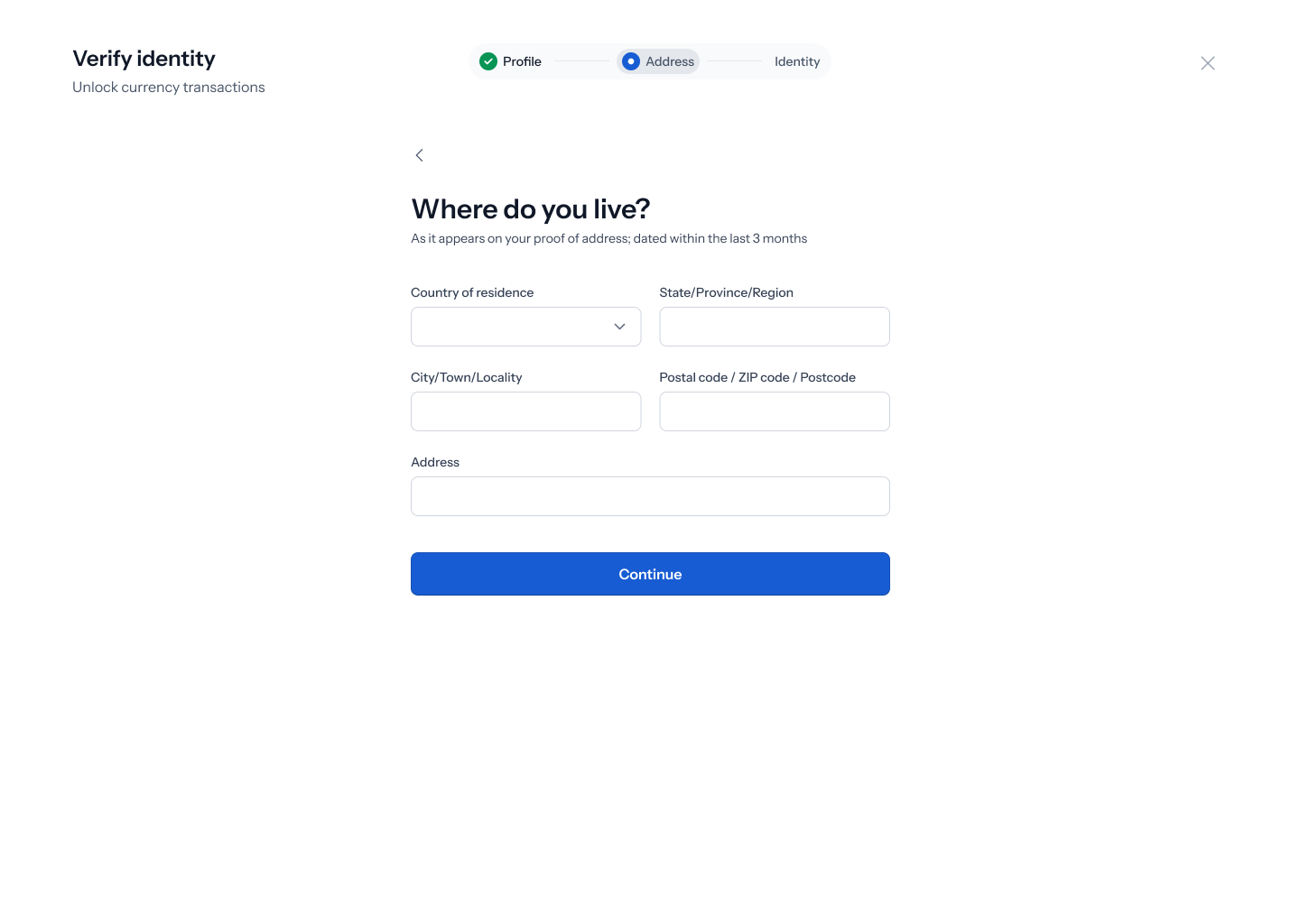 Next: **"Where do you live?"** — *"As it appears on your proof of address; dated within the last 3 months."*
Fill in your **country of residence**, **state/province/region**, **city/town**, **postal code**, and full **address**, then click **Continue**.
## 7. Step 3 of 3 — Verify your identity
Next: **"Where do you live?"** — *"As it appears on your proof of address; dated within the last 3 months."*
Fill in your **country of residence**, **state/province/region**, **city/town**, **postal code**, and full **address**, then click **Continue**.
## 7. Step 3 of 3 — Verify your identity
 The last step: **"Let's verify your identity"** — *"We will check your Selfie and Government issued ID."*
This step hands off to an embedded identity verification provider (Sumsub) rather than a native Enta form — it'll walk you through photographing your ID and taking a liveness selfie right there. Most people are approved automatically within a few minutes; in some cases it can take up to 24 hours if manual review is needed.
Good lighting and a clear, glare-free photo of your ID make automatic approval much more likely.
## 8. If your selfie doesn't match
The last step: **"Let's verify your identity"** — *"We will check your Selfie and Government issued ID."*
This step hands off to an embedded identity verification provider (Sumsub) rather than a native Enta form — it'll walk you through photographing your ID and taking a liveness selfie right there. Most people are approved automatically within a few minutes; in some cases it can take up to 24 hours if manual review is needed.
Good lighting and a clear, glare-free photo of your ID make automatic approval much more likely.
## 8. If your selfie doesn't match
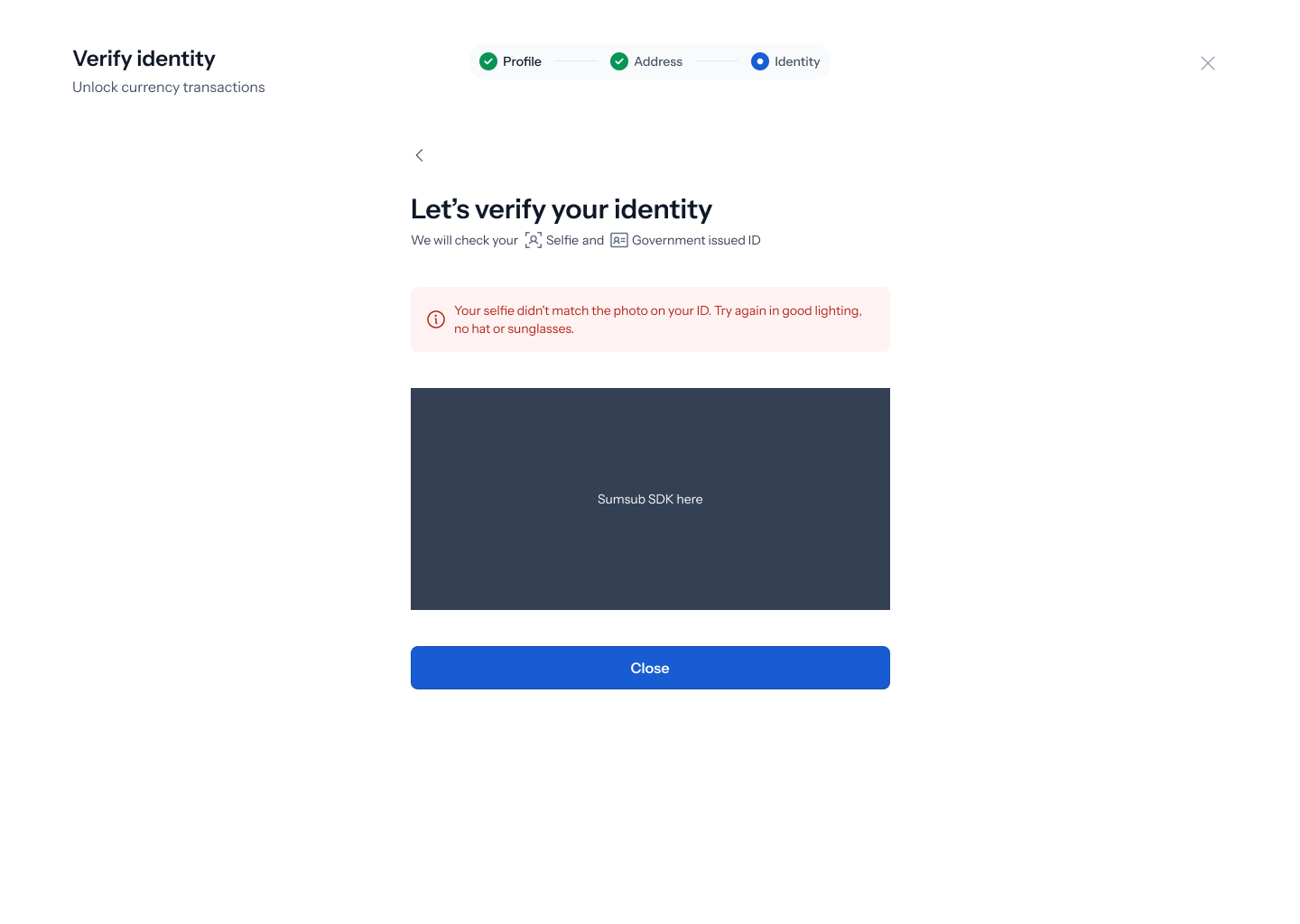 If the liveness selfie doesn't match the photo on your ID, you'll see the same verification screen again with a red banner: **"Your selfie didn't match the photo on your ID. Try again in good lighting, no hat or sunglasses."**
Nothing else about your progress is lost — just retake the selfie following that guidance and continue.
Remove hats, sunglasses, or anything covering your face before the selfie check, and make sure your face is well-lit and clearly visible.
***
## What happens after you submit
Once your ID and selfie are submitted, Enta checks your details against AML, PEP, and sanctions screening automatically. Most people are approved within a few minutes; a small number are routed to manual review, which can take up to 24 hours. You'll get a push notification and email either way.
Once approved, the fiat currencies you selected become available in your wallet — no need to redo anything you've already completed if you decide to unlock another currency later that doesn't require additional documents.
Haven't created your account yet? Start with the [Get Started](/Overview/getstarted) guide first.
If the liveness selfie doesn't match the photo on your ID, you'll see the same verification screen again with a red banner: **"Your selfie didn't match the photo on your ID. Try again in good lighting, no hat or sunglasses."**
Nothing else about your progress is lost — just retake the selfie following that guidance and continue.
Remove hats, sunglasses, or anything covering your face before the selfie check, and make sure your face is well-lit and clearly visible.
***
## What happens after you submit
Once your ID and selfie are submitted, Enta checks your details against AML, PEP, and sanctions screening automatically. Most people are approved within a few minutes; a small number are routed to manual review, which can take up to 24 hours. You'll get a push notification and email either way.
Once approved, the fiat currencies you selected become available in your wallet — no need to redo anything you've already completed if you decide to unlock another currency later that doesn't require additional documents.
Haven't created your account yet? Start with the [Get Started](/Overview/getstarted) guide first.