> ## Documentation Index
> Fetch the complete documentation index at: https://docs.shiga.io/llms.txt
> Use this file to discover all available pages before exploring further.
# Add a Beneficiary
> Save a recipient as a beneficiary, as a wallet address or a bank account, for faster future payments.
# Add a Beneficiary
A **beneficiary** is a saved recipient — a wallet address or a bank account — so you don't have to re-enter their details every time you pay them.
This is a different guide from [Beneficiaries List](/Product/Beneficiary/liststates), [View Beneficiary Details](/Product/Beneficiary/viewdetails), [Edit Beneficiary Details](/Product/Beneficiary/editdetails), [View Beneficiary Transactions](/Product/Beneficiary/viewtransactions), [Delete a Beneficiary](/Product/Beneficiary/deletebeneficiary), and [Filter Beneficiaries](/Product/Beneficiary/filters).
***
## 1. Open the Add Beneficiary form
From your **Beneficiaries** list, tap **Add beneficiary**.
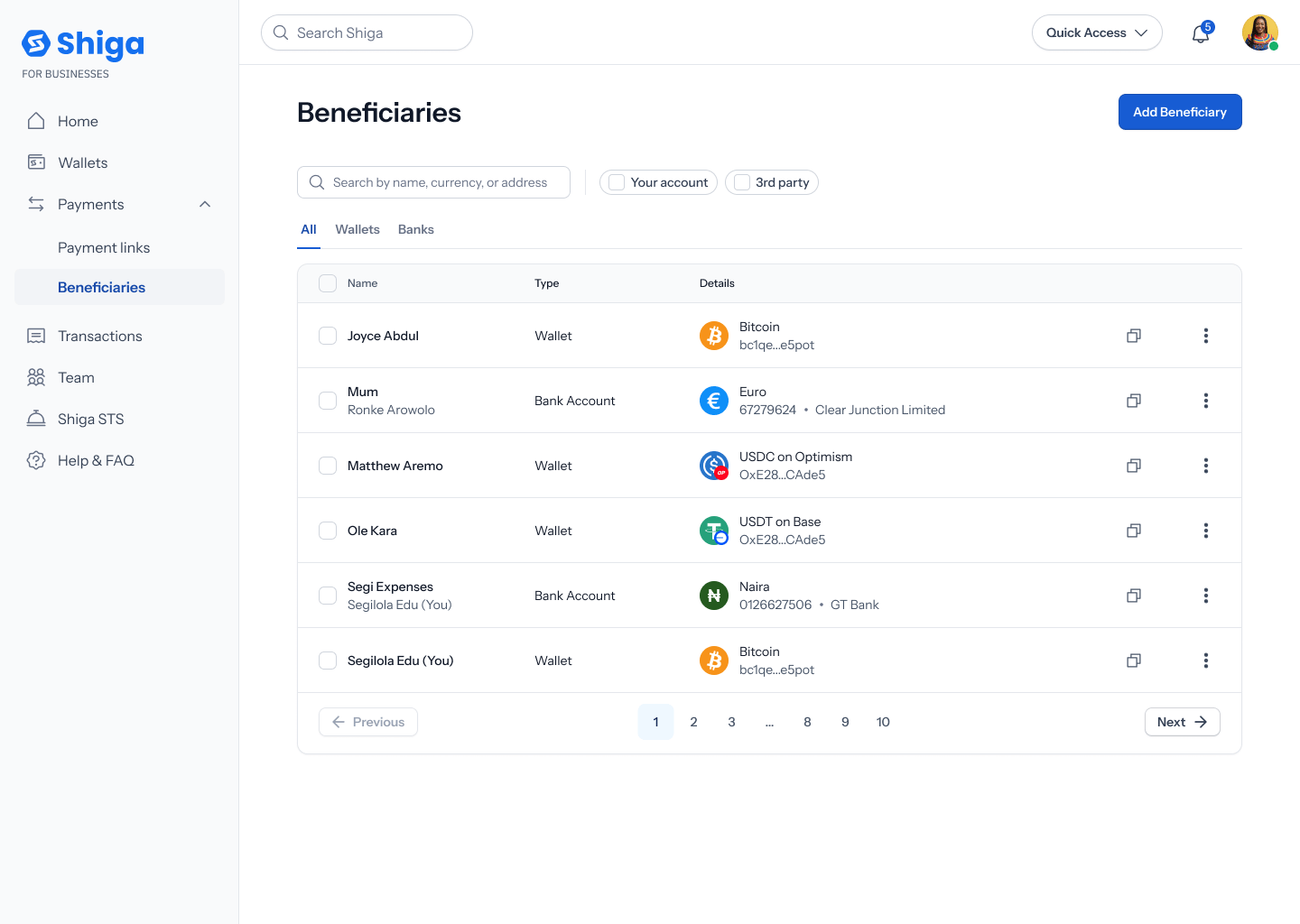 This opens the **Add Beneficiary** panel — *"Save recipient for faster future payments"* — with **Individual** / **Business** tabs, and **First name** / **Last name** fields. Below that, choose the **Account type**: **Wallet** or **Bank Account**.
## 2. Add a wallet beneficiary
With **Wallet** selected, fill in the **Wallet details**: an **Asset** dropdown, a **Smartchain** (network) dropdown, and a **Wallet address** field (with a **Paste** shortcut).
This opens the **Add Beneficiary** panel — *"Save recipient for faster future payments"* — with **Individual** / **Business** tabs, and **First name** / **Last name** fields. Below that, choose the **Account type**: **Wallet** or **Bank Account**.
## 2. Add a wallet beneficiary
With **Wallet** selected, fill in the **Wallet details**: an **Asset** dropdown, a **Smartchain** (network) dropdown, and a **Wallet address** field (with a **Paste** shortcut).
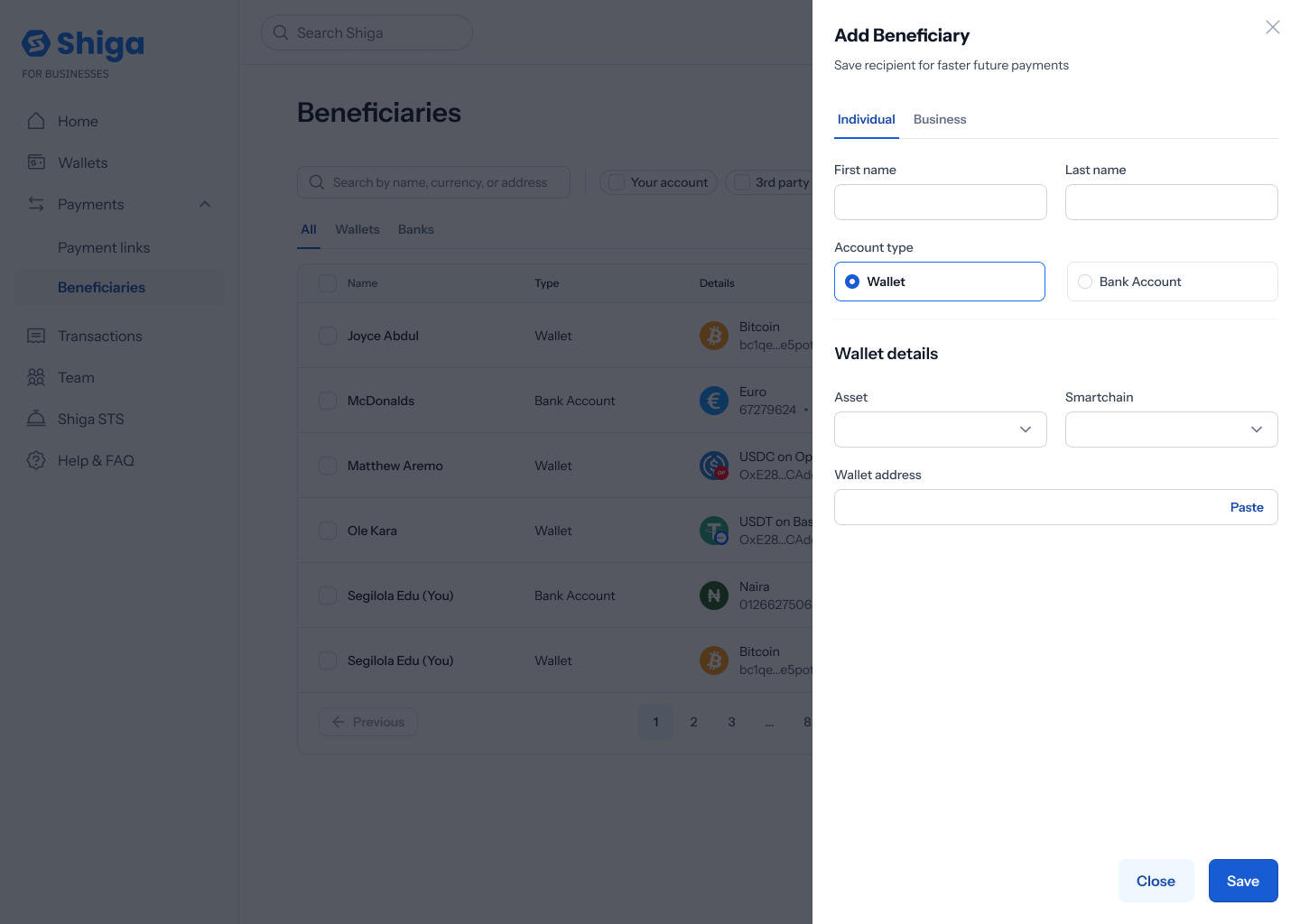 For example: **Lawrence**, **Duncan**, asset **USDT**, network **Optimism**, address **0x1aBcd95869b158213F3A41209057415E9F971Ea6**. Tap **Save**.
 ## 3. Add a bank account beneficiary
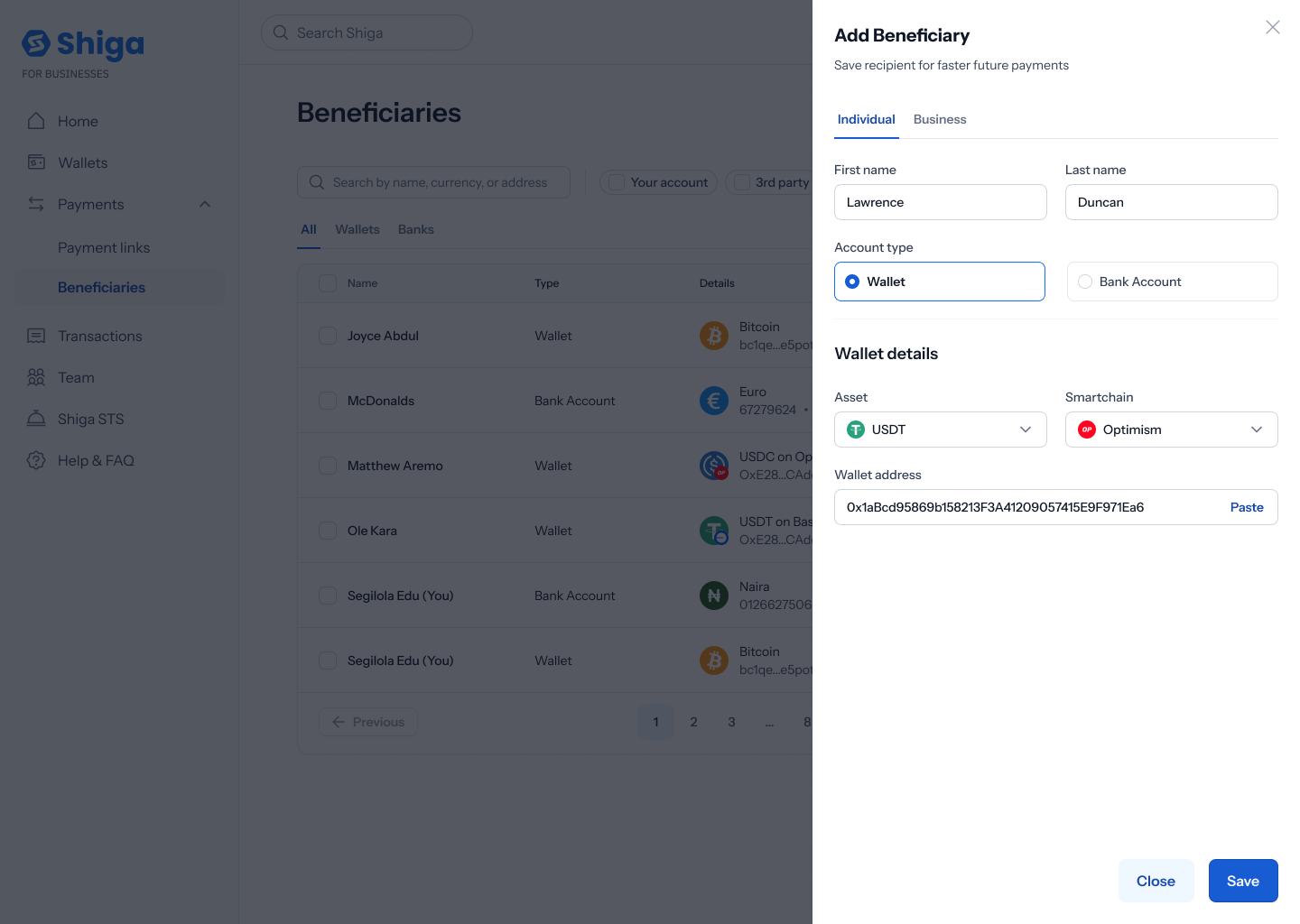
With **Bank Account** selected instead, fill in the **Bank details** — the exact fields depend on the currency you choose.
## 3. Add a bank account beneficiary
With **Bank Account** selected instead, fill in the **Bank details** — the exact fields depend on the currency you choose.
 For **Euro**: **Account name**, **Country**, **Bank name**, and **International Bank Account Number (IBAN)** — e.g. **Segilola Edu**, France, Revolut, **FR76 3000 6000 1101 2345 6789 018**.
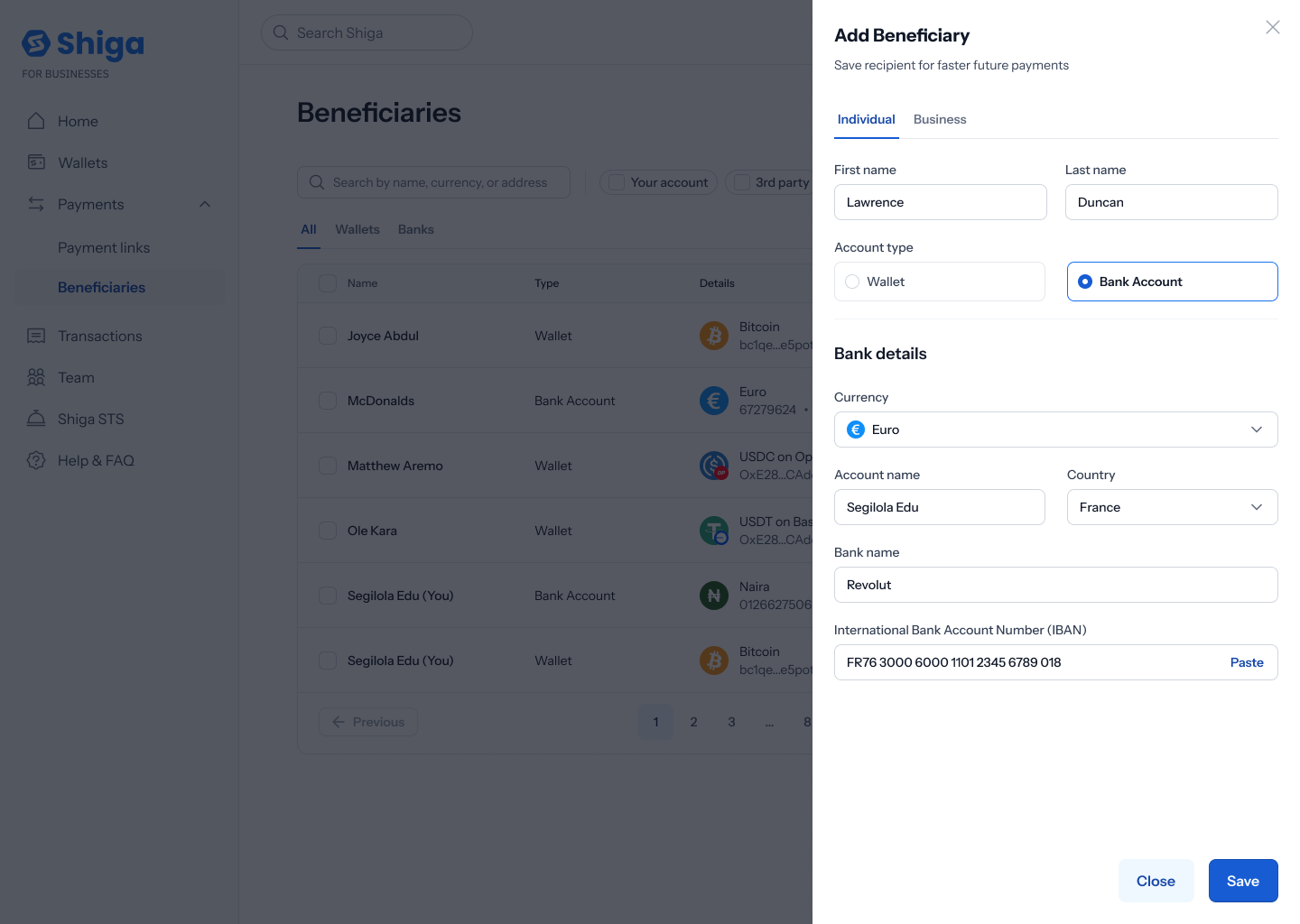 For **Pound**: **Account name**, **Country**, **Bank name**, **Account number**, and **Sort code** — e.g. **Segilola Edu**, Revolut, **67279624**, **04-00-75**.
 For **Naira**: just an **Account number** and **Bank Name** — e.g. **0126627506**, Guaranty Trust Bank. Enta looks up and shows the account holder's name automatically (e.g. **Bayo Audu**) rather than asking you to type it in.
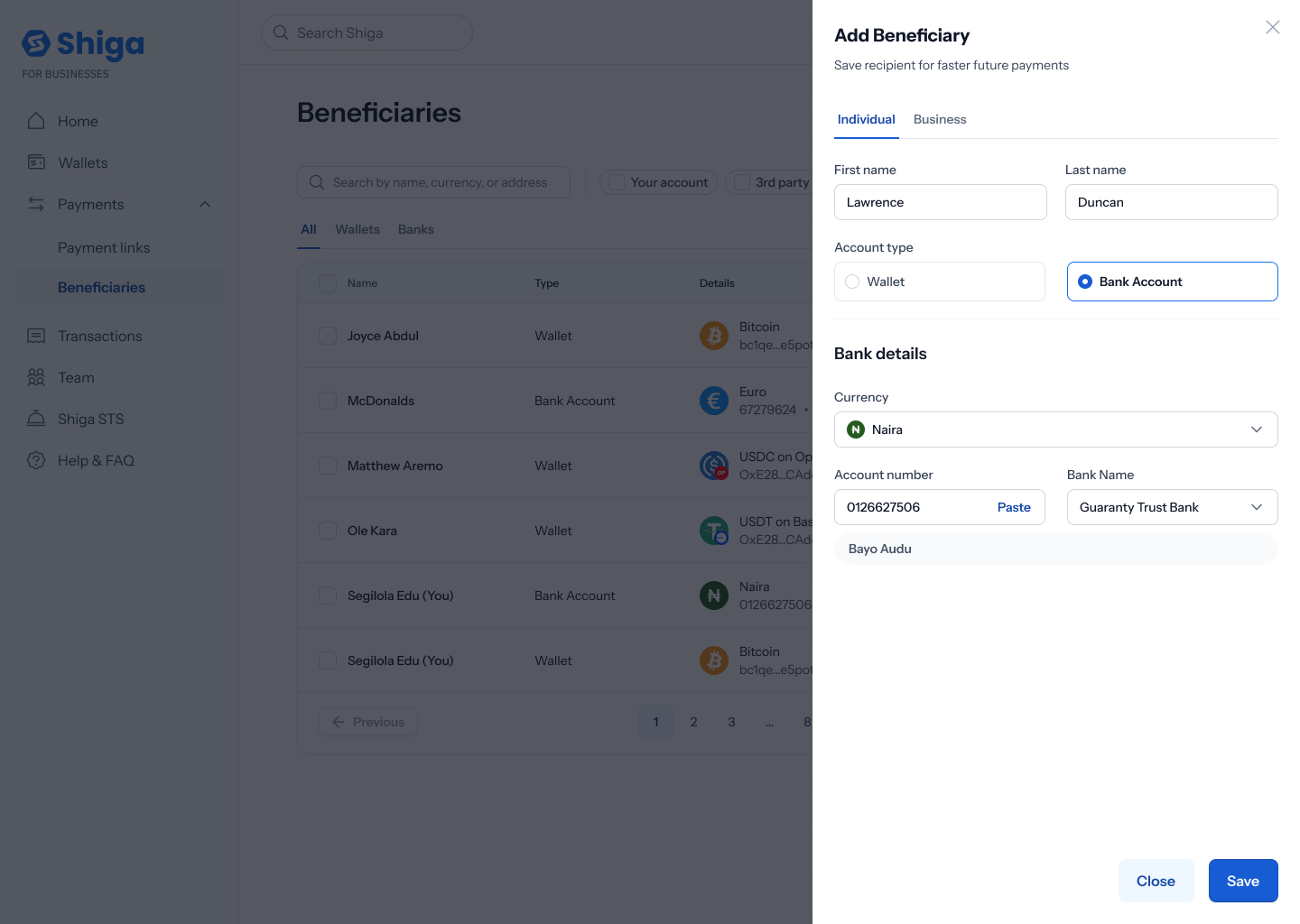 Tap **Save** to add the beneficiary, or **Close** to back out.
In the current Figma file, the Pound bank account example shows **Country: France** — the same value as the Euro example right next to it. That's almost certainly a copy-paste leftover in the mockup rather than real behavior, since a Pound account wouldn't normally default to France.
Tap **Save** to add the beneficiary, or **Close** to back out.
In the current Figma file, the Pound bank account example shows **Country: France** — the same value as the Euro example right next to it. That's almost certainly a copy-paste leftover in the mockup rather than real behavior, since a Pound account wouldn't normally default to France.