> ## Documentation Index
> Fetch the complete documentation index at: https://docs.shiga.io/llms.txt
> Use this file to discover all available pages before exploring further.
# View Beneficiary Transactions
> See your payment history with a saved beneficiary, start to finish.
# View Beneficiary Transactions
Every beneficiary's details view has a **Recent transactions** tab showing your payment history with them.
This is a different guide from [Beneficiaries List](/Product/Beneficiary/liststates), [Add a Beneficiary](/Product/Beneficiary/addbeneficiary), [View Beneficiary Details](/Product/Beneficiary/viewdetails), [Edit Beneficiary Details](/Product/Beneficiary/editdetails), [Delete a Beneficiary](/Product/Beneficiary/deletebeneficiary), and [Filter Beneficiaries](/Product/Beneficiary/filters).
***
## 1. Open a beneficiary's transactions
From your **Beneficiaries** list, open a beneficiary, then switch to the **Recent transactions** tab.
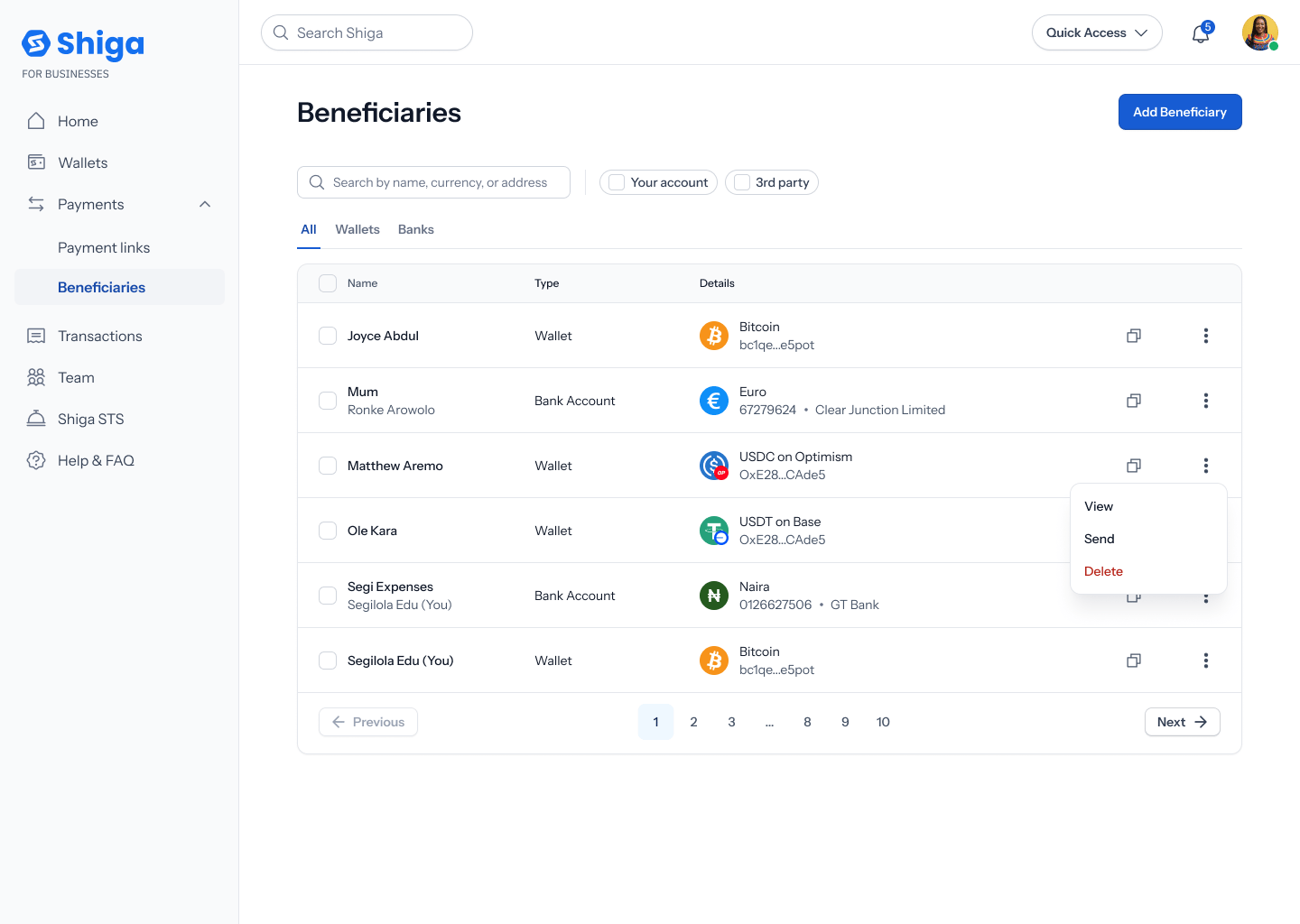 If you've never paid this beneficiary before, you'll see an empty state: **"No transactions yet"** — *"When you start making payments to this beneficiary, they'll appear here"*.
 ## 2. Browse transaction history
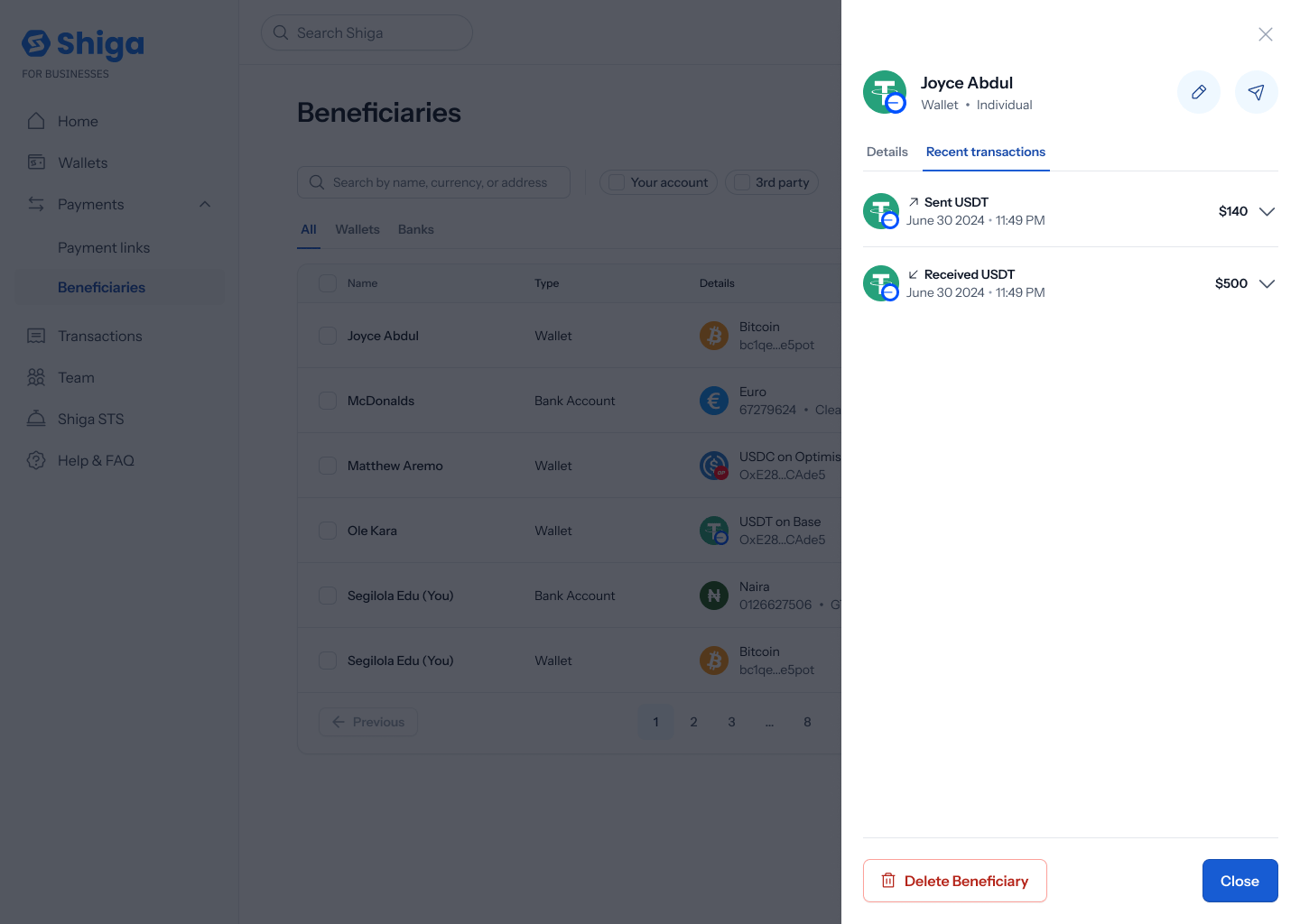
Otherwise, you'll see a list of past transactions — each row showing how it was sent or received (e.g. **"Sent USDT"**, **"Received USDT"**), the date and time, and the amount (e.g. $140**, **$**500**).
## 2. Browse transaction history
Otherwise, you'll see a list of past transactions — each row showing how it was sent or received (e.g. **"Sent USDT"**, **"Received USDT"**), the date and time, and the amount (e.g. $140**, **$**500**).
 ## 3. Expand a transaction
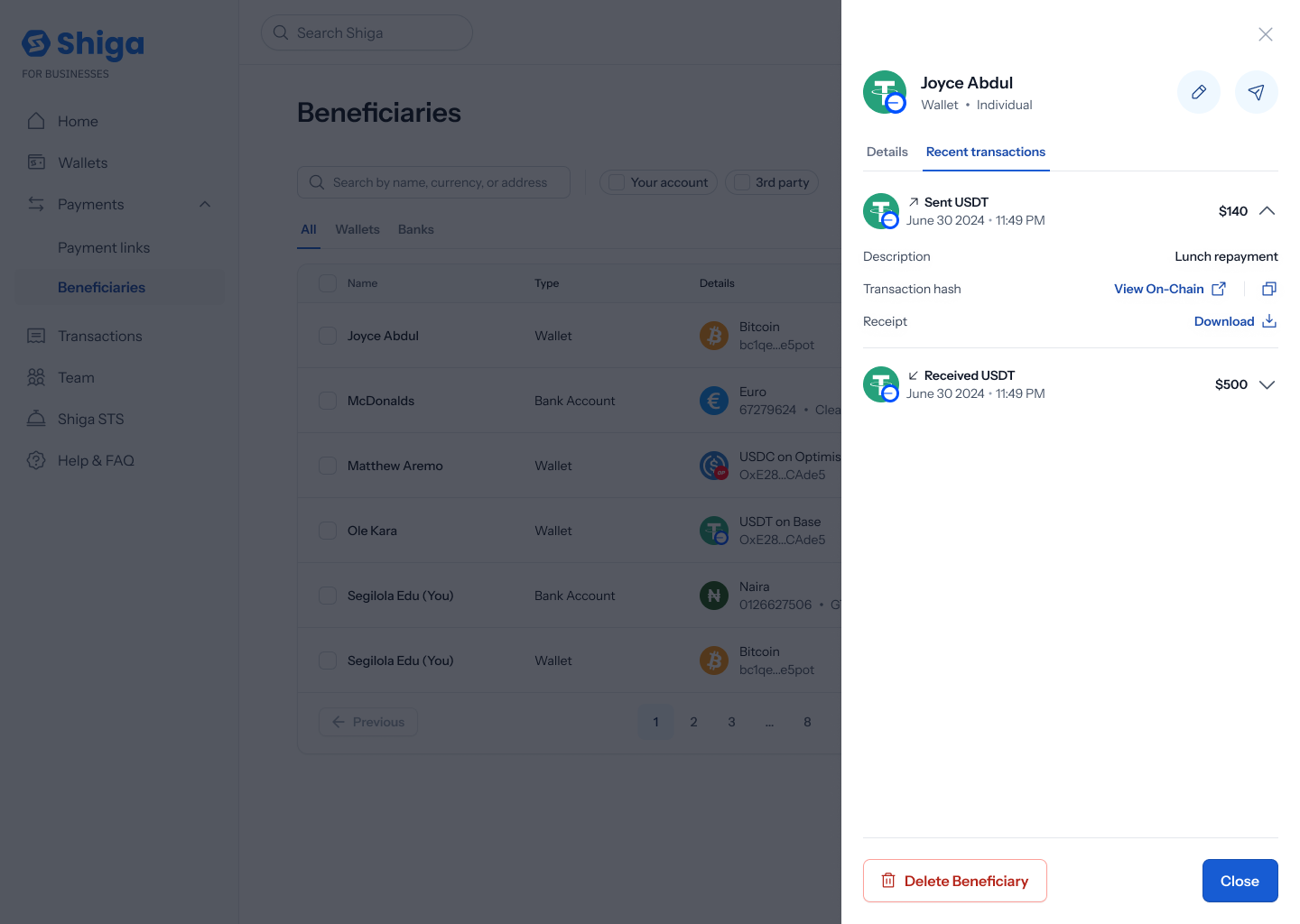
Tap a row to expand it and see more: a **Description** (e.g. **"Lunch repayment"**), a **Transaction hash** with a **View on-chain** button, and a **Receipt** with a **Download** button.
## 3. Expand a transaction
Tap a row to expand it and see more: a **Description** (e.g. **"Lunch repayment"**), a **Transaction hash** with a **View on-chain** button, and a **Receipt** with a **Download** button.