> ## Documentation Index
> Fetch the complete documentation index at: https://docs.shiga.io/llms.txt
> Use this file to discover all available pages before exploring further.
# Bank Account to Bank Account (OTC)
> Move funds between bank accounts in different currencies through the OTC desk
This is one of five OTC flows under **Product > Shiga STS**. See also: the [OTC Guided Tour](/Product/Otcdesk/guidedtour), [Bank Account to Shiga Wallet](/Product/Otcdesk/banktoshiga), [Shiga Wallet to Bank Account](/Product/Otcdesk/shigatobank), and [Shiga Wallet to Shiga Wallet](/Product/Otcdesk/shigatoshiga).
## 1. Start the transfer
1. From the sidebar, go to **Product > Shiga STS**.
2. On the **Move money** screen, choose **From: Bank account** and **To: Bank account**.
3. Click **Get started**.
## 2. Choose a recipient
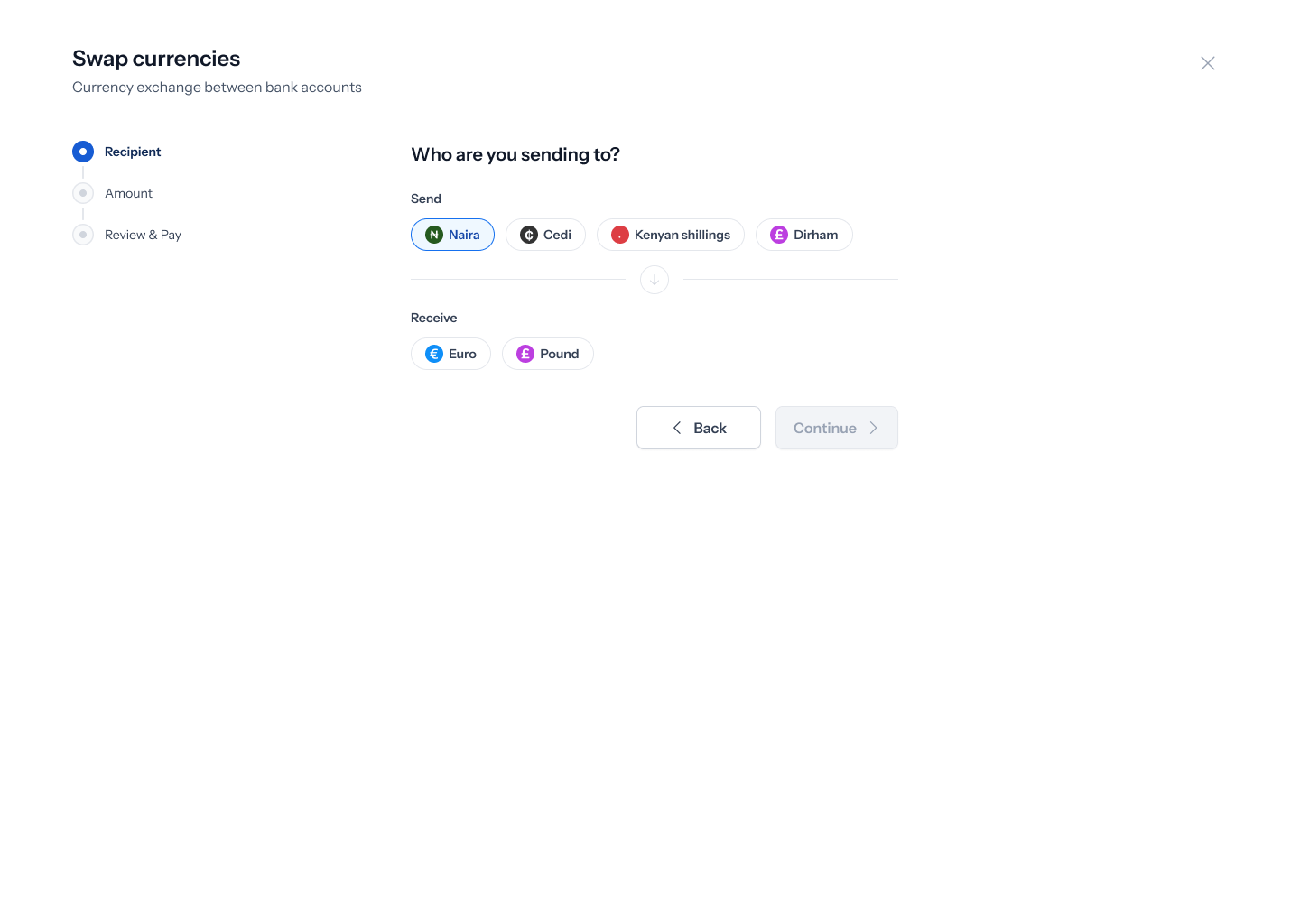 1. Pick the currency you're sending and the currency your recipient will receive (for example, Naira in, Euro out).
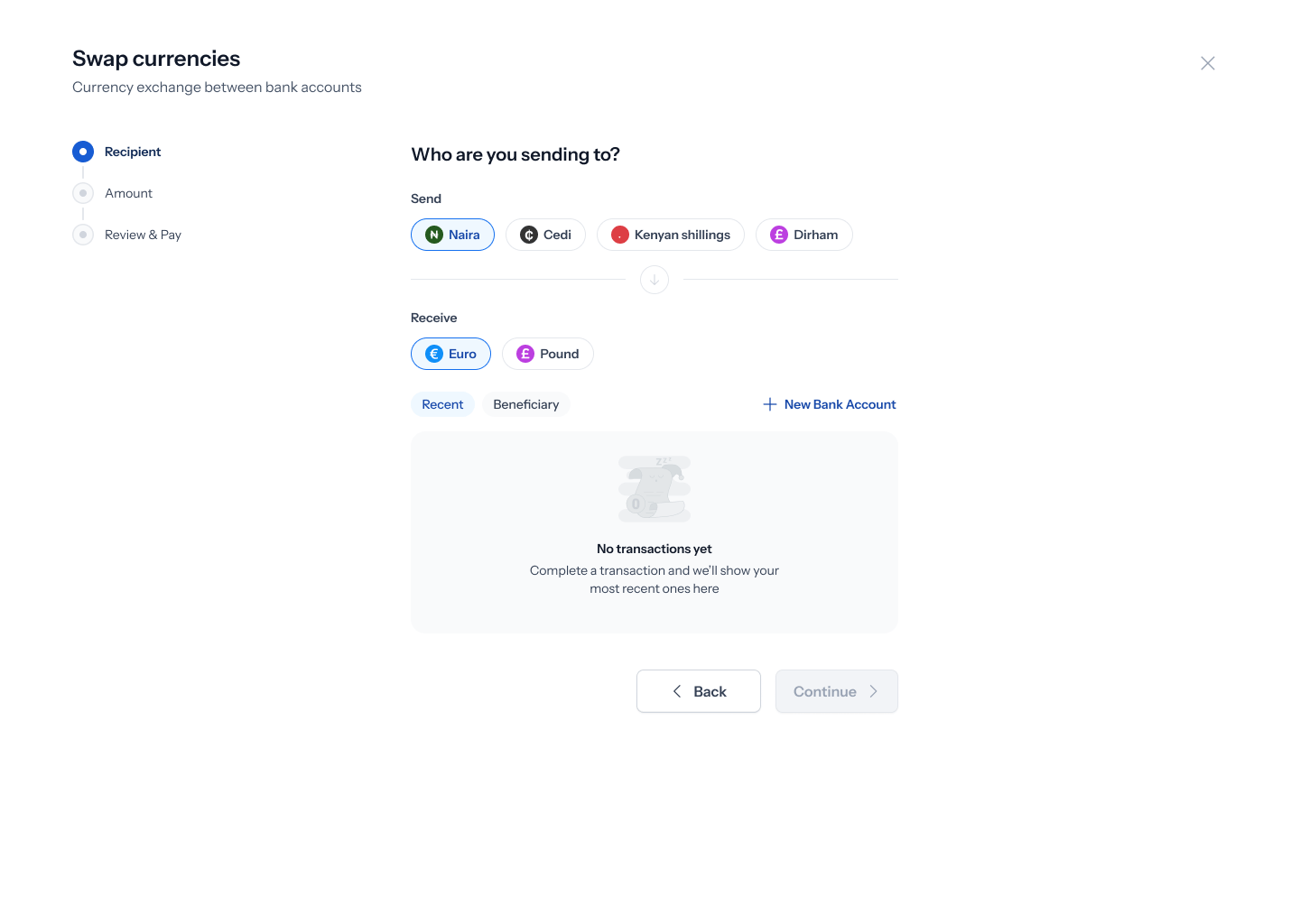
2. Choose a recipient from **Recent** or your saved **Beneficiary** list, or click **+ New Bank Account** to add one.
1. Pick the currency you're sending and the currency your recipient will receive (for example, Naira in, Euro out).
2. Choose a recipient from **Recent** or your saved **Beneficiary** list, or click **+ New Bank Account** to add one.
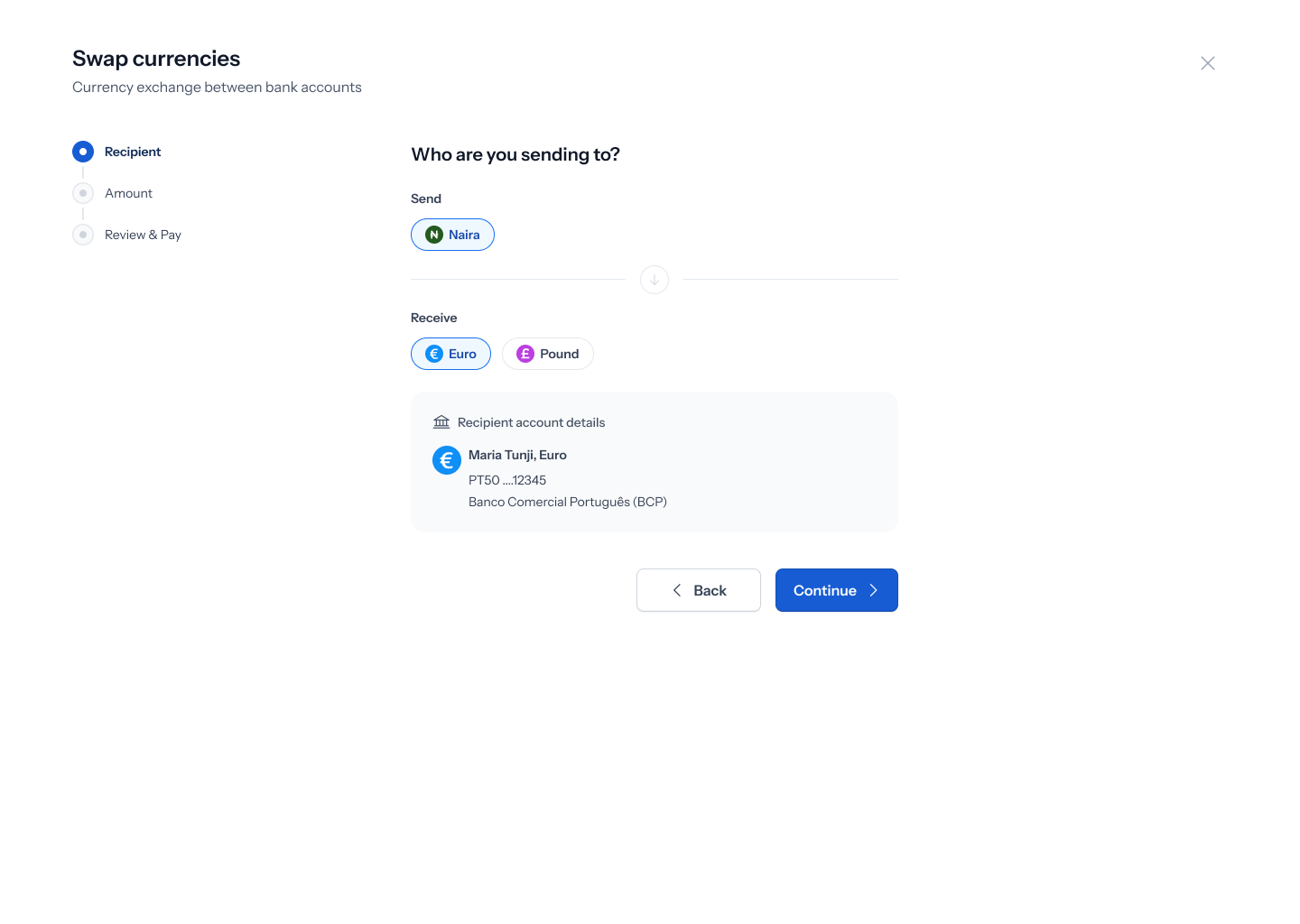 3. Click **Continue**.
The sample recipient shown in this design lists the bank name as "Guaranty Trust Bankn" — an extra trailing letter. Likely a cosmetic typo worth flagging to design rather than a real bank name.
## 3. Verify a new recipient (if applicable)
3. Click **Continue**.
The sample recipient shown in this design lists the bank name as "Guaranty Trust Bankn" — an extra trailing letter. Likely a cosmetic typo worth flagging to design rather than a real bank name.
## 3. Verify a new recipient (if applicable)
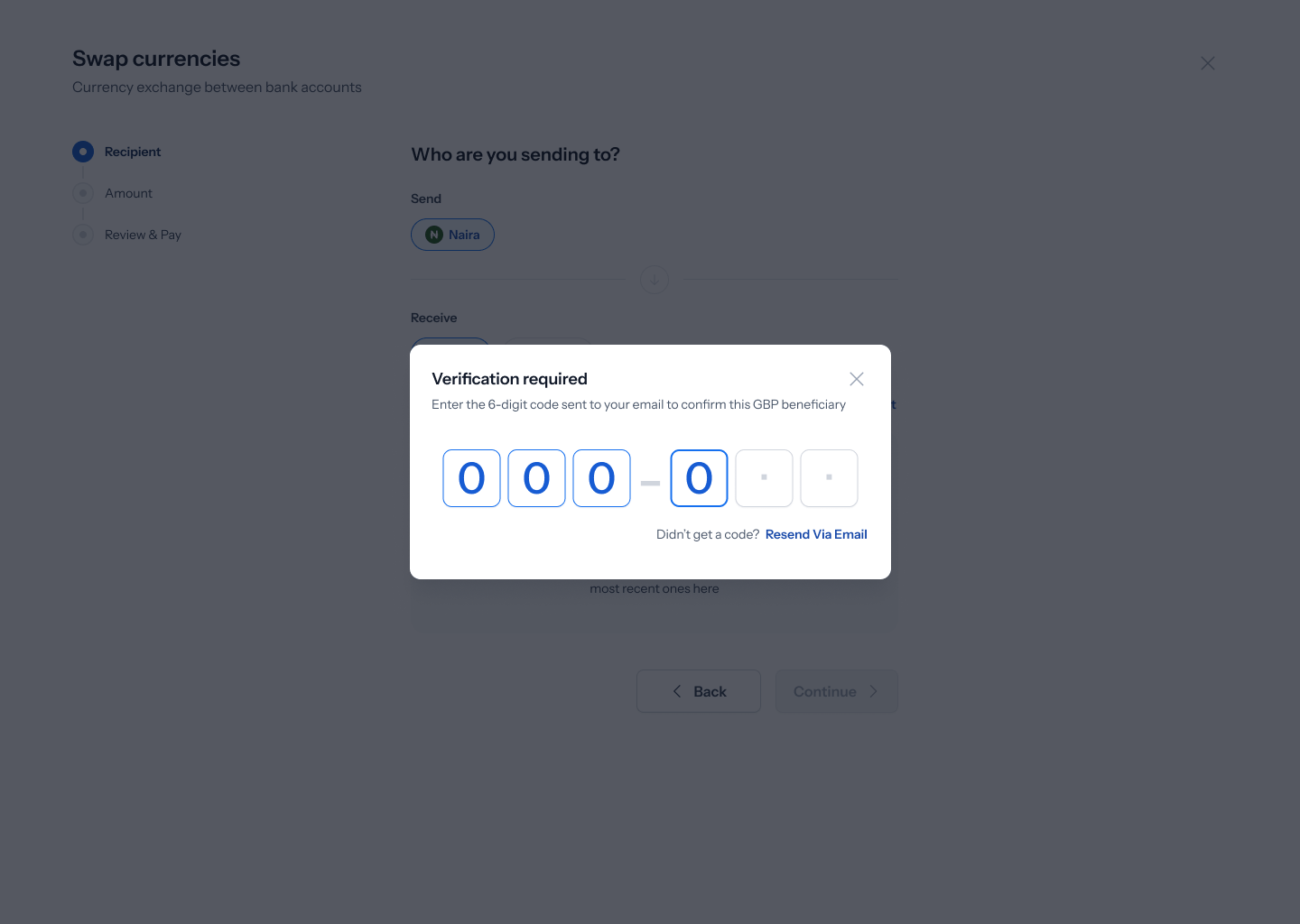 If you're adding or confirming a new beneficiary bank account, you'll be asked to enter a 6-digit code sent to your email before you can continue. Click **Resend via Email** if you didn't receive it.
## 4. Enter the amount
If you're adding or confirming a new beneficiary bank account, you'll be asked to enter a 6-digit code sent to your email before you can continue. Click **Resend via Email** if you didn't receive it.
## 4. Enter the amount
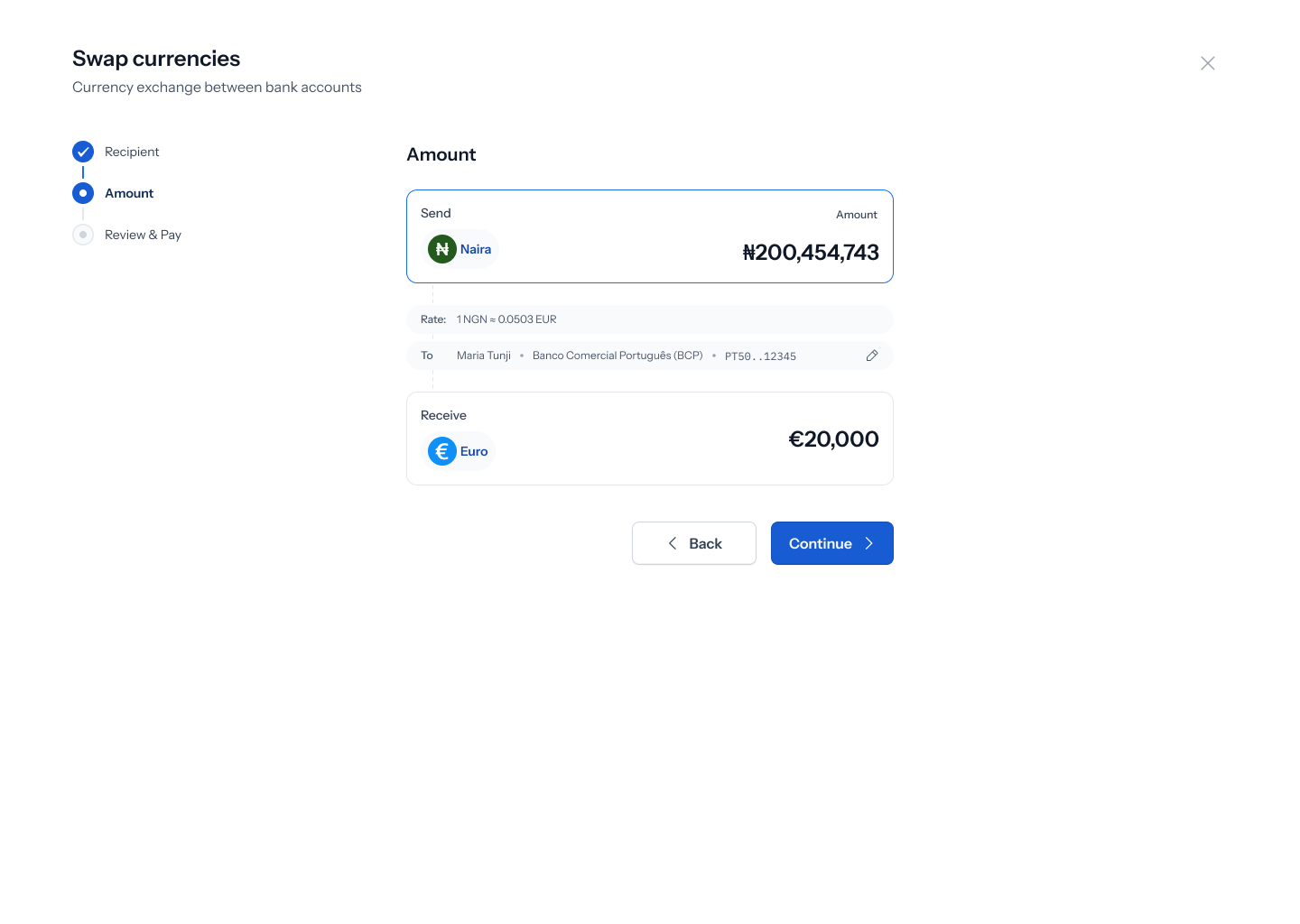 1. Enter how much you want to send and confirm how much your recipient will receive, based on the live rate shown.
2. A notice on this screen explains that a Shiga trader will review and confirm the exact details with you directly.
3. Click **Continue**.
The exact turnaround time quoted for OTC bank-to-bank orders varies between screens in the current design — you may see "within 2 minutes" on one screen and "within one business day" on another. Treat this as approximate; your dedicated OTC contact will confirm actual timing.
## 5. Review and submit
1. Review the order: amount sent, currency and amount your recipient gets, purpose of transfer, and your recipient's full bank account details (name, currency, account number, SWIFT code, country, address).
2. Click **Confirm & Submit**.
The label on this screen currently reads "Purpose of tranfer" (missing an "s"). Cosmetic typo to flag to design.
## 6. Confirmation
1. Enter how much you want to send and confirm how much your recipient will receive, based on the live rate shown.
2. A notice on this screen explains that a Shiga trader will review and confirm the exact details with you directly.
3. Click **Continue**.
The exact turnaround time quoted for OTC bank-to-bank orders varies between screens in the current design — you may see "within 2 minutes" on one screen and "within one business day" on another. Treat this as approximate; your dedicated OTC contact will confirm actual timing.
## 5. Review and submit
1. Review the order: amount sent, currency and amount your recipient gets, purpose of transfer, and your recipient's full bank account details (name, currency, account number, SWIFT code, country, address).
2. Click **Confirm & Submit**.
The label on this screen currently reads "Purpose of tranfer" (missing an "s"). Cosmetic typo to flag to design.
## 6. Confirmation
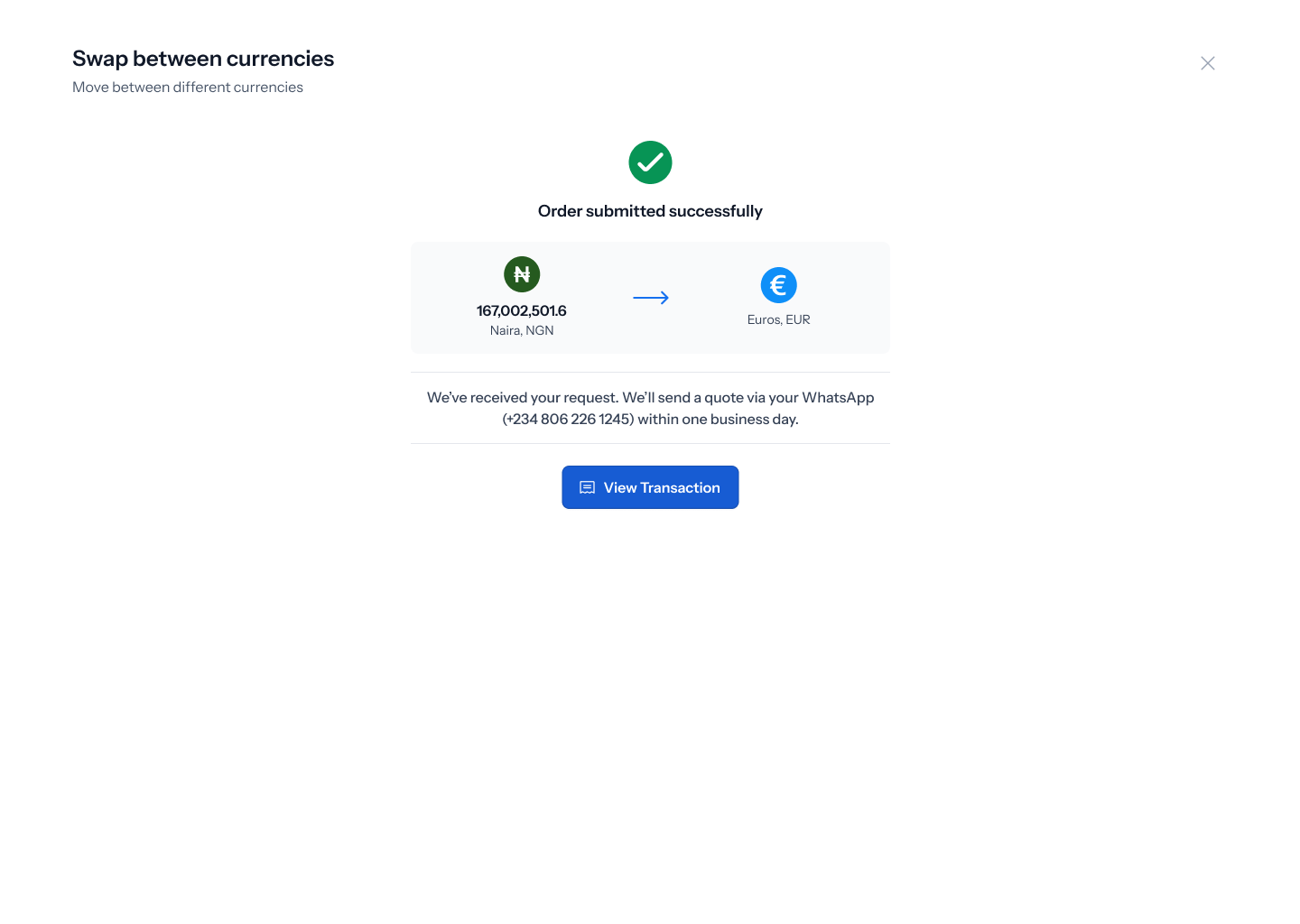 Once submitted, you'll see **Order submitted successfully** along with a summary of the amounts and currencies involved. A Shiga team member will follow up with a quote. Click **View Transaction** to jump straight to your order.
## 7. Track your order
Your bank-to-bank OTC orders appear in **Transactions** alongside your other OTC orders, with the same status tracking (in review, completed) and an **Upload Proof of Payment** option on the order detail page — see the [Bank Account to Shiga Wallet](/Product/Otcdesk/banktoshiga#6-track-your-order) guide for what that screen looks like.
Once submitted, you'll see **Order submitted successfully** along with a summary of the amounts and currencies involved. A Shiga team member will follow up with a quote. Click **View Transaction** to jump straight to your order.
## 7. Track your order
Your bank-to-bank OTC orders appear in **Transactions** alongside your other OTC orders, with the same status tracking (in review, completed) and an **Upload Proof of Payment** option on the order detail page — see the [Bank Account to Shiga Wallet](/Product/Otcdesk/banktoshiga#6-track-your-order) guide for what that screen looks like.