> ## Documentation Index
> Fetch the complete documentation index at: https://docs.shiga.io/llms.txt
> Use this file to discover all available pages before exploring further.
# Bank Account to Shiga Wallet (OTC)
> Convert local currency from your bank account into crypto through the OTC desk
This is one of five OTC flows under **Product > Shiga STS**. See also: the [OTC Guided Tour](/Product/Otcdesk/guidedtour), [Bank Account to Bank Account](/Product/Otcdesk/banktobank), [Shiga Wallet to Bank Account](/Product/Otcdesk/shigatobank), and [Shiga Wallet to Shiga Wallet](/Product/Otcdesk/shigatoshiga).
## 1. Start the transfer
1. From the sidebar, go to **Product > Shiga STS**.
2. On the **Move money** screen, choose **From: Bank account** and **To: Shiga wallet**.
3. Click **Get started**.
## 2. Enter the deposit amount
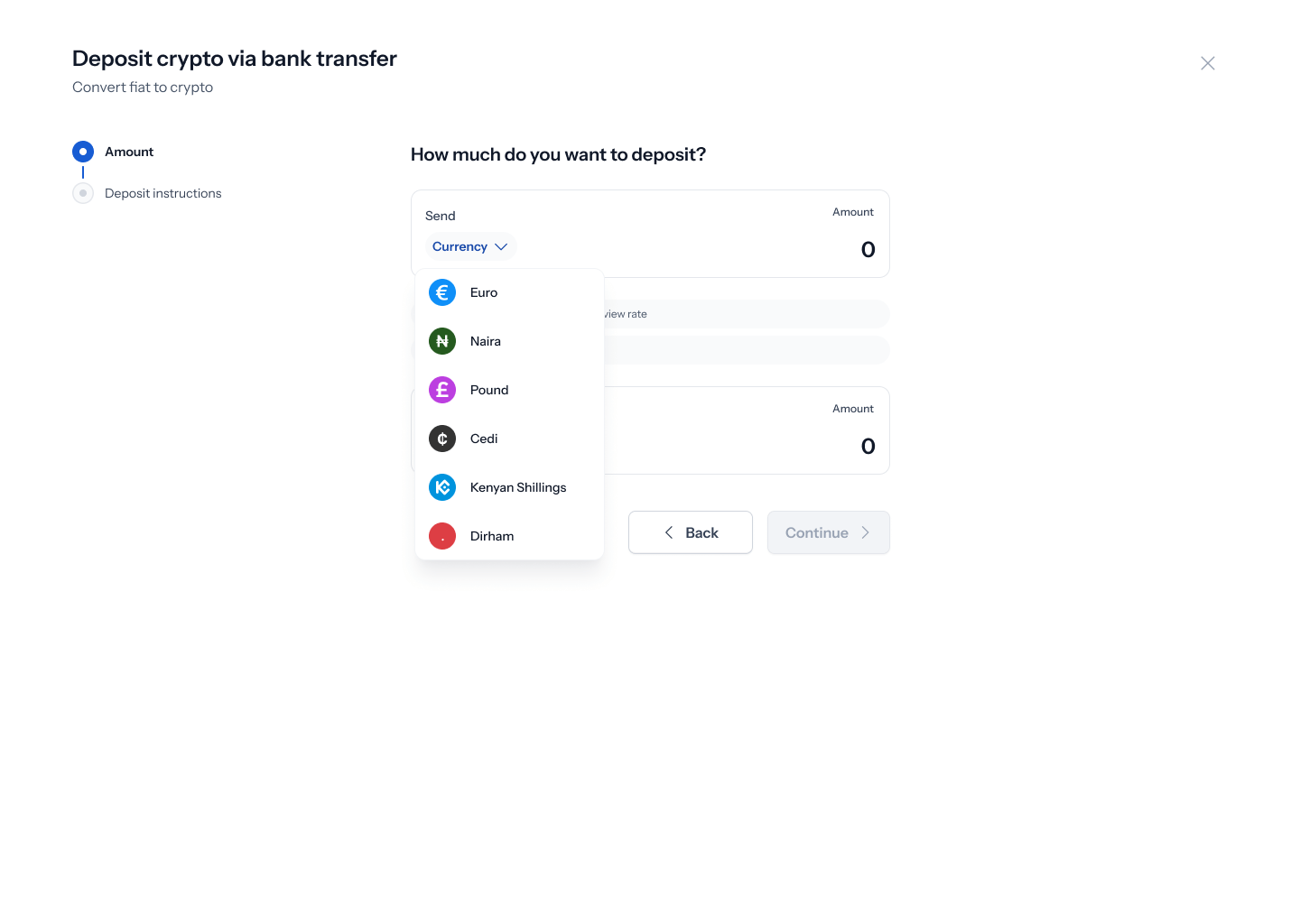 1. Under **You send**, pick the local currency you're depositing from: Euro, Naira, Pound, Cedi, Kenyan Shillings, or Dirham.
2. Under **Deposit into**, pick the asset you want to receive (USDT or USDC) and the network — Arbitrum, Base, Celo, Optimism, Polygon, or Solana are all supported, each with a different estimated arrival time.
3. Review the live **Rate** shown on screen, then click **Continue**.
1. Under **You send**, pick the local currency you're depositing from: Euro, Naira, Pound, Cedi, Kenyan Shillings, or Dirham.
2. Under **Deposit into**, pick the asset you want to receive (USDT or USDC) and the network — Arbitrum, Base, Celo, Optimism, Polygon, or Solana are all supported, each with a different estimated arrival time.
3. Review the live **Rate** shown on screen, then click **Continue**.
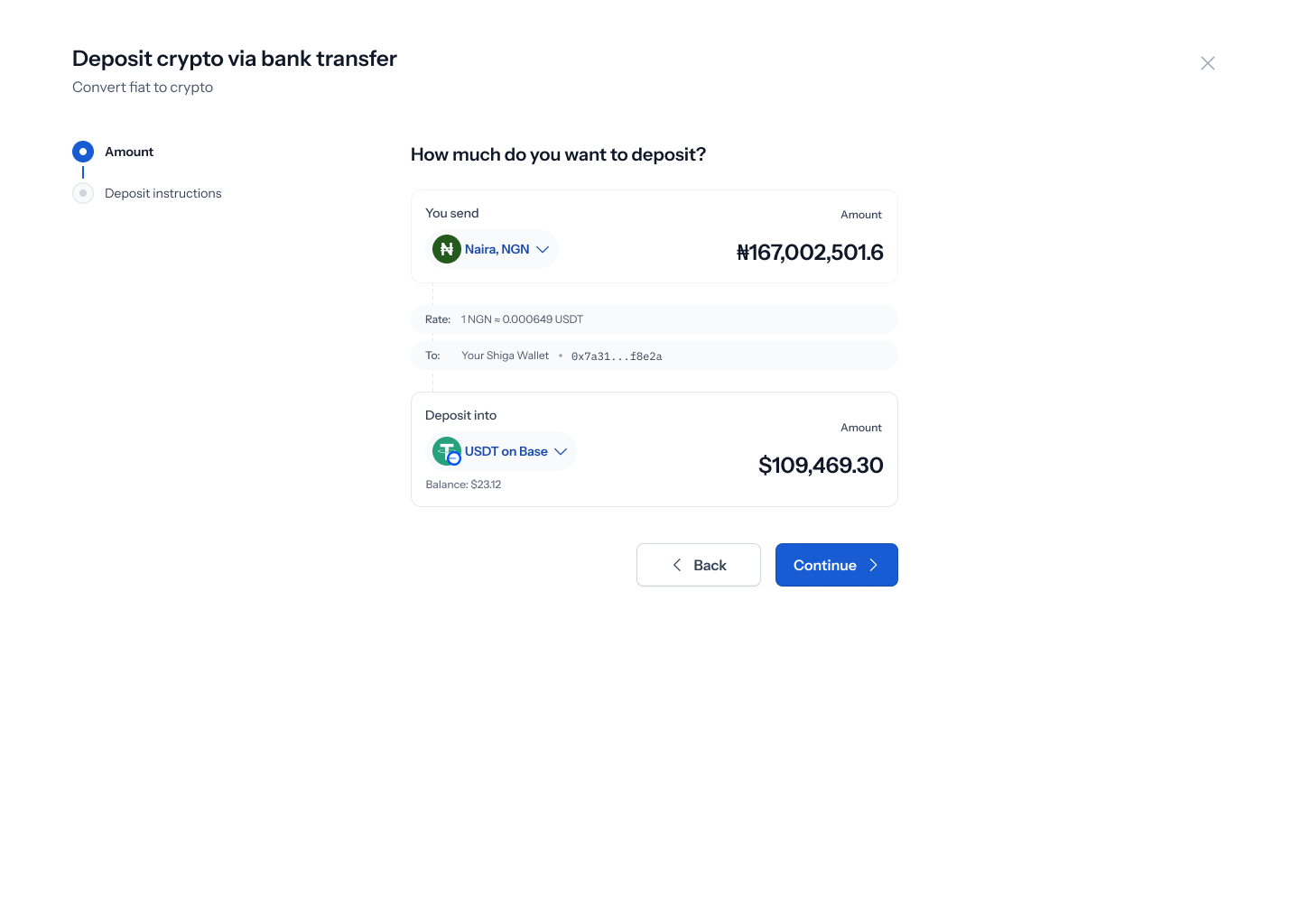 Large deposits trigger a banner: *"This trade is over the OTC threshold. Get a hand-quoted custom rate from a trader within 2 minutes."* Trades above \$50,000 USD route to a Shiga trader for a custom quote instead of the standard spot rate.
In the current design, the Pound and Cedi versions of this screen show mismatched figures — the Pound screen's converted amount displays a dollar sign instead of the receiving asset, and the Cedi screen shows a Euro-denominated rate and amount instead of Cedi figures. These look like unfinished/copy-pasted states rather than intentional behavior — worth confirming with design before relying on them.
## 3. Add supporting information (optional)
Large deposits trigger a banner: *"This trade is over the OTC threshold. Get a hand-quoted custom rate from a trader within 2 minutes."* Trades above \$50,000 USD route to a Shiga trader for a custom quote instead of the standard spot rate.
In the current design, the Pound and Cedi versions of this screen show mismatched figures — the Pound screen's converted amount displays a dollar sign instead of the receiving asset, and the Cedi screen shows a Euro-denominated rate and amount instead of Cedi figures. These look like unfinished/copy-pasted states rather than intentional behavior — worth confirming with design before relying on them.
## 3. Add supporting information (optional)
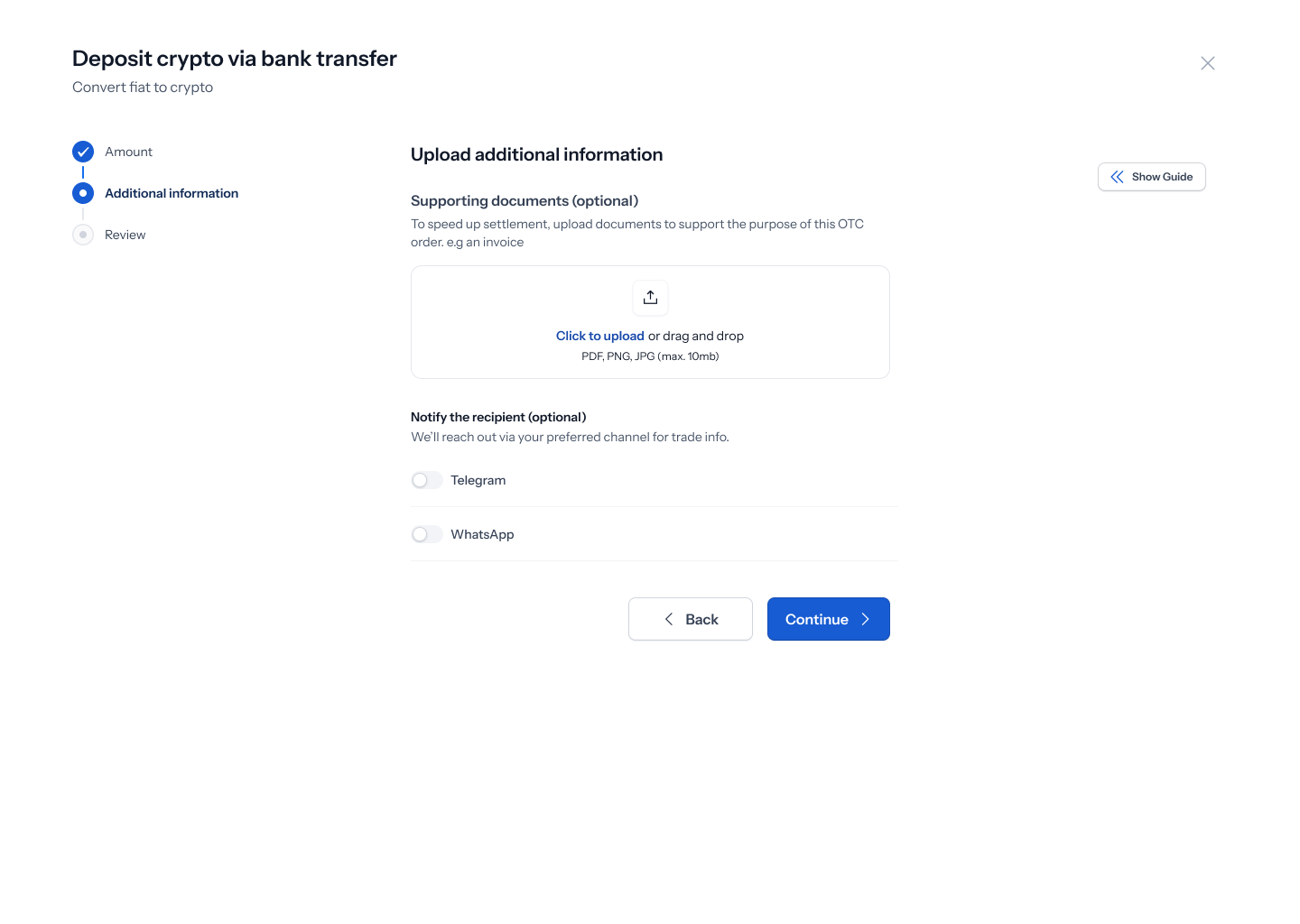 1. Under **Supporting documents**, you can optionally upload a file (PDF, PNG, or JPG, up to 10MB) to support the purpose of the order — for example, an invoice. This can speed up settlement.
2. Under **Notify the recipient**, you can optionally turn on Telegram or WhatsApp so Shiga can reach you with trade info.
3. Click **Continue**.
## 4. Review and submit
1. Under **Supporting documents**, you can optionally upload a file (PDF, PNG, or JPG, up to 10MB) to support the purpose of the order — for example, an invoice. This can speed up settlement.
2. Under **Notify the recipient**, you can optionally turn on Telegram or WhatsApp so Shiga can reach you with trade info.
3. Click **Continue**.
## 4. Review and submit
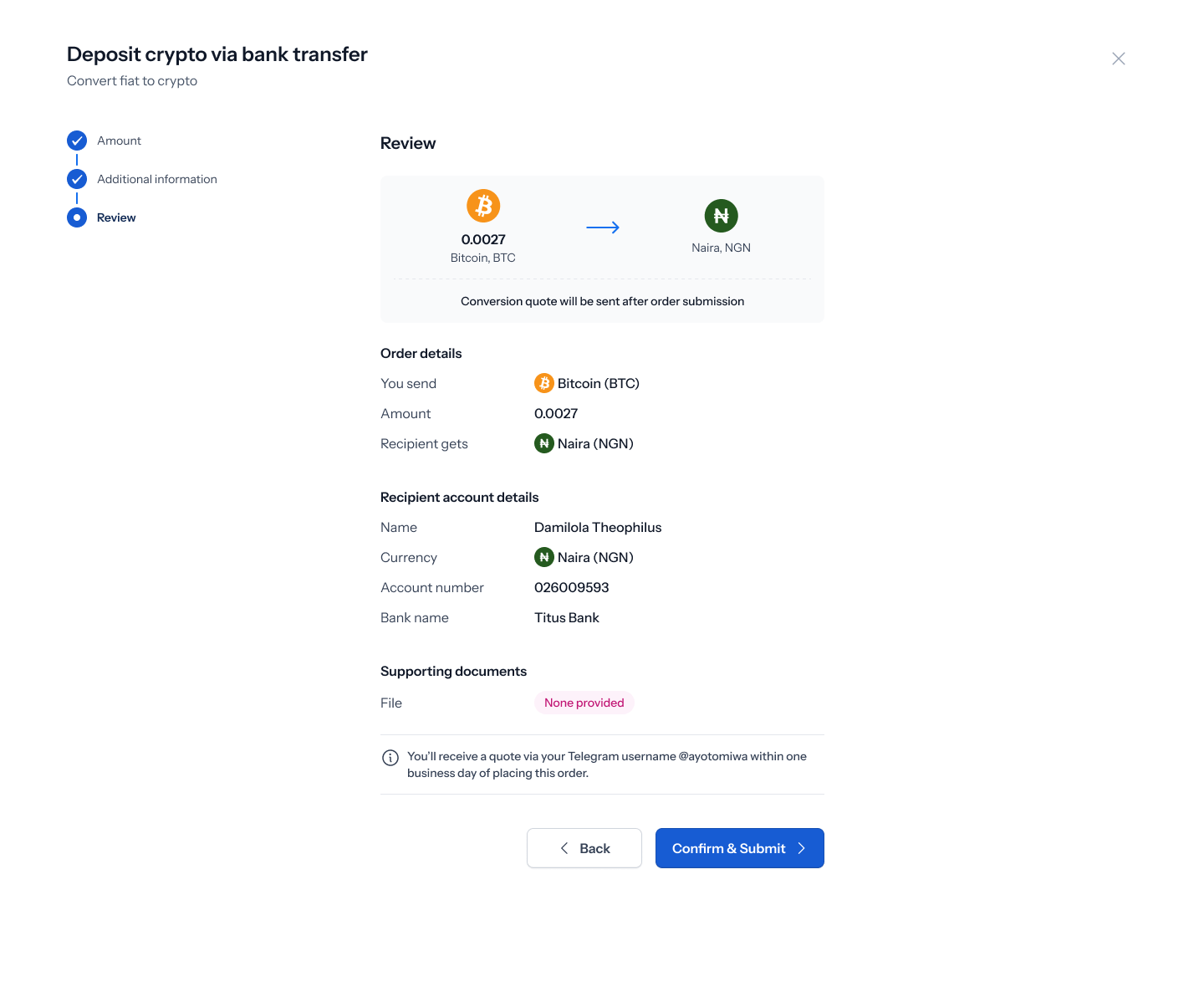 1. Review the order summary: amount sent, asset and network received, purpose of transfer, recipient wallet address, and any supporting documents.
2. A note confirms your conversion quote will be sent after you submit — OTC orders aren't quoted instantly like a standard swap.
3. Click **Confirm & Submit**.
On this screen, the summary chip at the top of the page can show a different network than the one listed further down in the order details. Double-check the network before submitting if you're depositing into a specific chain.
## 5. Confirmation
1. Review the order summary: amount sent, asset and network received, purpose of transfer, recipient wallet address, and any supporting documents.
2. A note confirms your conversion quote will be sent after you submit — OTC orders aren't quoted instantly like a standard swap.
3. Click **Confirm & Submit**.
On this screen, the summary chip at the top of the page can show a different network than the one listed further down in the order details. Double-check the network before submitting if you're depositing into a specific chain.
## 5. Confirmation
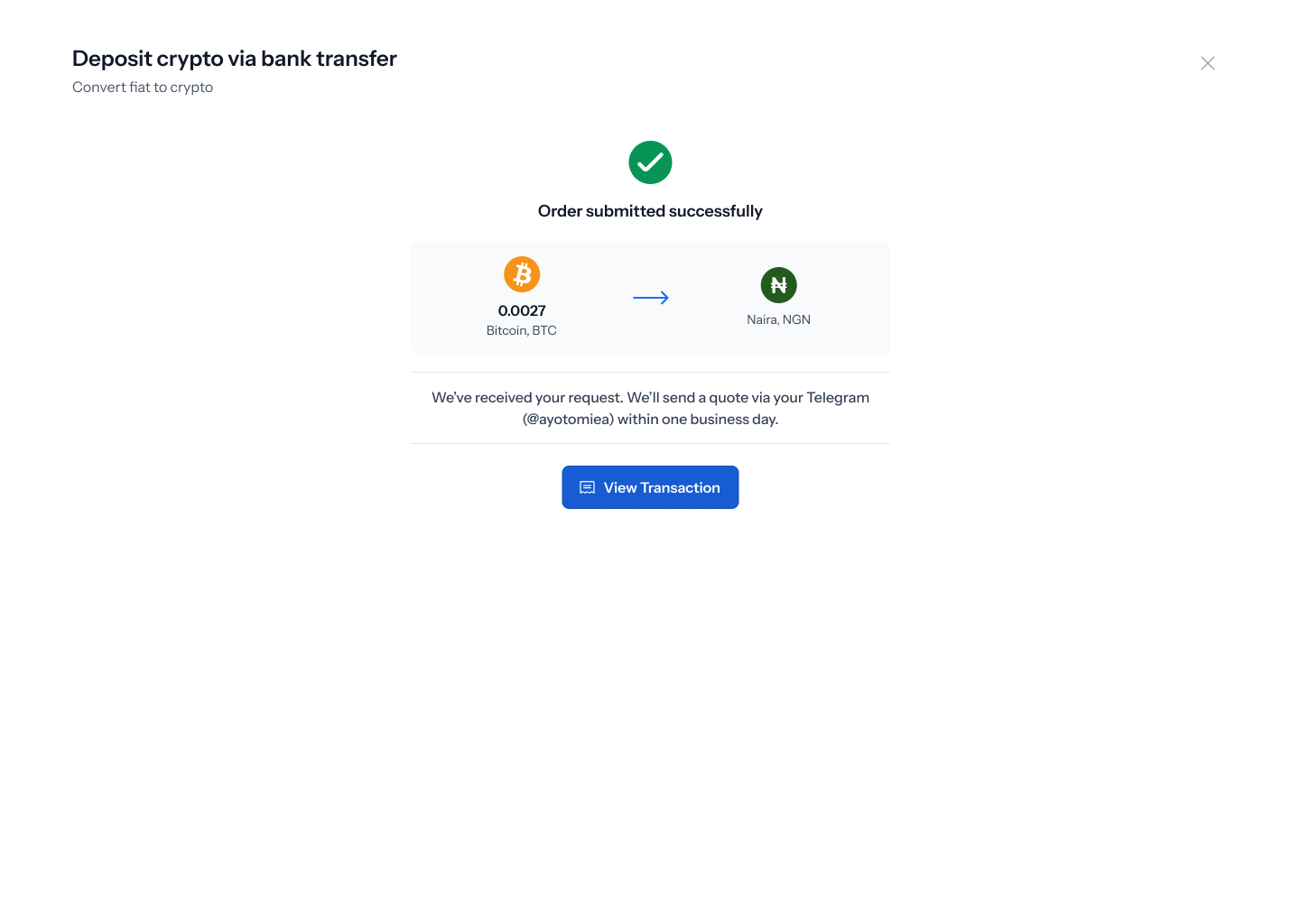 Once submitted, you'll see **Order submitted successfully**. A Shiga team member will follow up with a quote — typically within one business day — via the contact channel you provided. Click **View Transaction** to jump straight to your order.
## 6. Track your order
Once submitted, you'll see **Order submitted successfully**. A Shiga team member will follow up with a quote — typically within one business day — via the contact channel you provided. Click **View Transaction** to jump straight to your order.
## 6. Track your order
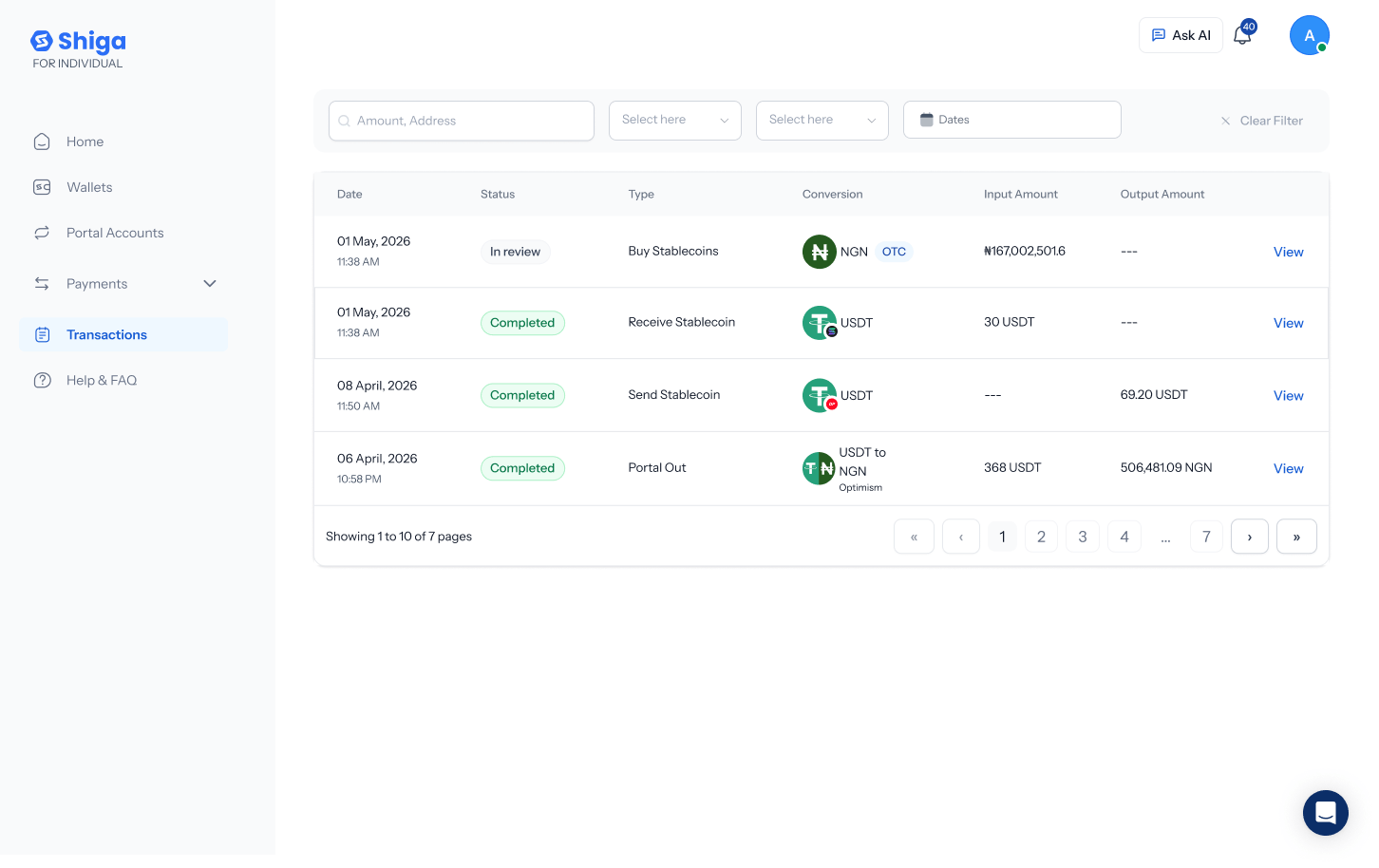 1. Go to **Transactions** to see all your OTC orders, with filters for amount, address, and date.
2. Open an order to see its **OTC Order details** — status, rate, total, and a place to **Upload Proof of Payment** once you've sent your bank transfer.
1. Go to **Transactions** to see all your OTC orders, with filters for amount, address, and date.
2. Open an order to see its **OTC Order details** — status, rate, total, and a place to **Upload Proof of Payment** once you've sent your bank transfer.
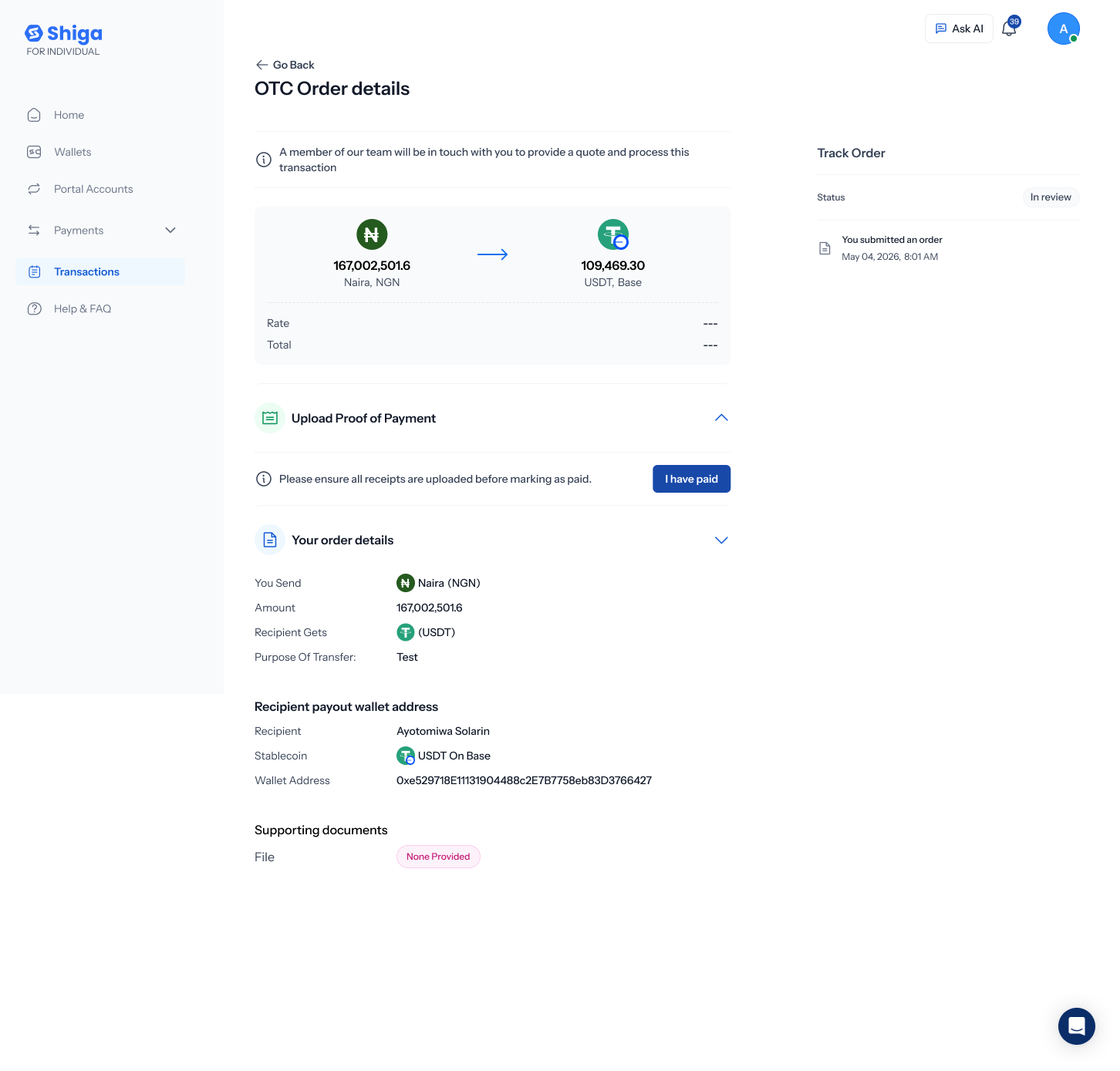 Until a trader quotes your order, the rate and total shown will read "---". They fill in once your dedicated OTC contact reaches out.