> ## Documentation Index
> Fetch the complete documentation index at: https://docs.shiga.io/llms.txt
> Use this file to discover all available pages before exploring further.
# OTC Guided Tour
> The in-app walkthrough that appears when a trade qualifies for the OTC desk
This is one of five OTC flows under **Product > Shiga STS**. See also: [Bank Account to Shiga Wallet](/Product/Otcdesk/banktoshiga), [Bank Account to Bank Account](/Product/Otcdesk/banktobank), [Shiga Wallet to Bank Account](/Product/Otcdesk/shigatobank), and [Shiga Wallet to Shiga Wallet](/Product/Otcdesk/shigatoshiga).
The first time an order crosses the OTC threshold, Shiga surfaces a short guided tour to explain why the trade is being routed to a trader instead of executing instantly.
## What triggers it
Entering an amount above the OTC threshold (trades above **\$50,000 USD** route to the OTC desk) surfaces an inline banner on the amount screen, plus one of two guide mechanisms described below.
## The trigger tooltip
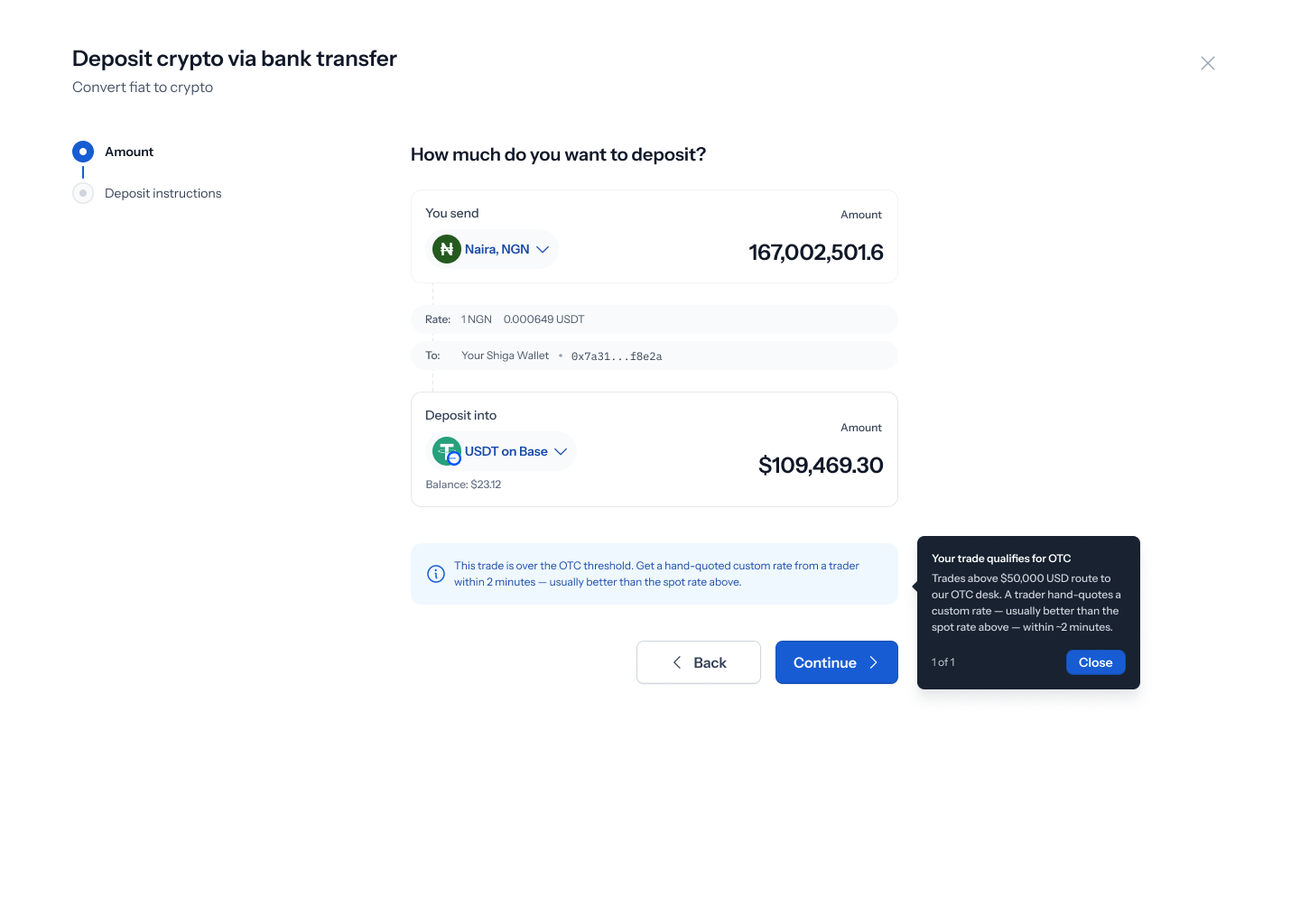 A single dismissible tooltip appears near the amount field:
* **Heading**: "Your trade qualifies for OTC"
* **Body**: "Trades above \$50,000 USD route to our OTC desk. A trader hand-quotes a custom rate — usually better than the spot rate above — within \~2 minutes."
* Marked **1 of 1**, with a single **Close** button.
## The guide panel
A single dismissible tooltip appears near the amount field:
* **Heading**: "Your trade qualifies for OTC"
* **Body**: "Trades above \$50,000 USD route to our OTC desk. A trader hand-quotes a custom rate — usually better than the spot rate above — within \~2 minutes."
* Marked **1 of 1**, with a single **Close** button.
## The guide panel
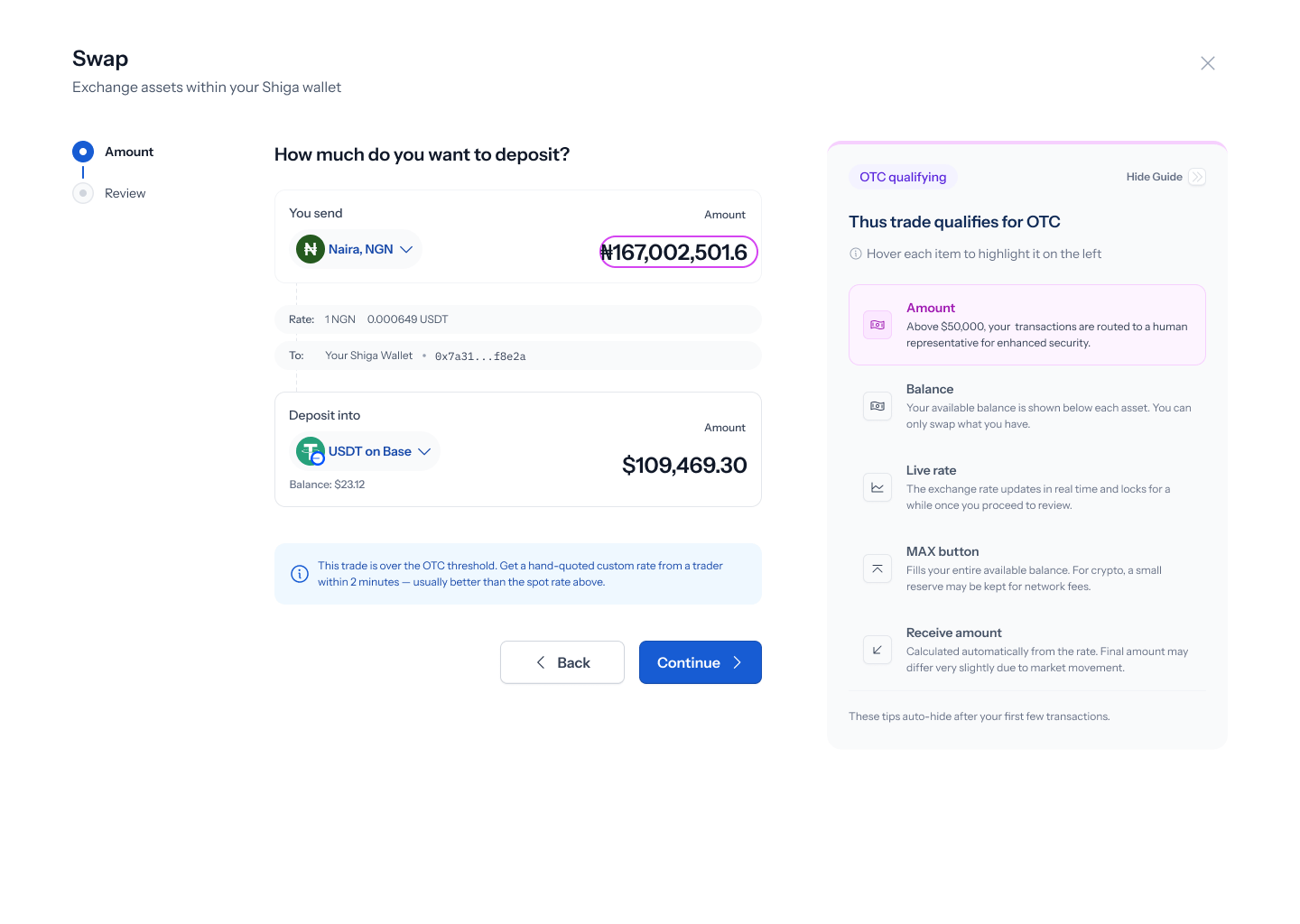
 A persistent side panel walks you through the fields relevant to your current step. It has no numbered steps — you dismiss it with **Hide Guide** in the panel header. Hovering a listed row highlights the matching field on screen.
Panel content changes depending on where you are in the flow:
* **Amount step** (badge "OTC qualifying"): highlights Amount, Balance, Live rate, the MAX button, and the receive amount.
A persistent side panel walks you through the fields relevant to your current step. It has no numbered steps — you dismiss it with **Hide Guide** in the panel header. Hovering a listed row highlights the matching field on screen.
Panel content changes depending on where you are in the flow:
* **Amount step** (badge "OTC qualifying"): highlights Amount, Balance, Live rate, the MAX button, and the receive amount.
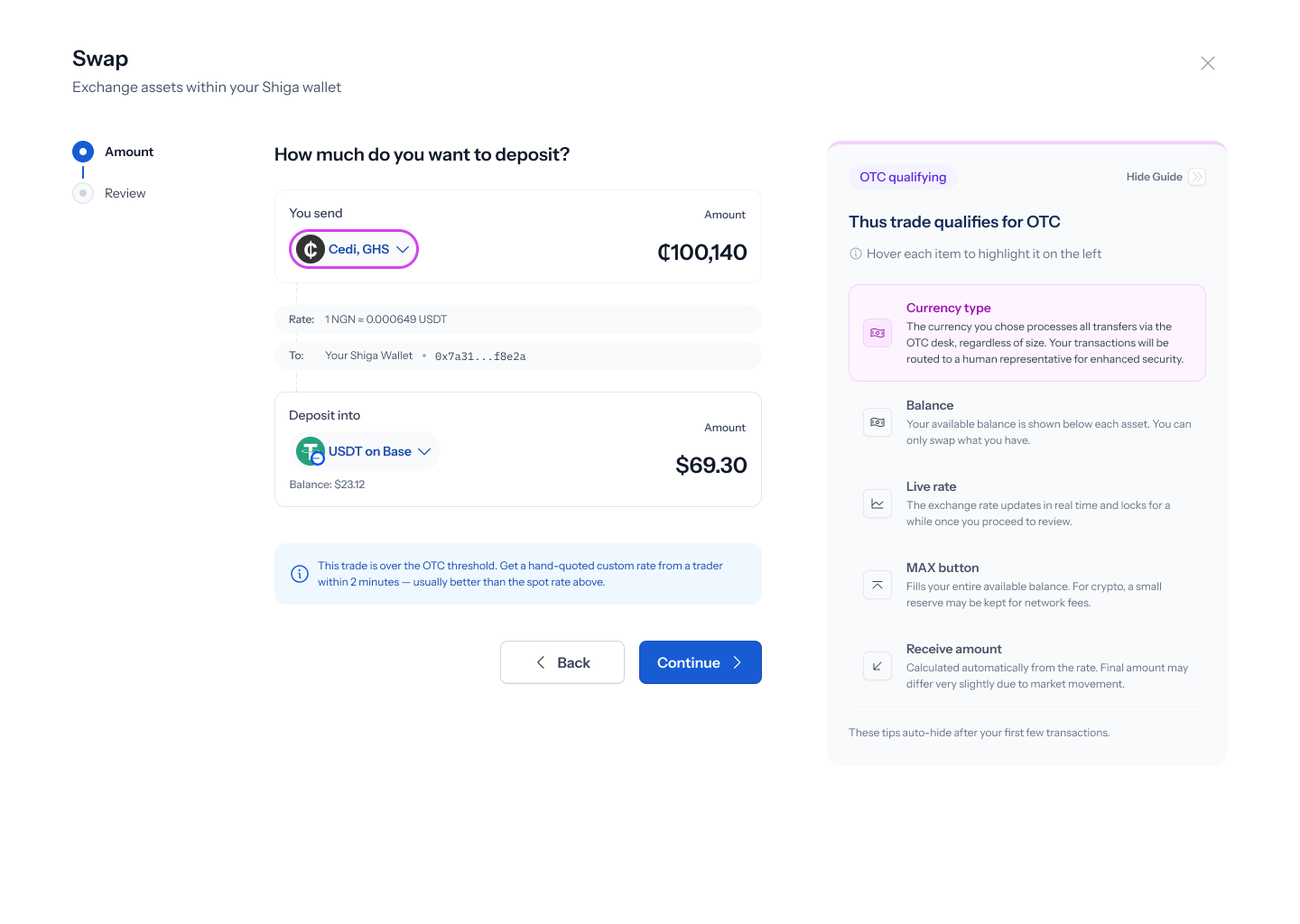
 * **Currency step**: same rows, plus a "Currency type" row explaining that some currencies always route through the OTC desk regardless of trade size.
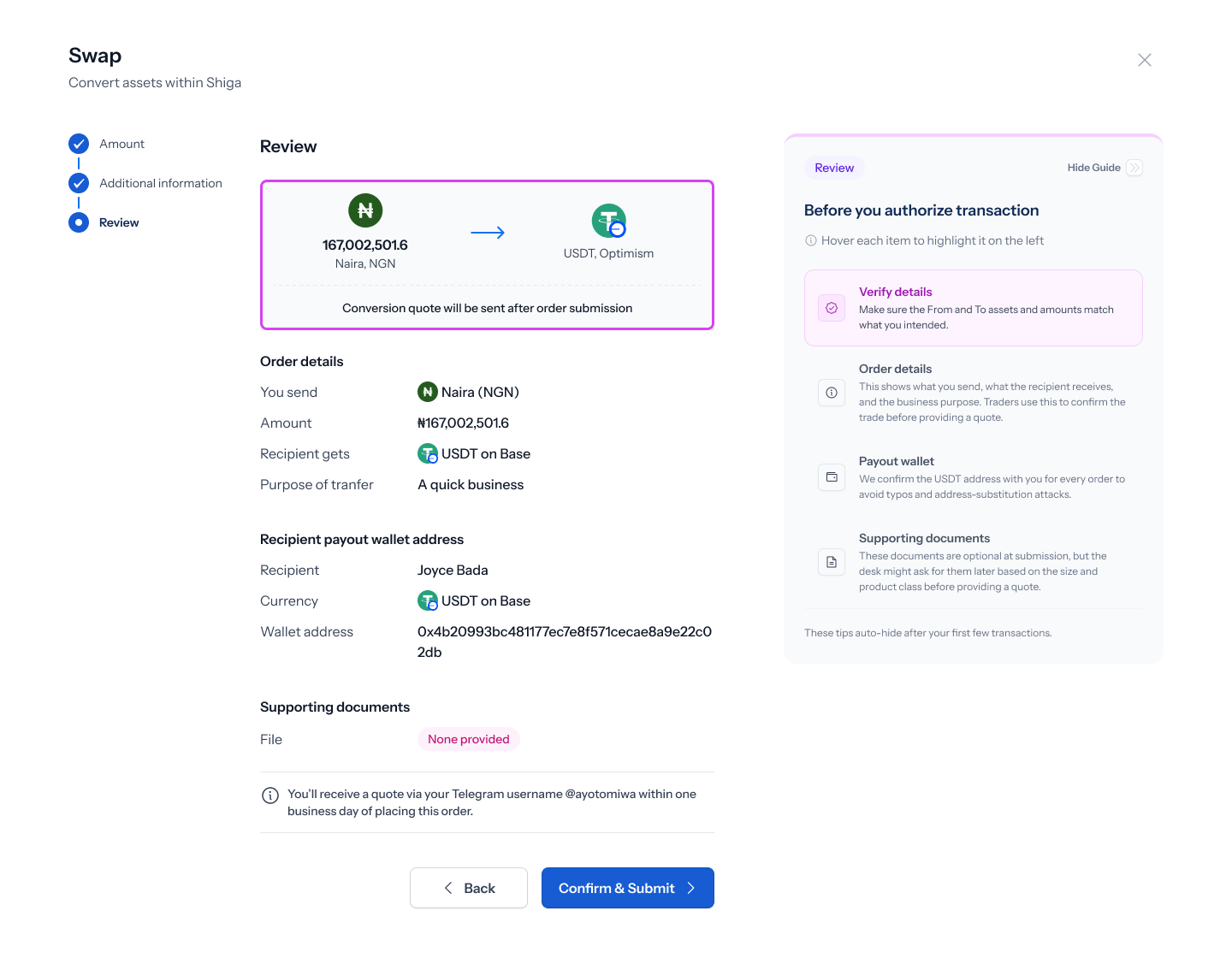
 * **Review step** (badge "Review"): highlights order details, payout wallet, and supporting documents.
* **Additional information step**: highlights supporting documents and recipient notification options.
* **Review step** (badge "Review"): highlights order details, payout wallet, and supporting documents.
* **Additional information step**: highlights supporting documents and recipient notification options.
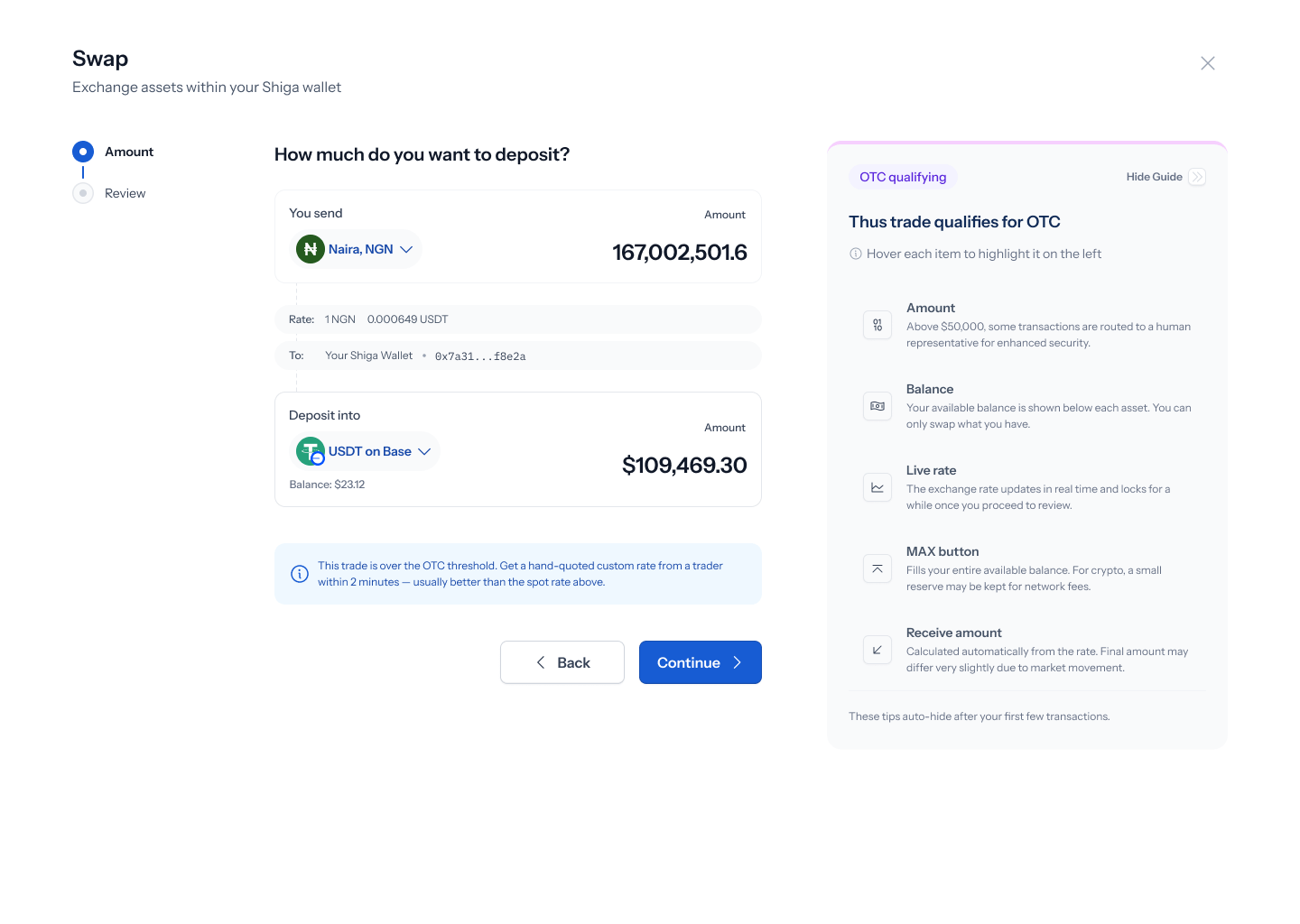 All panel variants end with the same footer: *"These tips auto-hide after your first few transactions."*
The Amount and Currency step panels currently show the heading "Thus trade qualifies for OTC" — a typo for "This." Worth flagging to design.
If you dismiss the guide, it won't reappear once you've completed a few OTC orders — there's no separate setting to turn it back on.
All panel variants end with the same footer: *"These tips auto-hide after your first few transactions."*
The Amount and Currency step panels currently show the heading "Thus trade qualifies for OTC" — a typo for "This." Worth flagging to design.
If you dismiss the guide, it won't reappear once you've completed a few OTC orders — there's no separate setting to turn it back on.