> ## Documentation Index
> Fetch the complete documentation index at: https://docs.shiga.io/llms.txt
> Use this file to discover all available pages before exploring further.
# Shiga Wallet to Bank Account (OTC)
> Withdraw crypto from your Shiga wallet to a bank account through the OTC desk
This is one of five OTC flows under **Product > Shiga STS**. See also: the [OTC Guided Tour](/Product/Otcdesk/guidedtour), [Bank Account to Shiga Wallet](/Product/Otcdesk/banktoshiga), [Bank Account to Bank Account](/Product/Otcdesk/banktobank), and [Shiga Wallet to Shiga Wallet](/Product/Otcdesk/shigatoshiga).
## 1. Start the transfer
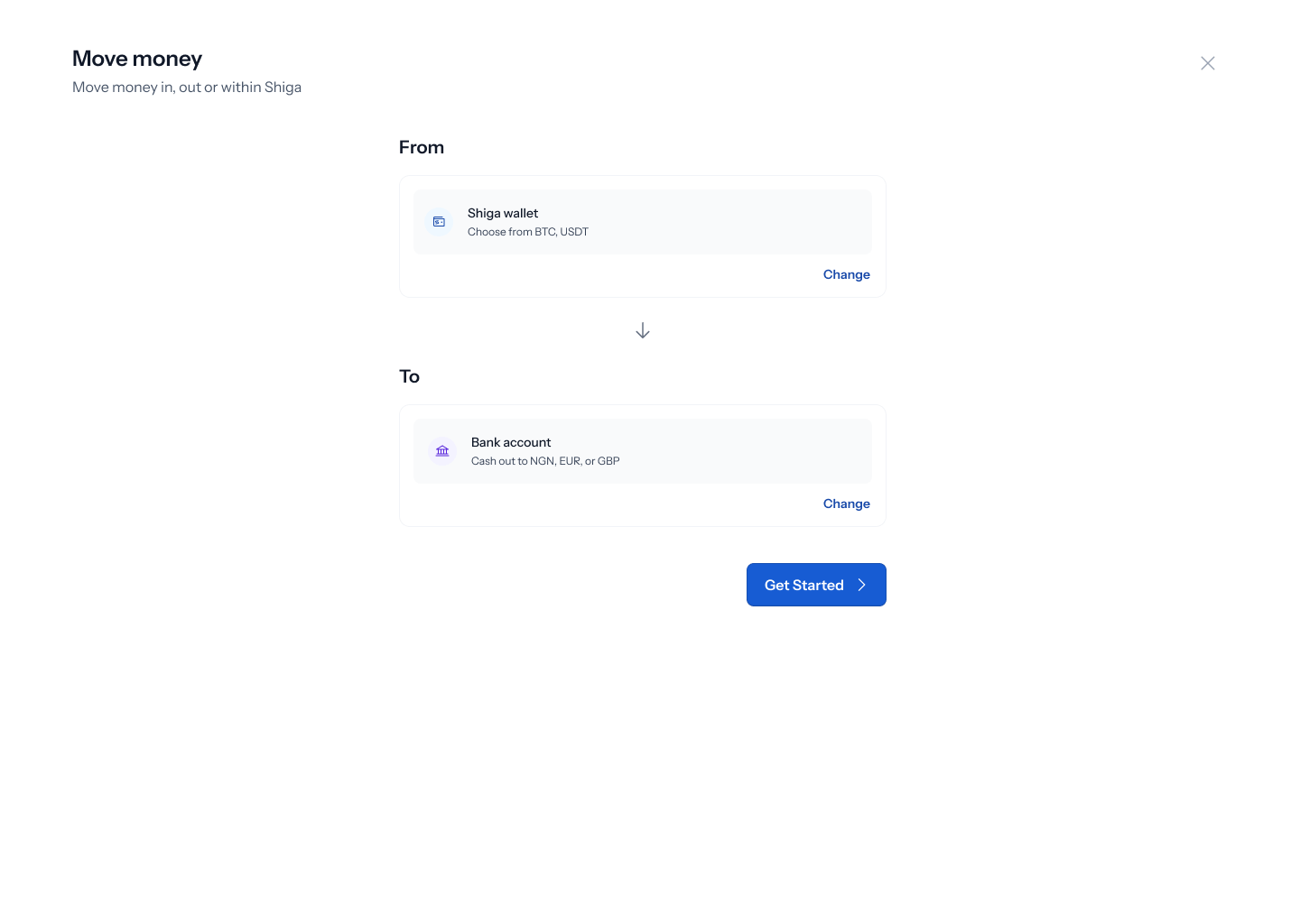 1. From the sidebar, go to **Product > Shiga STS**.
2. On the **Move money** screen, choose **From: Shiga wallet** and **To: Bank account**.
3. Click **Get started**.
## 2. Add a recipient bank account
1. From the sidebar, go to **Product > Shiga STS**.
2. On the **Move money** screen, choose **From: Shiga wallet** and **To: Bank account**.
3. Click **Get started**.
## 2. Add a recipient bank account
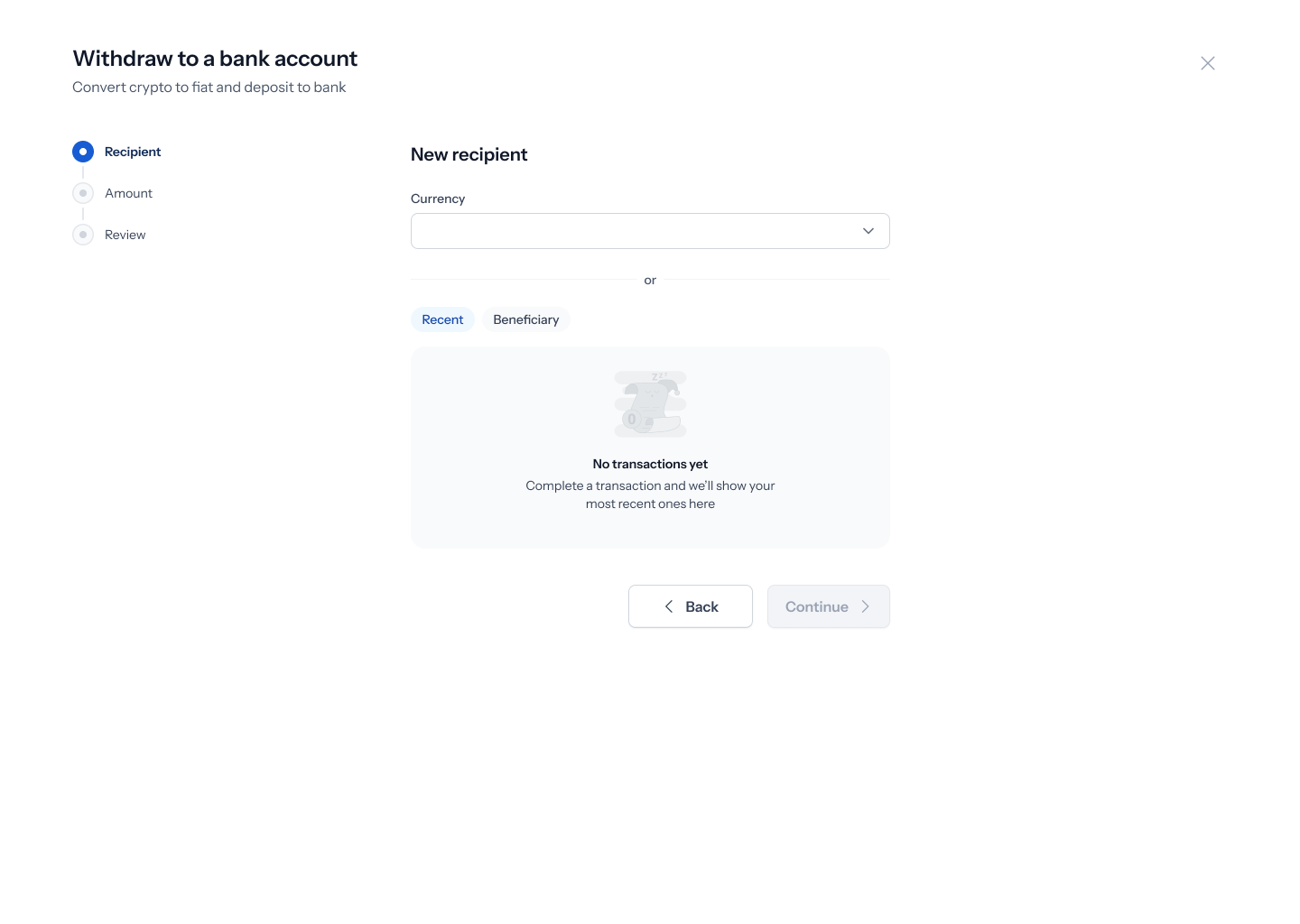 1. Pick a currency from **Recent**/**Beneficiary**, or add a new recipient.
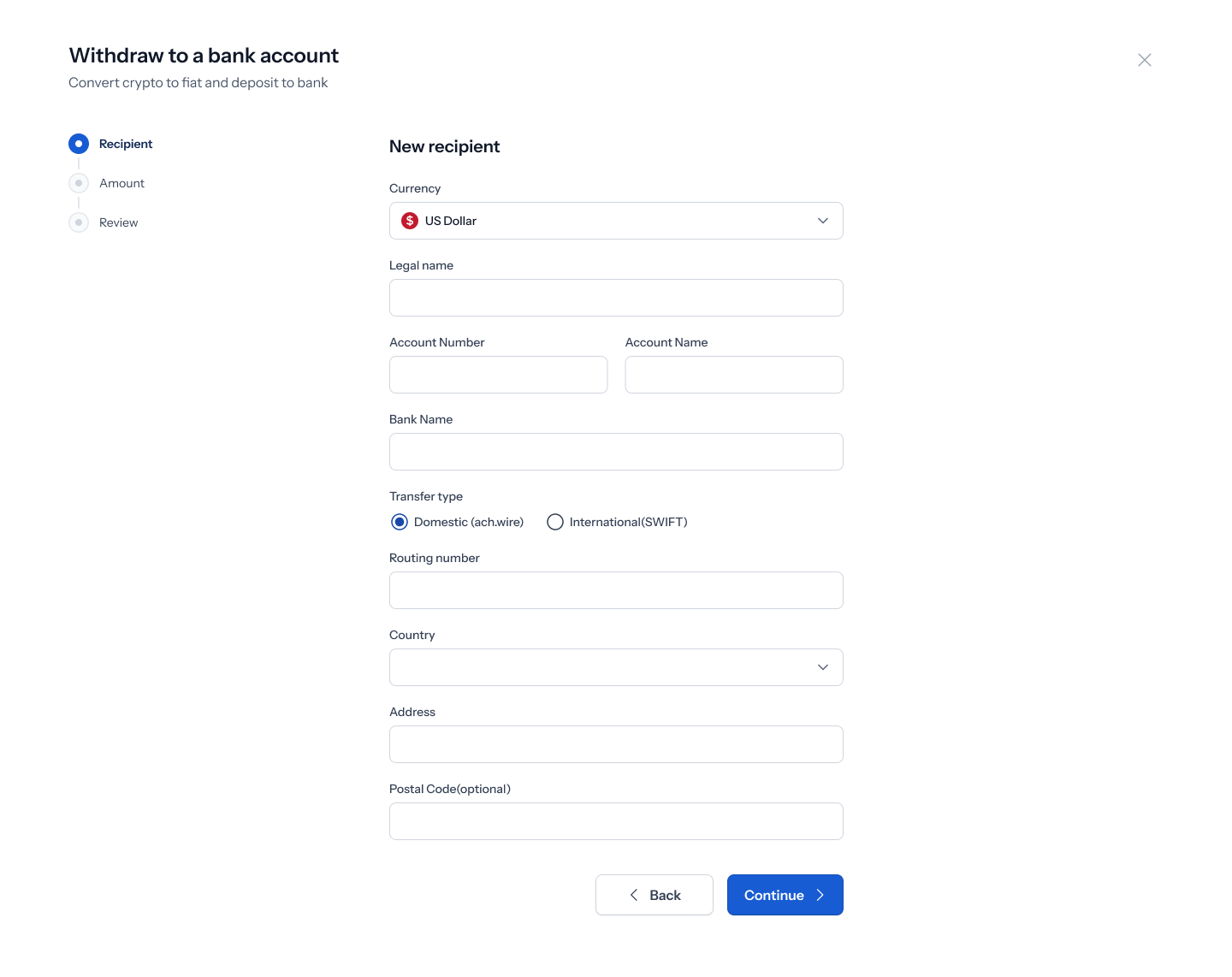
2. The required fields change depending on the currency you choose:
1. Pick a currency from **Recent**/**Beneficiary**, or add a new recipient.
2. The required fields change depending on the currency you choose:
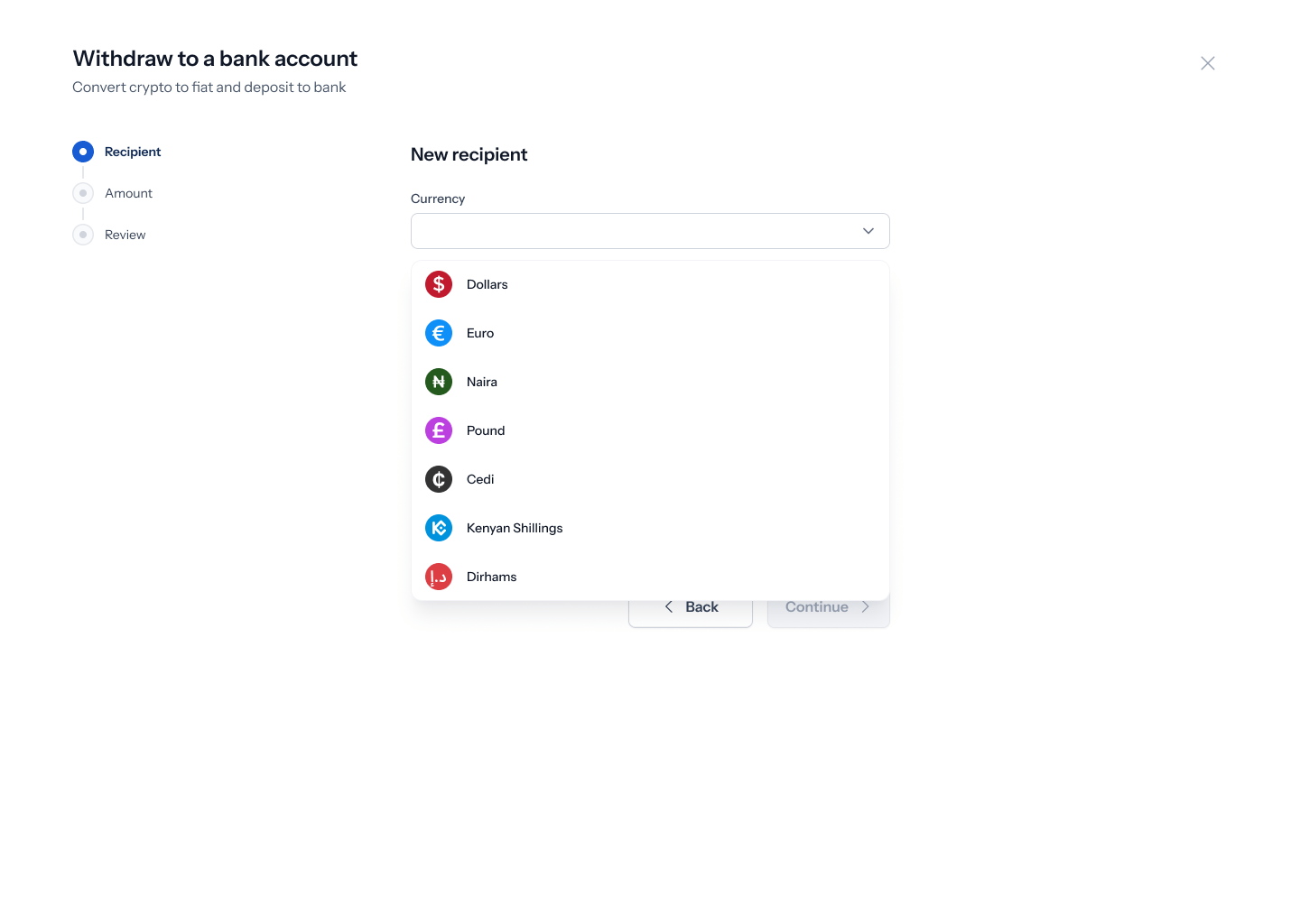 * **Naira (NGN) or Cedi (GHS)**: bank name and account number.
* **Euro**: account name, country, bank name, and IBAN.
* **US Dollar**: legal name, account number, account name, bank name, transfer type (Domestic or International/SWIFT), routing number, country, address, and postal code.
* **Naira (NGN) or Cedi (GHS)**: bank name and account number.
* **Euro**: account name, country, bank name, and IBAN.
* **US Dollar**: legal name, account number, account name, bank name, transfer type (Domestic or International/SWIFT), routing number, country, address, and postal code.
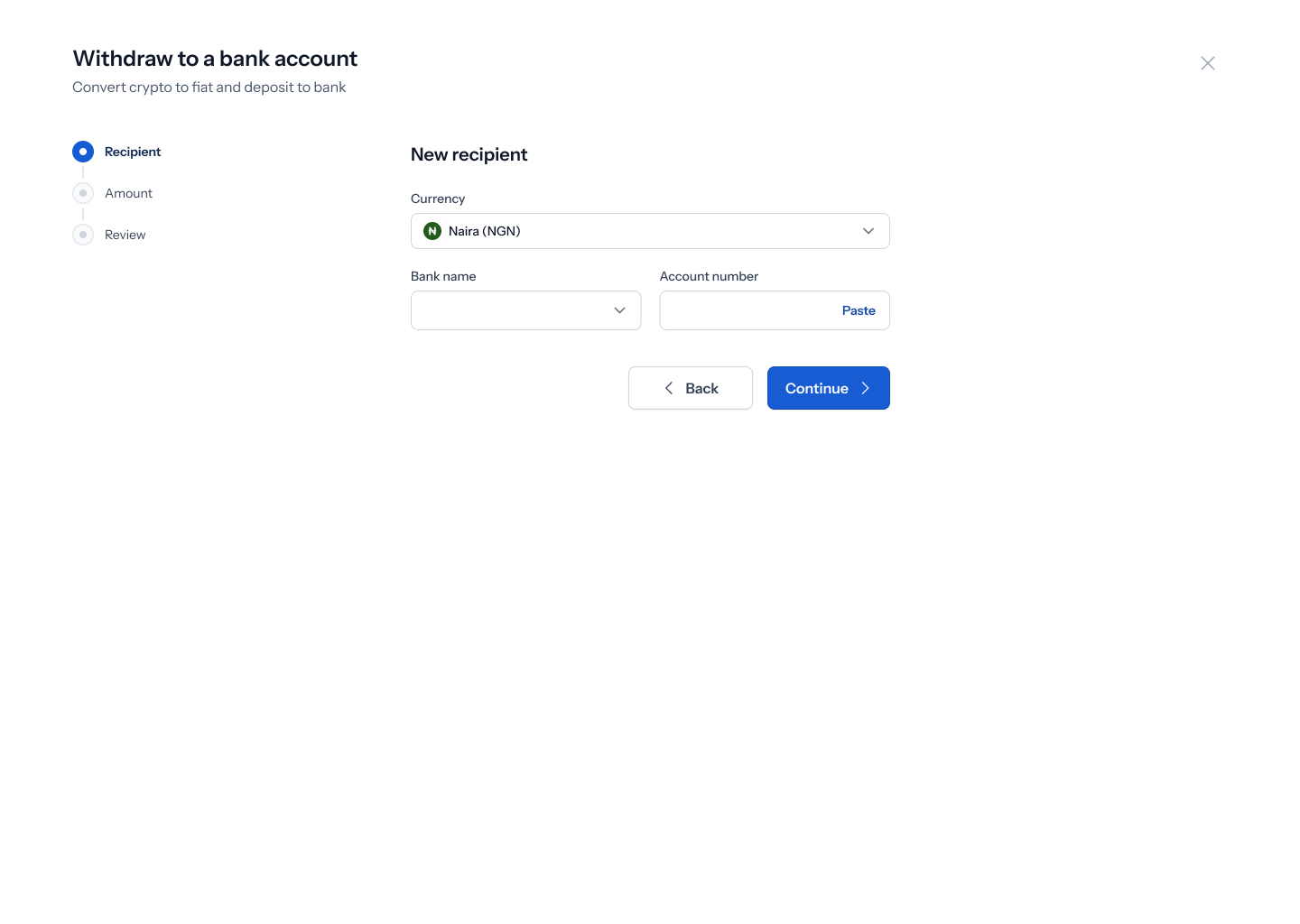 3. Click **Continue**.
On the US Dollar screen, the two transfer-type options are formatted inconsistently — "Domestic (ach.wire)" and "International(SWIFT)" don't match each other's spacing/capitalization. Cosmetic, worth a design cleanup pass.
## 3. Enter the amount
3. Click **Continue**.
On the US Dollar screen, the two transfer-type options are formatted inconsistently — "Domestic (ach.wire)" and "International(SWIFT)" don't match each other's spacing/capitalization. Cosmetic, worth a design cleanup pass.
## 3. Enter the amount
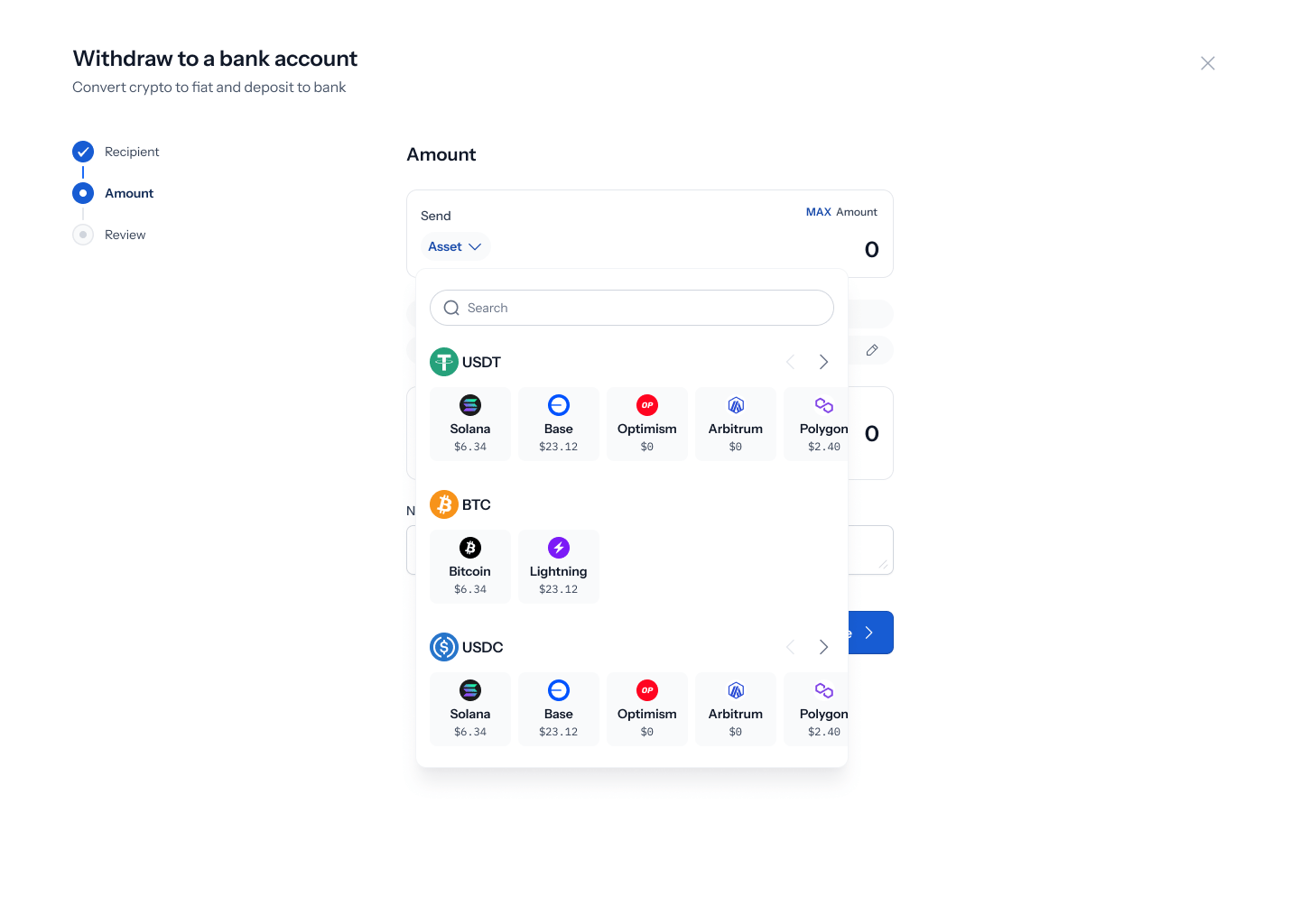 1. Choose the asset you're sending from your Shiga wallet — USDT, USDC, or BTC — and the network (for USDT/USDC: Solana, Base, Optimism, Arbitrum, or Polygon; for BTC: Bitcoin or Lightning).
2. Enter an amount, or click **MAX** to send your full balance. You can add an optional note under **Narration**.
3. Click **Continue**.
1. Choose the asset you're sending from your Shiga wallet — USDT, USDC, or BTC — and the network (for USDT/USDC: Solana, Base, Optimism, Arbitrum, or Polygon; for BTC: Bitcoin or Lightning).
2. Enter an amount, or click **MAX** to send your full balance. You can add an optional note under **Narration**.
3. Click **Continue**.
 Large withdrawals trigger the same OTC threshold banner seen in other flows: *"This trade is over the OTC threshold. Get a hand-quoted custom rate from a trader within 2 minutes."*
## 4. Review and submit
Large withdrawals trigger the same OTC threshold banner seen in other flows: *"This trade is over the OTC threshold. Get a hand-quoted custom rate from a trader within 2 minutes."*
## 4. Review and submit
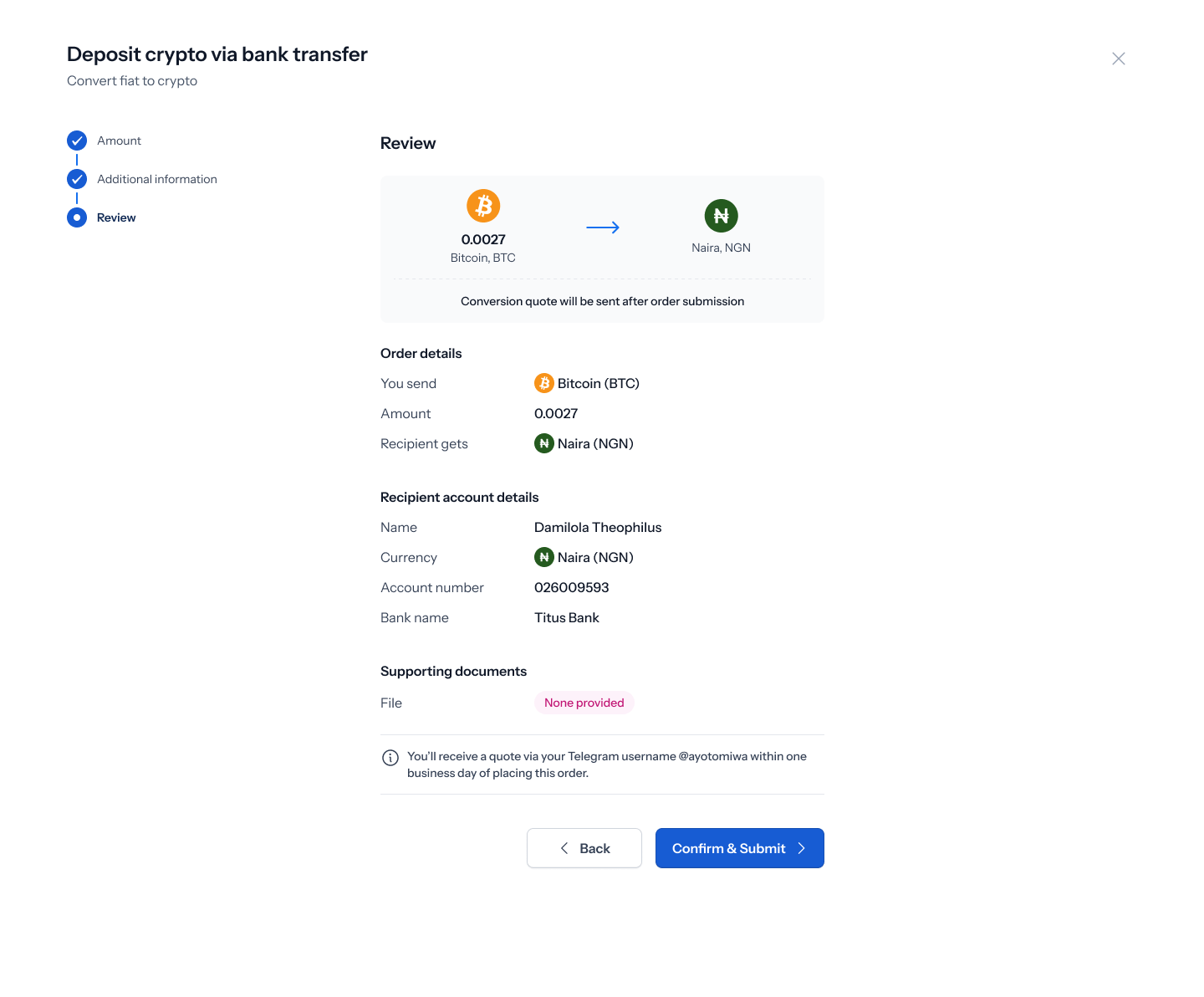 1. Review the order: asset and amount sent, currency and amount your recipient gets, and your recipient's account details.
2. Click **Confirm & Submit**.
## 5. Confirmation
Once submitted, you'll see an **Order submitted successfully** confirmation, and a Shiga team member will follow up with a quote via your preferred contact channel.
No confirmation screenshot was available for this specific direction at time of writing — the confirmation screen matches the one shown in the [Bank Account to Shiga Wallet](/Product/Otcdesk/banktoshiga#5-confirmation) guide.
## 6. Track your order
Your withdrawal orders appear in **Transactions** alongside your other OTC orders. See the [Bank Account to Shiga Wallet](/Product/Otcdesk/banktoshiga#6-track-your-order) guide for what the transaction history and order detail screens look like.
1. Review the order: asset and amount sent, currency and amount your recipient gets, and your recipient's account details.
2. Click **Confirm & Submit**.
## 5. Confirmation
Once submitted, you'll see an **Order submitted successfully** confirmation, and a Shiga team member will follow up with a quote via your preferred contact channel.
No confirmation screenshot was available for this specific direction at time of writing — the confirmation screen matches the one shown in the [Bank Account to Shiga Wallet](/Product/Otcdesk/banktoshiga#5-confirmation) guide.
## 6. Track your order
Your withdrawal orders appear in **Transactions** alongside your other OTC orders. See the [Bank Account to Shiga Wallet](/Product/Otcdesk/banktoshiga#6-track-your-order) guide for what the transaction history and order detail screens look like.