> ## Documentation Index
> Fetch the complete documentation index at: https://docs.shiga.io/llms.txt
> Use this file to discover all available pages before exploring further.
# Shiga Wallet to Shiga Wallet (OTC Swap)
> Swap between assets within your Shiga wallet through the OTC desk
This is one of five OTC flows under **Product > Shiga STS**. See also: the [OTC Guided Tour](/Product/Otcdesk/guidedtour), [Bank Account to Shiga Wallet](/Product/Otcdesk/banktoshiga), [Bank Account to Bank Account](/Product/Otcdesk/banktobank), and [Shiga Wallet to Bank Account](/Product/Otcdesk/shigatobank).
## 1. Start the swap
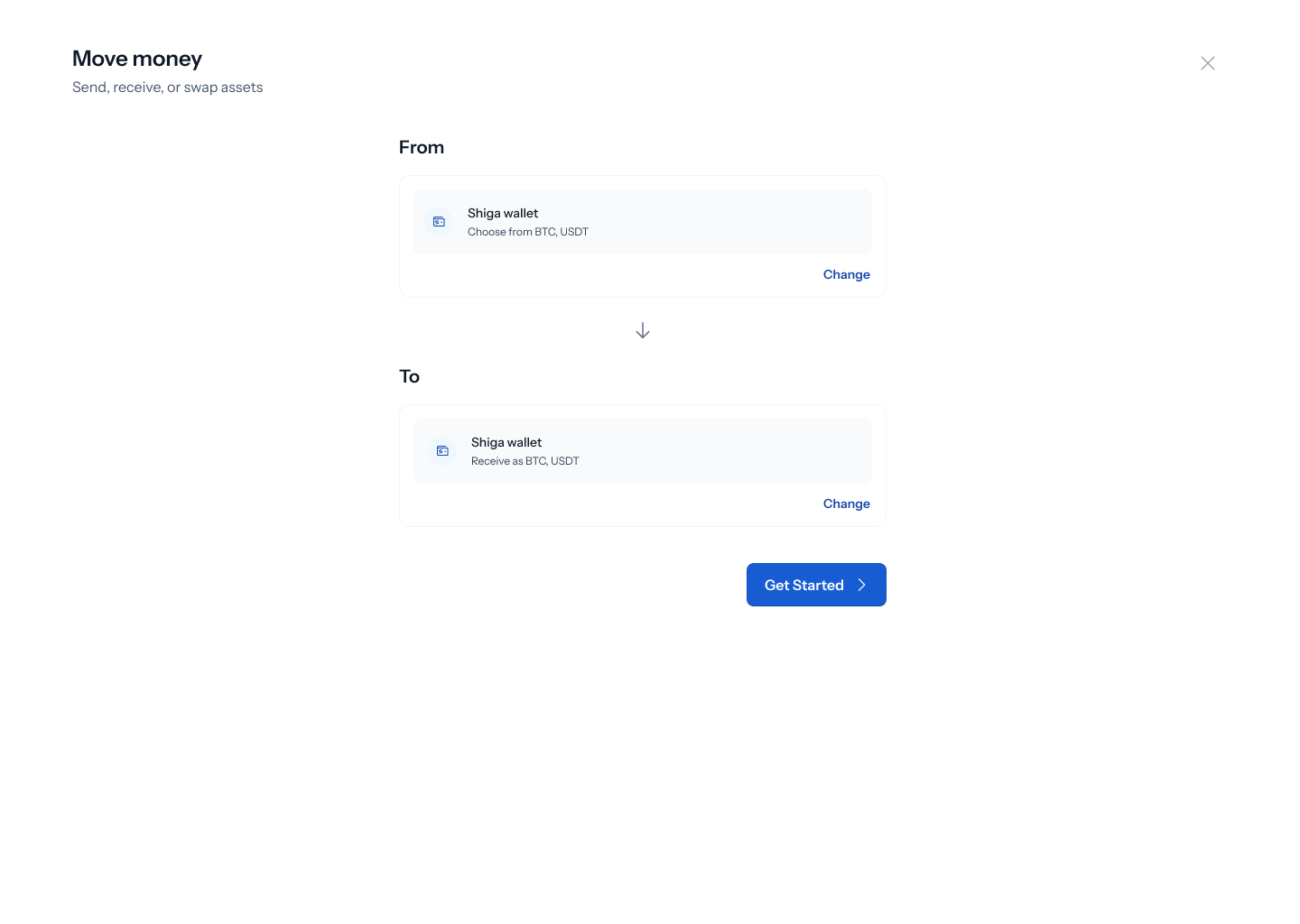 1. From the sidebar, go to **Product > Shiga STS**.
2. On the **Move money** screen, choose **From: Shiga wallet** and **To: Shiga wallet**.
3. Click **Get started**.
## 2. Choose the assets to swap
1. From the sidebar, go to **Product > Shiga STS**.
2. On the **Move money** screen, choose **From: Shiga wallet** and **To: Shiga wallet**.
3. Click **Get started**.
## 2. Choose the assets to swap
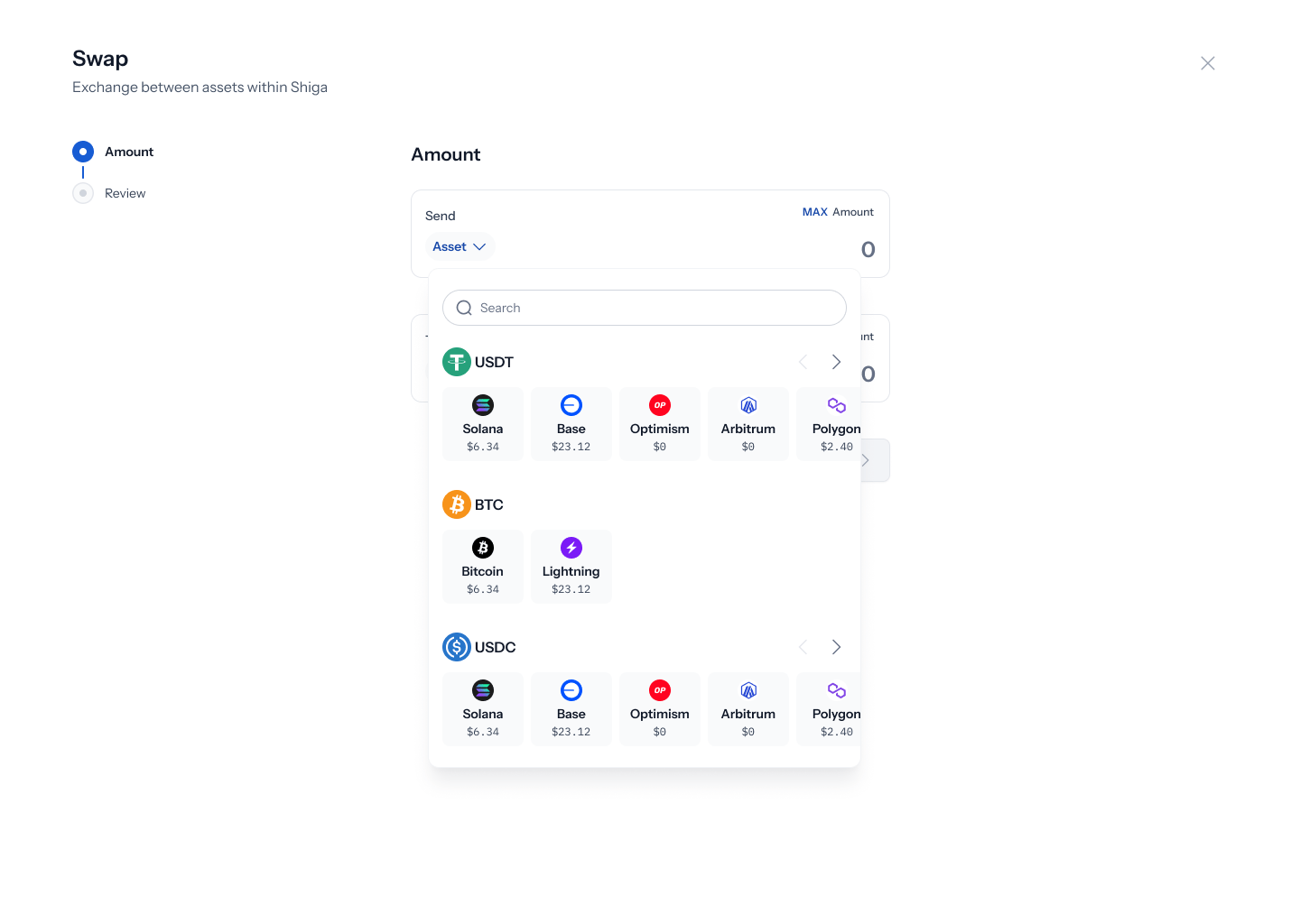
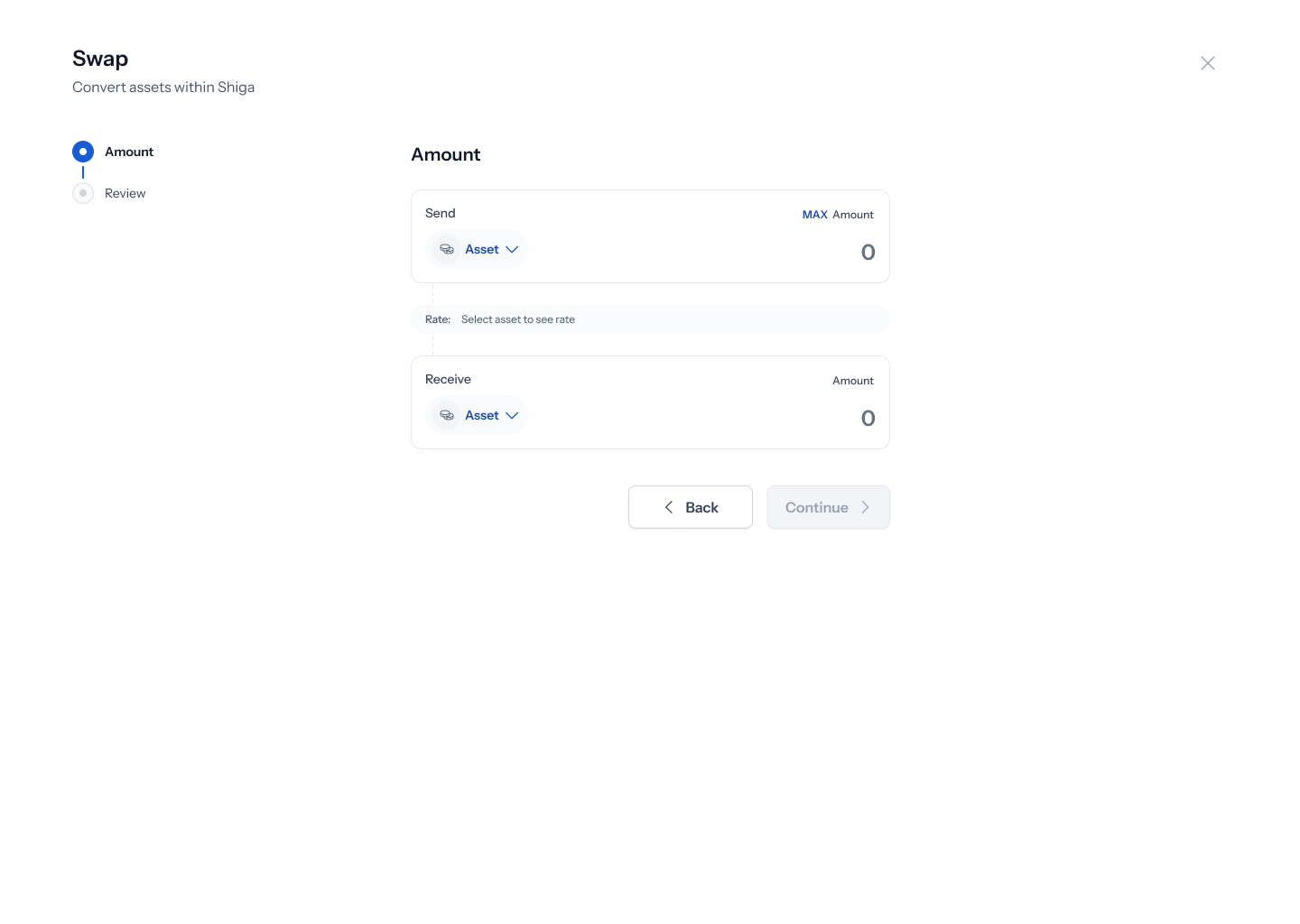 1. Under **Send**, click the asset picker and choose what you're swapping from.
2. Under **Receive**, choose what you want to swap into.
1. Under **Send**, click the asset picker and choose what you're swapping from.
2. Under **Receive**, choose what you want to swap into.
 ## 3. Enter the amount
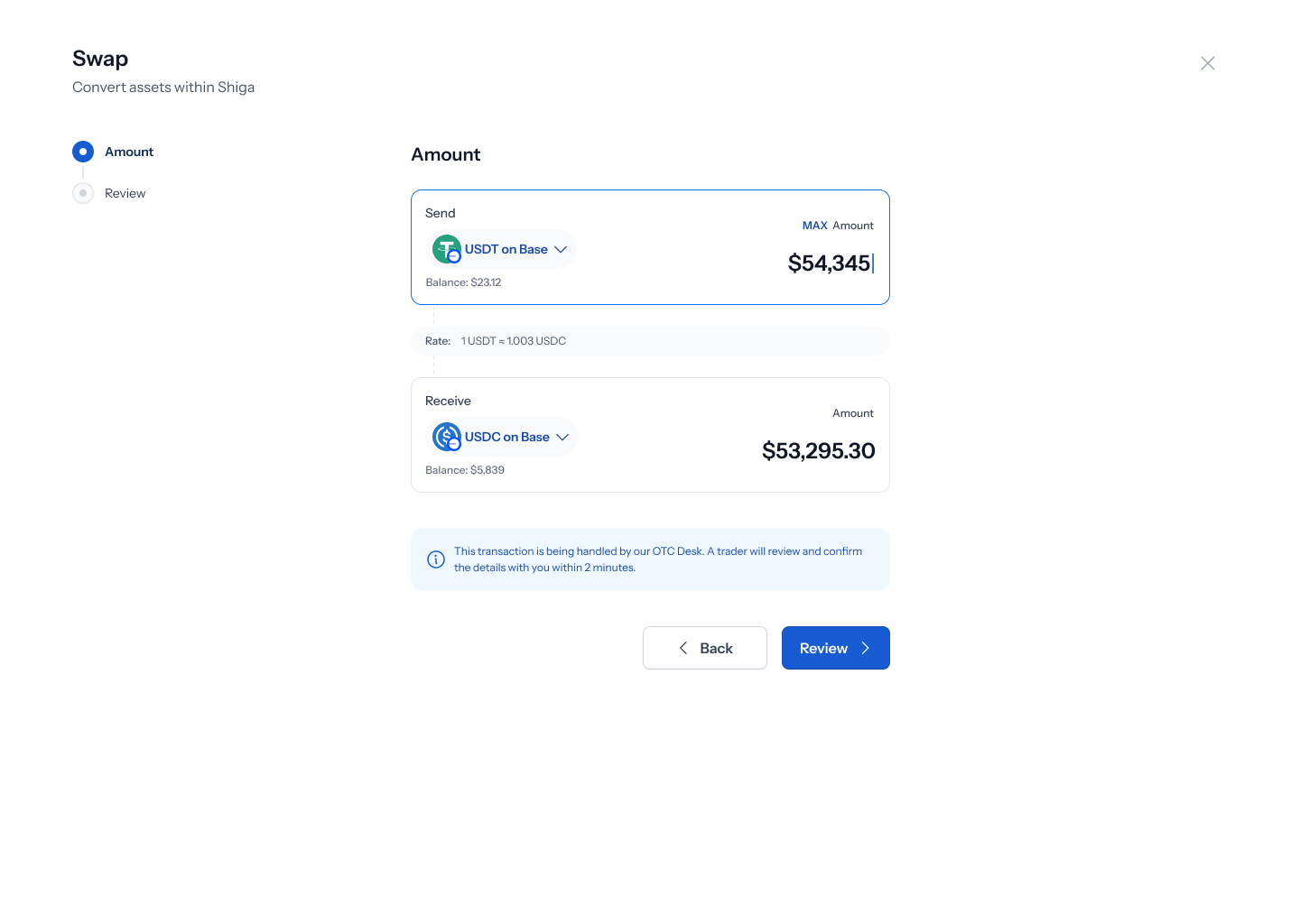 1. Enter the amount you want to send — your balance is shown for reference, and the amount you'll receive updates based on the live rate.
2. Click **Review**.
Large swaps trigger the same OTC threshold banner seen in other flows: *"This trade is over the OTC threshold. Get a hand-quoted custom rate from a trader within 2 minutes."*
## 4. Review and submit
1. Enter the amount you want to send — your balance is shown for reference, and the amount you'll receive updates based on the live rate.
2. Click **Review**.
Large swaps trigger the same OTC threshold banner seen in other flows: *"This trade is over the OTC threshold. Get a hand-quoted custom rate from a trader within 2 minutes."*
## 4. Review and submit
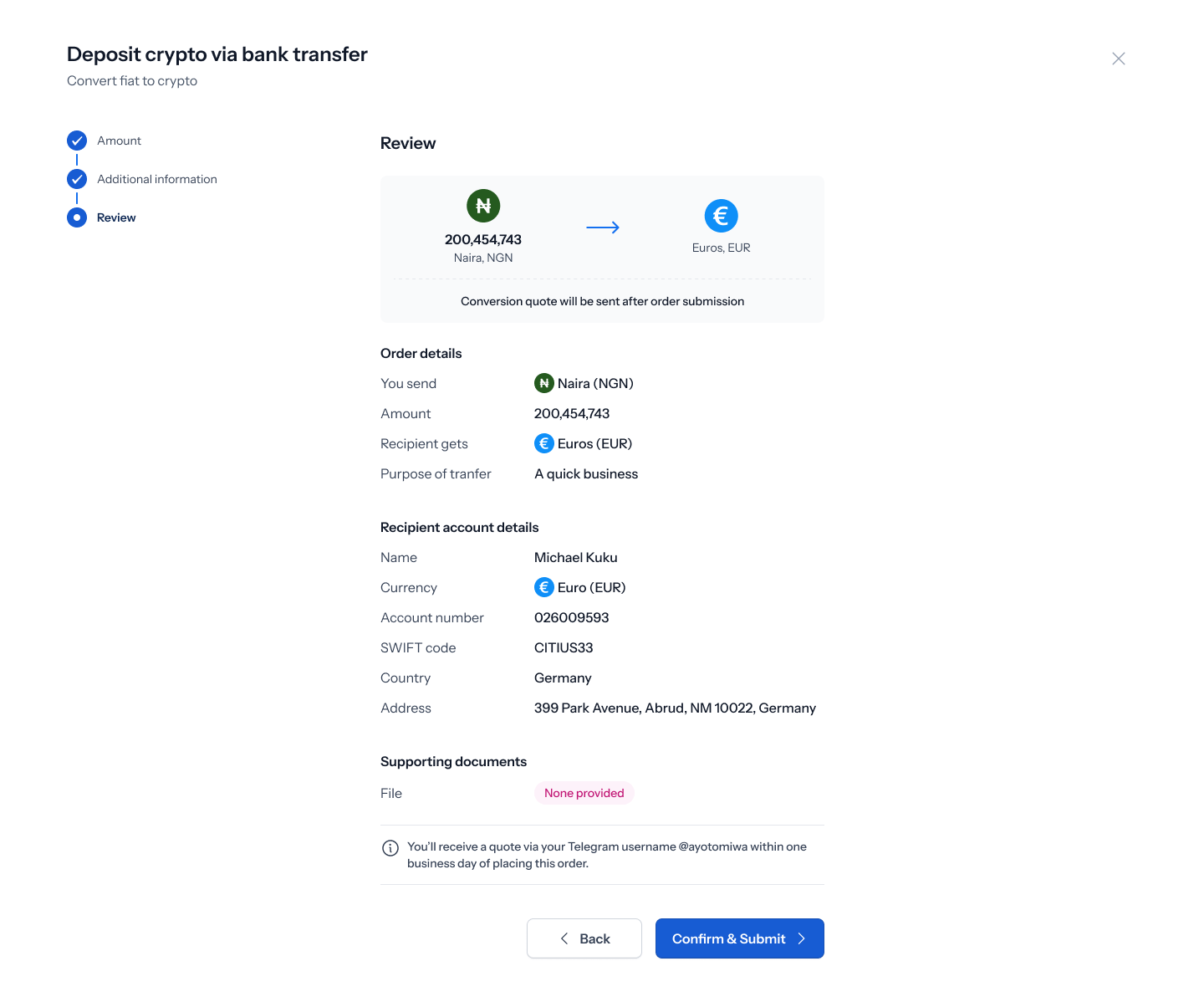 1. Review the swap details, then click **Confirm & Submit**.
In the current Figma file, some of the screens positioned under this flow's review/confirmation section actually reuse the title, fields, and sample data from an unrelated bank-deposit flow (recipient wallet address, Telegram quote messaging, "Purpose of transfer") rather than a wallet-to-wallet swap. The screenshot above ("Review Swap between Currency") is the best match for an actual swap review screen, but the review/confirmation design for this specific flow should be confirmed with the product team before treating it as final.
## 5. Confirmation
1. Review the swap details, then click **Confirm & Submit**.
In the current Figma file, some of the screens positioned under this flow's review/confirmation section actually reuse the title, fields, and sample data from an unrelated bank-deposit flow (recipient wallet address, Telegram quote messaging, "Purpose of transfer") rather than a wallet-to-wallet swap. The screenshot above ("Review Swap between Currency") is the best match for an actual swap review screen, but the review/confirmation design for this specific flow should be confirmed with the product team before treating it as final.
## 5. Confirmation
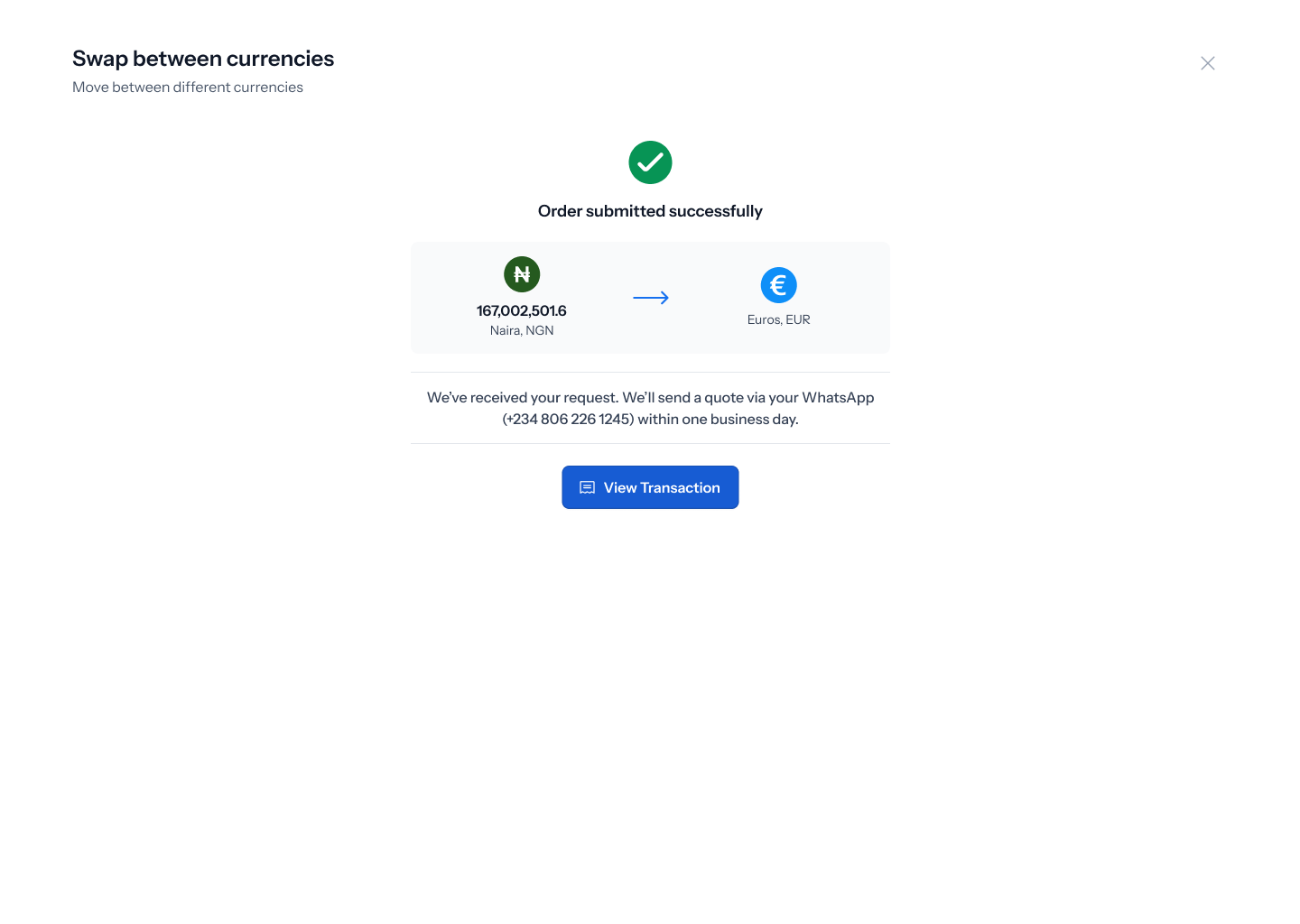 Once submitted, you'll see an **Order submitted successfully** confirmation. Click **View Transaction** to jump straight to your order.
## 6. Track your order
Once submitted, you'll see an **Order submitted successfully** confirmation. Click **View Transaction** to jump straight to your order.
## 6. Track your order
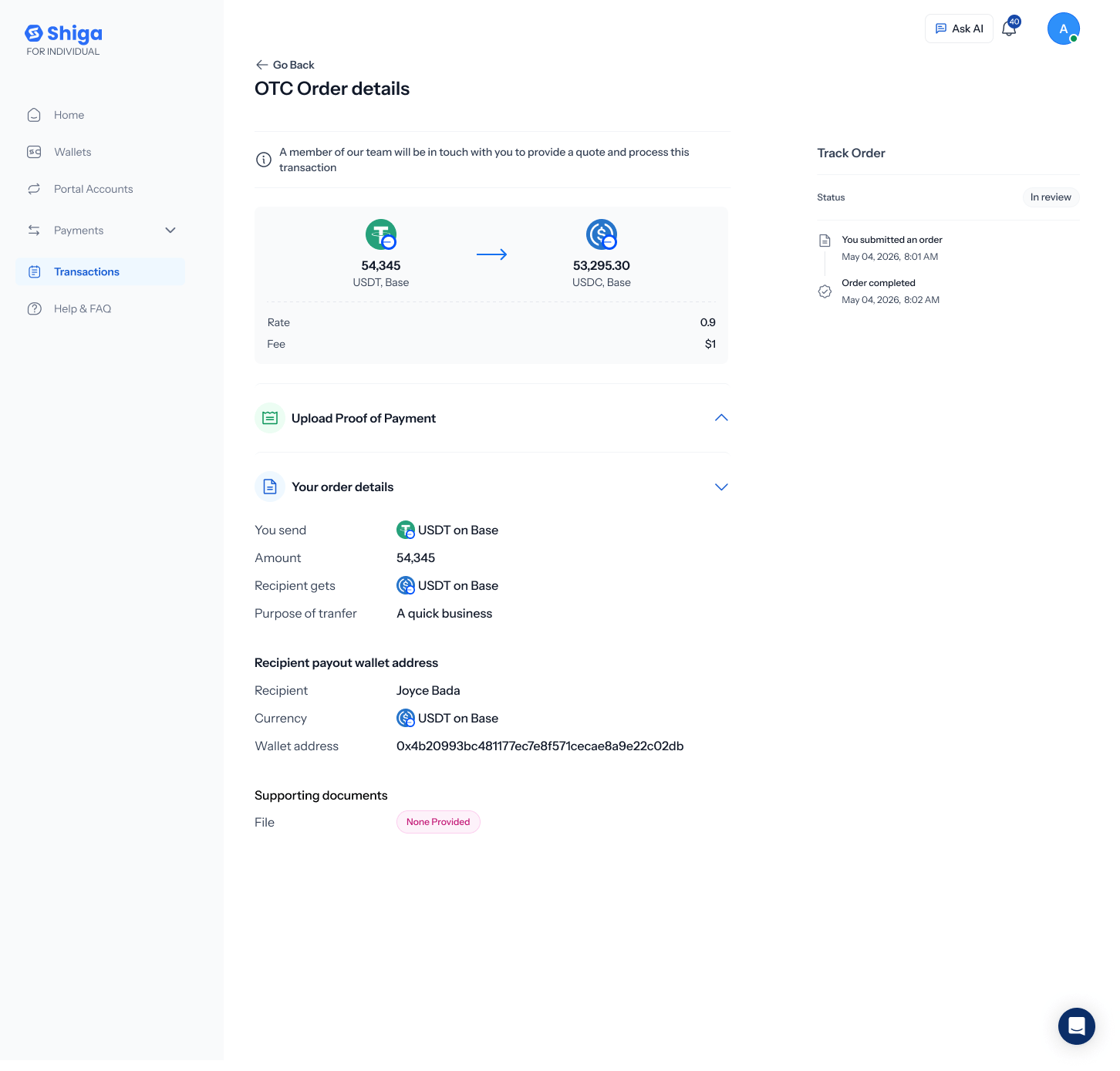
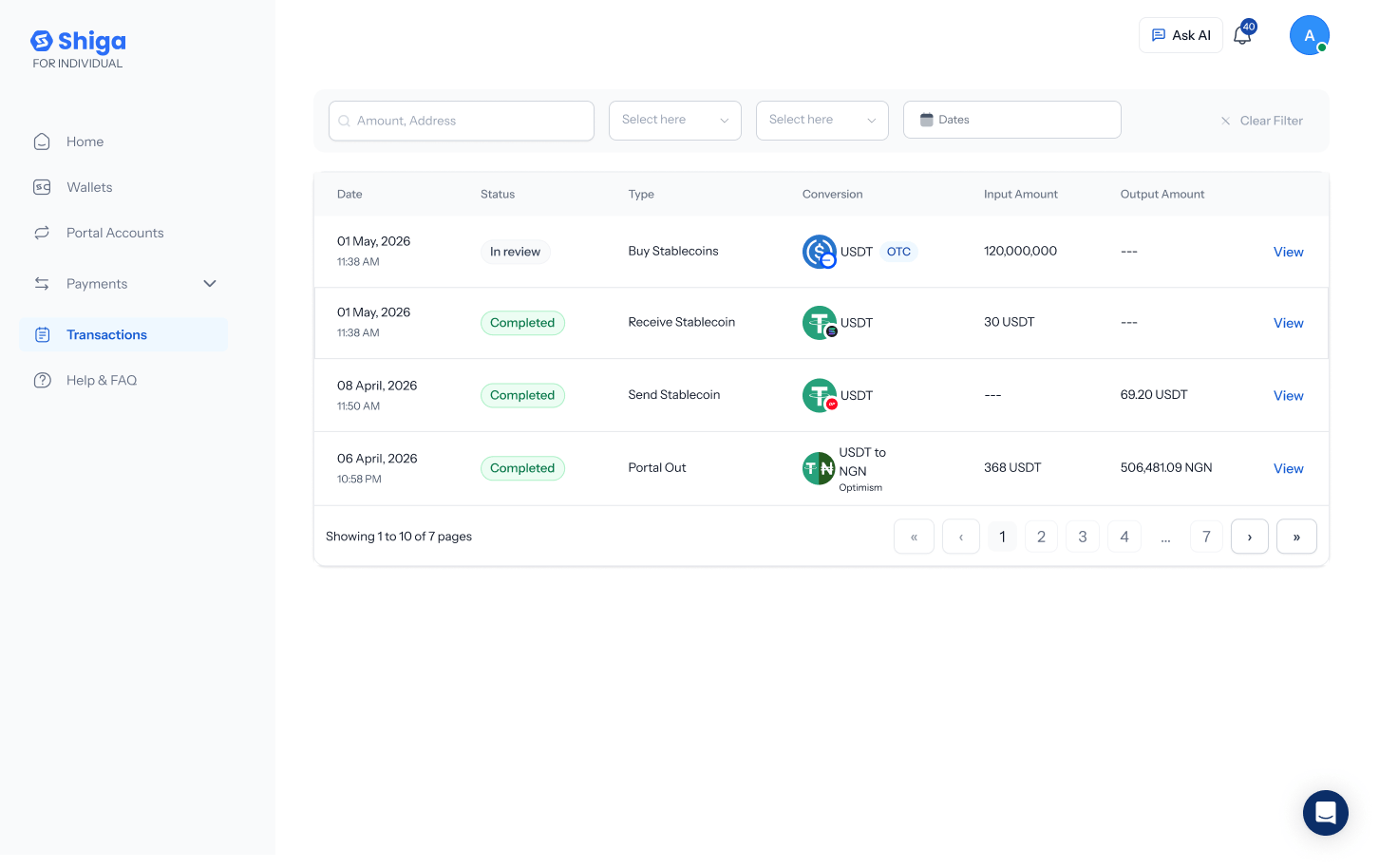 Your swap appears in **Transactions**. Open it to see the **OTC Order details** — status, rate, and fee once a trader has quoted it.
 The transaction history list currently labels swap-related rows as "Send Stablecoin" / "Receive Stablecoin" rather than "Swap" — this may just reflect how a swap is recorded internally as two linked ledger entries, but worth confirming it's intentional.