> ## Documentation Index
> Fetch the complete documentation index at: https://docs.shiga.io/llms.txt
> Use this file to discover all available pages before exploring further.
# Payment Link Details
> View a payment link's details and payment history, and archive or restore it from there.
# Payment Link Details
Every payment link you've created — one-time or reusable, active or archived — has a details view where you can check its status, see who's paid, and archive or restore it.
This is a different guide from [Create a One-Time Payment Link](/Product/Paymentlinks/onetime), [Create a Reusable Payment Link](/Product/Paymentlinks/reusable), [Archive a Payment Link](/Product/Paymentlinks/archive), and [Restore a Payment Link](/Product/Paymentlinks/restore).
***
## 1. Open a link from your Payment Links list
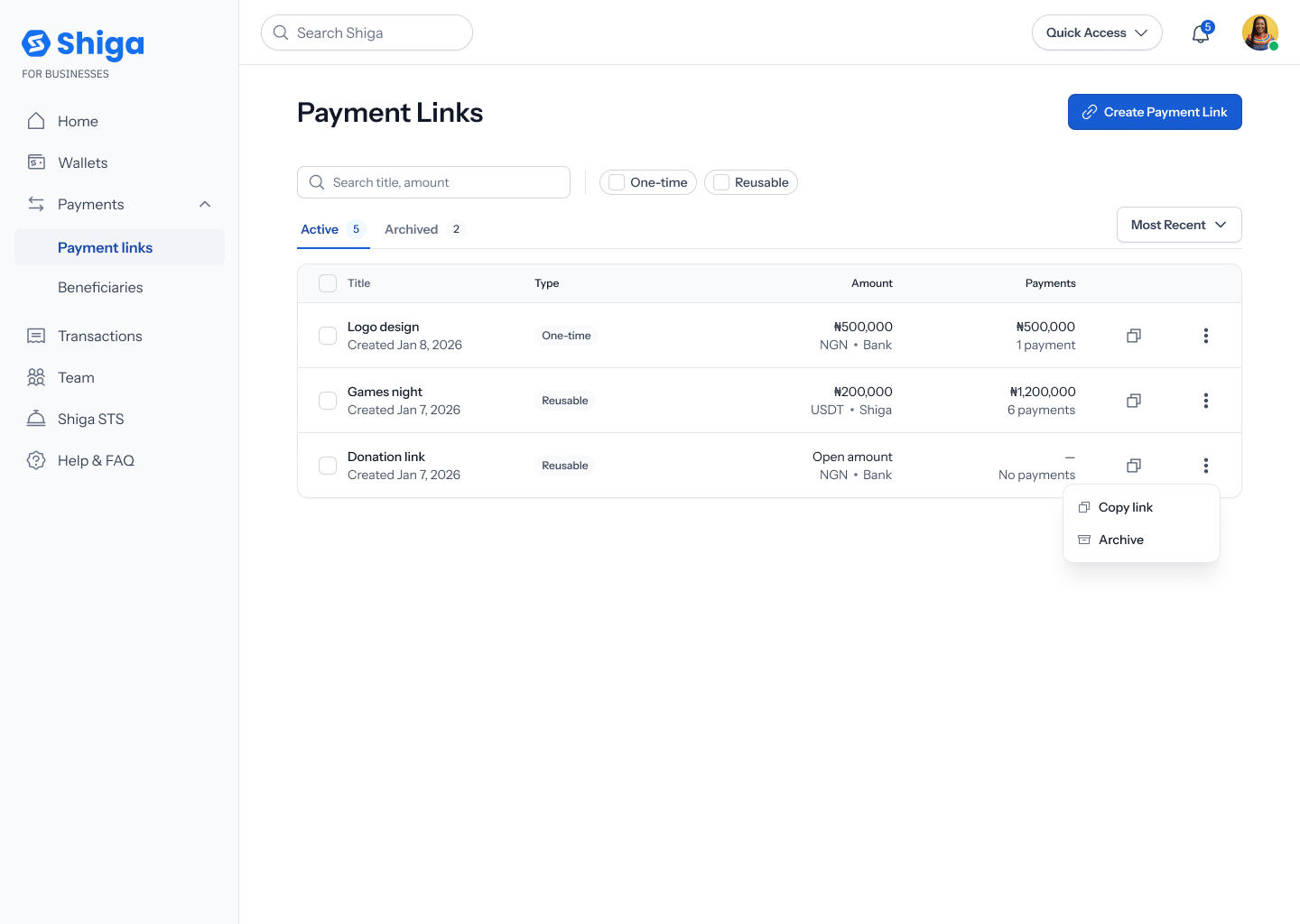
The **Payment Links** list shows every link you've created, with a **Create payment link** button, a search field (placeholder *"Search title, amount"*), and filters for **One-time** / **Reusable** and **Active** / **Archived**. Each row shows the link's title (e.g. **"Logo design"**, **"Games night"**, **"Donation link"**), when it was created, its type, amount (or **"Open amount"** for a reusable any-amount link), settlement method, and a **Payments** column (e.g. **₦500,000** "1 payment", **₦1,200,000** "6 payments", or "—" "No payments"). Tap any row to open its details.
 ## 2. Check the Details tab
A link's details view opens on the **Details** tab, with two badges up top (e.g. **One-time** / **Active**, or **Reusable** / **Active**) and a header showing the amount and the shareable link (e.g. **₦500,000**, **pay.shiga.co/lnk/m3pL5**, with a copy icon), plus the title and description you gave it (e.g. **"Logo design"** — *"Covers logo design costs and print"*).
## 2. Check the Details tab
A link's details view opens on the **Details** tab, with two badges up top (e.g. **One-time** / **Active**, or **Reusable** / **Active**) and a header showing the amount and the shareable link (e.g. **₦500,000**, **pay.shiga.co/lnk/m3pL5**, with a copy icon), plus the title and description you gave it (e.g. **"Logo design"** — *"Covers logo design costs and print"*).
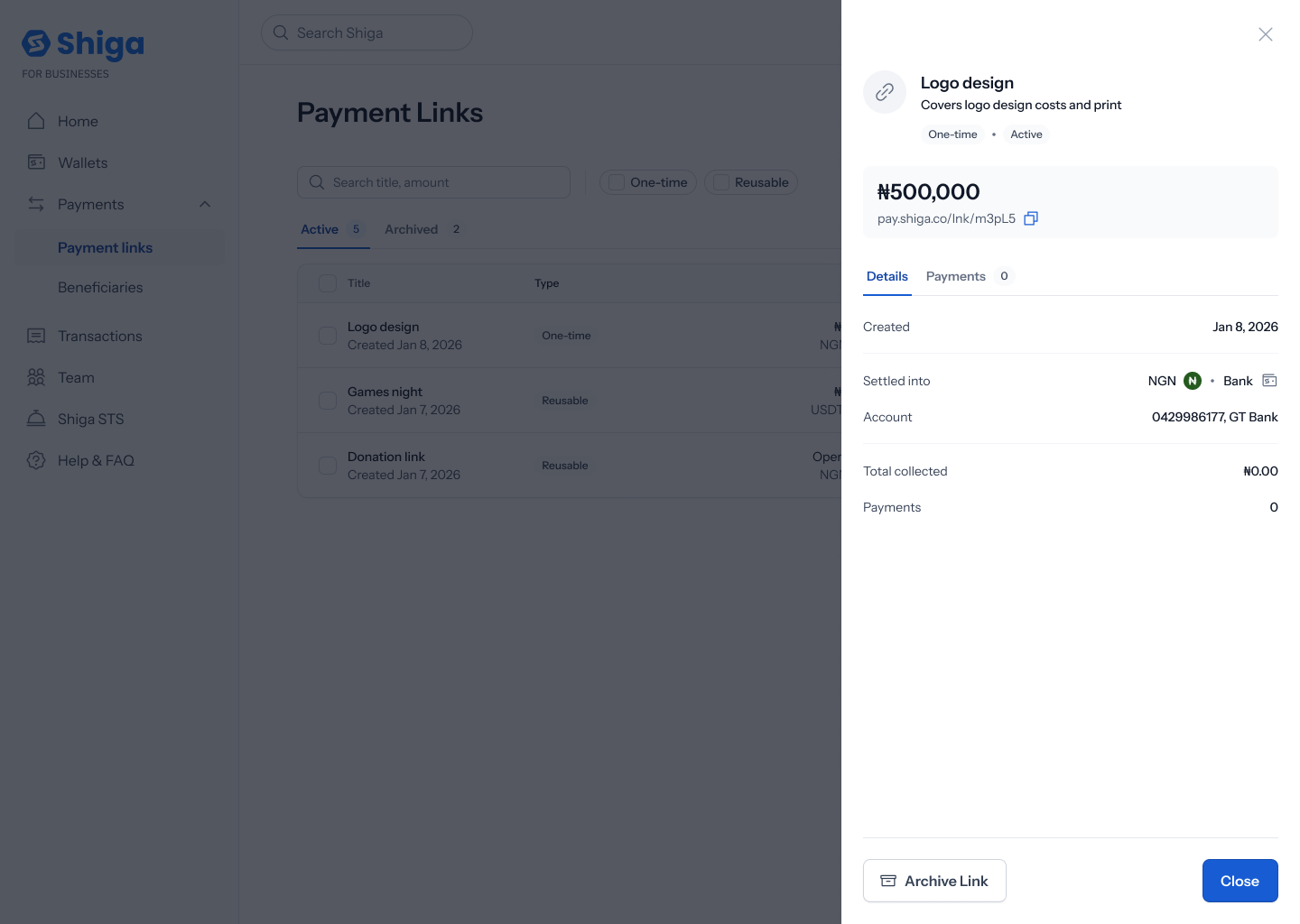 Below that, a summary lists: **Created** (e.g. **Jan 8, 2026**), **Settled into** (e.g. **NGN · Bank**, or **USDT on Base · Shiga Wallet**), **Account** (e.g. **"0429986177, GT Bank"**), **Total collected**, and **Payments**.
## 3. Check the Payments tab
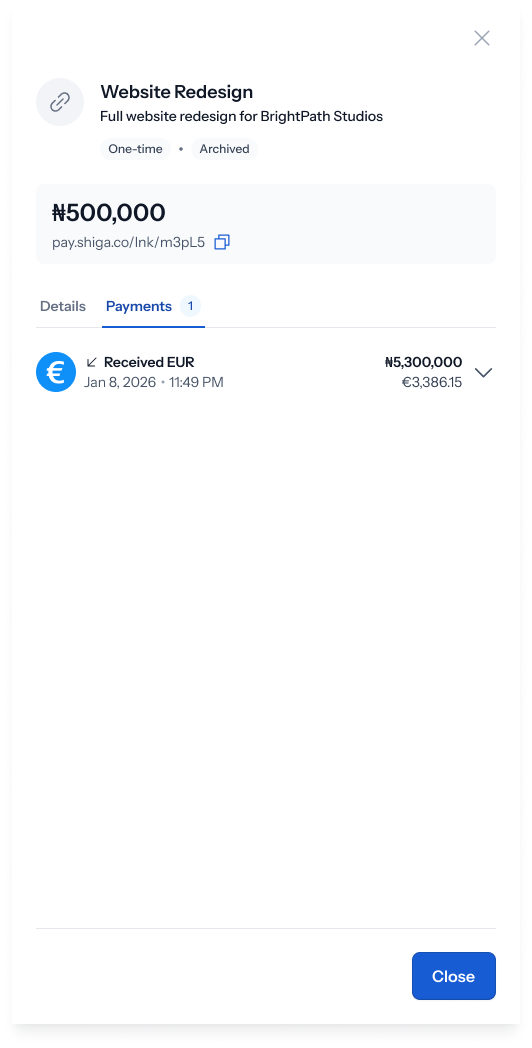
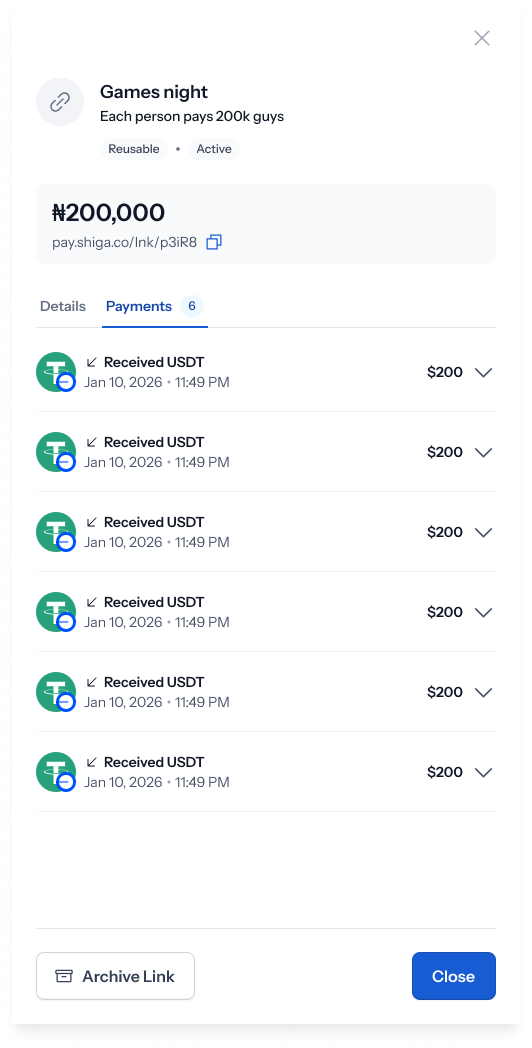
Switching to the **Payments** tab — which carries a badge showing how many payments have come in — either shows an empty state (*"No payments yet"* / *"When someone pays using this link, it will show up here"*) or a list of payments received. Each payment row shows how it was received (e.g. **"Received EUR"**, **"Received USDT"**), the date and time, and the amount in both the settled currency and its converted value (e.g. **₦5,300,000** / **€3,386.15**).
Below that, a summary lists: **Created** (e.g. **Jan 8, 2026**), **Settled into** (e.g. **NGN · Bank**, or **USDT on Base · Shiga Wallet**), **Account** (e.g. **"0429986177, GT Bank"**), **Total collected**, and **Payments**.
## 3. Check the Payments tab
Switching to the **Payments** tab — which carries a badge showing how many payments have come in — either shows an empty state (*"No payments yet"* / *"When someone pays using this link, it will show up here"*) or a list of payments received. Each payment row shows how it was received (e.g. **"Received EUR"**, **"Received USDT"**), the date and time, and the amount in both the settled currency and its converted value (e.g. **₦5,300,000** / **€3,386.15**).
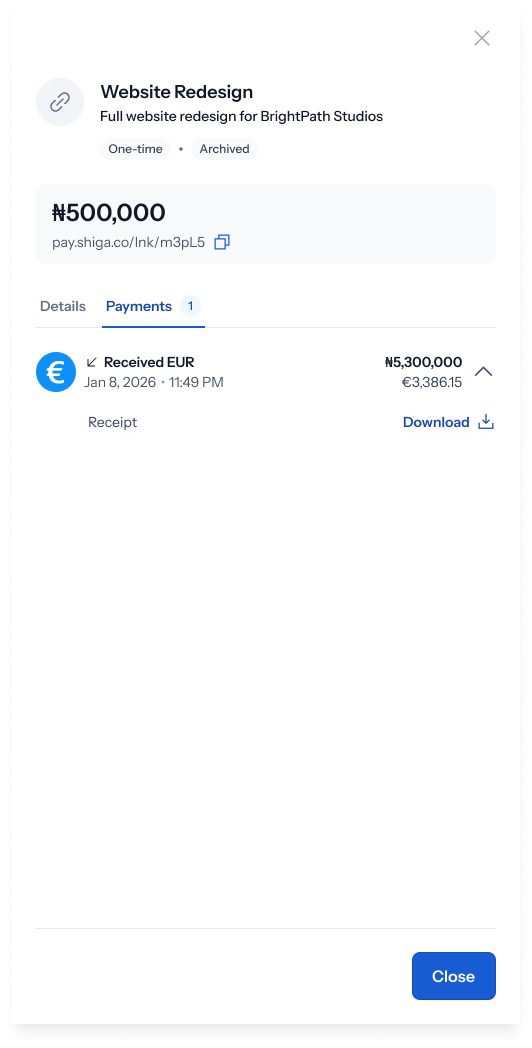
 Tapping a payment row expands it to show more: for a reusable link, this includes **From** (the payer's name, e.g. **"Bayo Sope"**) and a **Receipt** with a **Download** button.
 The empty-state copy on the Payments tab isn't perfectly consistent across the Figma file — one version reads *"When someone pays using this link, it will show up here"* and another reads *"When you receive payments using link they'll appear here"*. Both describe the same thing; worth a copy pass to standardize on one.
## 4. Archive or restore the link
An **active** link's details view has an **Archive Link** button at the bottom. Tapping it asks you to confirm: **"Archive this payment link?"** — *"This link will stop accepting payments. You can find it in your Archived tab"* — with **No, cancel** and **Yes, Archive** buttons.
An **archived** link's details view instead shows a **Restore Link** button. Tapping it asks: **"Restore this payment link?"** — *"This link will resume accepting payments"* — with **No, cancel** and **Yes, Restore** buttons.
The empty-state copy on the Payments tab isn't perfectly consistent across the Figma file — one version reads *"When someone pays using this link, it will show up here"* and another reads *"When you receive payments using link they'll appear here"*. Both describe the same thing; worth a copy pass to standardize on one.
## 4. Archive or restore the link
An **active** link's details view has an **Archive Link** button at the bottom. Tapping it asks you to confirm: **"Archive this payment link?"** — *"This link will stop accepting payments. You can find it in your Archived tab"* — with **No, cancel** and **Yes, Archive** buttons.
An **archived** link's details view instead shows a **Restore Link** button. Tapping it asks: **"Restore this payment link?"** — *"This link will resume accepting payments"* — with **No, cancel** and **Yes, Restore** buttons.
 See [Archive a Payment Link](/Product/Paymentlinks/archive) and [Restore a Payment Link](/Product/Paymentlinks/restore) for the full walkthroughs, including the confirmation screens.