> ## Documentation Index
> Fetch the complete documentation index at: https://docs.shiga.io/llms.txt
> Use this file to discover all available pages before exploring further.
# Create a One-Time Payment Link
> Create a payment link for a specific amount from a specific person, start to finish.
# Create a One-Time Payment Link
A **one-time link** requests a specific amount from a specific person — useful for invoices, one-off sales, or asking a particular person to pay you back. The person you send it to doesn't need an Enta account to pay.
This is a different guide from [Create a Reusable Payment Link](/Product/Paymentlinks/reusable), [Payment Link Details](/Product/Paymentlinks/details), [Archive a Payment Link](/Product/Paymentlinks/archive), and [Restore a Payment Link](/Product/Paymentlinks/restore).
***
## 1. Choose the link type
Starting a new payment link opens **"Create payment link"** — *"Set up a link to request or collect a payment"* — with a stepper across the top: **Link type**, **Payment details**, **Review**. The first question is **"What type of link do you need?"**, with a banner reminding you: *"Anyone can pay. No Shiga account needed."*
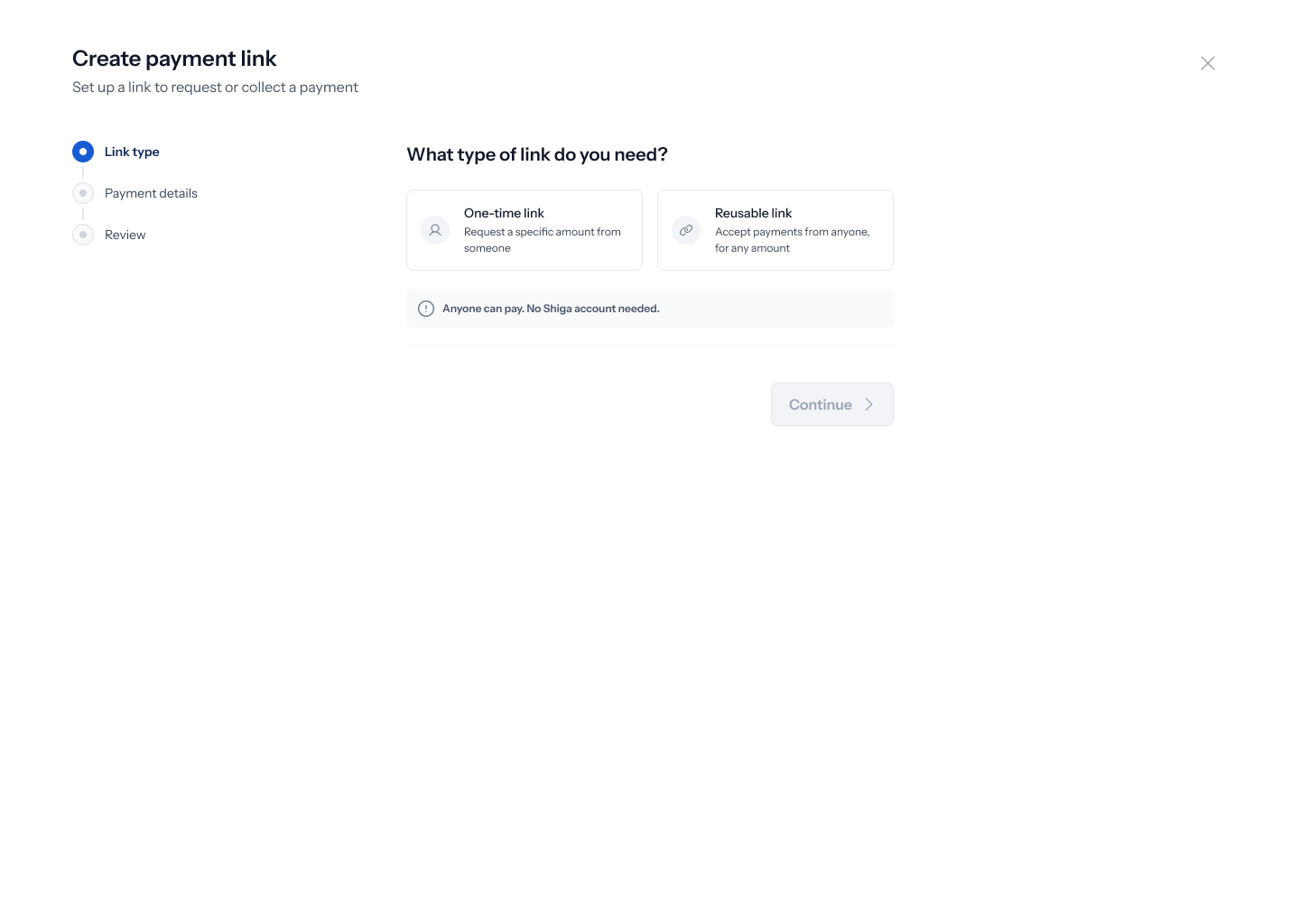 You're offered two cards: **One-time link** — *"Request a specific amount from someone"* — and **Reusable link** — *"Accept payments from anyone, for any amount"*. Pick **One-time link**.
## 2. Name the link
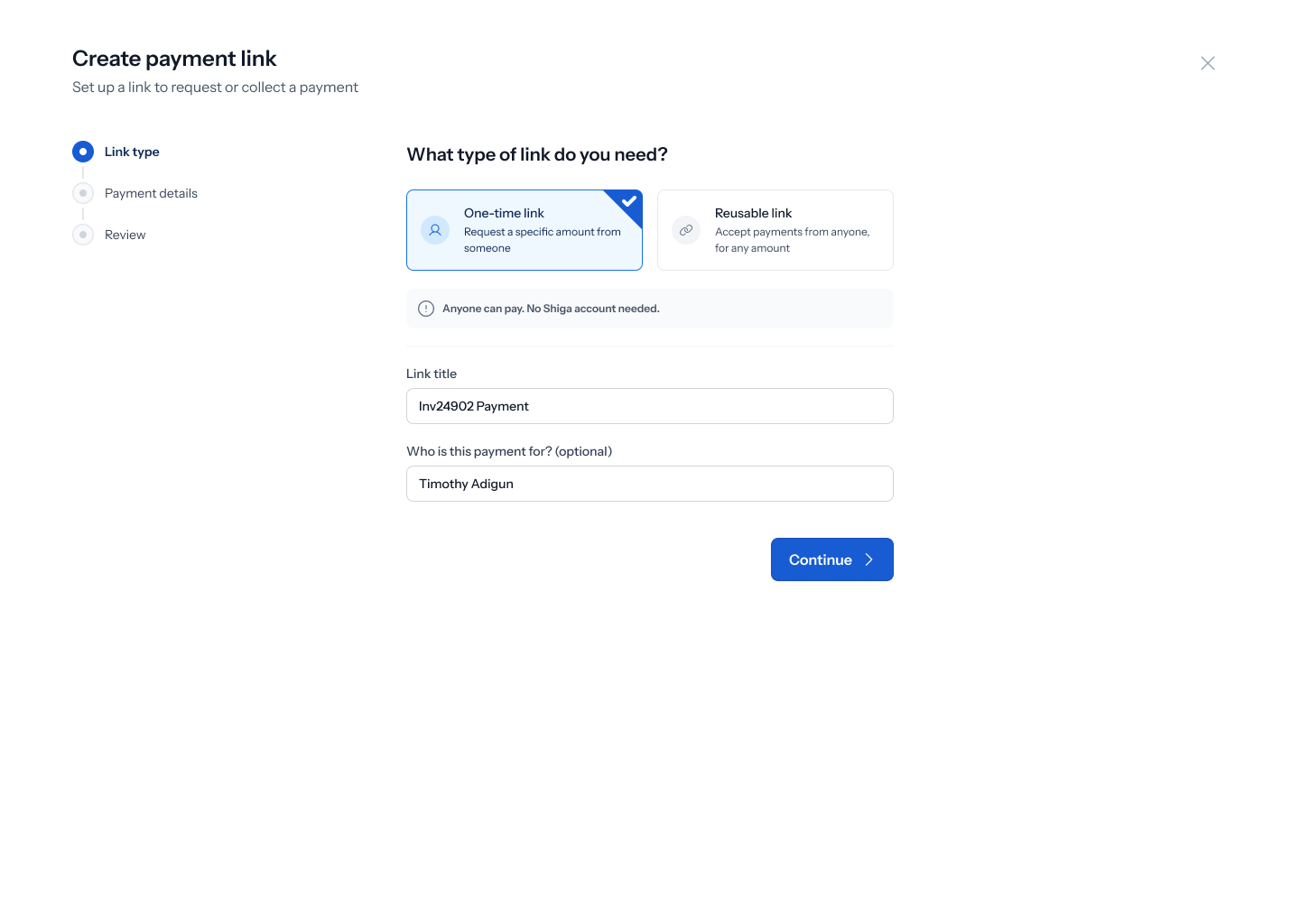
With **One-time link** selected, two fields appear: **Link title** (placeholder *"e.g., Design work payment"*) and **Who is this payment for? (optional)**. Fill in a title — for example **"Inv24902 Payment"** — and, if you like, the recipient's name, e.g. **"Timothy Adigun"**. Tap **Continue**.
You're offered two cards: **One-time link** — *"Request a specific amount from someone"* — and **Reusable link** — *"Accept payments from anyone, for any amount"*. Pick **One-time link**.
## 2. Name the link
With **One-time link** selected, two fields appear: **Link title** (placeholder *"e.g., Design work payment"*) and **Who is this payment for? (optional)**. Fill in a title — for example **"Inv24902 Payment"** — and, if you like, the recipient's name, e.g. **"Timothy Adigun"**. Tap **Continue**.
 ## 3. Set the amount and how you want to be notified
The **"One-time link payment details"** screen — *"Set the amount you want to receive and how you'd like to be paid"* — starts with an **Amount** field (currency prefix, e.g. **₦**, with a currency dropdown offering **USDT**, **BTC**, **Naira**, **Euro**, **Pound**) and an optional **Description** (placeholder *"What is this payment for?"*).
Below that, a **Notify the recipient (optional)** section — *"We'll send them the link with payment instructions"* — lets you toggle on **Email**, **Telegram**, and **WhatsApp** and fill in the corresponding email address, Telegram number, or WhatsApp number so Enta sends the link for you.
## 4. Choose where the money settles
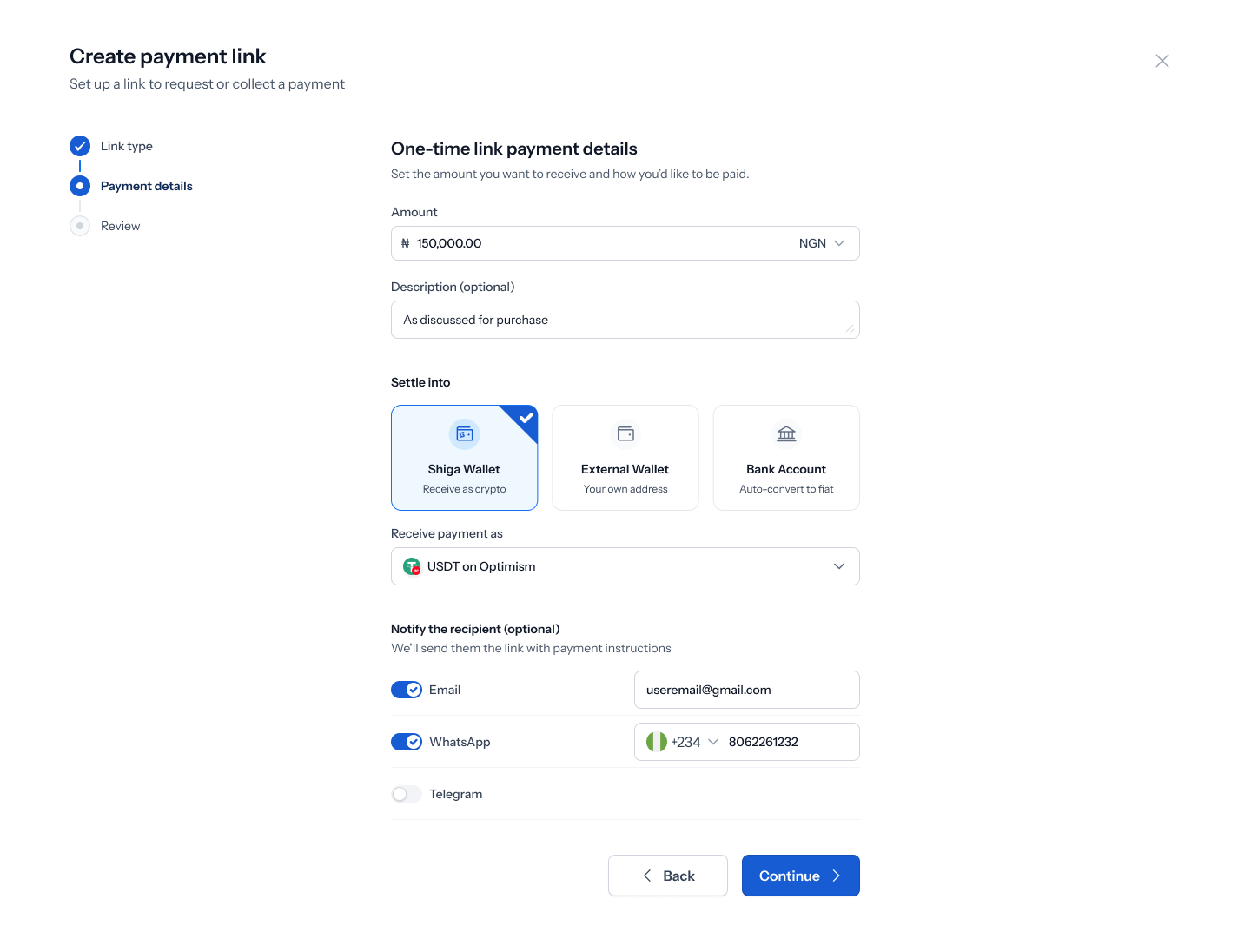
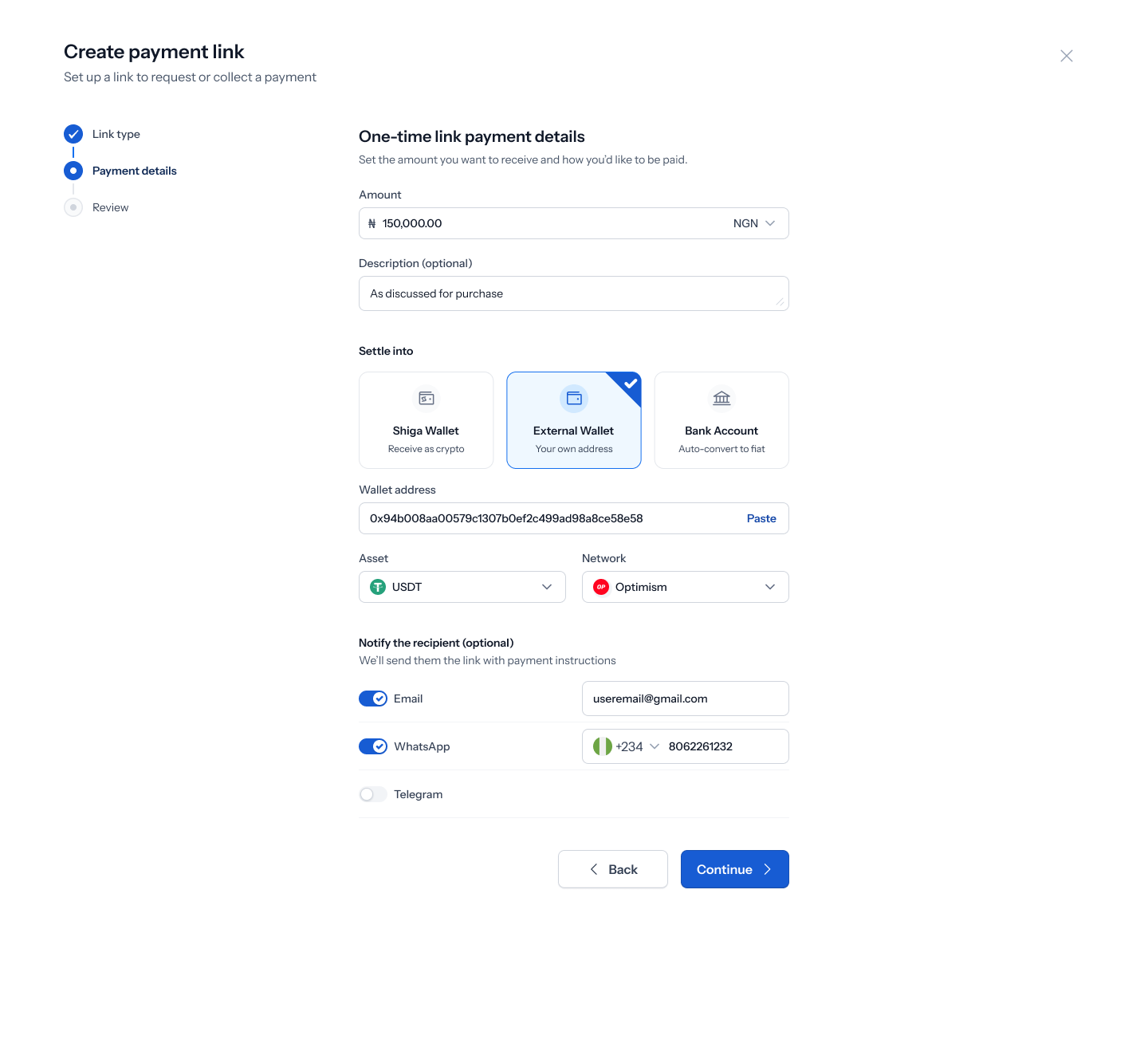
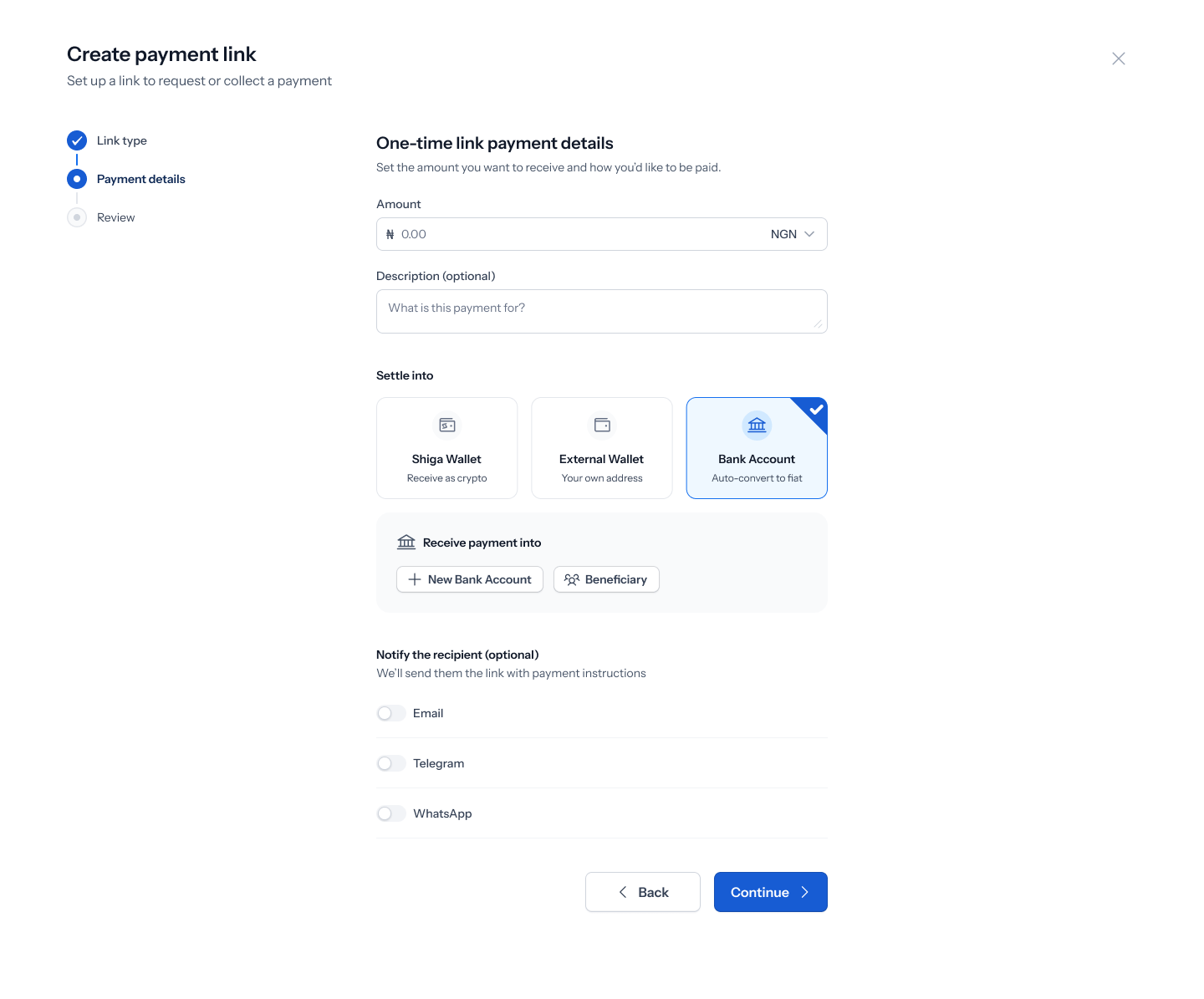
The same screen's **Settle into** section offers three cards: **Shiga Wallet** (*"Receive as crypto"*), **External Wallet** (*"Your own address"*), and **Bank Account** (*"Auto-convert to fiat"*). Which one you pick changes what shows up next.
## 3. Set the amount and how you want to be notified
The **"One-time link payment details"** screen — *"Set the amount you want to receive and how you'd like to be paid"* — starts with an **Amount** field (currency prefix, e.g. **₦**, with a currency dropdown offering **USDT**, **BTC**, **Naira**, **Euro**, **Pound**) and an optional **Description** (placeholder *"What is this payment for?"*).
Below that, a **Notify the recipient (optional)** section — *"We'll send them the link with payment instructions"* — lets you toggle on **Email**, **Telegram**, and **WhatsApp** and fill in the corresponding email address, Telegram number, or WhatsApp number so Enta sends the link for you.
## 4. Choose where the money settles
The same screen's **Settle into** section offers three cards: **Shiga Wallet** (*"Receive as crypto"*), **External Wallet** (*"Your own address"*), and **Bank Account** (*"Auto-convert to fiat"*). Which one you pick changes what shows up next.
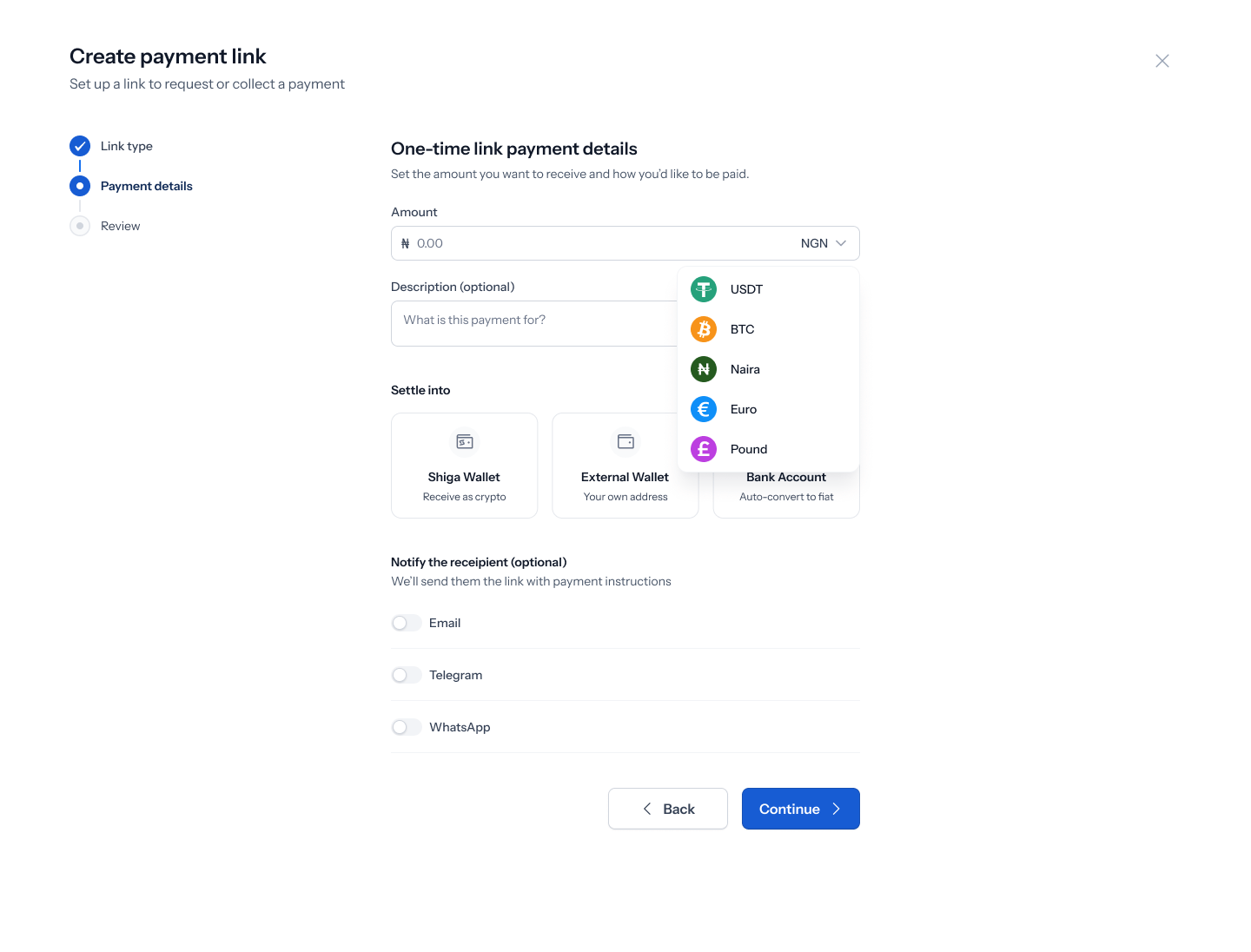 **Shiga Wallet** — picking this reveals a **Receive payment as** dropdown where you choose the asset you want to be paid in, e.g. **USDT on Optimism**.
 **External Wallet** — picking this reveals a **Wallet address** field (with a **Paste** button), plus **Asset** and **Network** dropdowns — for example an address like **0x94b008aa00579c1307b0ef2c499ad98a8ce58e58**, asset **USDT**, network **Optimism**.
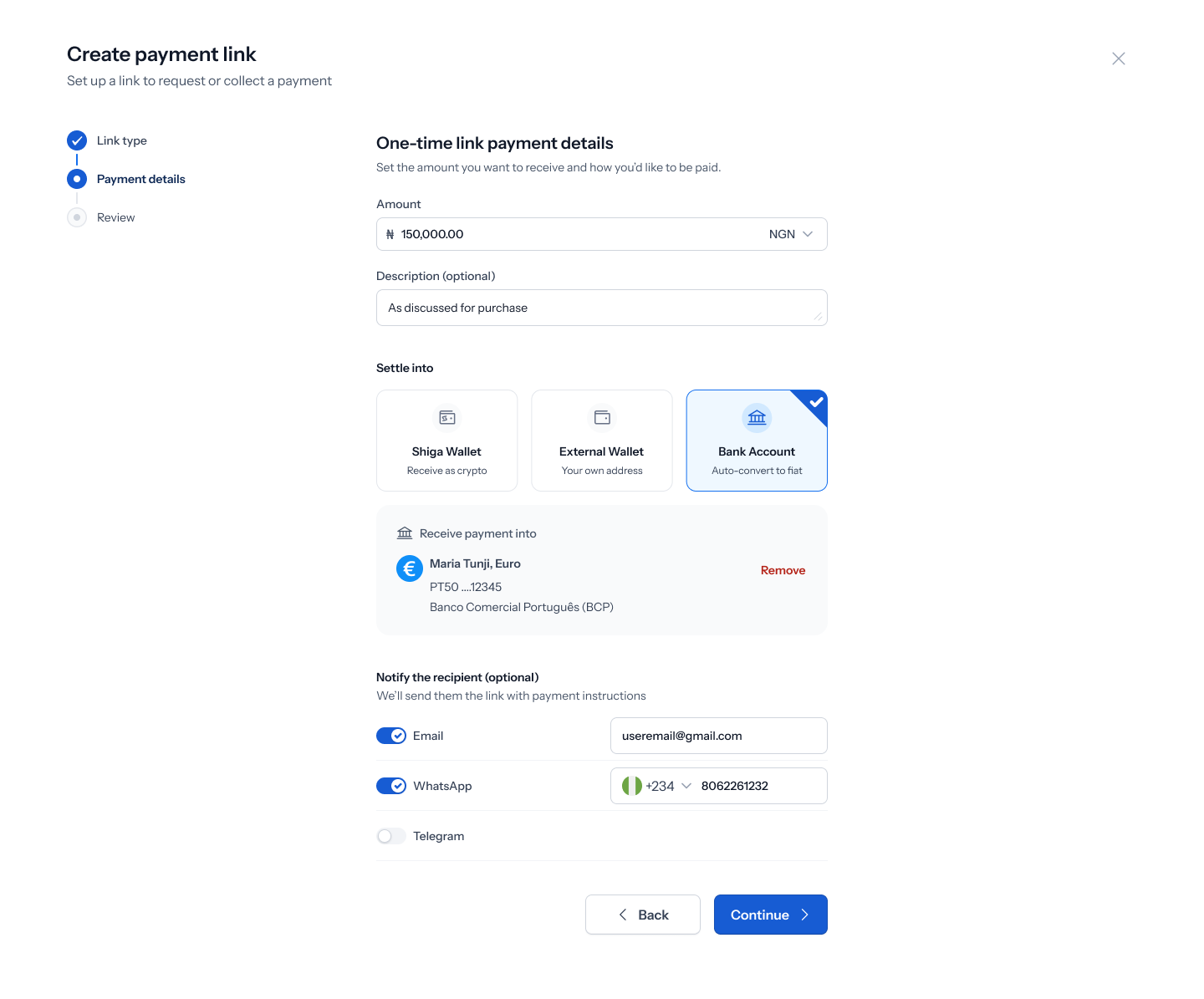
 **Bank Account** — picking this reveals a **Receive payment into** panel with two buttons: **New Bank Account** and **Beneficiary**.
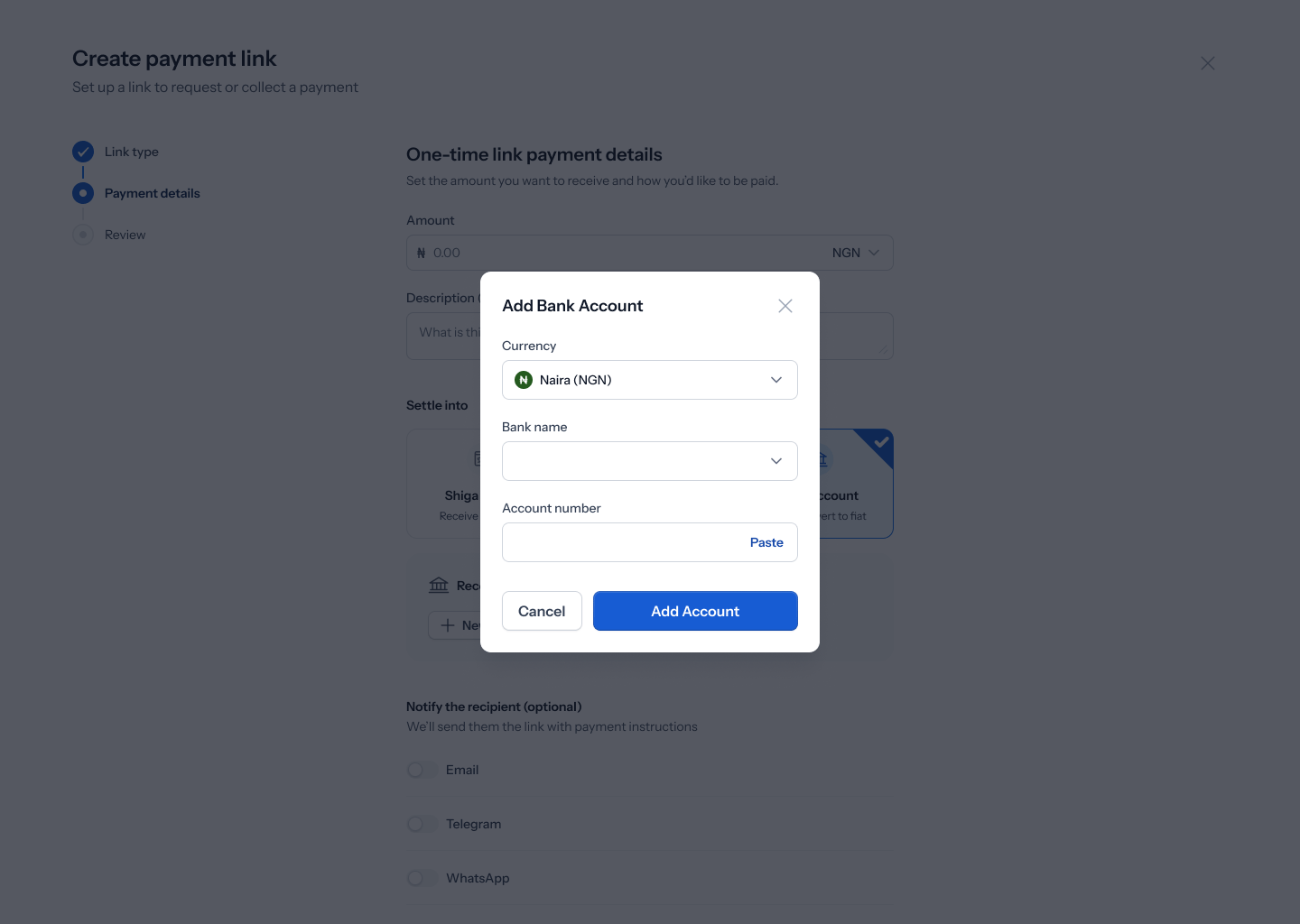
 Tapping **New Bank Account** opens an **Add Bank Account** modal scoped to your chosen currency — for Euro this asks for **Currency**, **Account name**, **Country**, **Bank name**, and **International Bank Account Number (IBAN)** (e.g. **Maria Tunji**, Portugal, **Banco Comercial Português (BCP)**); for Pound it asks for **Account number** and **Sort code** instead of an IBAN (e.g. **James Wilson**, United Kingdom, **Barclays Bank**). Tap **Add Account** to save it, or **Cancel** to back out.
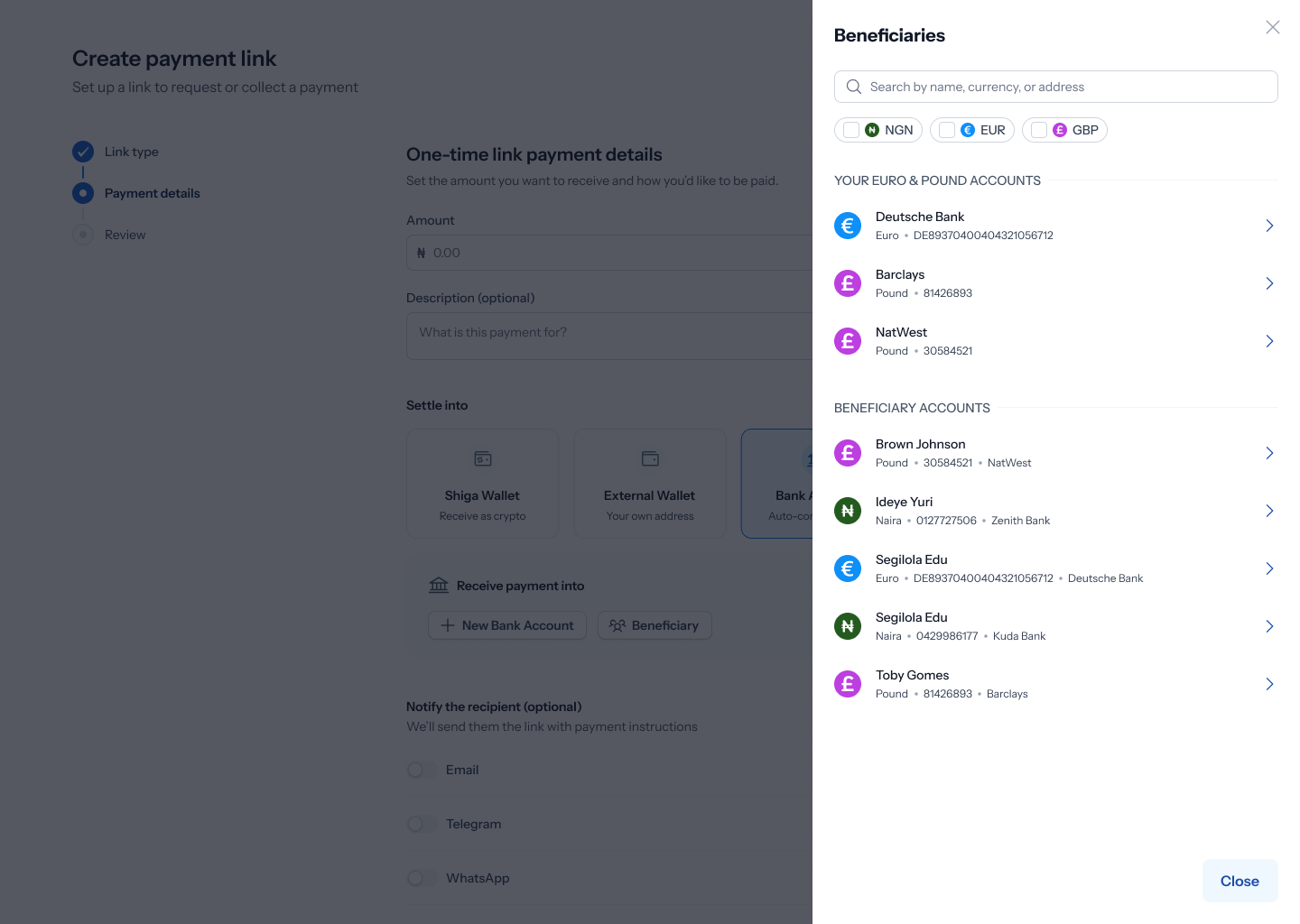
 Tapping **Beneficiary** instead opens a **Beneficiaries** drawer with **NGN** / **EUR** / **GBP** tabs listing your saved bank accounts by name, currency, account number, and bank — pick one instead of adding a new one.
 Once a bank account is chosen (new or saved), it appears as a summary card — e.g. **"Maria Tunji, Euro"** / masked IBAN / **"Banco Comercial Português (BCP)"** — with a **Remove** option. Tap **Continue**.
 ## 5. Review and create the link
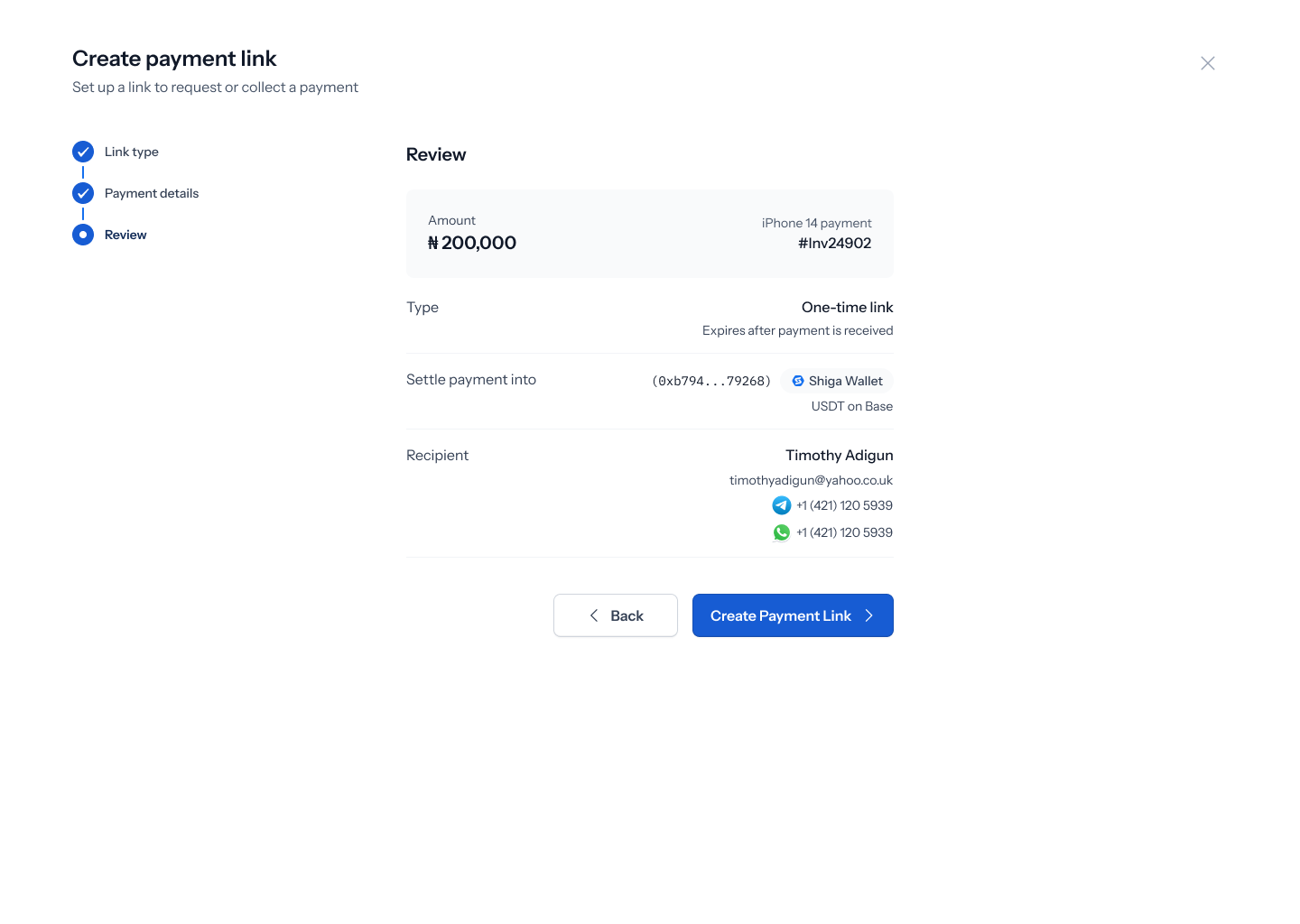
The **Review** screen summarizes everything: **Amount** (e.g. **₦200,000**), your title and reference (e.g. **"iPhone 14 payment"** / **"#Inv24902"**), **Type** (**"One-time link"** — *"Expires after payment is received"*), **Settle payment into** (a badge showing your chosen destination — **Shiga Wallet**, an external address, or a bank account), and **Recipient** details (name, email, Telegram, WhatsApp, if you filled them in). Tap **Back** to change anything, or **Create Payment Link** to finish.
## 5. Review and create the link
The **Review** screen summarizes everything: **Amount** (e.g. **₦200,000**), your title and reference (e.g. **"iPhone 14 payment"** / **"#Inv24902"**), **Type** (**"One-time link"** — *"Expires after payment is received"*), **Settle payment into** (a badge showing your chosen destination — **Shiga Wallet**, an external address, or a bank account), and **Recipient** details (name, email, Telegram, WhatsApp, if you filled them in). Tap **Back** to change anything, or **Create Payment Link** to finish.
 ## 6. Share the link
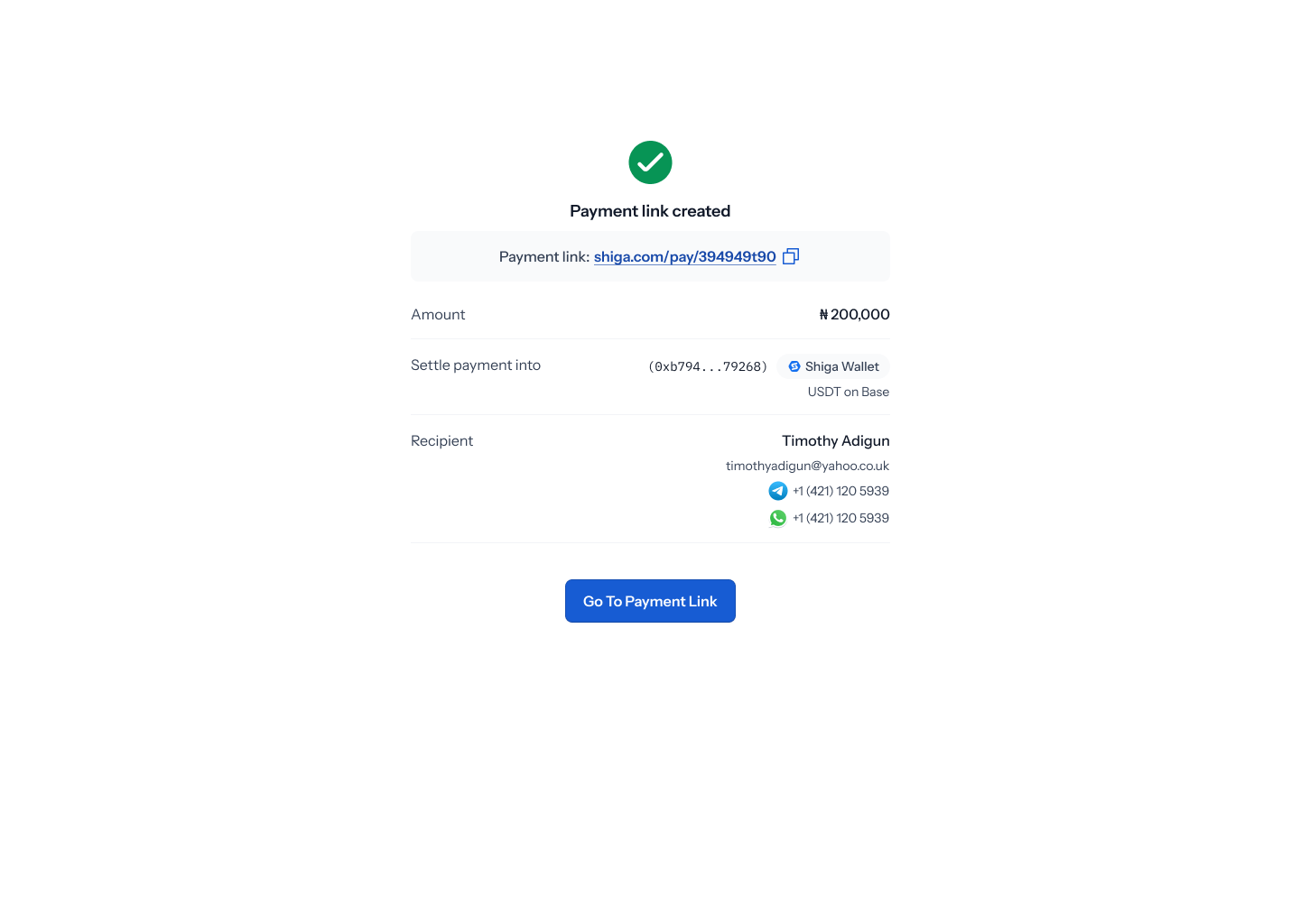
Once created, **"Payment link created"** shows your shareable **Payment link** (e.g. **shiga.com/pay/394949t90**) with a copy icon, plus a summary of the **Amount**, **Settle payment into** destination, and **Recipient**. Tap **Go to Payment Link** to view it.
## 6. Share the link
Once created, **"Payment link created"** shows your shareable **Payment link** (e.g. **shiga.com/pay/394949t90**) with a copy icon, plus a summary of the **Amount**, **Settle payment into** destination, and **Recipient**. Tap **Go to Payment Link** to view it.