> ## Documentation Index
> Fetch the complete documentation index at: https://docs.shiga.io/llms.txt
> Use this file to discover all available pages before exploring further.
# Dashboard
> Dashboard → Payment Links
## 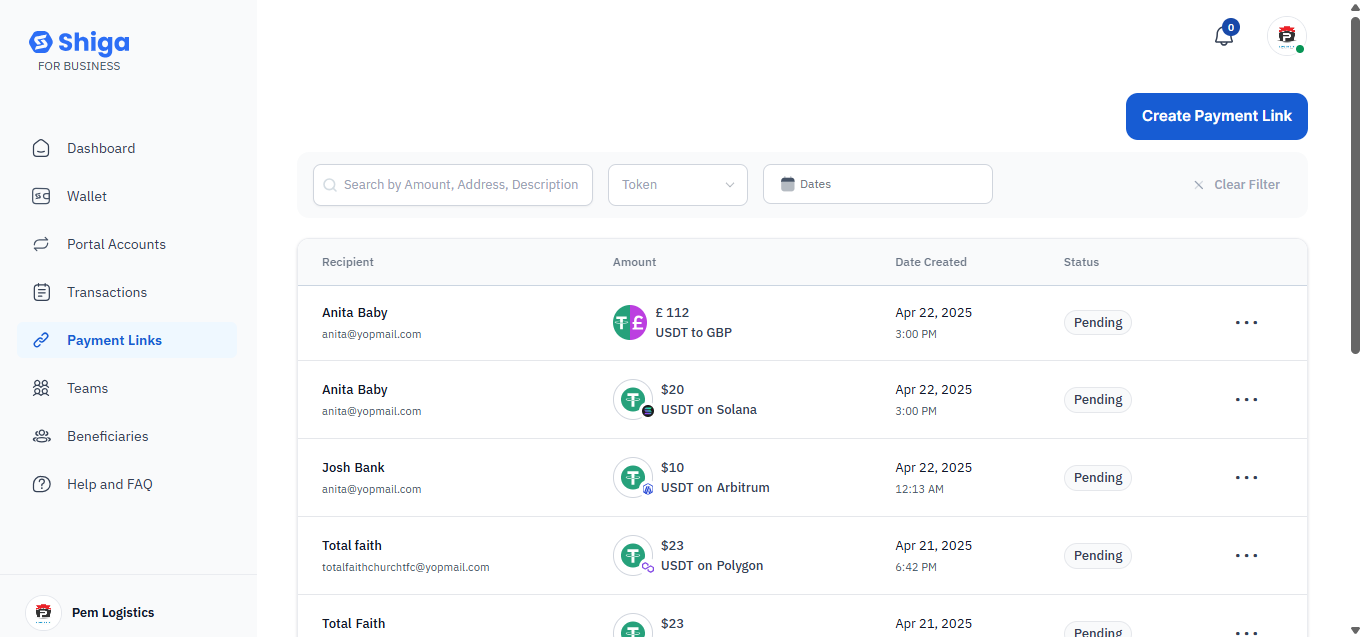 **Access the Payment Links Dashboard**
* Log in to your **Shiga for Business** account.
From the **Dashboard**, navigate to **Payment Links**.
**Access the Payment Links Dashboard**
* Log in to your **Shiga for Business** account.
From the **Dashboard**, navigate to **Payment Links**.
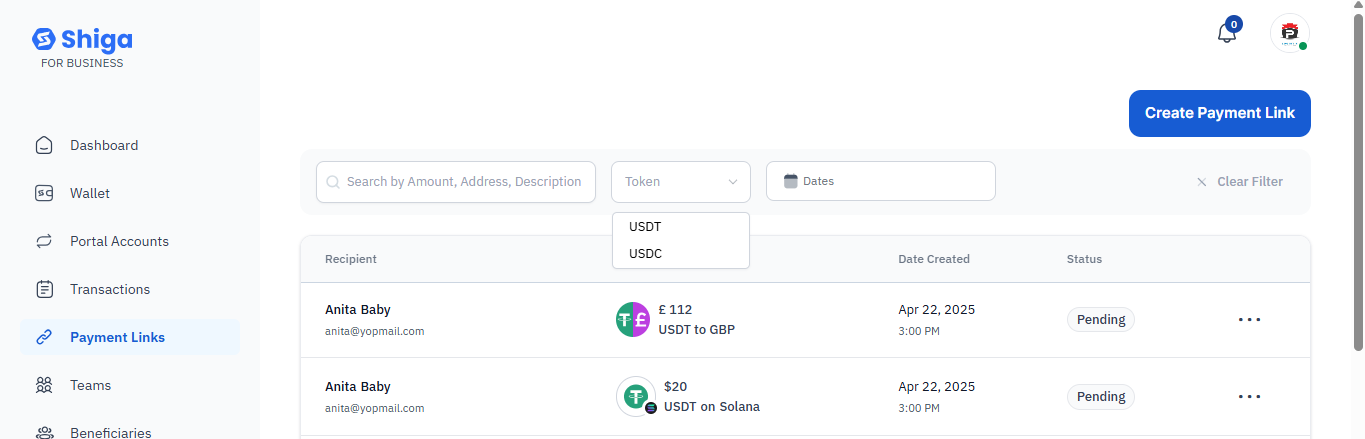 **Search & Filter Existing Payment Links (Optional)**
* Use the **Search by Amount, Address, or Description** feature to locate past payment requests.
* Filter by:
**Token** (e.g., USDT)
* **Dates**
* Click **Clear Filter** to reset.
**Search & Filter Existing Payment Links (Optional)**
* Use the **Search by Amount, Address, or Description** feature to locate past payment requests.
* Filter by:
**Token** (e.g., USDT)
* **Dates**
* Click **Clear Filter** to reset.
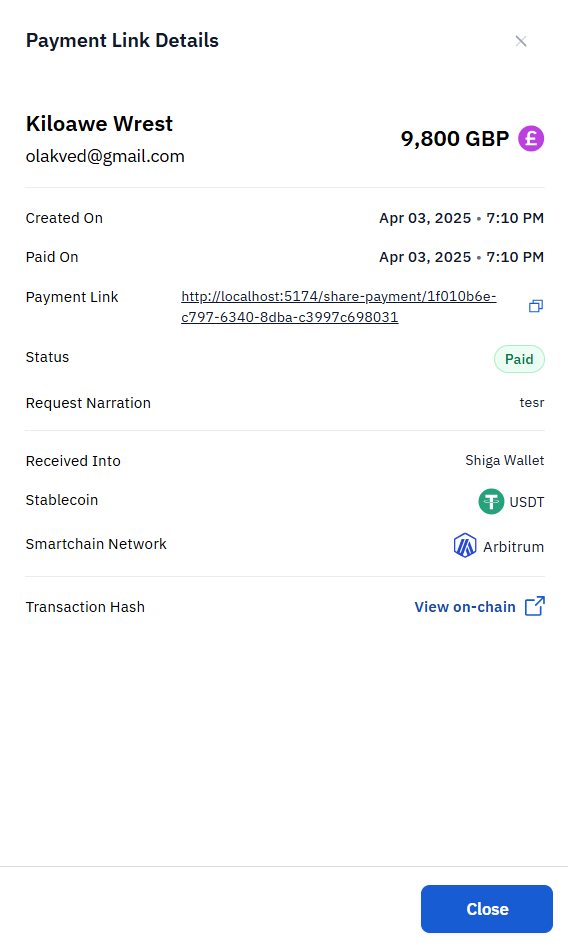 ## **Viewing Payment Link Details**
When you click **"View Details"** on a request, you will see a pop-up which includes:
* **Recipient Name & Email** (e.g., \_John Doe – [olivera@gmail.com](mailto:olivera@gmail.com)
* )
* **Amount & Currency** (e.g., *9,800 GBP*)
* **Creation & Payment Date**
* **Payment Link URL** (shareable with the recipient)
* **Status** (*Paid* or *Pending*)
* **Stablecoin Used** (e.g., *USDT*)
* **Smartchain Network** (e.g., *Arbitrum*)
* **Transaction Hash** (click *"View on-chain"* to verify on the blockchain)
## **Viewing Payment Link Details**
When you click **"View Details"** on a request, you will see a pop-up which includes:
* **Recipient Name & Email** (e.g., \_John Doe – [olivera@gmail.com](mailto:olivera@gmail.com)
* )
* **Amount & Currency** (e.g., *9,800 GBP*)
* **Creation & Payment Date**
* **Payment Link URL** (shareable with the recipient)
* **Status** (*Paid* or *Pending*)
* **Stablecoin Used** (e.g., *USDT*)
* **Smartchain Network** (e.g., *Arbitrum*)
* **Transaction Hash** (click *"View on-chain"* to verify on the blockchain)
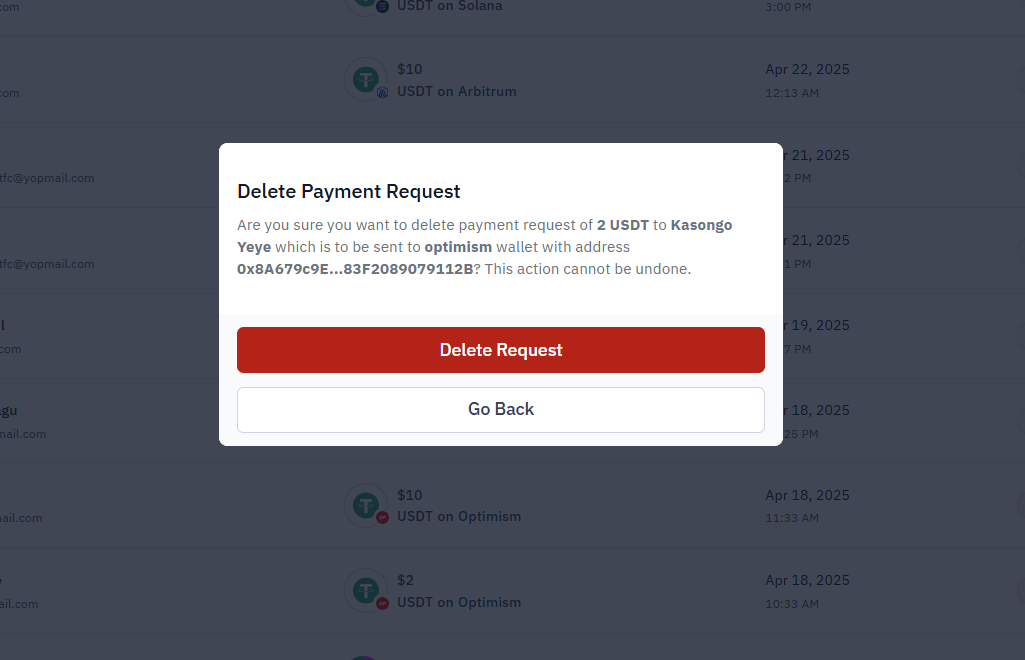 **Deleting a Payment Request**
If a request is unpaid or needs cancellation:
1. Click **"• • •"** on the request row.
2. Select **"Cancel Request"** or **"Delete Payment Request"** .
3. A confirmation pop-up appears, warning:
* *********"Are you sure you want to delete payment request of 2 USDT to Kasongo Yeye...?"*********
4. Click **"Delete Request"** to confirm (action is irreversible).
## **Filtering Requests**
* Use the **"Search by Answer, Address, Description"** bar to find specific transactions.
* The **"Client Filter"** option (at the bottom) may allow sorting by status, date, or network.
Recipients receive a direct link to complete payment.
Payments are credited to the selected **Wallet** .
Use **Clear** or **Clear Filter** to reset forms/searches.
This process ensures seamless, trackable crypto/fiat payment requests for businesses.
**Deleting a Payment Request**
If a request is unpaid or needs cancellation:
1. Click **"• • •"** on the request row.
2. Select **"Cancel Request"** or **"Delete Payment Request"** .
3. A confirmation pop-up appears, warning:
* *********"Are you sure you want to delete payment request of 2 USDT to Kasongo Yeye...?"*********
4. Click **"Delete Request"** to confirm (action is irreversible).
## **Filtering Requests**
* Use the **"Search by Answer, Address, Description"** bar to find specific transactions.
* The **"Client Filter"** option (at the bottom) may allow sorting by status, date, or network.
Recipients receive a direct link to complete payment.
Payments are credited to the selected **Wallet** .
Use **Clear** or **Clear Filter** to reset forms/searches.
This process ensures seamless, trackable crypto/fiat payment requests for businesses.