> ## Documentation Index
> Fetch the complete documentation index at: https://docs.shiga.io/llms.txt
> Use this file to discover all available pages before exploring further.
# Create a Reusable Payment Link
> Create a payment link you can share again and again, for any amount or a fixed one, start to finish.
# Create a Reusable Payment Link
A **reusable link** can be shared with anyone and used more than once — good for tip jars, donation pages, or a storefront link you hand out repeatedly. You choose whether payers pick their own amount or you fix it in advance.
This is a different guide from [Create a One-Time Payment Link](/Product/Paymentlinks/onetime), [Payment Link Details](/Product/Paymentlinks/details), [Archive a Payment Link](/Product/Paymentlinks/archive), and [Restore a Payment Link](/Product/Paymentlinks/restore).
***
## 1. Choose the link type
Starting a new payment link opens **"Create payment link"** — *"Set up a link to request or collect a payment"* — with a stepper across the top: **Link type**, **Payment details**, **Review**. The first question is **"What type of link do you need?"**, with a banner reminding you: *"Anyone can pay. No Shiga account needed."*
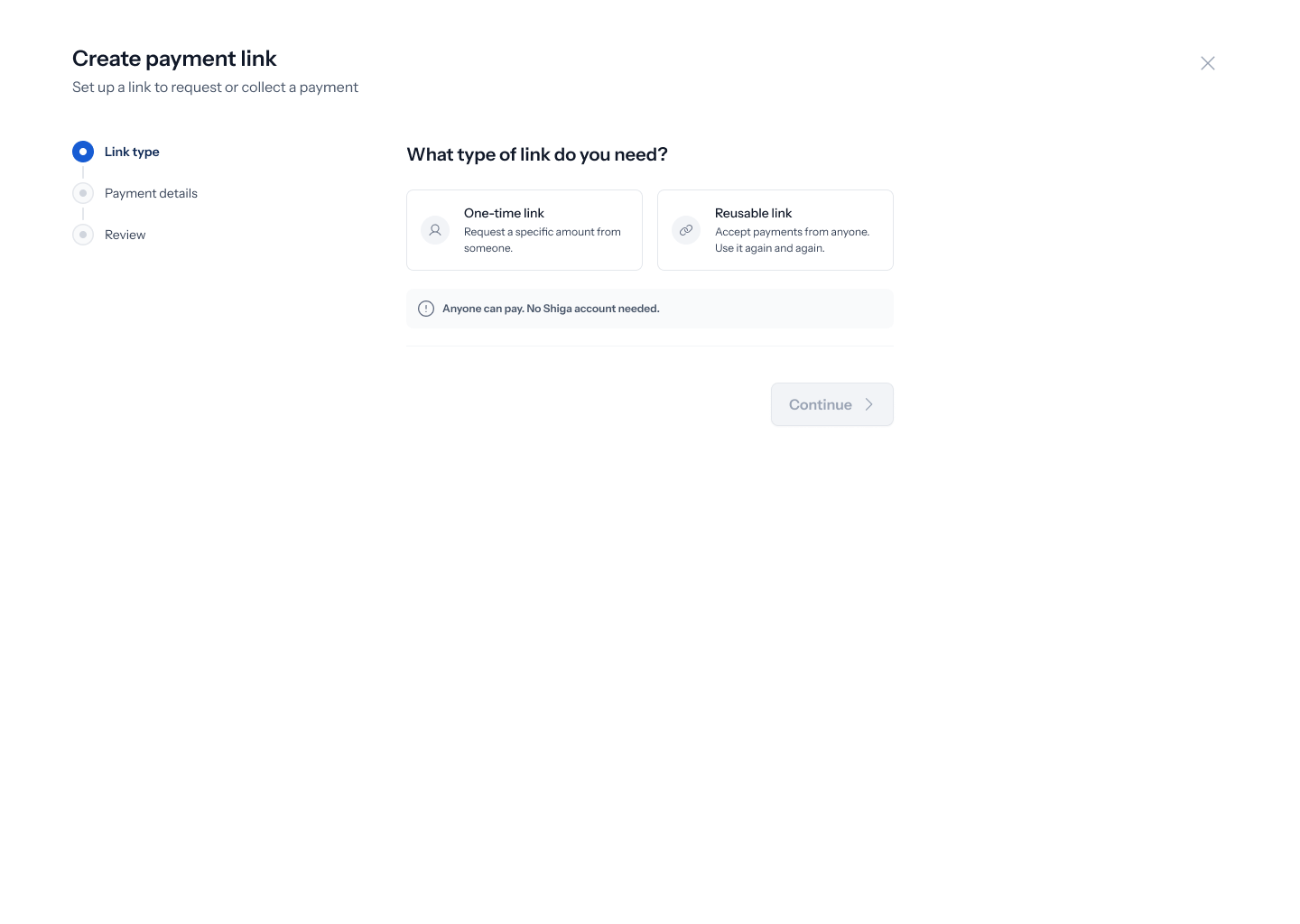 You're offered two cards: **One-time link** — *"Request a specific amount from someone"* — and **Reusable link** — *"Accept payments from anyone. Use it again and again."* Pick **Reusable link**.
## 2. Name the link
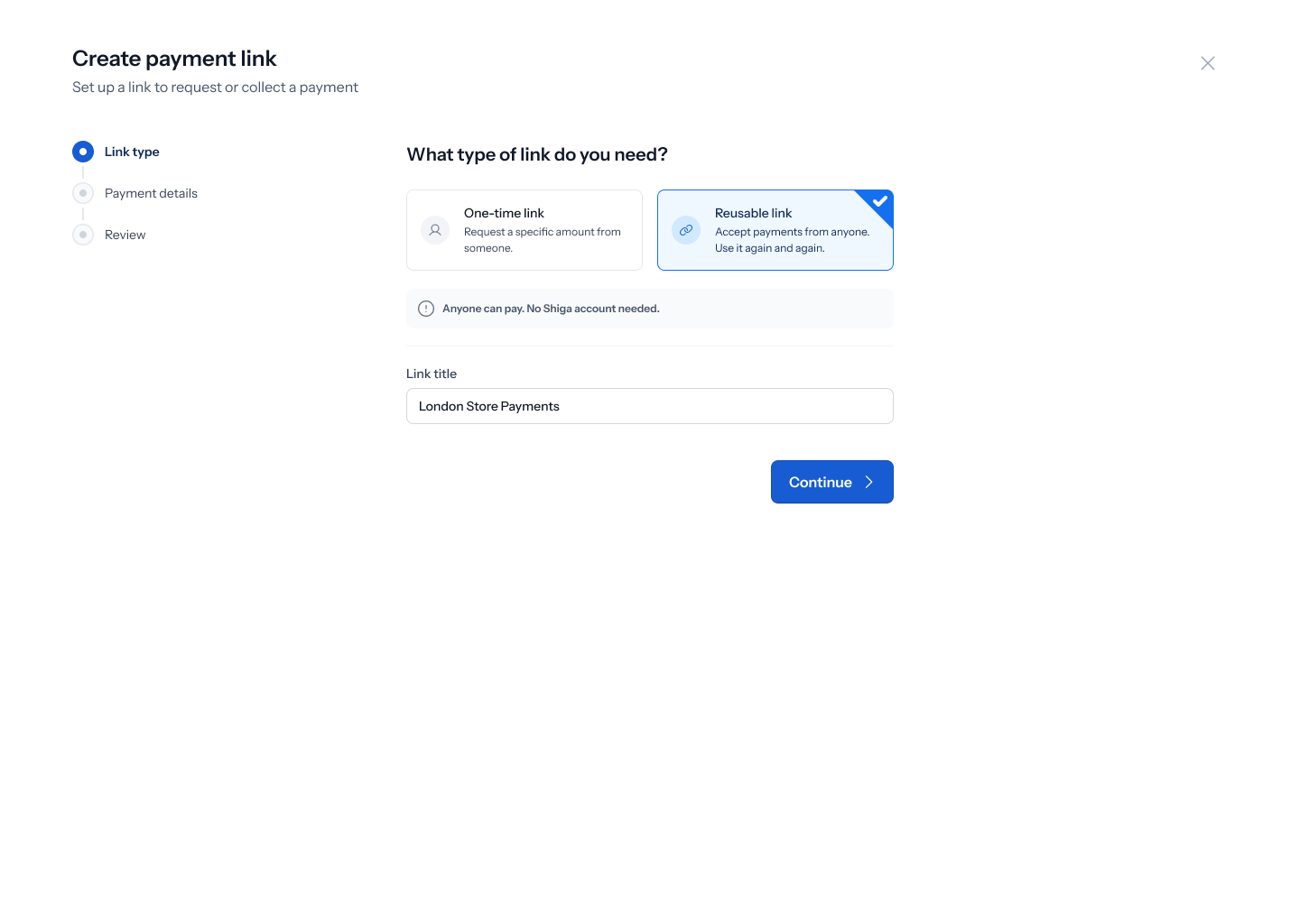
With **Reusable link** selected, a single **Link title** field appears (placeholder *"e.g., Tips, Donations, Medical fund"*) — unlike a one-time link, there's no "who is this for" field, since a reusable link isn't aimed at one specific person. Fill in a title, e.g. **"London Store Payments"**, and tap **Continue**.
You're offered two cards: **One-time link** — *"Request a specific amount from someone"* — and **Reusable link** — *"Accept payments from anyone. Use it again and again."* Pick **Reusable link**.
## 2. Name the link
With **Reusable link** selected, a single **Link title** field appears (placeholder *"e.g., Tips, Donations, Medical fund"*) — unlike a one-time link, there's no "who is this for" field, since a reusable link isn't aimed at one specific person. Fill in a title, e.g. **"London Store Payments"**, and tap **Continue**.
 ## 3. Choose how the amount is set
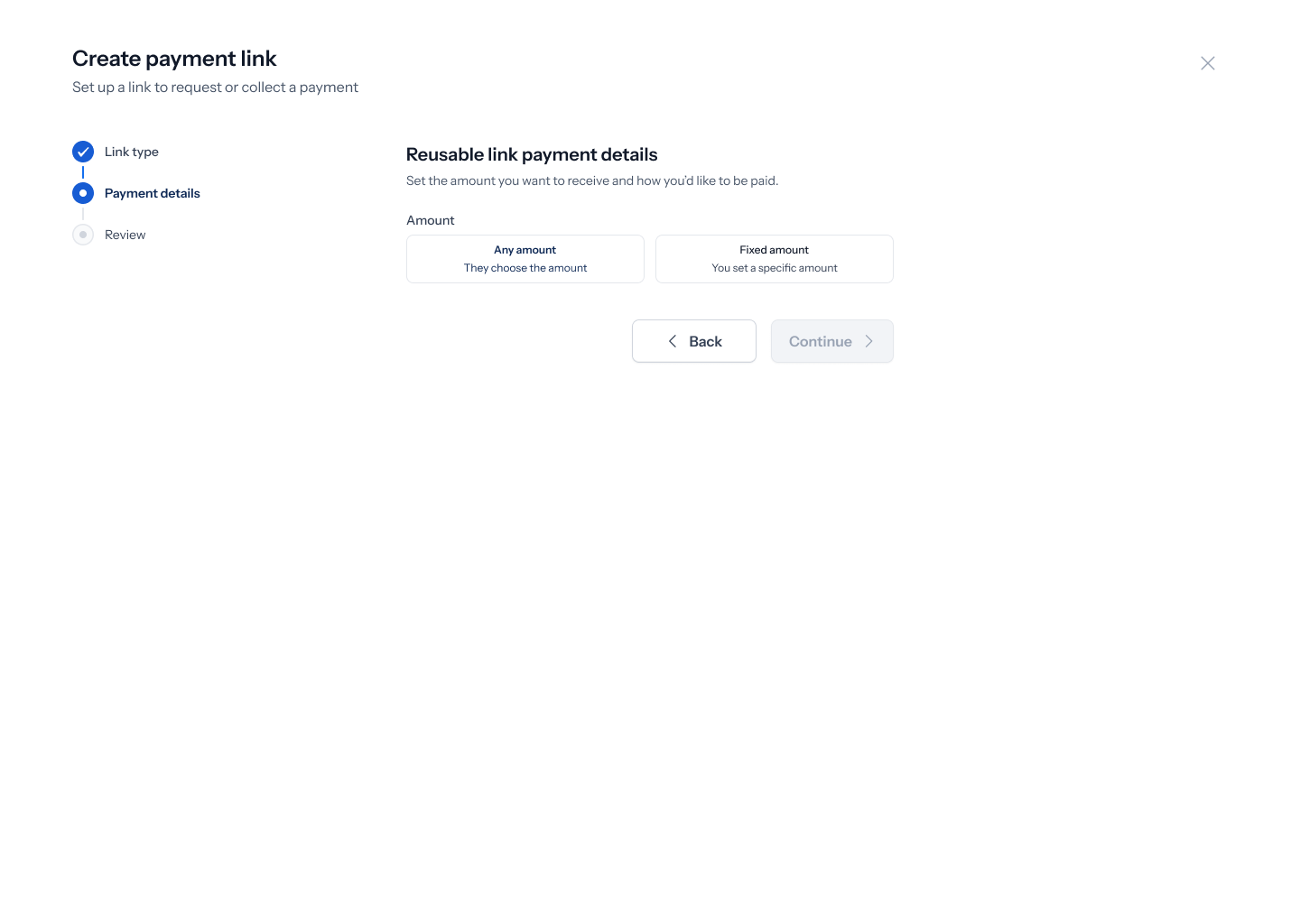
The **"Reusable link payment details"** screen — *"Set the amount you want to receive and how you'd like to be paid"* — starts with two option cards: **Any amount** (*"They choose the amount"*) and **Fixed amount** (*"You set a specific amount"*).
## 3. Choose how the amount is set
The **"Reusable link payment details"** screen — *"Set the amount you want to receive and how you'd like to be paid"* — starts with two option cards: **Any amount** (*"They choose the amount"*) and **Fixed amount** (*"You set a specific amount"*).
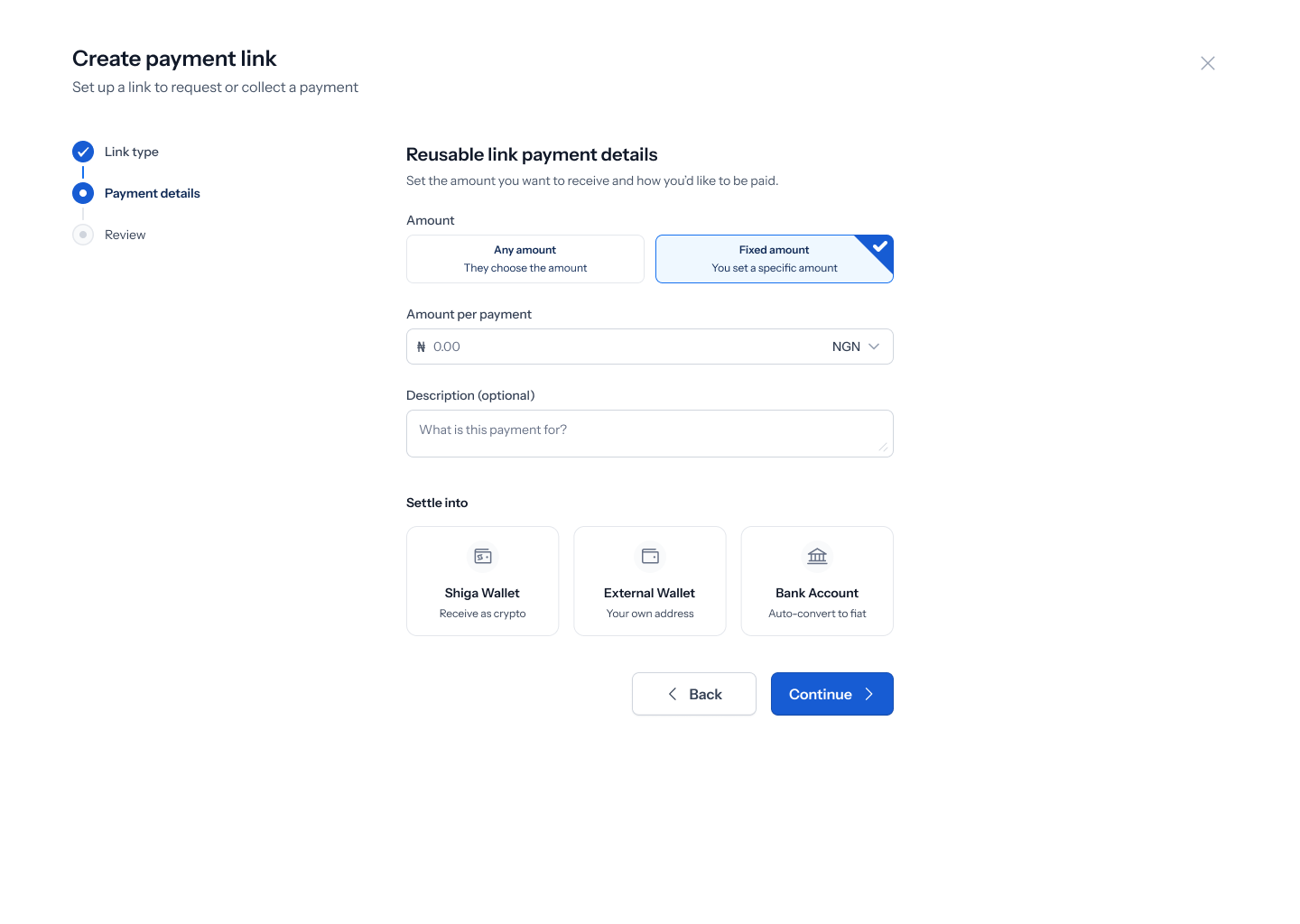
 Picking **Fixed amount** reveals an **Amount per payment** field with a currency prefix (e.g. **₦**) and a currency dropdown (e.g. **NGN**) — for example **₦20,000**. Picking **Any amount** leaves it up to whoever pays. Either way, an optional **Description** field is available (placeholder *"What is this payment for?"*, e.g. **"Payment for goods/services"**).
 ## 4. Choose where the money settles
The same screen's **Settle into** section offers the same three destinations as a one-time link: **Shiga Wallet** (*"Receive as crypto"*), **External Wallet** (*"Your own address"*), and **Bank Account** (*"Auto-convert to fiat"*) — with the same sub-steps for choosing an asset, entering a wallet address, or adding/choosing a bank account. See [Create a One-Time Payment Link](/Product/Paymentlinks/onetime#4-choose-where-the-money-settles) for exactly how each of those three options works, since the screens are identical between the two link types. Tap **Continue** once you've made your choice.
## 5. Review and create the link
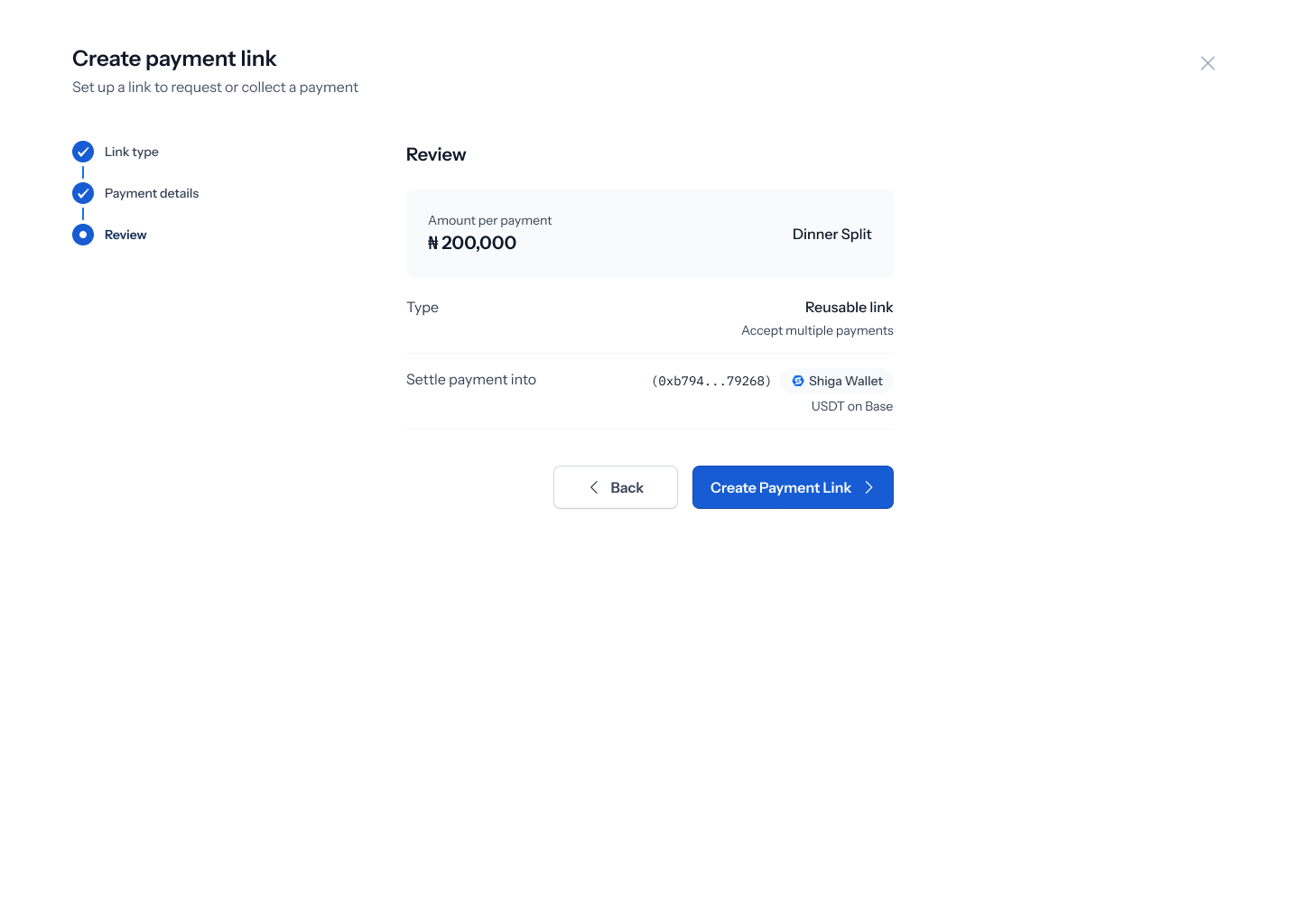
The **Review** screen summarizes everything: your amount setting (either **"Any amount"** or a fixed **Amount per payment**, e.g. **₦200,000**), your link title (e.g. **"For Jeremy's Birthday"** or **"Dinner Split"**), **Type** (**"Reusable link"** — *"Accept multiple payments"*), and **Settle payment into** (a badge showing your chosen destination, e.g. **Shiga Wallet** / **USDT on Base**). Tap **Back** to change anything, or **Create Payment Link** to finish.
## 4. Choose where the money settles
The same screen's **Settle into** section offers the same three destinations as a one-time link: **Shiga Wallet** (*"Receive as crypto"*), **External Wallet** (*"Your own address"*), and **Bank Account** (*"Auto-convert to fiat"*) — with the same sub-steps for choosing an asset, entering a wallet address, or adding/choosing a bank account. See [Create a One-Time Payment Link](/Product/Paymentlinks/onetime#4-choose-where-the-money-settles) for exactly how each of those three options works, since the screens are identical between the two link types. Tap **Continue** once you've made your choice.
## 5. Review and create the link
The **Review** screen summarizes everything: your amount setting (either **"Any amount"** or a fixed **Amount per payment**, e.g. **₦200,000**), your link title (e.g. **"For Jeremy's Birthday"** or **"Dinner Split"**), **Type** (**"Reusable link"** — *"Accept multiple payments"*), and **Settle payment into** (a badge showing your chosen destination, e.g. **Shiga Wallet** / **USDT on Base**). Tap **Back** to change anything, or **Create Payment Link** to finish.
 ## 6. Share the link
Once created, **"Payment link created"** shows your shareable **Payment link** (e.g. **shiga.com/pay/394949t90**) with a copy icon, plus a summary of the **Amount** (or **"Any amount"**) and **Settle payment into** destination. Tap **Go to Payment Link** to view it.
## 6. Share the link
Once created, **"Payment link created"** shows your shareable **Payment link** (e.g. **shiga.com/pay/394949t90**) with a copy icon, plus a summary of the **Amount** (or **"Any amount"**) and **Settle payment into** destination. Tap **Go to Payment Link** to view it.
