> ## Documentation Index
> Fetch the complete documentation index at: https://docs.shiga.io/llms.txt
> Use this file to discover all available pages before exploring further.
# Home Screen
> Every feature on your Enta home screen, explained on one page.
# Home Screen
Your home screen is the first thing you see after signing in, and it changes a little depending on where you are in your journey — but the same set of features are always there. This page describes every one of them. For the sidebar navigation on the left, see the rest of this guide's sections — it's self-explanatory and not covered here.
***
## Greeting and verification status
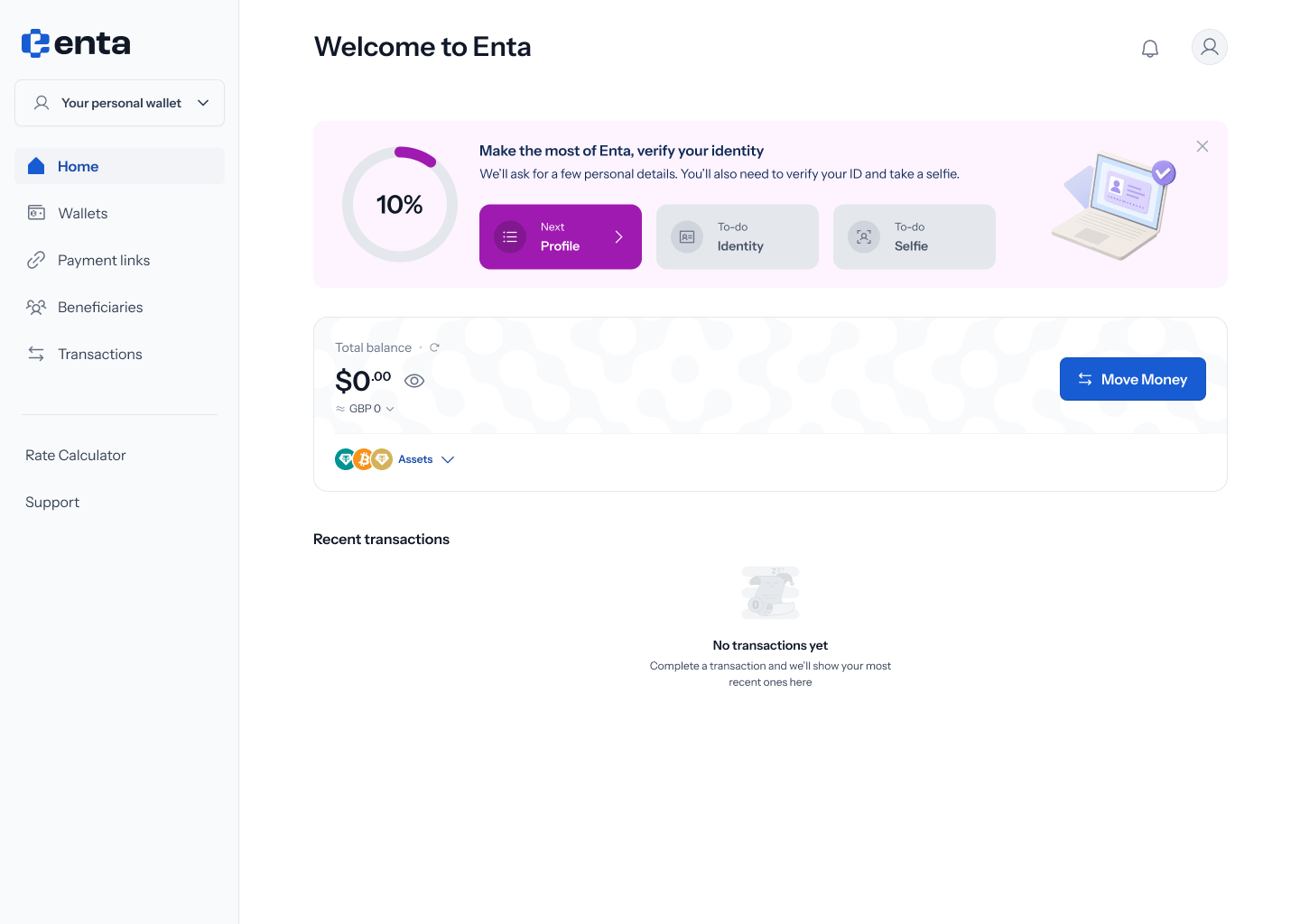
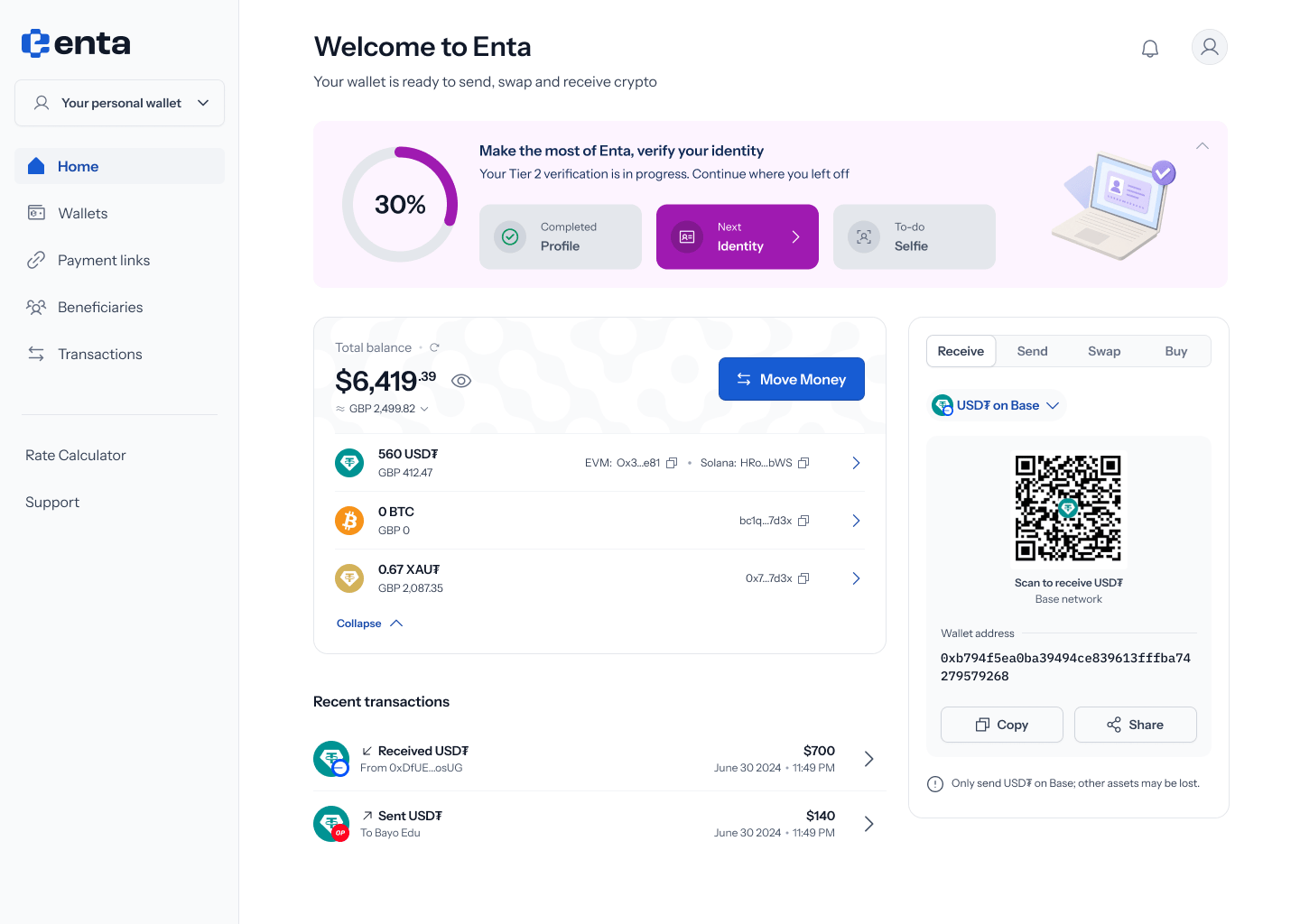
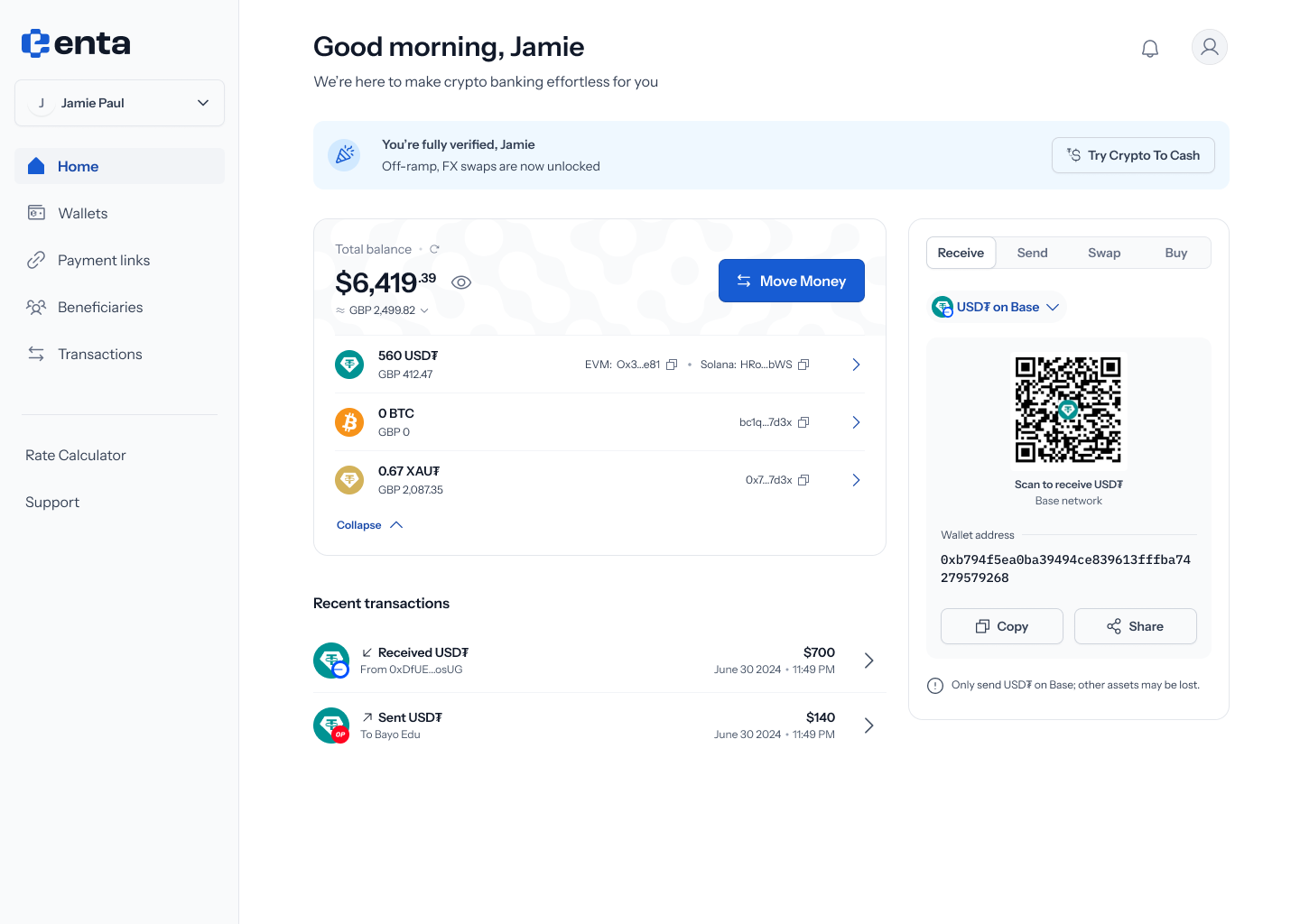
At the top, you'll see a greeting — **"Welcome to Enta"** if you're new, or a personal **"Good morning, \[your name]"** once you're set up. Underneath sits a banner that tracks your identity verification:
* **Not started**: *"Make the most of Enta, verify your identity"* — with a mini checklist (**Profile**, **Identity**, **Selfie**) showing what's left.
* **In progress**: the same banner updates to *"Your Tier 2 verification is in progress. Continue where you left off"* — with completed steps checked off.
* **Fully verified**: the banner flips entirely to *"You're fully verified, \[your name]"* — *"Off-ramp, FX swaps are now unlocked"* — with a **Try Crypto to Cash** button.
 See the [Onboarding](/Overview/onboarding) guide for the full identity verification flow behind this banner.
## Your balance
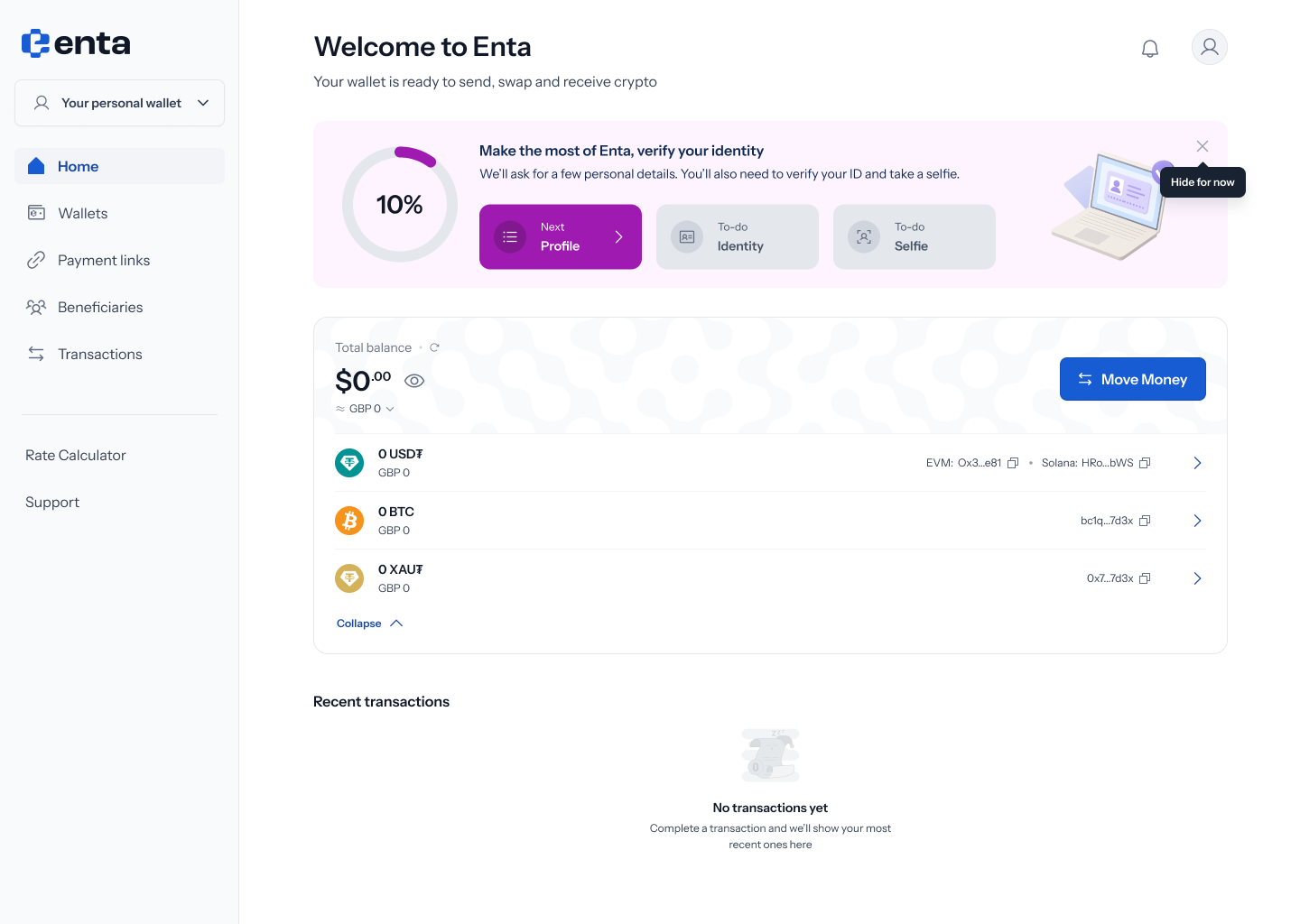
Below the greeting sits your **Total balance** card, showing your combined holdings as one figure (e.g. *"\$45.65"*). Tap it to break the total down asset by asset — each row shows the asset (e.g. USD₮, BTC, XAU₮), the amount you hold, its value, and — for crypto assets — the network address it lives on.
A **Collapse / Assets** toggle lets you switch between this itemized breakdown and a compact stack of currency icons, if you'd rather keep the screen tidy.
See the [Onboarding](/Overview/onboarding) guide for the full identity verification flow behind this banner.
## Your balance
Below the greeting sits your **Total balance** card, showing your combined holdings as one figure (e.g. *"\$45.65"*). Tap it to break the total down asset by asset — each row shows the asset (e.g. USD₮, BTC, XAU₮), the amount you hold, its value, and — for crypto assets — the network address it lives on.
A **Collapse / Assets** toggle lets you switch between this itemized breakdown and a compact stack of currency icons, if you'd rather keep the screen tidy.
 ## Quick actions
Four buttons sit near your balance, each opening its own dedicated flow:
* [**Buy**](/Product/buy) — purchase crypto using your local currency (e.g. Naira) via bank transfer.
* [**Swap**](/Product/swap) — convert one crypto asset you hold into another.
* [**Deposit**](/Product/deposit) — share your wallet address or a QR code so someone can send you crypto.
* [**Send**](/Wallet/send/sendstablecoins) — send crypto to a beneficiary's wallet, or off-ramp to a bank account.
On a brand-new account with a zero balance, these collapse into a single **Move Money** button instead, since there's nothing to act on yet.
## Quick actions
Four buttons sit near your balance, each opening its own dedicated flow:
* [**Buy**](/Product/buy) — purchase crypto using your local currency (e.g. Naira) via bank transfer.
* [**Swap**](/Product/swap) — convert one crypto asset you hold into another.
* [**Deposit**](/Product/deposit) — share your wallet address or a QR code so someone can send you crypto.
* [**Send**](/Wallet/send/sendstablecoins) — send crypto to a beneficiary's wallet, or off-ramp to a bank account.
On a brand-new account with a zero balance, these collapse into a single **Move Money** button instead, since there's nothing to act on yet.
 ## Recent transactions
Underneath your balance, a running list shows your latest activity — each entry shows the type (received or sent), the counterparty, the amount, and the date. Before you've made any transactions, this section instead reads **"No transactions yet"** — *"Complete a transaction and we'll show your most recent ones here."*
## Deposit panel
On the right-hand side, a **Deposit** panel shows your wallet address as both text and a QR code, so anyone can send you crypto directly without you needing to open the full Receive flow. See the [Deposit](/Product/deposit) guide for the full walkthrough of this panel.
Need bank details, payment links, or to receive fiat currency instead? Use the full [Receive](/Wallet/receive/receiveoverview) guide.
## Recent transactions
Underneath your balance, a running list shows your latest activity — each entry shows the type (received or sent), the counterparty, the amount, and the date. Before you've made any transactions, this section instead reads **"No transactions yet"** — *"Complete a transaction and we'll show your most recent ones here."*
## Deposit panel
On the right-hand side, a **Deposit** panel shows your wallet address as both text and a QR code, so anyone can send you crypto directly without you needing to open the full Receive flow. See the [Deposit](/Product/deposit) guide for the full walkthrough of this panel.
Need bank details, payment links, or to receive fiat currency instead? Use the full [Receive](/Wallet/receive/receiveoverview) guide.