> ## Documentation Index
> Fetch the complete documentation index at: https://docs.shiga.io/llms.txt
> Use this file to discover all available pages before exploring further.
# Swap Assets
> How to swap one asset for another in your Enta wallet
# Swap Assets
Swapping converts one crypto asset you hold into another, without leaving your wallet. This guide walks through the exact example shown in the design: swapping USD₮ on Solana for USD₮ on Base.
***
## 1. Start a swap
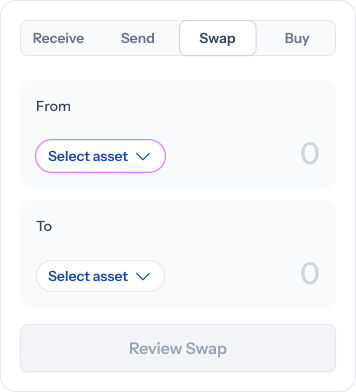 Tapping **Swap** from your home screen (alongside **Receive**, **Send**, and **Buy**) opens two empty cards, **From** and **To**, both showing a generic **Select asset** placeholder and an amount of **0**. **Review Swap** stays disabled until both sides are chosen.
## 2. Choose what you're swapping from
Tapping **Swap** from your home screen (alongside **Receive**, **Send**, and **Buy**) opens two empty cards, **From** and **To**, both showing a generic **Select asset** placeholder and an amount of **0**. **Review Swap** stays disabled until both sides are chosen.
## 2. Choose what you're swapping from
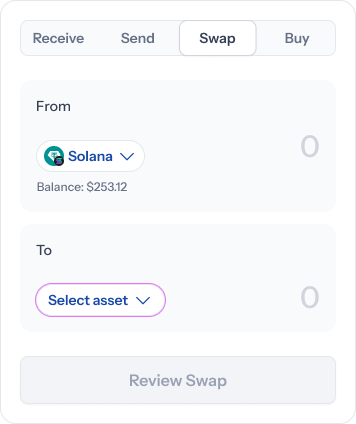 Tapping the **From** card lets you pick which asset to swap out of — for example **USD₮ on Solana**, showing your available balance (e.g. *"Balance: \$253.12"*). The **To** side is still unselected at this point.
## 3. Choose what you're swapping to
Tapping the **From** card lets you pick which asset to swap out of — for example **USD₮ on Solana**, showing your available balance (e.g. *"Balance: \$253.12"*). The **To** side is still unselected at this point.
## 3. Choose what you're swapping to
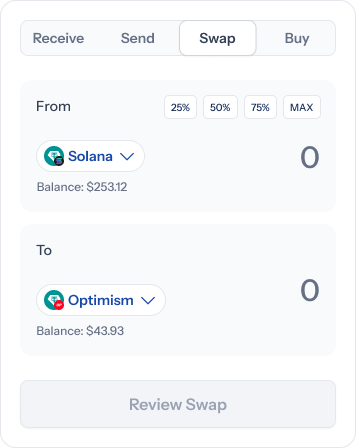 Next, tapping **To** lets you pick the destination asset — for example **USD₮ on Base**. Once both sides are set, quick-select shortcuts appear on the **From** amount: **25%**, **50%**, **75%**, and **MAX**.
## 4. Enter an amount
Next, tapping **To** lets you pick the destination asset — for example **USD₮ on Base**. Once both sides are set, quick-select shortcuts appear on the **From** amount: **25%**, **50%**, **75%**, and **MAX**.
## 4. Enter an amount
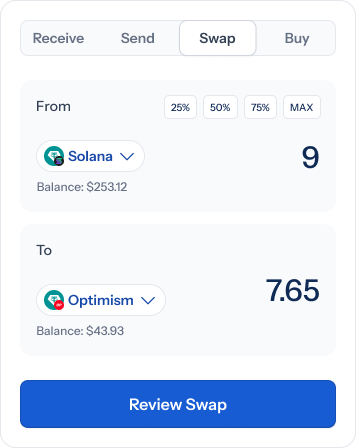 Enter an amount on the **From** side (e.g. **9** USD₮) and the **To** side updates automatically using the live rate (e.g. **7.65** USD₮). Once there's a valid amount, **Review Swap** becomes active.
## 5. Review before you confirm
Enter an amount on the **From** side (e.g. **9** USD₮) and the **To** side updates automatically using the live rate (e.g. **7.65** USD₮). Once there's a valid amount, **Review Swap** becomes active.
## 5. Review before you confirm
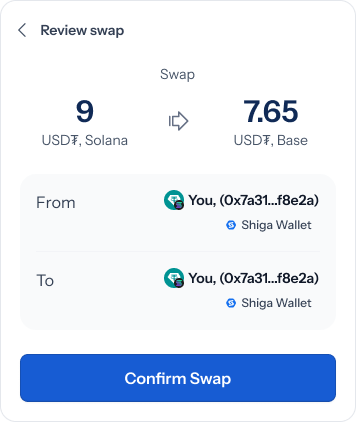 Tapping **Review Swap** shows a summary of the trade — **9 USD₮ (Solana) → 7.65 USD₮ (Base)** — with both the **From** and **To** sides confirmed as your own **Shiga Wallet**. Nothing leaves your wallet until you tap **Confirm Swap**.
## 6. Success
Tapping **Review Swap** shows a summary of the trade — **9 USD₮ (Solana) → 7.65 USD₮ (Base)** — with both the **From** and **To** sides confirmed as your own **Shiga Wallet**. Nothing leaves your wallet until you tap **Confirm Swap**.
## 6. Success
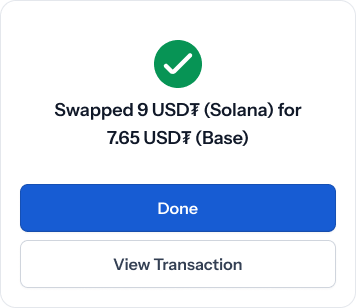 Once the swap completes, you'll see a confirmation: **"Swapped 9 USD₮ (Solana) for 7.65 USD₮ (Base)."** From here, tap **Done** to return to your wallet, or **View transaction** for the full record.