> ## Documentation Index
> Fetch the complete documentation index at: https://docs.shiga.io/llms.txt
> Use this file to discover all available pages before exploring further.
# Transactions
> A complete record of your Portal In and Portal Out transactions, with filters, search, and per-transaction detail
The **Transactions** page is your record of every Portal In and Portal Out transaction on your Enta business account.
## 1. Opening Transactions
Click **Transactions** in the left sidebar, under **Wallet** and **Portal accounts**.
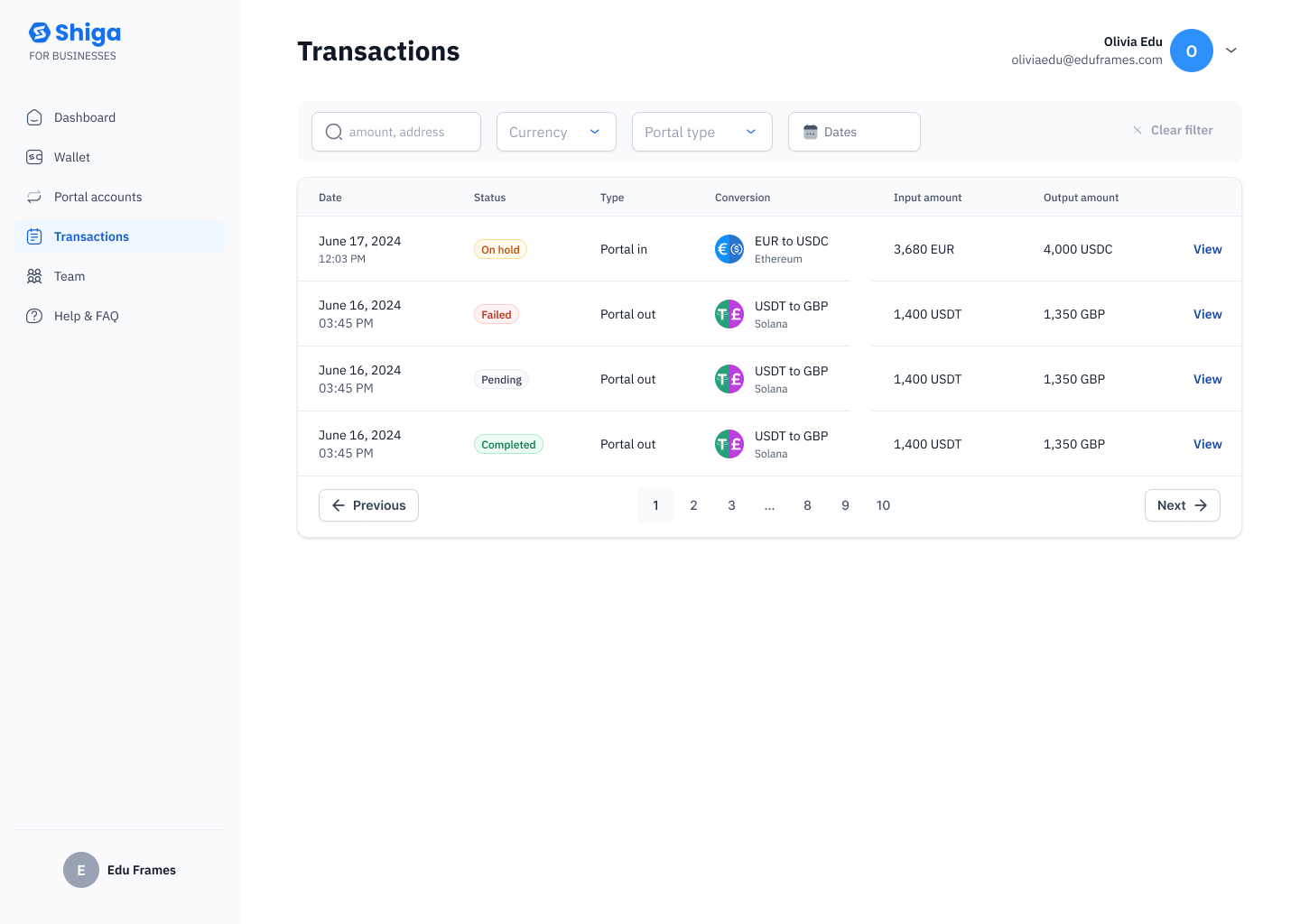 You'll see a table listing your transactions, with these columns:
| Column | What it means |
| ----------------- | ----------------------------------------------------------------------------------- |
| **Date** | When the transaction happened |
| **Status** | **Completed**, **Pending**, **On hold**, or **Failed** |
| **Type** | **Portal in** or **Portal out** |
| **Conversion** | The currencies/assets and network involved (for example, "EUR to USDC" on Ethereum) |
| **Input amount** | The amount that went in |
| **Output amount** | The amount that came out (may differ from the input amount if it was converted) |
Click **View** on any row, or use **Previous** / page numbers / **Next** at the bottom to move through your transaction history.
## 2. Searching for a transaction
Use the search bar at the top of the page — it searches by **amount** or **address**.
## 3. Filtering transactions
You can filter by:
* **Currency** — narrow the list to a specific currency or asset.
* **Portal type** — **Portal in** or **Portal out**.
* **Dates** — pick a preset range or a custom range.
Click **Dates** to expand the date picker:
You'll see a table listing your transactions, with these columns:
| Column | What it means |
| ----------------- | ----------------------------------------------------------------------------------- |
| **Date** | When the transaction happened |
| **Status** | **Completed**, **Pending**, **On hold**, or **Failed** |
| **Type** | **Portal in** or **Portal out** |
| **Conversion** | The currencies/assets and network involved (for example, "EUR to USDC" on Ethereum) |
| **Input amount** | The amount that went in |
| **Output amount** | The amount that came out (may differ from the input amount if it was converted) |
Click **View** on any row, or use **Previous** / page numbers / **Next** at the bottom to move through your transaction history.
## 2. Searching for a transaction
Use the search bar at the top of the page — it searches by **amount** or **address**.
## 3. Filtering transactions
You can filter by:
* **Currency** — narrow the list to a specific currency or asset.
* **Portal type** — **Portal in** or **Portal out**.
* **Dates** — pick a preset range or a custom range.
Click **Dates** to expand the date picker:
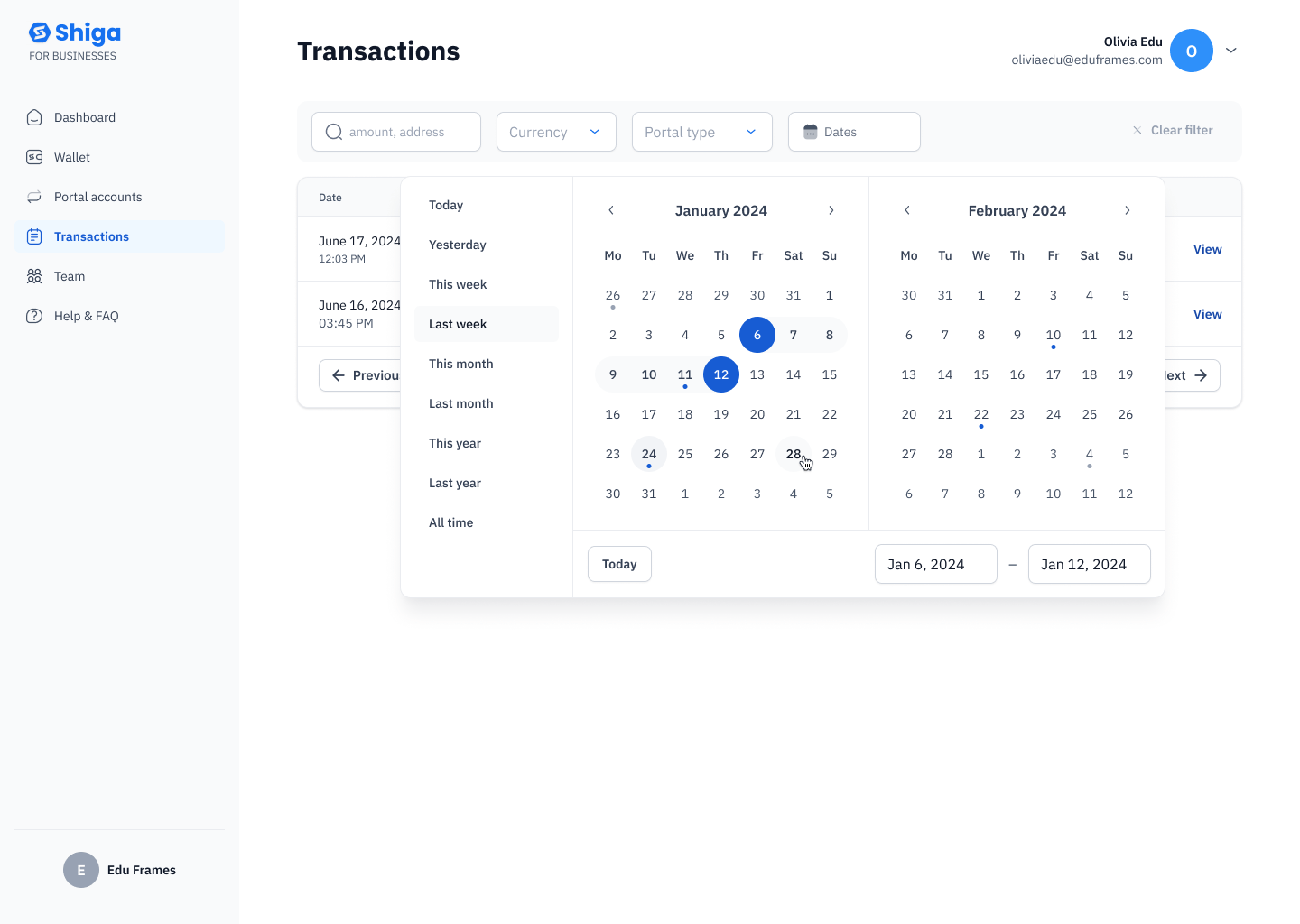 * Quick presets: **Today, Yesterday, This week, Last week, This month, Last month, This year, Last year, All time.**
* Or pick a custom range from the calendar — the selected range shows above it (for example, "Jan 6, 2024 – Jan 12, 2024").
Once you've applied a filter, the list updates to match.
Click **Clear filter** to reset back to your full transaction list.
## 4. Viewing transaction details
Click **View** on any row to open the full transaction detail panel.
* Quick presets: **Today, Yesterday, This week, Last week, This month, Last month, This year, Last year, All time.**
* Or pick a custom range from the calendar — the selected range shows above it (for example, "Jan 6, 2024 – Jan 12, 2024").
Once you've applied a filter, the list updates to match.
Click **Clear filter** to reset back to your full transaction list.
## 4. Viewing transaction details
Click **View** on any row to open the full transaction detail panel.
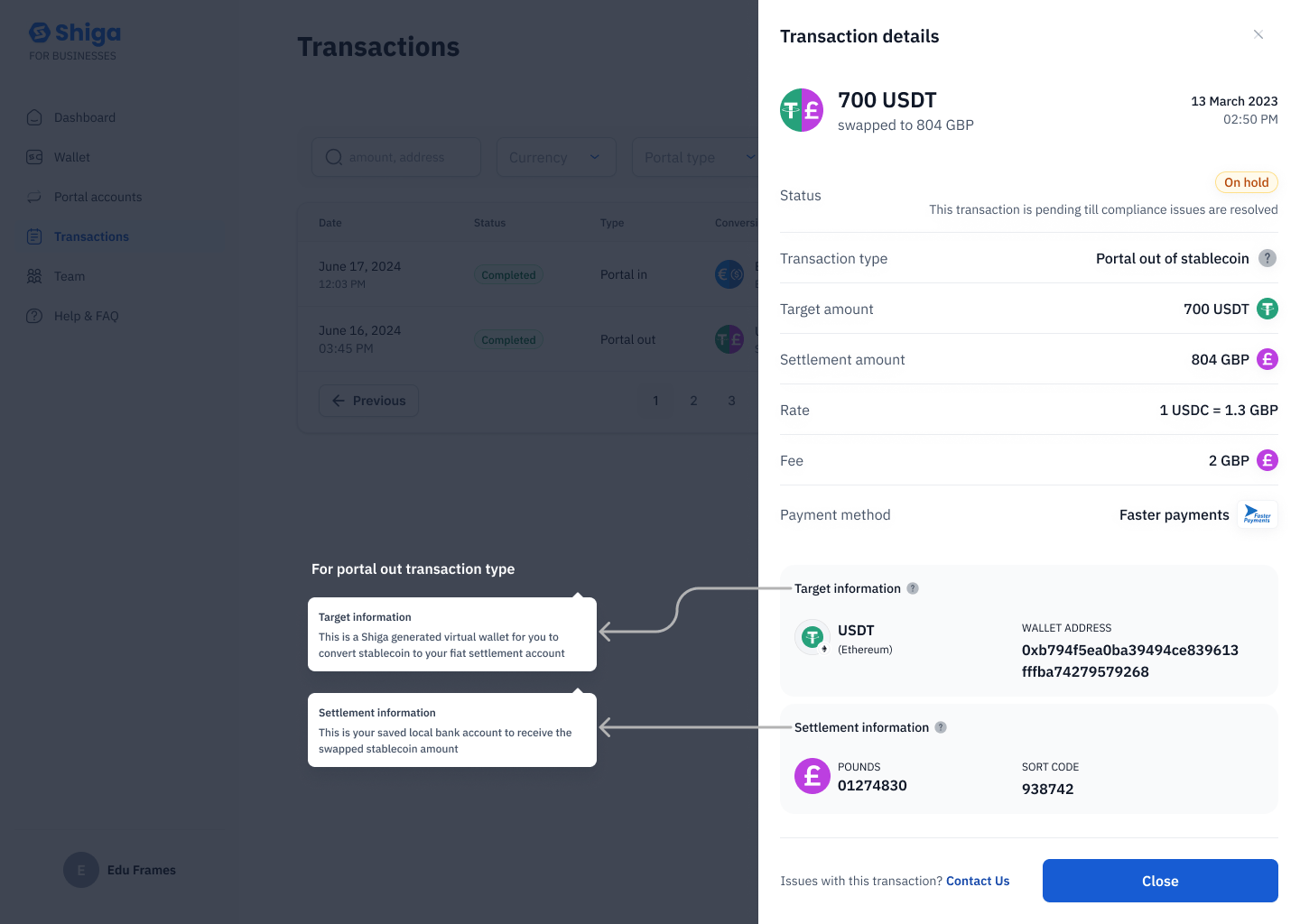 The detail panel shows:
* A summary of the amount and conversion (for example, "700 USDT swapped to 804 GBP")
* **Transaction type** (for example, "Portal out of stablecoin")
* **Target amount** and **Settlement amount**
* **Rate** and **Fee**
* **Payment method** (for example, "Faster payments")
* **Target information** — the asset and network, plus the wallet address involved
* **Settlement information** — the bank account details the funds settled to or from
Click **Close**, or the back arrow, to return to the list.
On this screen, the rate is shown as "1 USDC = 1.3 GBP" even though the transaction summary above it says "700 USDT swapped to 804 GBP" — the rate references a different asset (USDC) than the one actually being converted (USDT). Worth confirming with design/product which asset the rate should reference before this ships.
### On hold transactions
If a transaction needs manual review, it shows an **On hold** badge instead of a status like Completed or Pending, along with an explanation:
The detail panel shows:
* A summary of the amount and conversion (for example, "700 USDT swapped to 804 GBP")
* **Transaction type** (for example, "Portal out of stablecoin")
* **Target amount** and **Settlement amount**
* **Rate** and **Fee**
* **Payment method** (for example, "Faster payments")
* **Target information** — the asset and network, plus the wallet address involved
* **Settlement information** — the bank account details the funds settled to or from
Click **Close**, or the back arrow, to return to the list.
On this screen, the rate is shown as "1 USDC = 1.3 GBP" even though the transaction summary above it says "700 USDT swapped to 804 GBP" — the rate references a different asset (USDC) than the one actually being converted (USDT). Worth confirming with design/product which asset the rate should reference before this ships.
### On hold transactions
If a transaction needs manual review, it shows an **On hold** badge instead of a status like Completed or Pending, along with an explanation:
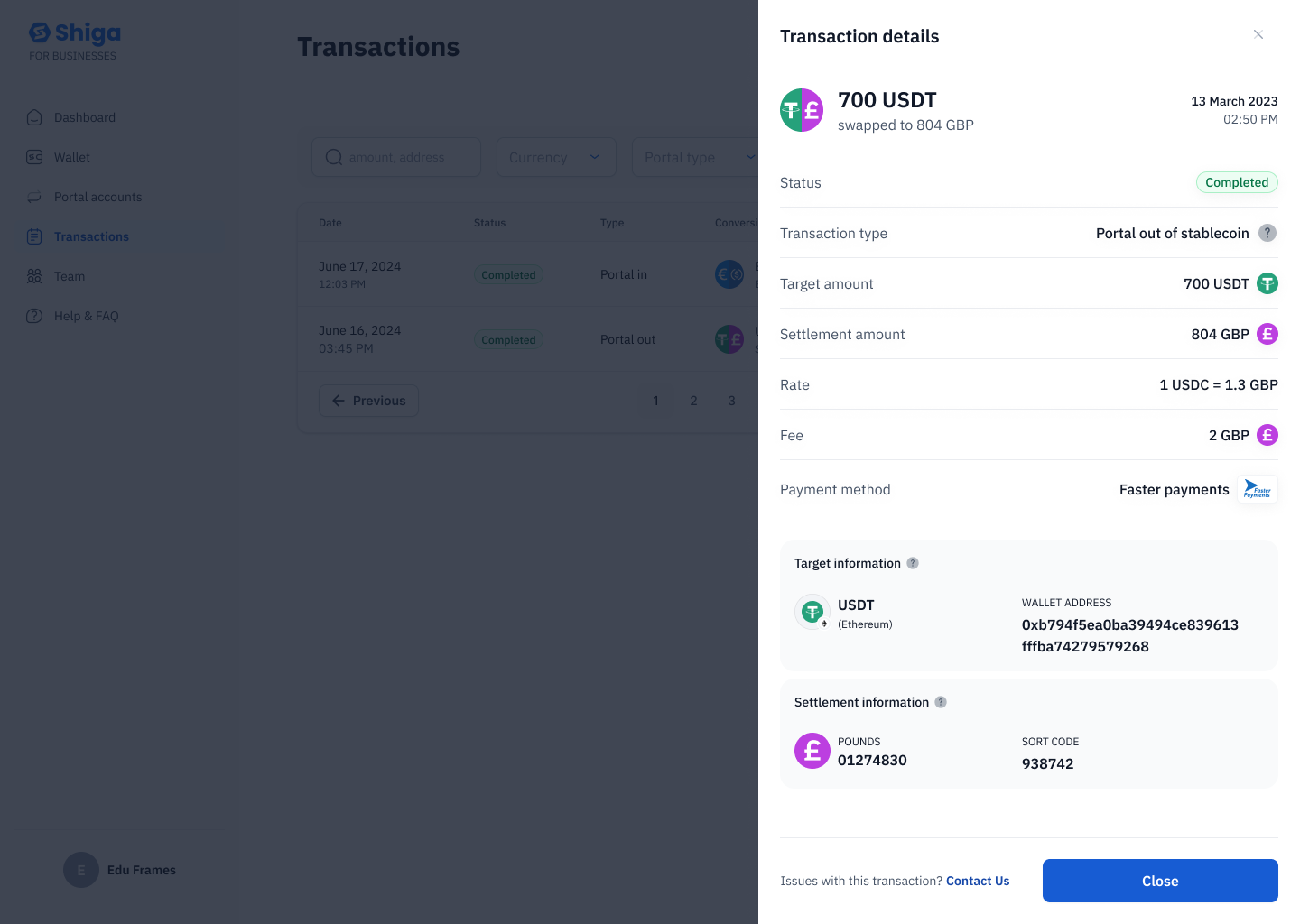 > This transaction is pending till compliance issues are resolved.
Hovering the info icons next to the target and settlement details surfaces a short explanation of each field — for example, that the settlement account is "your saved local bank account to receive the swapped stablecoin amount," or that the target wallet is "a Shiga generated virtual wallet for you to convert stablecoin to your fiat settlement account."
## 5. Getting help with a transaction
If something looks wrong with a transaction, click **Contact us** at the bottom of the detail panel to open the **Get in touch** form.
1. Choose an **Issue category**.
2. Enter a description of the problem.
3. Optionally, click **Upload attachment** (or drag and drop) to attach a file — PDF, PNG, or JPG, up to 10MB.
4. Click **Send**. You'll typically get a response within 24 hours.
Click **Close** or **Go back** to return to the transaction detail panel without sending anything.
The field label on this screen currently reads "Issue cateogry" — a typo for "category." Cosmetic, worth flagging to design.
## Troubleshooting
**A transaction shows as On hold or Pending for a while** — On hold usually means compliance review is in progress; Pending usually means the transfer or network confirmation hasn't completed yet. If it's been on hold for an extended period, use **Contact us** on the transaction detail panel to ask about it directly.
**I can't find a transaction** — Check whether a filter is narrowing the list; click **Clear filter** to see everything again. If you're searching by address, make sure you've copied the full address.
**A transaction shows as Failed** — The transfer didn't complete. If your balance wasn't restored after a few minutes, use **Contact us** on the transaction detail panel and reference the transaction so support can look into it.
> This transaction is pending till compliance issues are resolved.
Hovering the info icons next to the target and settlement details surfaces a short explanation of each field — for example, that the settlement account is "your saved local bank account to receive the swapped stablecoin amount," or that the target wallet is "a Shiga generated virtual wallet for you to convert stablecoin to your fiat settlement account."
## 5. Getting help with a transaction
If something looks wrong with a transaction, click **Contact us** at the bottom of the detail panel to open the **Get in touch** form.
1. Choose an **Issue category**.
2. Enter a description of the problem.
3. Optionally, click **Upload attachment** (or drag and drop) to attach a file — PDF, PNG, or JPG, up to 10MB.
4. Click **Send**. You'll typically get a response within 24 hours.
Click **Close** or **Go back** to return to the transaction detail panel without sending anything.
The field label on this screen currently reads "Issue cateogry" — a typo for "category." Cosmetic, worth flagging to design.
## Troubleshooting
**A transaction shows as On hold or Pending for a while** — On hold usually means compliance review is in progress; Pending usually means the transfer or network confirmation hasn't completed yet. If it's been on hold for an extended period, use **Contact us** on the transaction detail panel to ask about it directly.
**I can't find a transaction** — Check whether a filter is narrowing the list; click **Clear filter** to see everything again. If you're searching by address, make sure you've copied the full address.
**A transaction shows as Failed** — The transfer didn't complete. If your balance wasn't restored after a few minutes, use **Contact us** on the transaction detail panel and reference the transaction so support can look into it.