> ## Documentation Index
> Fetch the complete documentation index at: https://docs.shiga.io/llms.txt
> Use this file to discover all available pages before exploring further.
# OFF-RAMP TO (GBP/EUR)
> Sending to Fiat Account (GBP/EUR)
This guide walks you through the process of sending stablecoins from your Shiga wallet to a fiat bank account (GBP/EUR) using the screenshots provided.
From your Shiga dashboard:
* Click **"Send"** to open the transfer interface.
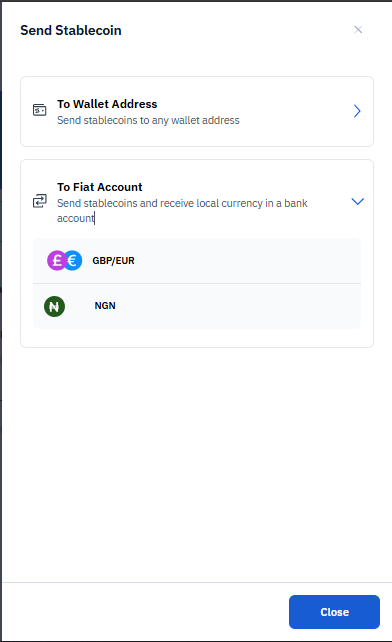
* To Fiat Account (Portal Out)
* **Purpose:** Convert stablecoins and receive local currency in a bank account
* **Description:** Send stablecoins and receive local currency in a bank account
* **Available Currencies:**
* **GBP/EUR** - British Pound and Euro
* **NGN** - Nigerian Naira
* **Best for:** Converting crypto to traditional currency
**Action:** Select **"To Fiat Account"** to proceed with Portal Out.
 ## Step 1: Choose Your Send Method
When you initiate a stablecoin transfer, you'll see two main options:
### Option A: To Wallet Address
* **Purpose:** Send stablecoins to any wallet address
* **Description:** Send stablecoins to any wallet address
* **Best for:** Crypto-to-crypto transfers
### Option B: To Fiat Account (Portal Out)
* **Purpose:** Convert stablecoins and receive local currency in a bank account
* **Description:** Send stablecoins and receive local currency in a bank account
* **Available Currencies:**
* **GBP/EUR** - British Pound and Euro
* **NGN** - Nigerian Naira
* **Best for:** Converting crypto to traditional currency
**Action:** Select **"To Fiat Account"** to proceed with Portal Out.
## Step 1: Choose Your Send Method
When you initiate a stablecoin transfer, you'll see two main options:
### Option A: To Wallet Address
* **Purpose:** Send stablecoins to any wallet address
* **Description:** Send stablecoins to any wallet address
* **Best for:** Crypto-to-crypto transfers
### Option B: To Fiat Account (Portal Out)
* **Purpose:** Convert stablecoins and receive local currency in a bank account
* **Description:** Send stablecoins and receive local currency in a bank account
* **Available Currencies:**
* **GBP/EUR** - British Pound and Euro
* **NGN** - Nigerian Naira
* **Best for:** Converting crypto to traditional currency
**Action:** Select **"To Fiat Account"** to proceed with Portal Out.
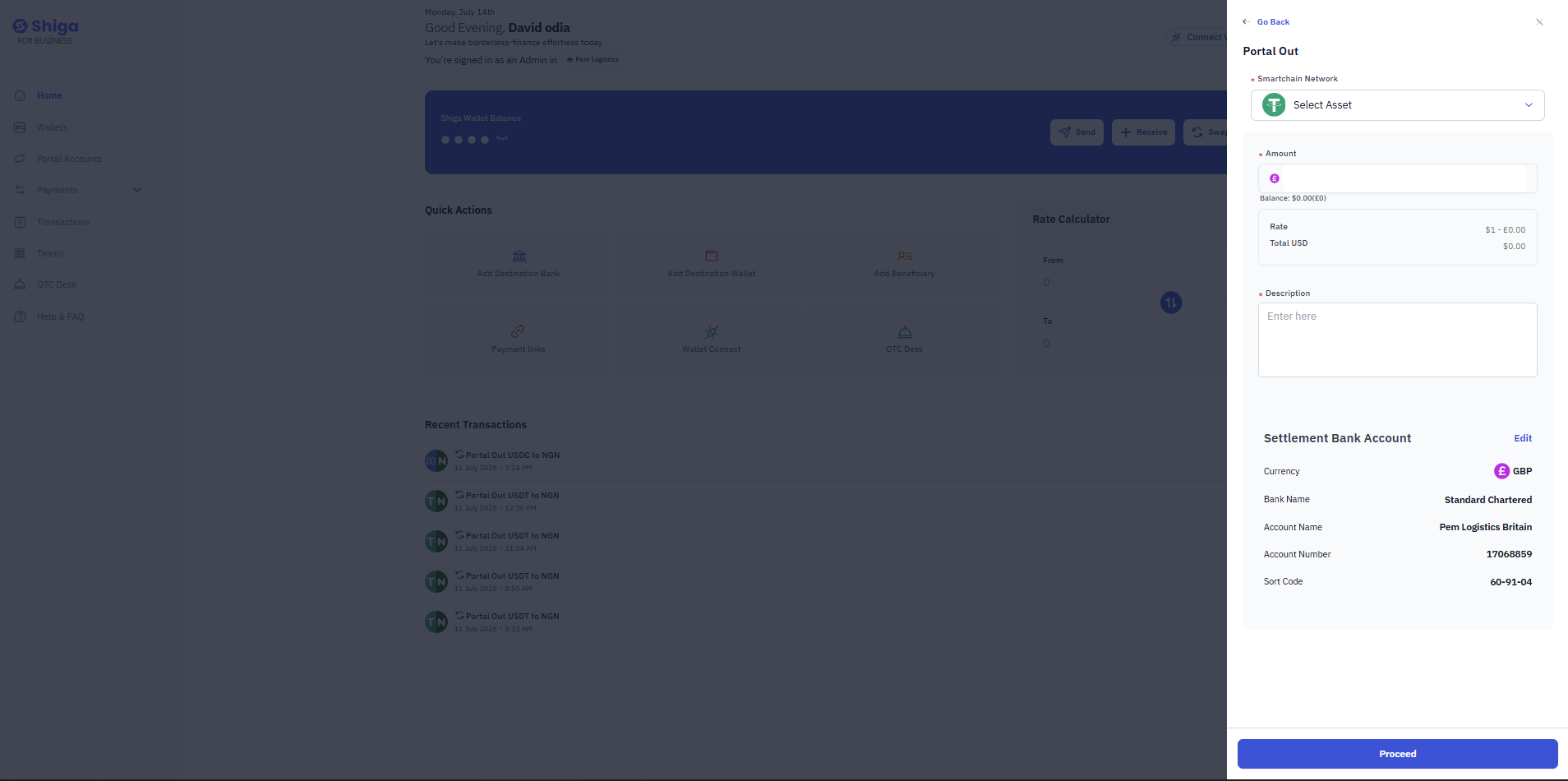
 ## Step 2: Set Up Your Portal Out Transaction
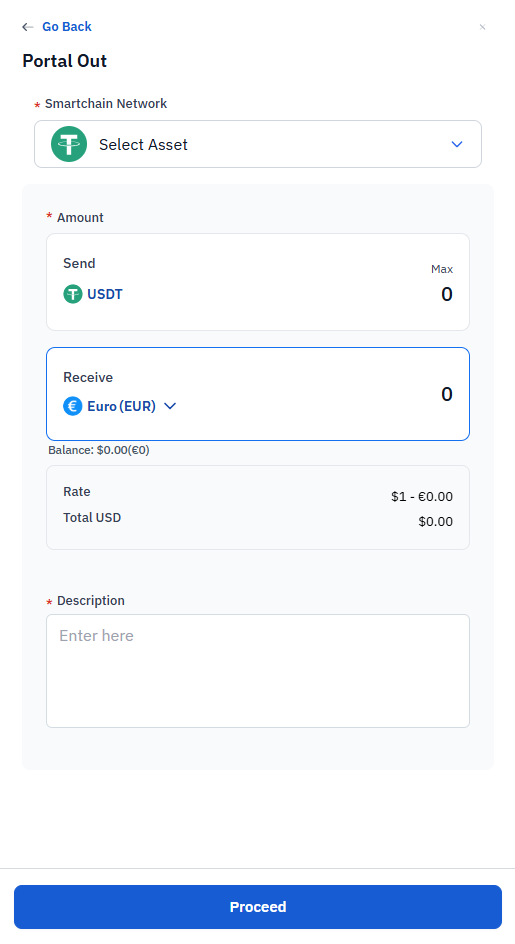
Once you've selected "To Fiat Account," you'll be taken to the Portal Out configuration page.
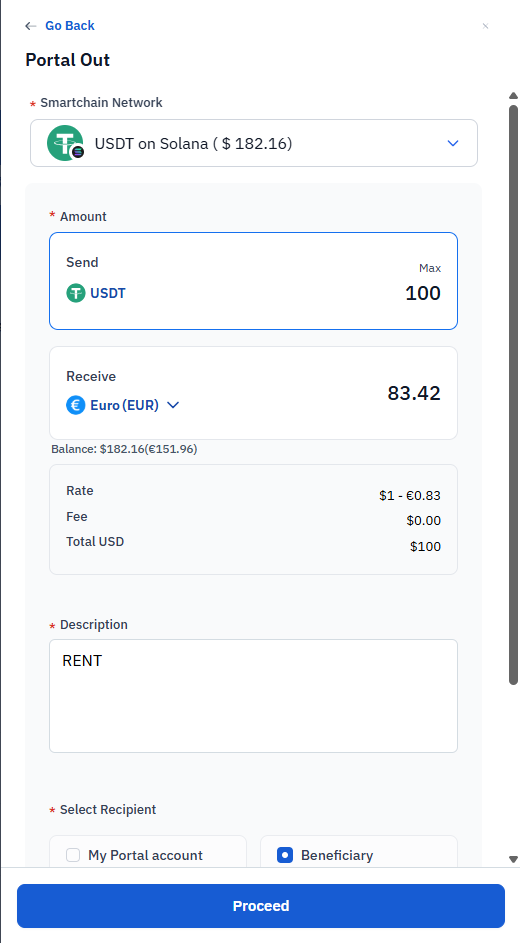
### 2.1 Select Your Smartchain Network
**Field:** Smartchain Network (marked with red asterisk - required)
**Options Available:**
* Click the dropdown menu labeled "Select Asset"
* Choose from available networks where you hold stablecoins
* The selected network will determine which cryptocurrency you're converting
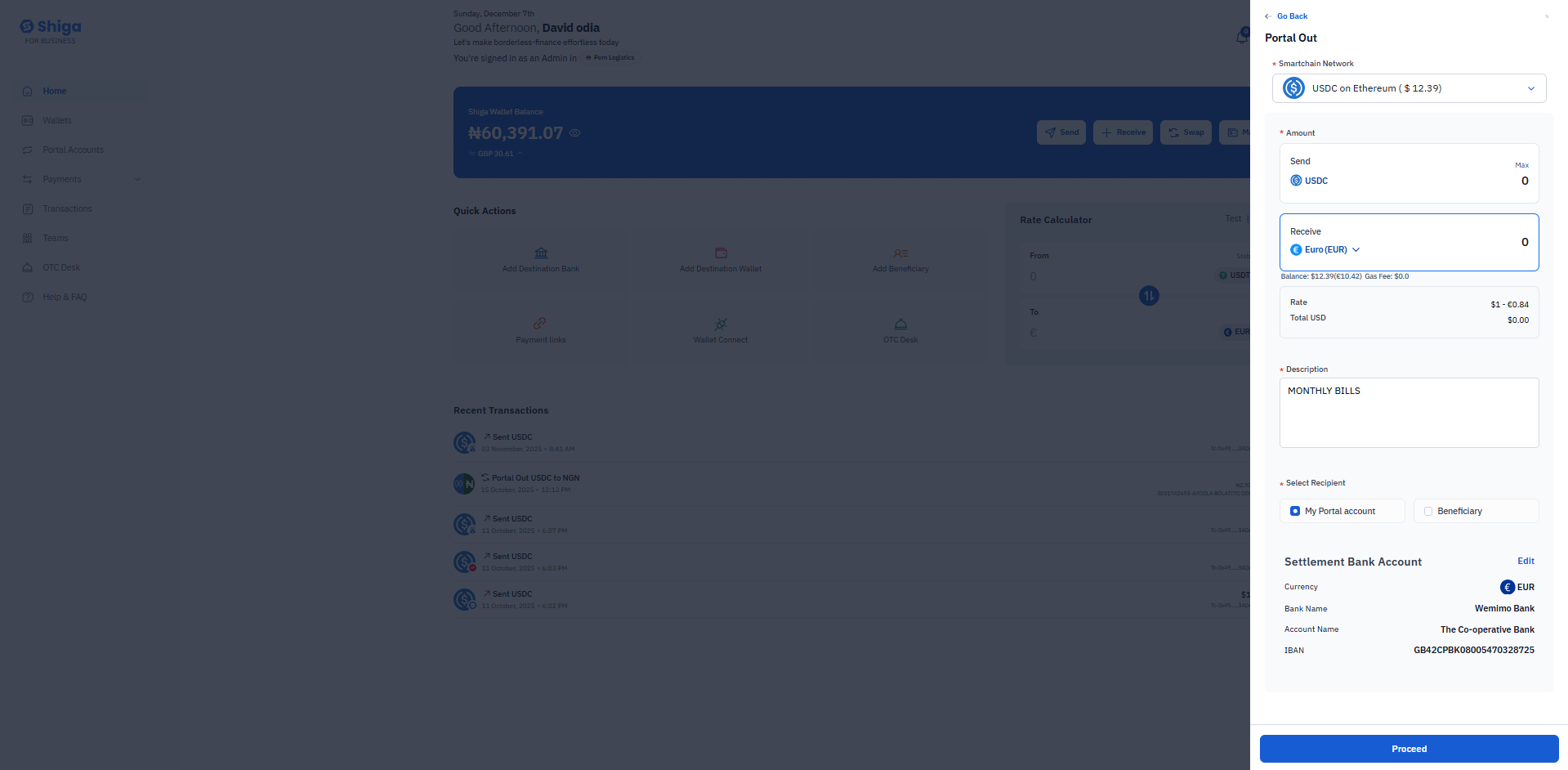
**Example:** USDC on Ethereum (\$ 12.39)
### 2.2 Enter the Amount to Send
**Field:** Amount (marked with red asterisk - required)
This section has two parts:
#### Send Amount:
* **Label:** "Send"
* **Currency:** USDT or USDC (depending on your selection)
* **Input:** Enter the amount you want to convert
* **Max Button:** Click "Max" to send your entire available balance
* **Default Value:** 0
#### Receive Amount:
* **Label:** "Receive"
* **Currency:** Euro (EUR) or other selected fiat currency
* **Display:** Shows the equivalent amount you'll receive
* **Currency Selector:** Click the dropdown to change receiving currency if needed
* **Default Value:** 0
**Balance Display:**
* Your current balance is shown below the receive field
* Example: "Balance: \$0.00(€0)"
### 2.3 Review Exchange Rate Information
**Rate Display:**
* Shows the current exchange rate
* Example: "\$1 - €0.00"
**Total USD:**
* Displays the total transaction value in USD
* Example: "\$0.00"
### 2.4 Add Transaction Description
**Field:** Description (marked with red asterisk - required)
* Enter a description for your transaction
* This helps you track the purpose of the transfer
* Example: "MONTHLY BILLS"
* **Placeholder:** "Enter here"
**Purpose:** This description will appear in your transaction history for easy reference.
## Step 2: Set Up Your Portal Out Transaction
Once you've selected "To Fiat Account," you'll be taken to the Portal Out configuration page.
### 2.1 Select Your Smartchain Network
**Field:** Smartchain Network (marked with red asterisk - required)
**Options Available:**
* Click the dropdown menu labeled "Select Asset"
* Choose from available networks where you hold stablecoins
* The selected network will determine which cryptocurrency you're converting
**Example:** USDC on Ethereum (\$ 12.39)
### 2.2 Enter the Amount to Send
**Field:** Amount (marked with red asterisk - required)
This section has two parts:
#### Send Amount:
* **Label:** "Send"
* **Currency:** USDT or USDC (depending on your selection)
* **Input:** Enter the amount you want to convert
* **Max Button:** Click "Max" to send your entire available balance
* **Default Value:** 0
#### Receive Amount:
* **Label:** "Receive"
* **Currency:** Euro (EUR) or other selected fiat currency
* **Display:** Shows the equivalent amount you'll receive
* **Currency Selector:** Click the dropdown to change receiving currency if needed
* **Default Value:** 0
**Balance Display:**
* Your current balance is shown below the receive field
* Example: "Balance: \$0.00(€0)"
### 2.3 Review Exchange Rate Information
**Rate Display:**
* Shows the current exchange rate
* Example: "\$1 - €0.00"
**Total USD:**
* Displays the total transaction value in USD
* Example: "\$0.00"
### 2.4 Add Transaction Description
**Field:** Description (marked with red asterisk - required)
* Enter a description for your transaction
* This helps you track the purpose of the transfer
* Example: "MONTHLY BILLS"
* **Placeholder:** "Enter here"
**Purpose:** This description will appear in your transaction history for easy reference.
 ## Step 3: Select Your Recipient
After setting up the transaction details, you need to choose where the funds will be sent.
### Recipient Options:
You have two choices:\
\
Option A: My Portal Account
* **Button:** Select "My Portal account"
* **Description:** Sends funds to your linked settlement bank account
* **Best for:** Regular personal withdrawals
#### Option B: Beneficiary
* **Radio Button:** Select "Beneficiary"
* **Description:** Sends funds to a saved beneficiary
* **Best for:** Sending to other people or frequently used accounts
## Step 4: Choose Settlement Bank Account (If "My Portal Account" Selected)
If you selected "My Portal account," you'll see your Settlement Bank Account details:
### Bank Account Information Display:
**Section Header:** Settlement Bank Account
* **Edit Button:** Click "Edit" to modify or change your bank details
**Account Details Shown:**
* **Currency:** EUR (with currency icon)
* **Bank Name:** Example: "Wemino Bank"
* **Account Name:** Example: "The Co-operative Bank"
* **IBAN:** Full IBAN number
* Example: "GB42CPBK08005470328725"
### Verification:
* Carefully verify all bank details are correct
* Ensure the currency matches your receiving currency
* Double-check the IBAN for accuracy
## Step 3: Select Your Recipient
After setting up the transaction details, you need to choose where the funds will be sent.
### Recipient Options:
You have two choices:\
\
Option A: My Portal Account
* **Button:** Select "My Portal account"
* **Description:** Sends funds to your linked settlement bank account
* **Best for:** Regular personal withdrawals
#### Option B: Beneficiary
* **Radio Button:** Select "Beneficiary"
* **Description:** Sends funds to a saved beneficiary
* **Best for:** Sending to other people or frequently used accounts
## Step 4: Choose Settlement Bank Account (If "My Portal Account" Selected)
If you selected "My Portal account," you'll see your Settlement Bank Account details:
### Bank Account Information Display:
**Section Header:** Settlement Bank Account
* **Edit Button:** Click "Edit" to modify or change your bank details
**Account Details Shown:**
* **Currency:** EUR (with currency icon)
* **Bank Name:** Example: "Wemino Bank"
* **Account Name:** Example: "The Co-operative Bank"
* **IBAN:** Full IBAN number
* Example: "GB42CPBK08005470328725"
### Verification:
* Carefully verify all bank details are correct
* Ensure the currency matches your receiving currency
* Double-check the IBAN for accuracy
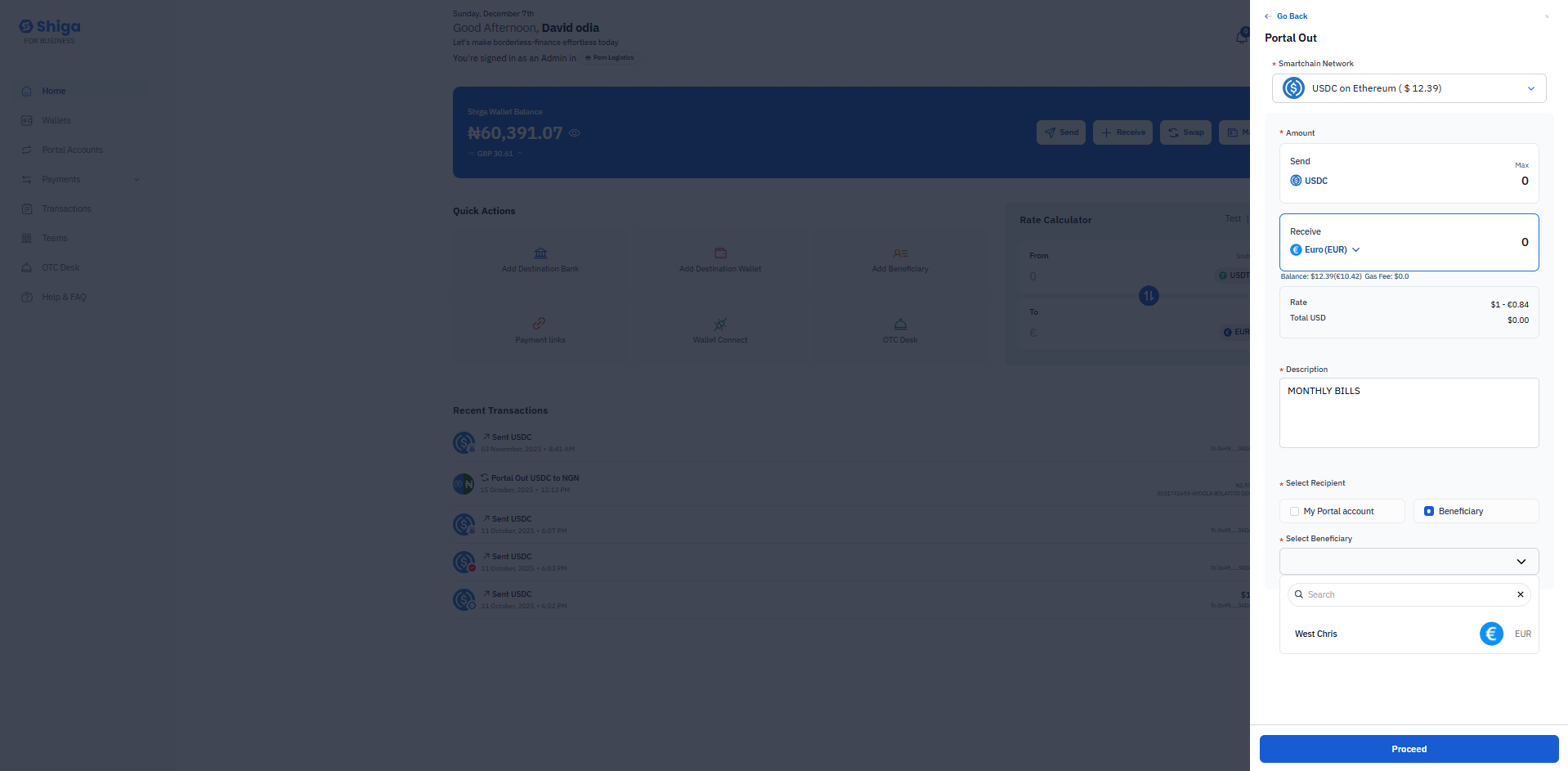 ## Step 5: Select Beneficiary (If "Beneficiary" Selected)
If you selected "Beneficiary," you'll see the beneficiary selection interface:
### Beneficiary Selection:
**Section Header:** Select Beneficiary (marked with red asterisk - required)
**Features:**
* **Dropdown Menu:** Click to view your saved beneficiaries
* **Search Function:** Search bar to quickly find beneficiaries
**Beneficiary List:** Each beneficiary displays:
* **Beneficiary Name:** Example: "West Chris"
* **Currency Icon:** Shows the currency (e.g., EUR)
* **Currency Code:** Example: "EUR"
**Action:** Click on the beneficiary you want to send funds to.
## Step 5: Select Beneficiary (If "Beneficiary" Selected)
If you selected "Beneficiary," you'll see the beneficiary selection interface:
### Beneficiary Selection:
**Section Header:** Select Beneficiary (marked with red asterisk - required)
**Features:**
* **Dropdown Menu:** Click to view your saved beneficiaries
* **Search Function:** Search bar to quickly find beneficiaries
**Beneficiary List:** Each beneficiary displays:
* **Beneficiary Name:** Example: "West Chris"
* **Currency Icon:** Shows the currency (e.g., EUR)
* **Currency Code:** Example: "EUR"
**Action:** Click on the beneficiary you want to send funds to.
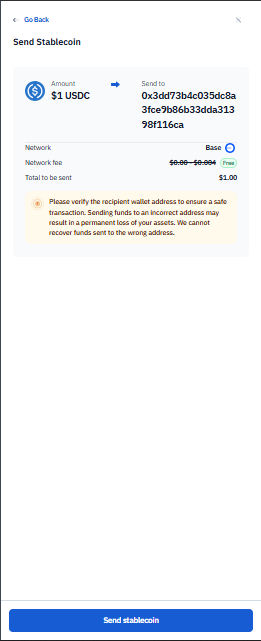 ## Step 6: Send Stablecoin Confirmation (For Wallet Address Transfers)
If you selected "To Wallet Address" instead of Portal Out, you'll see a different confirmation screen:
### Transaction Confirmation Details:
**Header:** Send Stablecoin
**Transaction Information:**
* **Amount:** Example: "\$1 USDC"
* **Sent to:** Complete wallet address
* Example: "0x3dd73b4c035dc8a3fcc9b65b33dda313981166a"
* **Network:** Blockchain network used
* Example: "Base"
* **Network Fee:** Transaction cost
* Example: "\$0.00—\$0.04" with "Max" indicator
* **Total to be sent:** Final amount including fees
* Example: "\$1.00"
**Important Warning Message:** *"Please verify the recipient wallet address to ensure a safe transaction. Sending funds to an incorrect wallet address may result in a permanent loss of your assets. We cannot recover funds sent to the wrong address."*
### Security Reminders:
* Always double-check the wallet address
* Verify the network matches the recipient's wallet
* Understand that blockchain transactions are irreversible
* Confirm network fees are acceptable
**Action Button:** Click **"Send stablecoin"** to complete the transaction
***
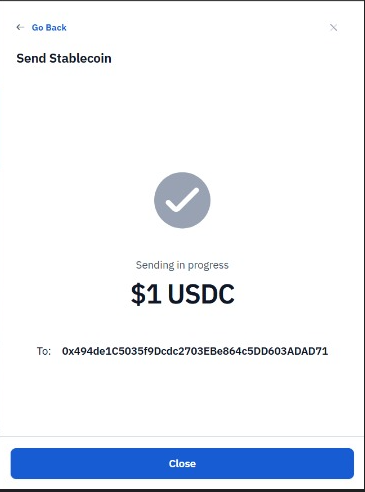
## Step 9: Transaction Processing
After clicking "Proceed" or "Send stablecoin," you'll see the processing screen:
### Processing Screen Display:
**Visual Indicator:**
* Checkmark icon in a circular badge
* Progress indicator showing transaction status
**Status Message:**
* **Text:** "Sending in progress"
* **Amount:** Example: "\$1 USDC"
**Transaction Details:**
* **To:** Complete recipient address
* Example: "0x494de1c5035f9bcdc2703EBe864c5D0603ADAD71"
**What's Happening:**
* Your transaction is being broadcast to the blockchain.
* Network validators are processing the transaction.
* Funds are being transferred to the recipient.
**Action Button:** Click **"Close"** when you're ready to return to the dashboard.
### Processing Time:
* Transaction times vary by network.
* Ethereum: 1-5 minutes typically.
* Base/Polygon: Usually under 1 minute.
* Portal Out to bank: 1-3 minutes.
## Step 6: Send Stablecoin Confirmation (For Wallet Address Transfers)
If you selected "To Wallet Address" instead of Portal Out, you'll see a different confirmation screen:
### Transaction Confirmation Details:
**Header:** Send Stablecoin
**Transaction Information:**
* **Amount:** Example: "\$1 USDC"
* **Sent to:** Complete wallet address
* Example: "0x3dd73b4c035dc8a3fcc9b65b33dda313981166a"
* **Network:** Blockchain network used
* Example: "Base"
* **Network Fee:** Transaction cost
* Example: "\$0.00—\$0.04" with "Max" indicator
* **Total to be sent:** Final amount including fees
* Example: "\$1.00"
**Important Warning Message:** *"Please verify the recipient wallet address to ensure a safe transaction. Sending funds to an incorrect wallet address may result in a permanent loss of your assets. We cannot recover funds sent to the wrong address."*
### Security Reminders:
* Always double-check the wallet address
* Verify the network matches the recipient's wallet
* Understand that blockchain transactions are irreversible
* Confirm network fees are acceptable
**Action Button:** Click **"Send stablecoin"** to complete the transaction
***
## Step 9: Transaction Processing
After clicking "Proceed" or "Send stablecoin," you'll see the processing screen:
### Processing Screen Display:
**Visual Indicator:**
* Checkmark icon in a circular badge
* Progress indicator showing transaction status
**Status Message:**
* **Text:** "Sending in progress"
* **Amount:** Example: "\$1 USDC"
**Transaction Details:**
* **To:** Complete recipient address
* Example: "0x494de1c5035f9bcdc2703EBe864c5D0603ADAD71"
**What's Happening:**
* Your transaction is being broadcast to the blockchain.
* Network validators are processing the transaction.
* Funds are being transferred to the recipient.
**Action Button:** Click **"Close"** when you're ready to return to the dashboard.
### Processing Time:
* Transaction times vary by network.
* Ethereum: 1-5 minutes typically.
* Base/Polygon: Usually under 1 minute.
* Portal Out to bank: 1-3 minutes.
 ## Step 10: Transaction Completion
### Bank Settlement (For Portal Out):
1. Funds typically arrive in 1-3 minutes
Check your bank account for the EUR deposit
The description you entered will help identify the transaction
* Confirm your settlement bank account is correct
* Check minimum and maximum transaction limits
* Use the "Max" button to send your entire balance if needed
* Save frequently used addresses as beneficiaries
* Always double-check wallet addresses
* Verify the network matches the recipient's wallet
* Never share your wallet private keys
* Keep your Shiga account credentials secure
* Enable two-factor authentication if available
* Review transaction details carefully before proceeding
## **Transaction Setup (Shiga Wallet)**
* **Shiga Wallet Details**:
* Asset: USDT (Tether)
* Target Wallet Network: Base
* **Transaction Details**:
* Amount: \$1
* Current Returns: show conversion rate
* Rate Total: conversion rate shown
* **Bank Details**:
* Bank Name: Access Bank
* Account Number.
* Account Name.
* Review all details and click "Proceed"
## Step 10: Transaction Completion
### Bank Settlement (For Portal Out):
1. Funds typically arrive in 1-3 minutes
Check your bank account for the EUR deposit
The description you entered will help identify the transaction
* Confirm your settlement bank account is correct
* Check minimum and maximum transaction limits
* Use the "Max" button to send your entire balance if needed
* Save frequently used addresses as beneficiaries
* Always double-check wallet addresses
* Verify the network matches the recipient's wallet
* Never share your wallet private keys
* Keep your Shiga account credentials secure
* Enable two-factor authentication if available
* Review transaction details carefully before proceeding
## **Transaction Setup (Shiga Wallet)**
* **Shiga Wallet Details**:
* Asset: USDT (Tether)
* Target Wallet Network: Base
* **Transaction Details**:
* Amount: \$1
* Current Returns: show conversion rate
* Rate Total: conversion rate shown
* **Bank Details**:
* Bank Name: Access Bank
* Account Number.
* Account Name.
* Review all details and click "Proceed"
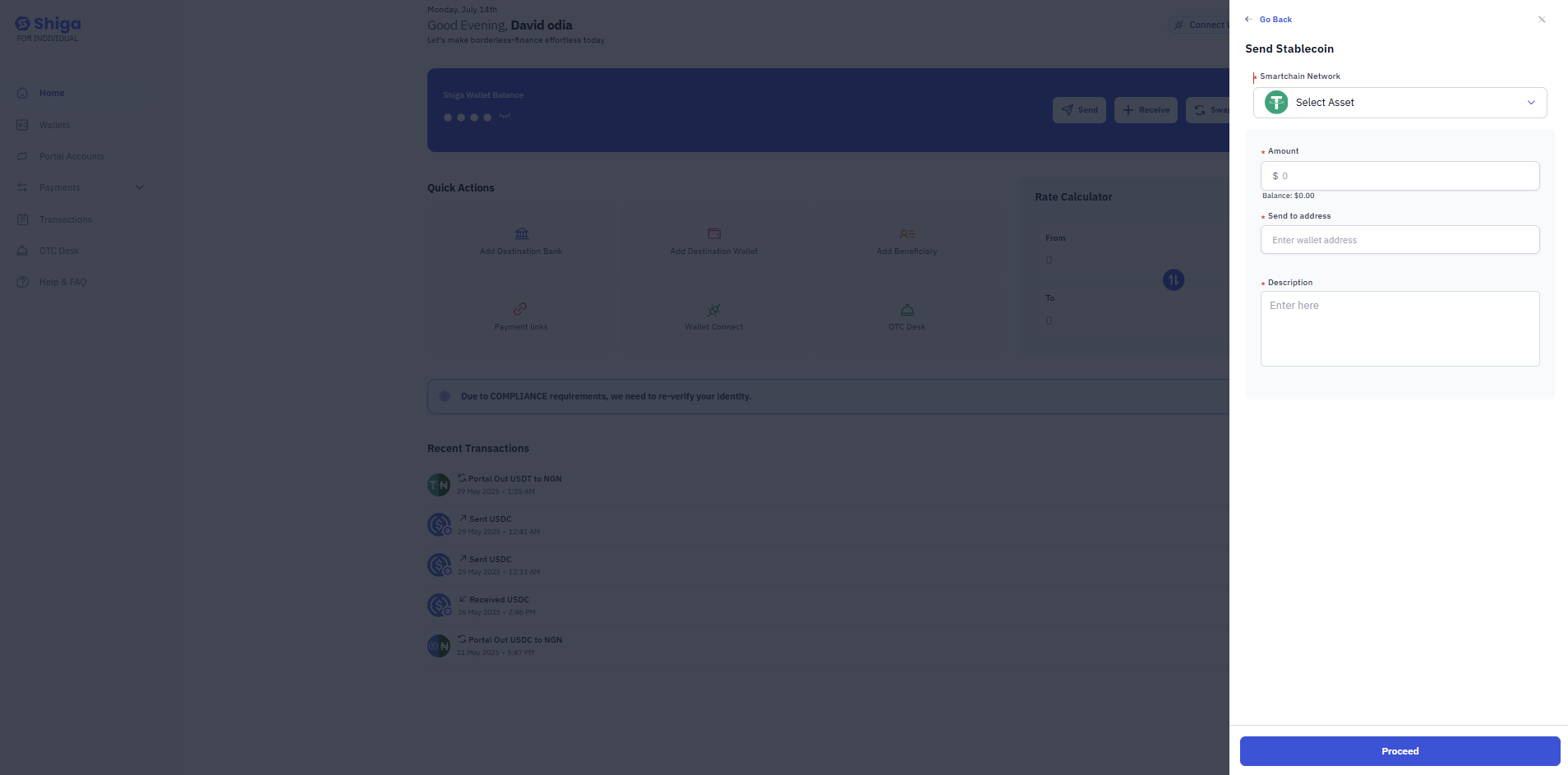
 ## **Step 3: Confirm Transaction Details**
* **Transaction Source**:
* Asset: USDC
* Chain: Base (network)
* Amount: 1 BASE (amount to send)
* **Bank Details** (note slight discrepancies from previous screen):
* Bank Name.
* Account Number.
* Account Name.
* Click "Initiate Transaction" to proceed
## **Two-Factor Authentication**
* For security, enter the 6-digit code from your authenticator app
* The code is being requested for the account: [**olivera@gmail.com**](mailto:olivera@gmail.com)
* Options:
* "Close" to cancel
* "Authorize Send" to complete the transaction after entering the code.
Transaction complete and account gets credited in their default GBP/EUR account.
## **Step 3: Confirm Transaction Details**
* **Transaction Source**:
* Asset: USDC
* Chain: Base (network)
* Amount: 1 BASE (amount to send)
* **Bank Details** (note slight discrepancies from previous screen):
* Bank Name.
* Account Number.
* Account Name.
* Click "Initiate Transaction" to proceed
## **Two-Factor Authentication**
* For security, enter the 6-digit code from your authenticator app
* The code is being requested for the account: [**olivera@gmail.com**](mailto:olivera@gmail.com)
* Options:
* "Close" to cancel
* "Authorize Send" to complete the transaction after entering the code.
Transaction complete and account gets credited in their default GBP/EUR account.