> ## Documentation Index
> Fetch the complete documentation index at: https://docs.shiga.io/llms.txt
> Use this file to discover all available pages before exploring further.
# Wallet Details
> Opening a single network's wallet — deposit, withdraw, swap, and its transaction history.
# Wallet Details
Tapping any network on your [Wallets](/Wallet/walletoverview) page opens that wallet on its own. Everything you can do with that specific balance happens here.
The examples below use the **Arbitrum** wallet, but every network works the same way.
***
## 1. The wallet header
A breadcrumb at the top shows where you are — **Wallets / Arbitrum** — and tapping **Wallets** takes you back.
Below it, the balance for this network alone: **Arbitrum wallet balance**, for example **USD 300.59**, with an eye icon to hide it. Underneath sit the network's fee status (**Free to send**), its truncated wallet address with a copy icon, and **View on-chain**, which opens the address in a block explorer.
Three actions sit on the right: **Deposit**, **Withdraw** and **Swap**.
## 2. Deposit
**Deposit** opens a **Wallet details** panel with everything someone needs to send you funds on this network:
* A QR code labelled **Scan to deposit**
* **Network** — the chain this address belongs to, e.g. **Arbitrum**
* **Stablecoin** — the asset, e.g. **USDT**
* **Wallet address** — the full address, with **Copy** and **View On-Chain**
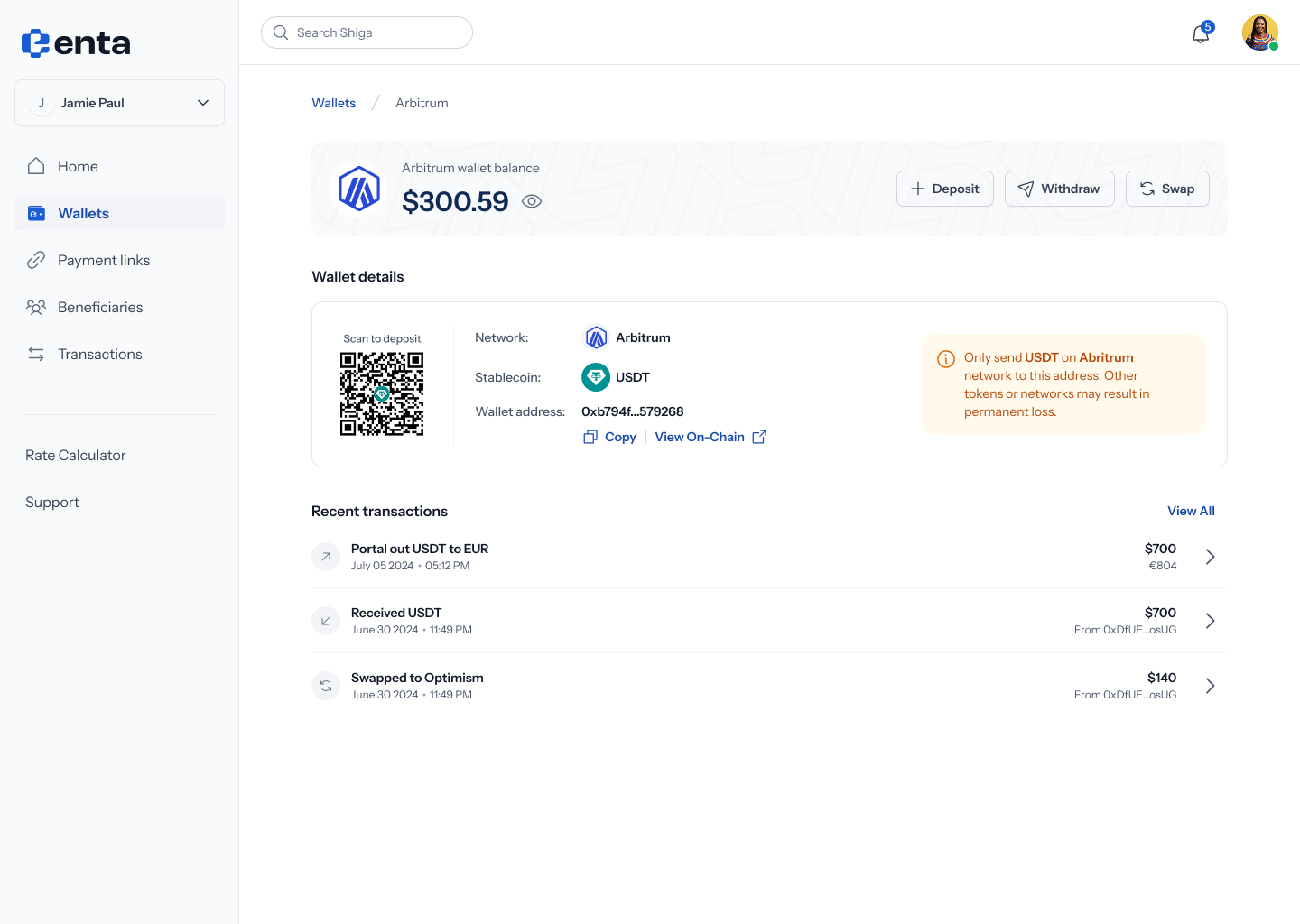 The panel carries a caution: only send **USDT** on the **Arbitrum** network to this address. Other tokens or networks may result in permanent loss. The address is specific to both the asset and the chain — sending the right token over the wrong network is the most common way funds go missing.
## 3. Withdraw
**Withdraw** opens a short menu headed **"Withdraw from Arbitrum to…"** with two destinations:
* **External wallet** — *"Send to any crypto address"*
* **Bank account** — *"Cash out to your bank"*
The panel carries a caution: only send **USDT** on the **Arbitrum** network to this address. Other tokens or networks may result in permanent loss. The address is specific to both the asset and the chain — sending the right token over the wrong network is the most common way funds go missing.
## 3. Withdraw
**Withdraw** opens a short menu headed **"Withdraw from Arbitrum to…"** with two destinations:
* **External wallet** — *"Send to any crypto address"*
* **Bank account** — *"Cash out to your bank"*
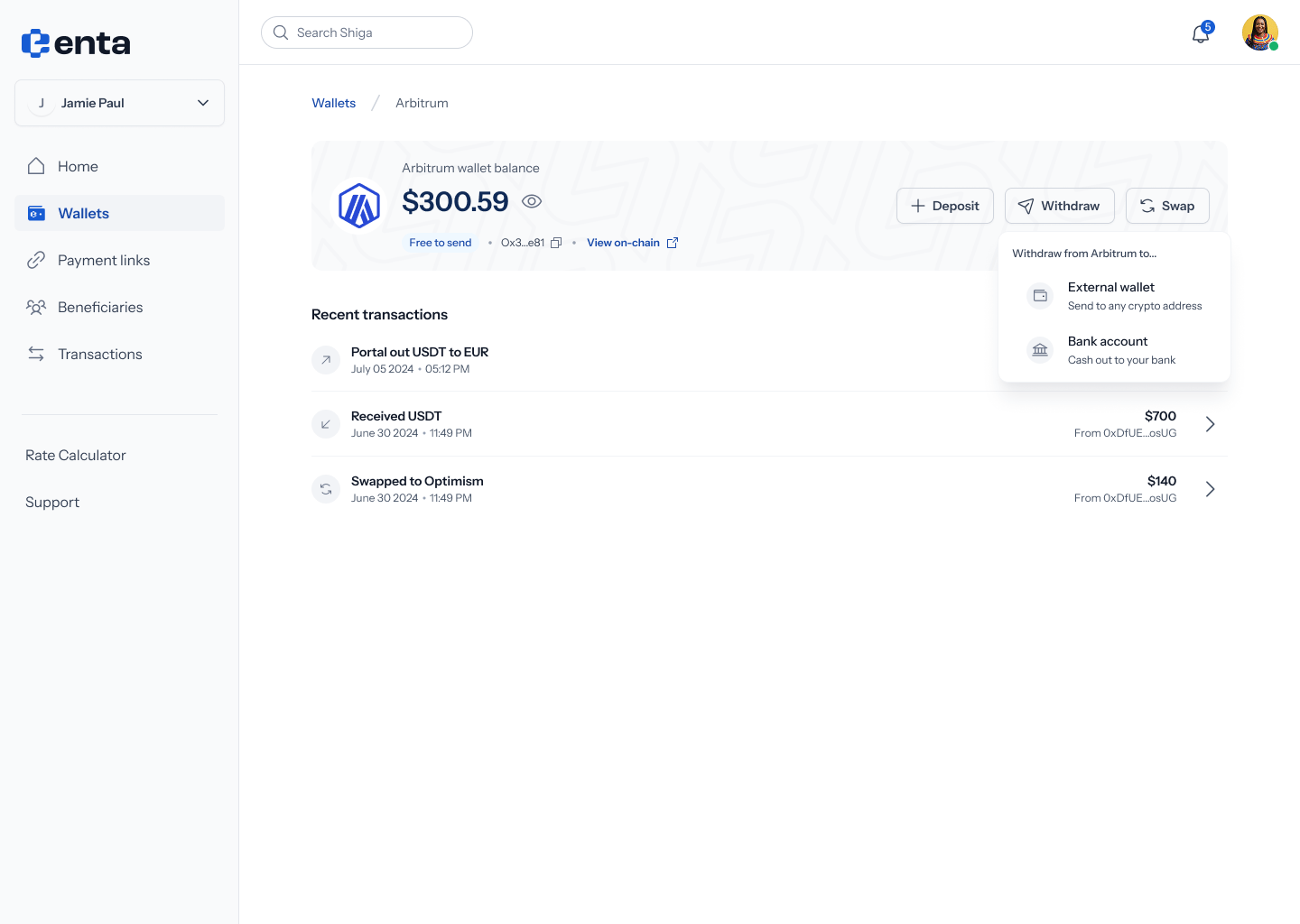 **External wallet** keeps the money in crypto and sends it to an address you specify. **Bank account** converts it and pays out in NGN, EUR or GBP.
Both routes are the same flows documented under Move Money — see [External Address (Withdrawal)](/MoveMoney/externalwithdrawal) and [Bank Account (Offramp)](/MoveMoney/offramp) for the full walkthroughs.
## 4. Swap
**Swap** converts this balance into another asset or moves it to another network without leaving Enta. The full walkthrough is in [Wallet to Wallet (Swap)](/MoveMoney/walletswap).
## 5. Recent transactions
Below the wallet details, **Recent transactions** lists activity for this network only, with **View All** opening the complete history.
Each row shows what happened, when, and how much:
| Row | Meaning |
| -------------------------- | ------------------------------------------------------------------------------------------------------------- |
| **Portal out USDT to EUR** | Cashed out to a bank account, showing both the crypto amount and what arrived, e.g. **USD 700** / **EUR 804** |
| **Received USDT** | Funds came in, with the sending address truncated, e.g. **From 0xDfUE…osUG** |
| **Swapped to Optimism** | Moved to another network |
Tap any row to expand it for the full detail — description, transaction hash, and receipt. See [Transactions](/Product/transactions) for the complete history across every network.
**External wallet** keeps the money in crypto and sends it to an address you specify. **Bank account** converts it and pays out in NGN, EUR or GBP.
Both routes are the same flows documented under Move Money — see [External Address (Withdrawal)](/MoveMoney/externalwithdrawal) and [Bank Account (Offramp)](/MoveMoney/offramp) for the full walkthroughs.
## 4. Swap
**Swap** converts this balance into another asset or moves it to another network without leaving Enta. The full walkthrough is in [Wallet to Wallet (Swap)](/MoveMoney/walletswap).
## 5. Recent transactions
Below the wallet details, **Recent transactions** lists activity for this network only, with **View All** opening the complete history.
Each row shows what happened, when, and how much:
| Row | Meaning |
| -------------------------- | ------------------------------------------------------------------------------------------------------------- |
| **Portal out USDT to EUR** | Cashed out to a bank account, showing both the crypto amount and what arrived, e.g. **USD 700** / **EUR 804** |
| **Received USDT** | Funds came in, with the sending address truncated, e.g. **From 0xDfUE…osUG** |
| **Swapped to Optimism** | Moved to another network |
Tap any row to expand it for the full detail — description, transaction hash, and receipt. See [Transactions](/Product/transactions) for the complete history across every network.