> ## Documentation Index
> Fetch the complete documentation index at: https://docs.shiga.io/llms.txt
> Use this file to discover all available pages before exploring further.
# Statements
> Download a record of your business's transactions for any period
This page is under **Settings > Business > Business**. See also: [Business Profile](/settings/business/businessprofile), [Members](/settings/business/members), [Roles & Permissions](/settings/business/roles), [Invite a Member](/settings/business/invitemember), [Manage a Member](/settings/business/managemember), [Passkey & Devices](/settings/business/passkeydevices), [Recovery](/settings/business/recovery), [Activity Log](/settings/business/activitylog), [Profile](/settings/business/profile), [Privacy & Cookies](/settings/business/privacycookies), [Support](/settings/business/support), and [AI Assistant](/settings/business/aiassistant).
**Statements** works the same way for a business account as it does for an individual one — there's no company selector or per-member breakdown, just your business's overall transaction history.
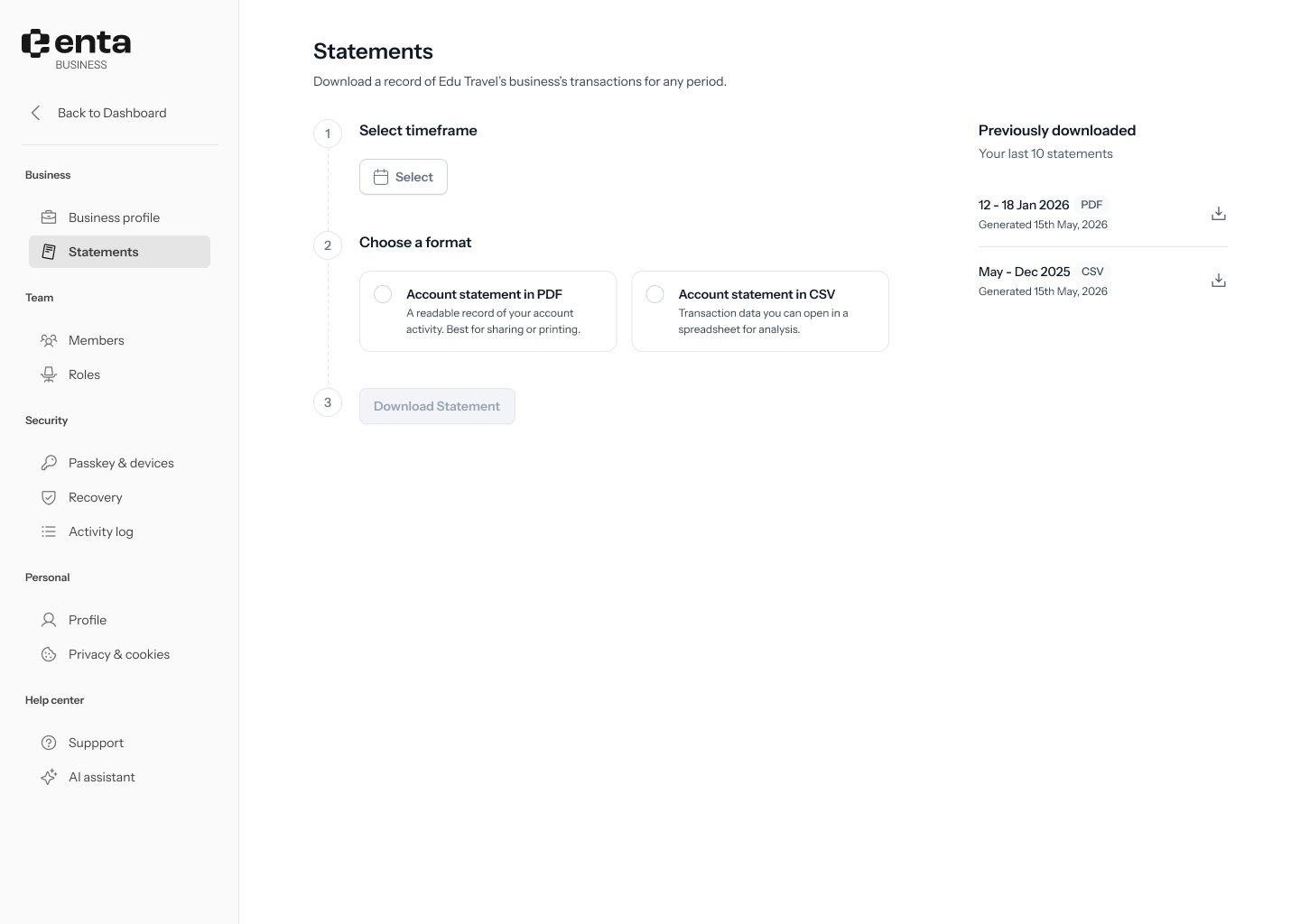 ## 1. Select a timeframe
Click the date picker and choose the date range you want your statement to cover.
## 2. Choose a format
* **Account statement in PDF** — a readable record of your account activity. Best for sharing or printing.
* **Account statement in CSV** — transaction data you can open in a spreadsheet for analysis.
## 1. Select a timeframe
Click the date picker and choose the date range you want your statement to cover.
## 2. Choose a format
* **Account statement in PDF** — a readable record of your account activity. Best for sharing or printing.
* **Account statement in CSV** — transaction data you can open in a spreadsheet for analysis.
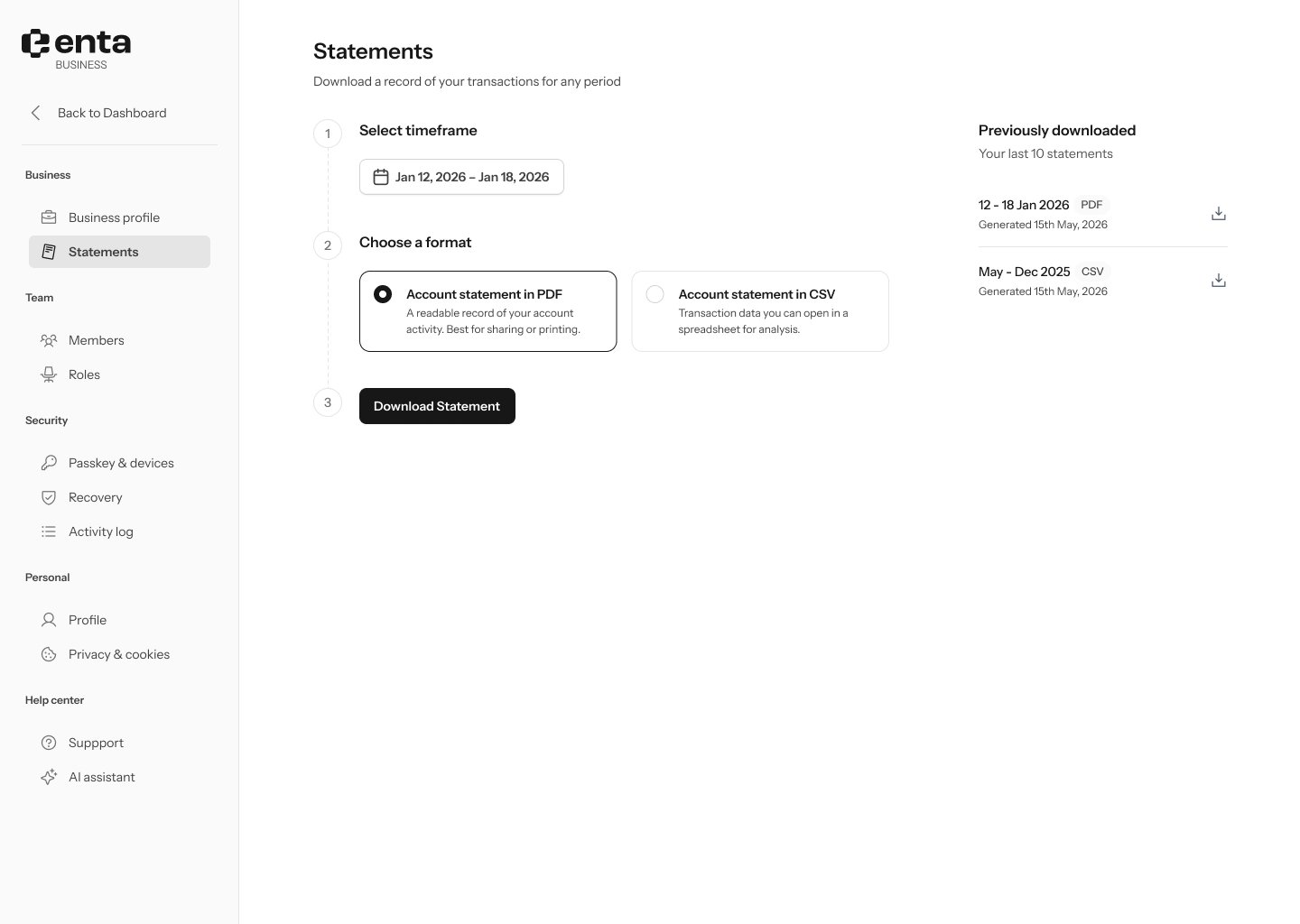 ## 3. Download
Click **Download Statement**. The button stays disabled until you've selected both a date range and a format.
## 3. Download
Click **Download Statement**. The button stays disabled until you've selected both a date range and a format.
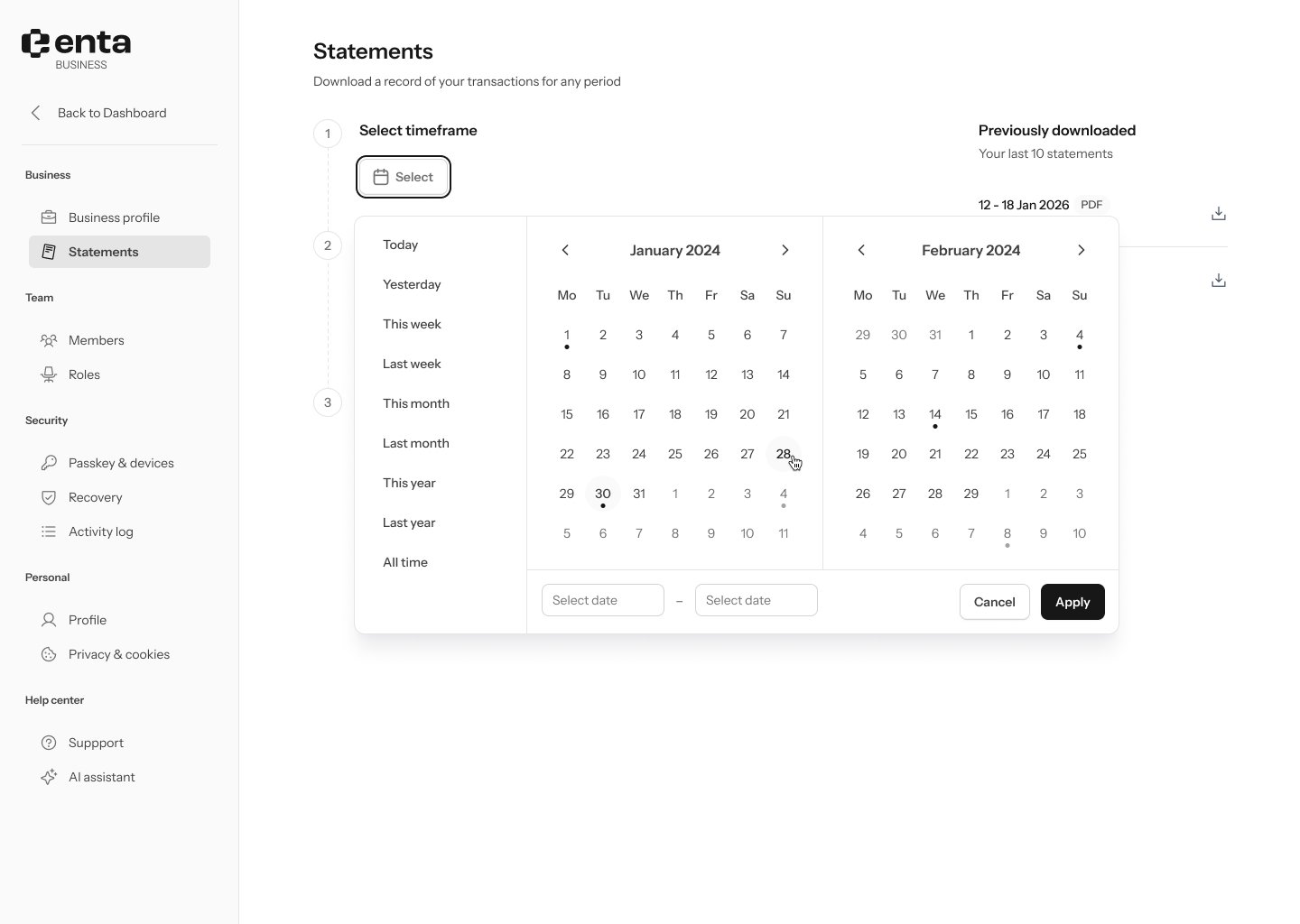 ## Previously downloaded
The right-hand panel lists your last 10 statements, each showing the period it covers, its format, and when it was generated.
## Previously downloaded
The right-hand panel lists your last 10 statements, each showing the period it covers, its format, and when it was generated.