

Sign Up
Creating a personal Enta account takes four steps: choose the account type, confirm your email, create a passkey, and add a recovery contact. There’s no password at any point.This guide covers the personal account. For a company account see Business Signup, which follows the same first two steps and then diverges into business verification.
1. Choose who the account is for
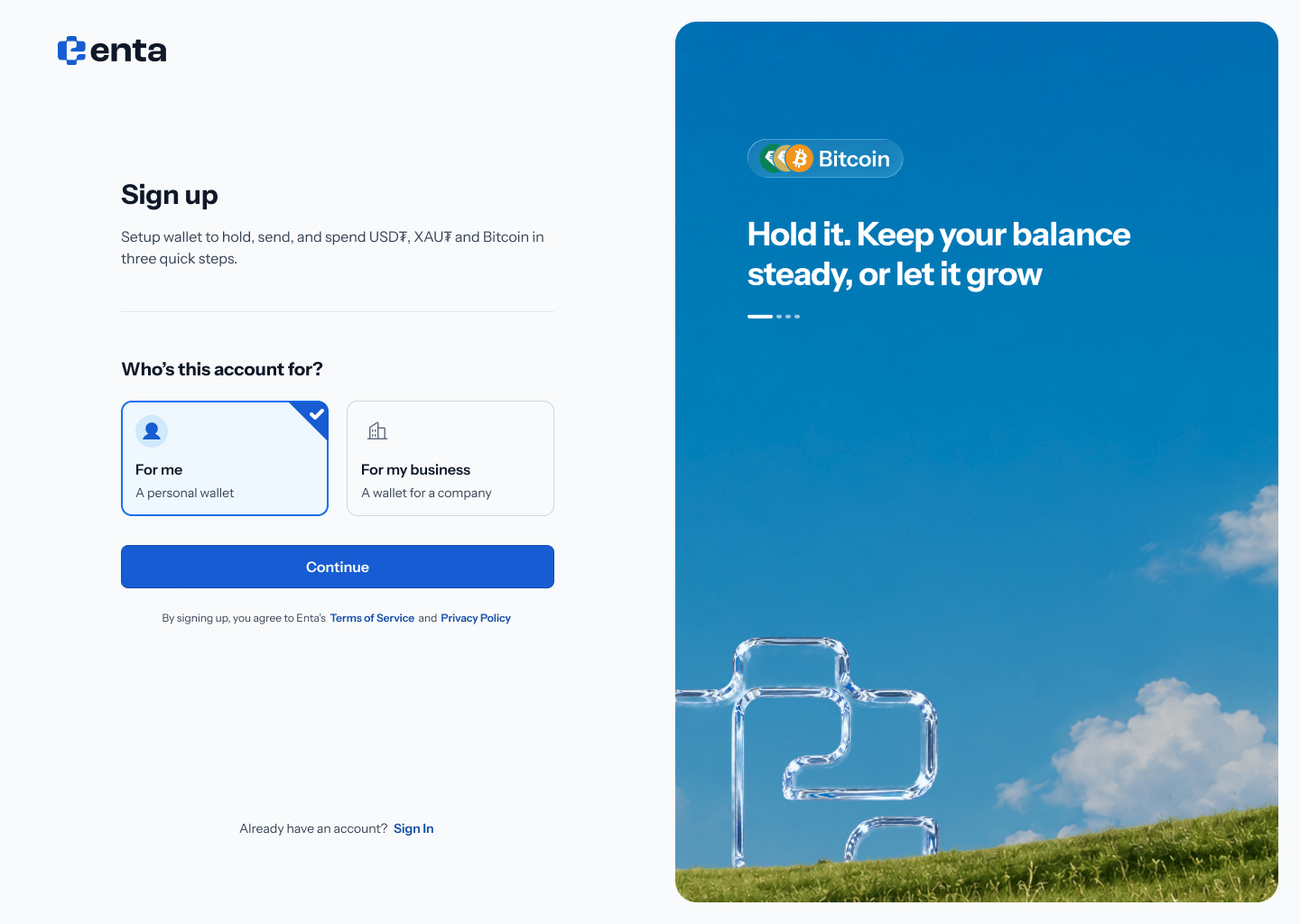
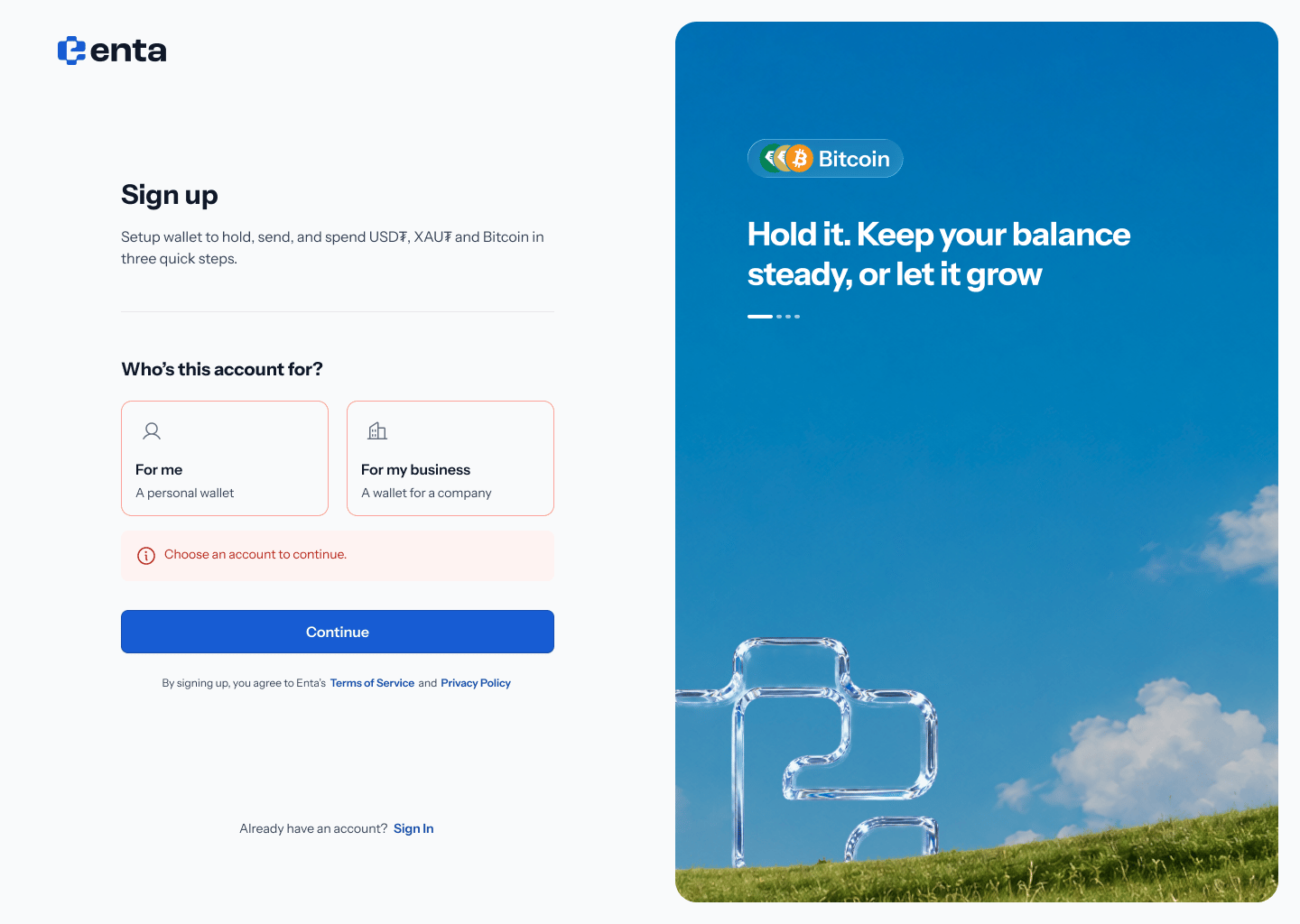
The sign-up screen is headed “Sign up” — “Setup wallet to hold, send, and spend USD₮, XAU₮ and Bitcoin in three quick steps.” Under “Who’s this account for?” there are two cards:- For me — “A personal wallet”
- For my business — “A wallet for a company”
2. Enter your email
Step 2 asks “What’s your email?” — “We’ll send a one-tap link.” Type your address into the Email field and tap Send me the link.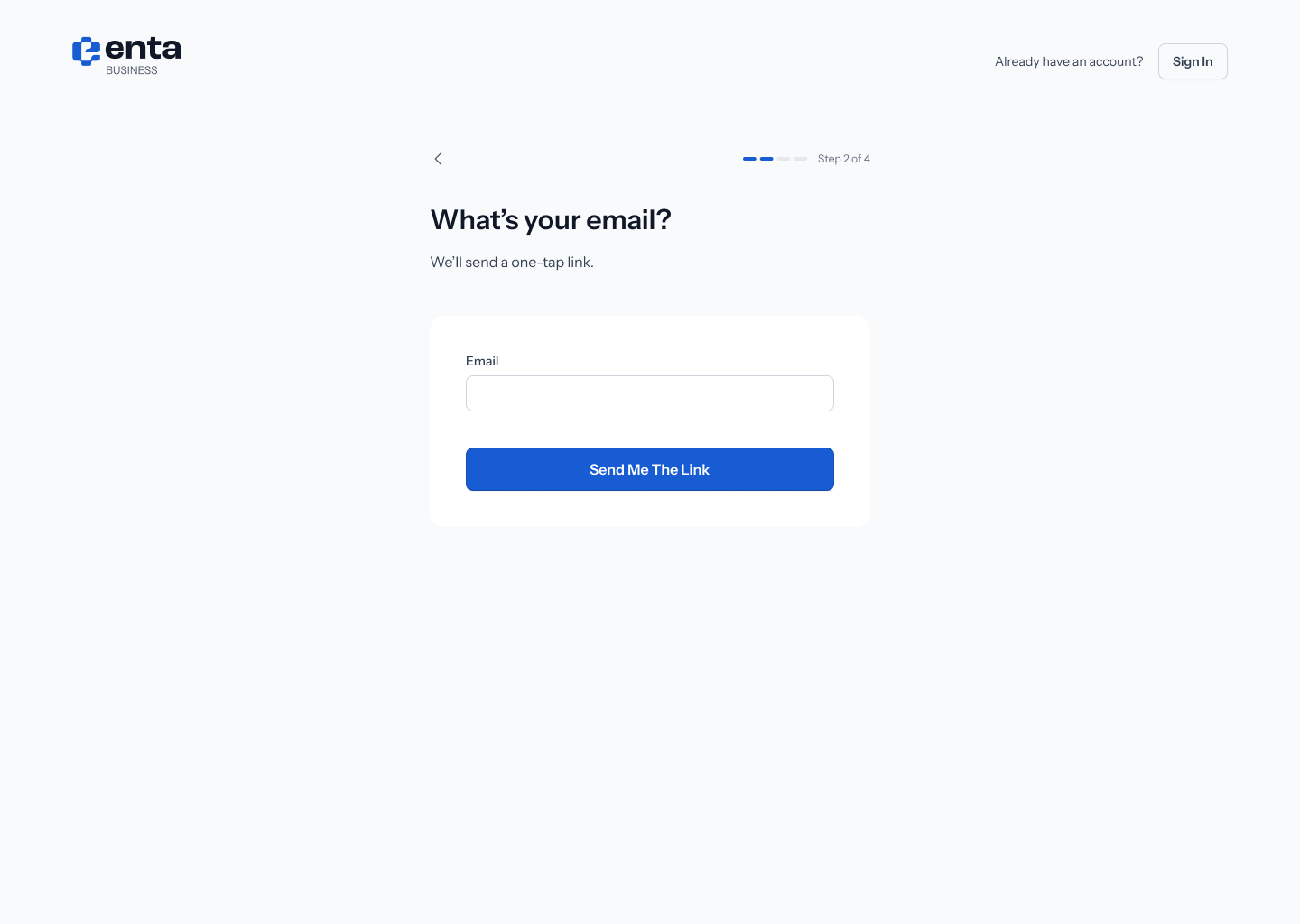
3. Open the link in your inbox
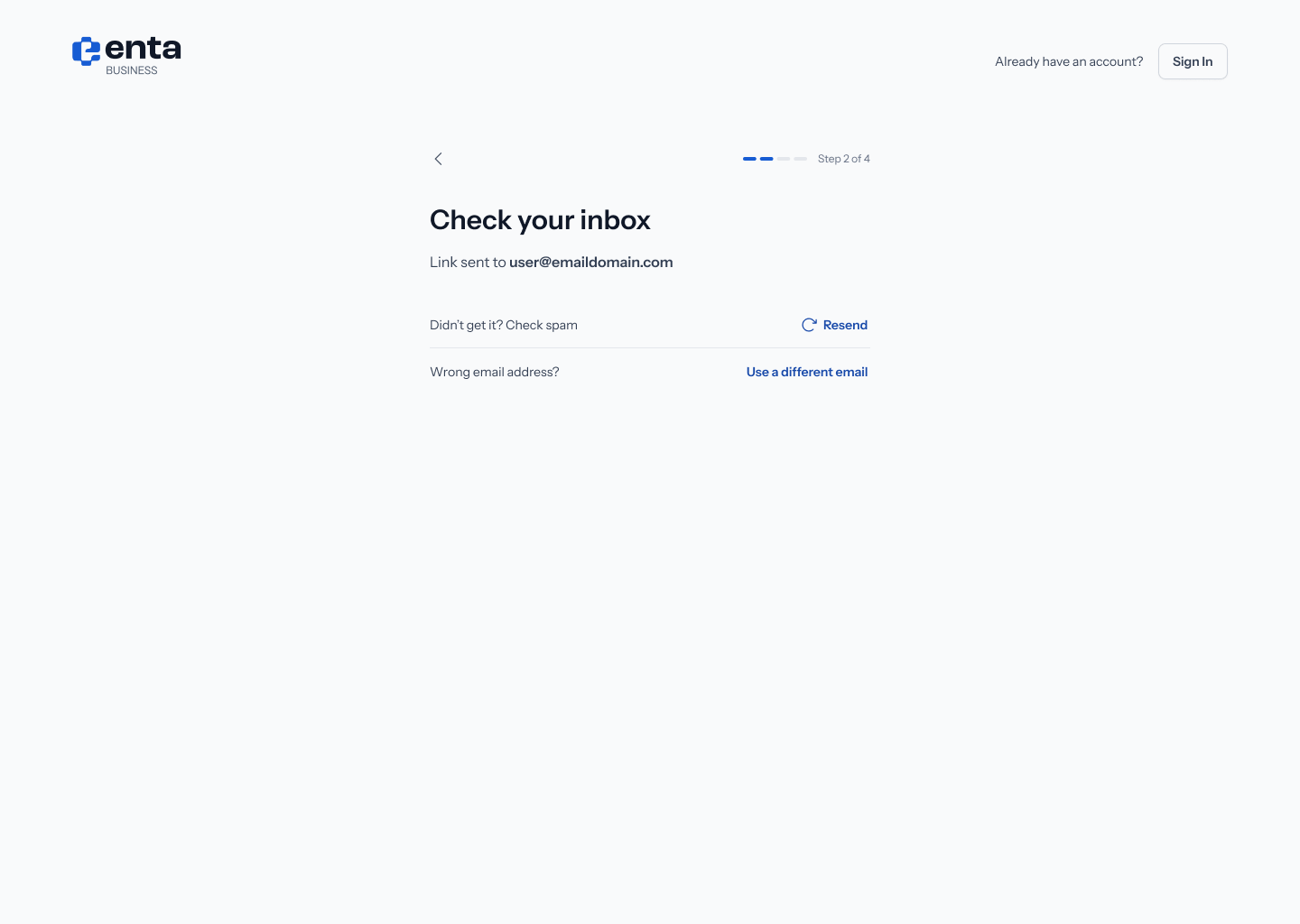
The next screen confirms “Check your inbox” — “Link sent to” followed by your address. Go and open the email.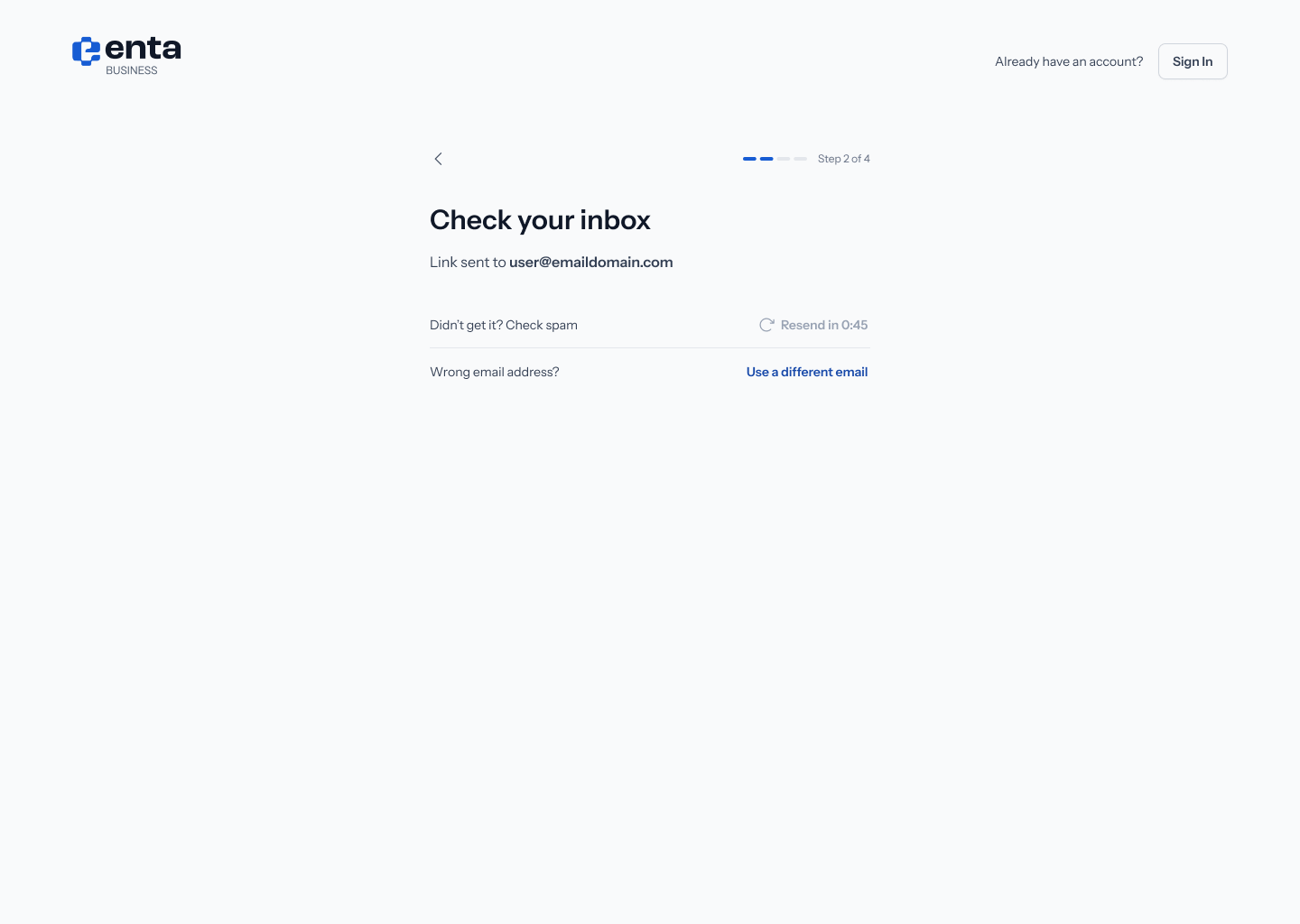
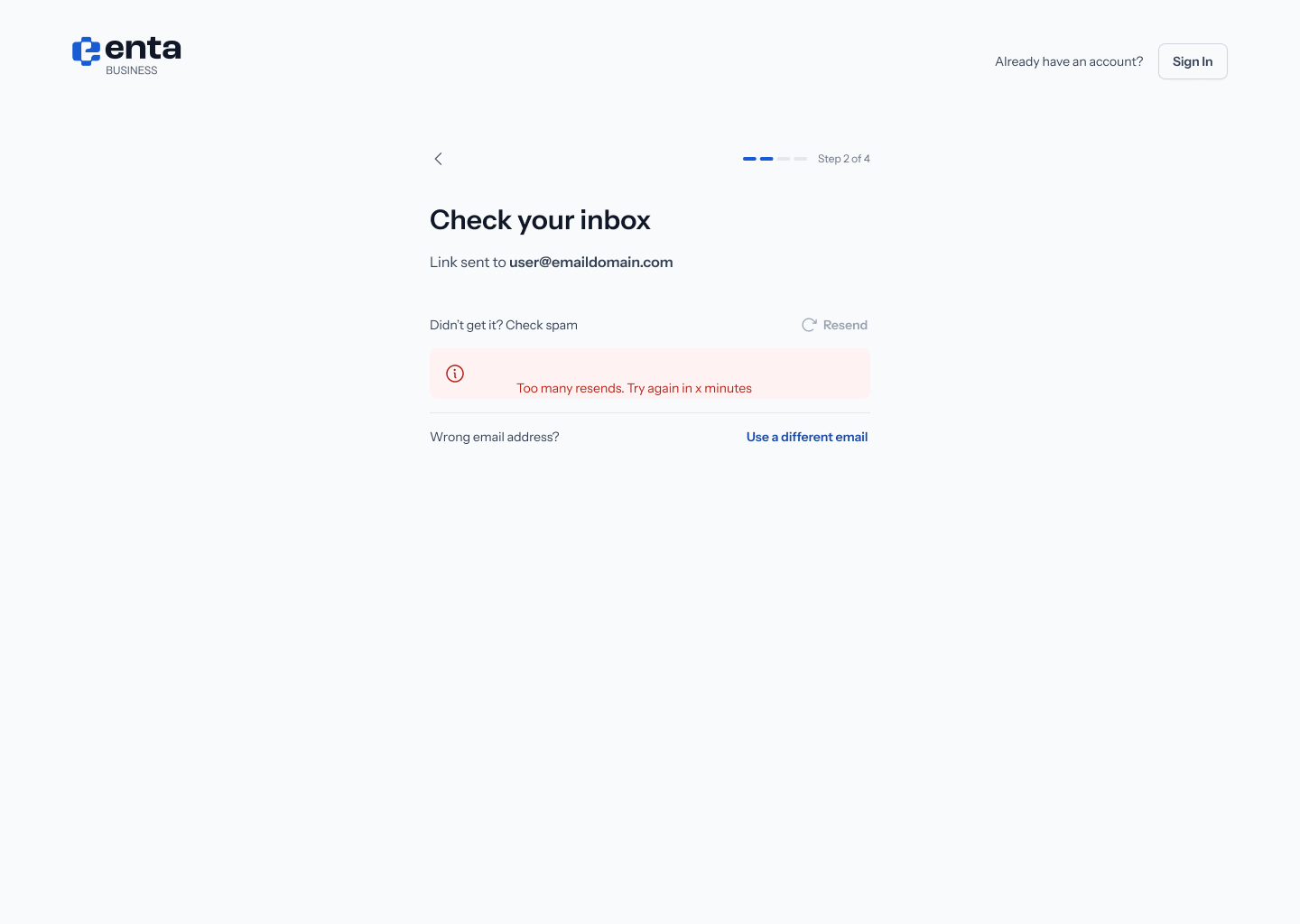
Resend is on a short timer. It first appears as “Resend in 0:45” and becomes tappable once the countdown finishes.
4. Create your passkey
Step 3 is “Secure your wallet” — “Create a passkey so only you can unlock your account. No password needed”. You’ll see a card for the device you’re on — for example This Mac, “Use this device biometrics to sign in” — badged “Takes less than 30 seconds”. Tap Create passkey.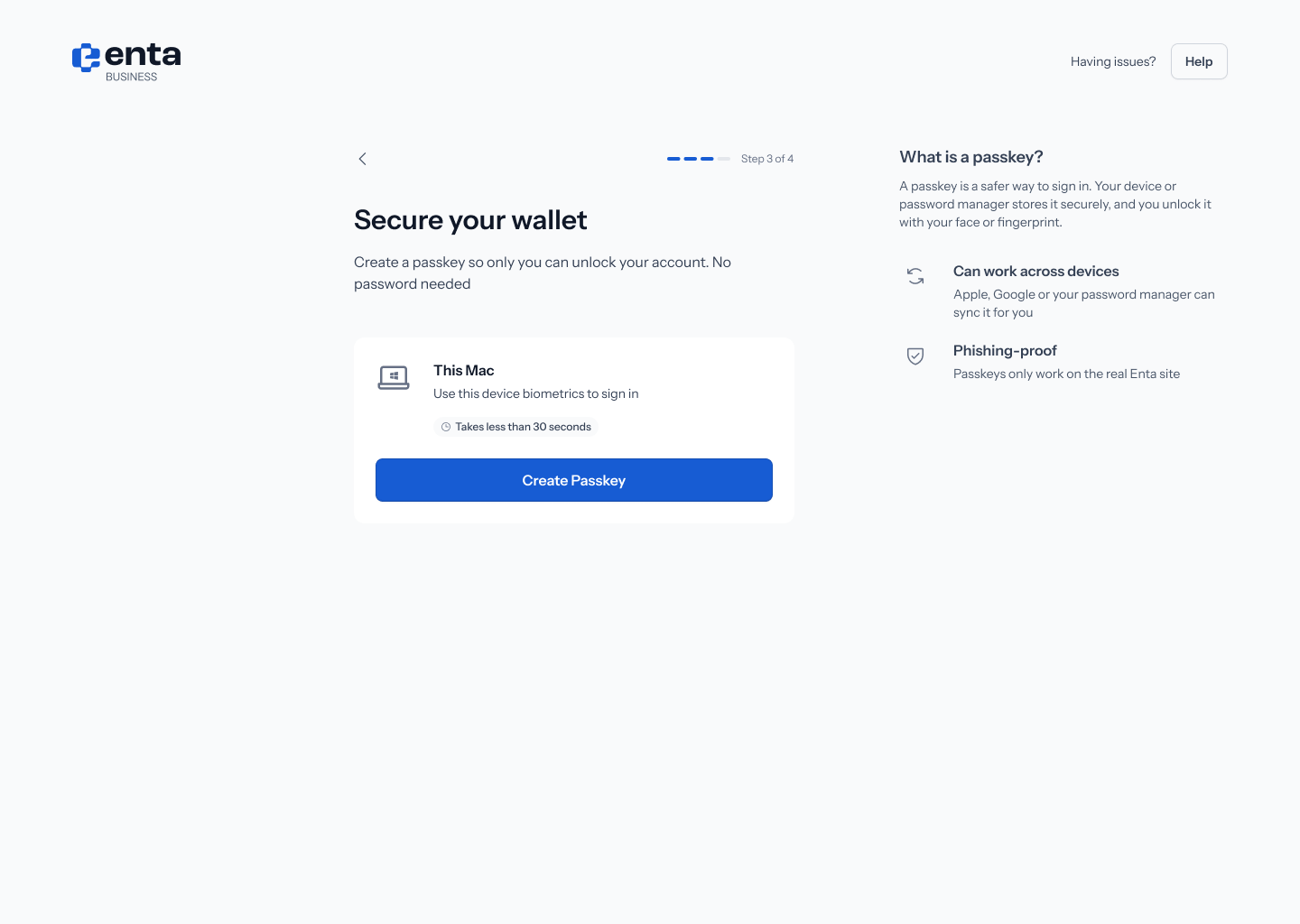
5. Confirm with your device
Enta then hands over to your browser and operating system, and its own button greys out to “Awaiting browser input” while it waits. What you see next depends on your setup: Chrome shows “Create a passkey for Enta” with your email listed, and Continue / Cancel / Use a different device. It notes: “This passkey will only be saved on this device.”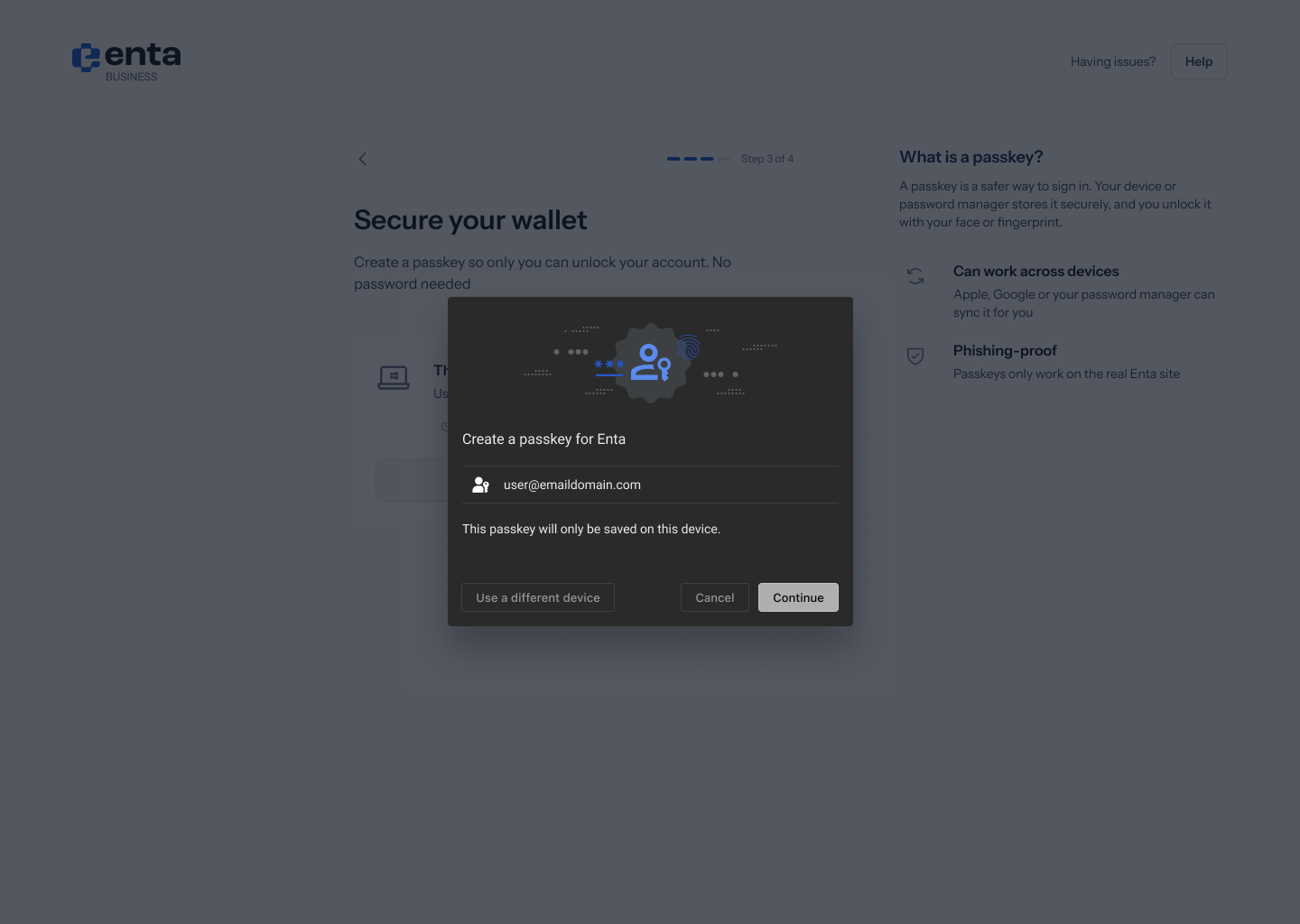
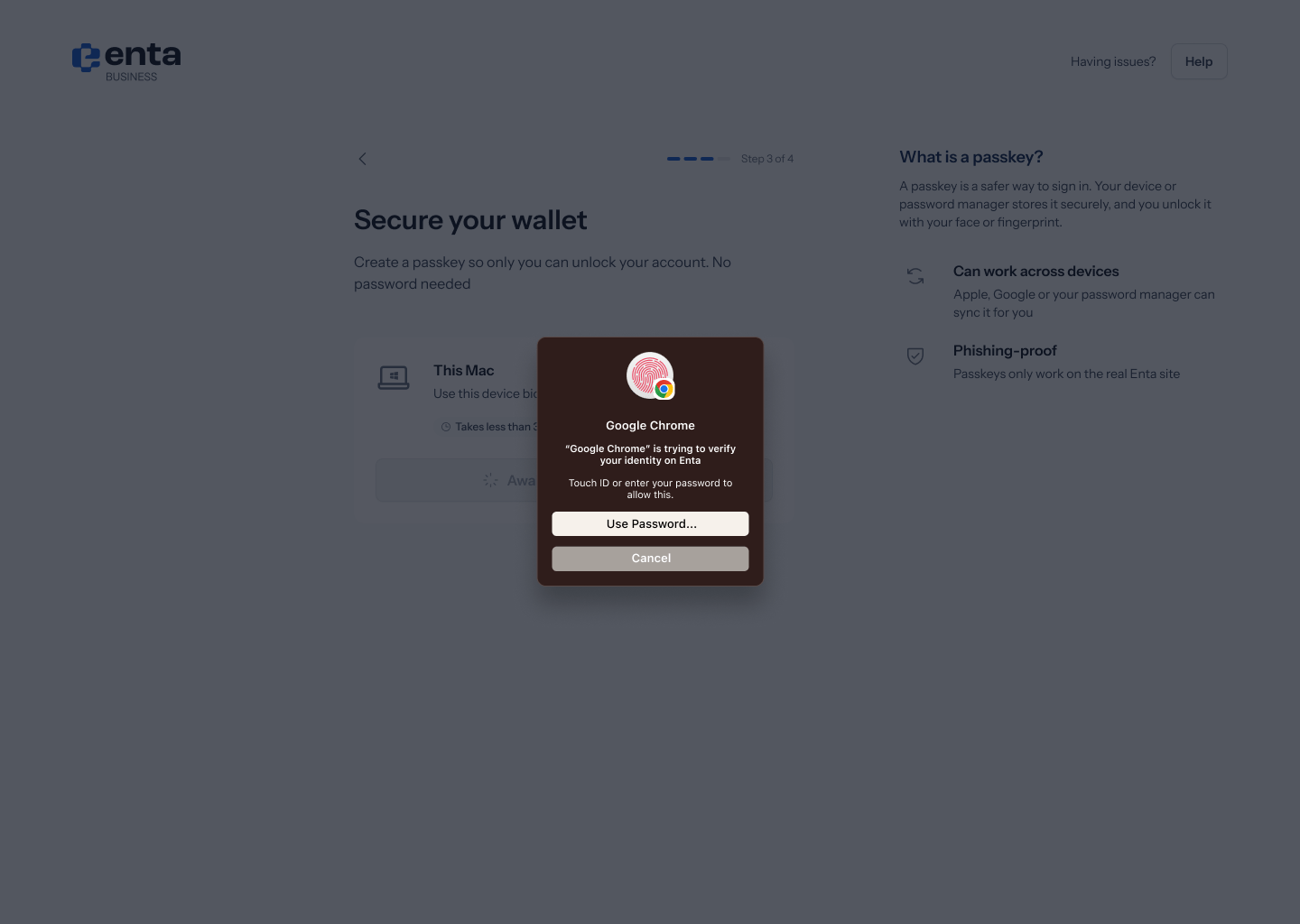
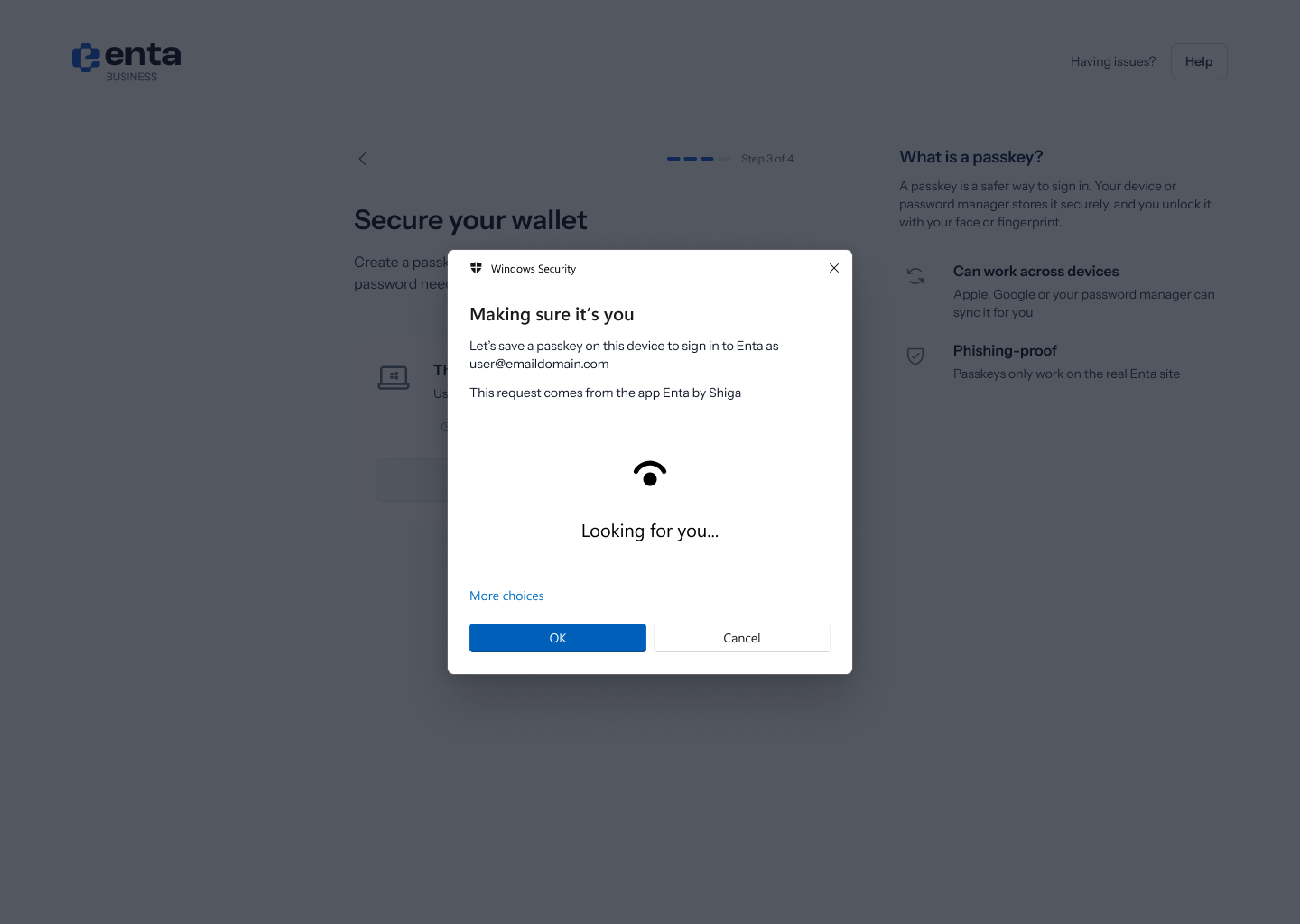
These dialogs belong to your browser and operating system, not to Enta, so their exact wording and buttons vary by version. Enta stays on the “Secure your wallet” screen behind them until you finish.
6. Add a recovery email
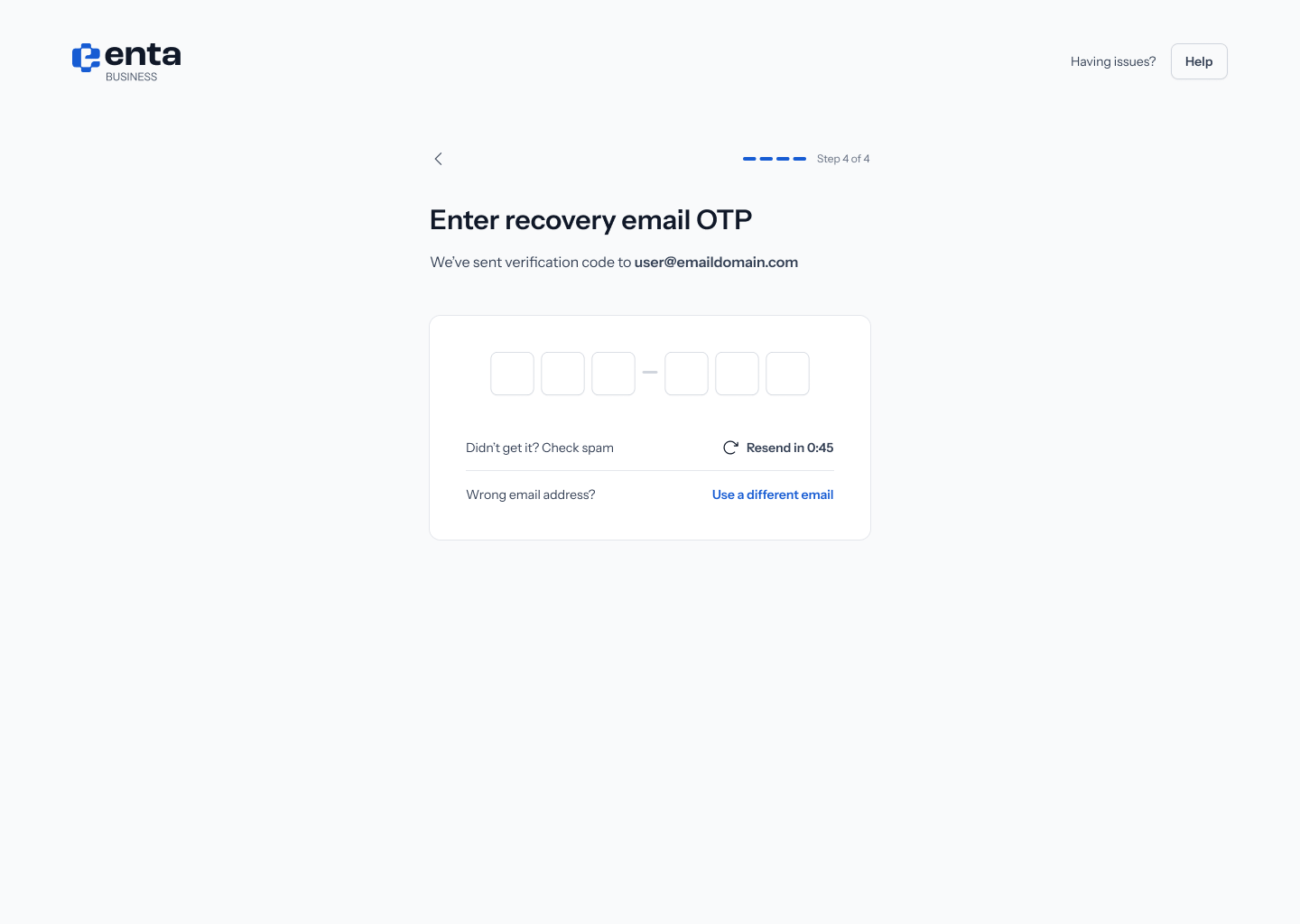
Step 4 is “Add recovery email” — “In case you lose access to your primary email or passkey, you’ll use this to recover your account.” Enter an address in Recovery email. The helper text explains “We’ll send a one-time verification code to confirm”. There’s also a Use phone number instead toggle if you’d rather use a mobile number. Tap Send Code.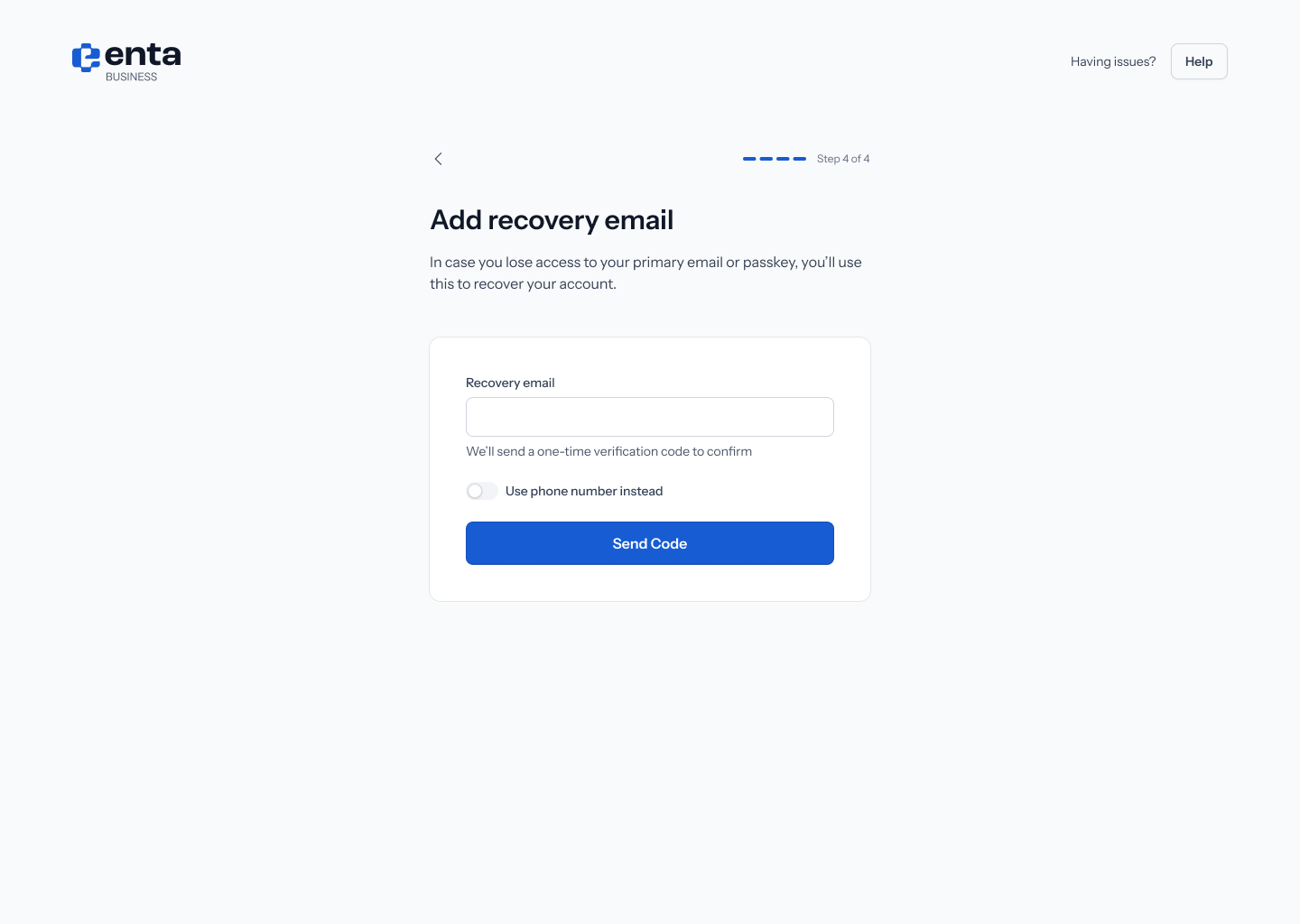
7. If your device can’t create a passkey
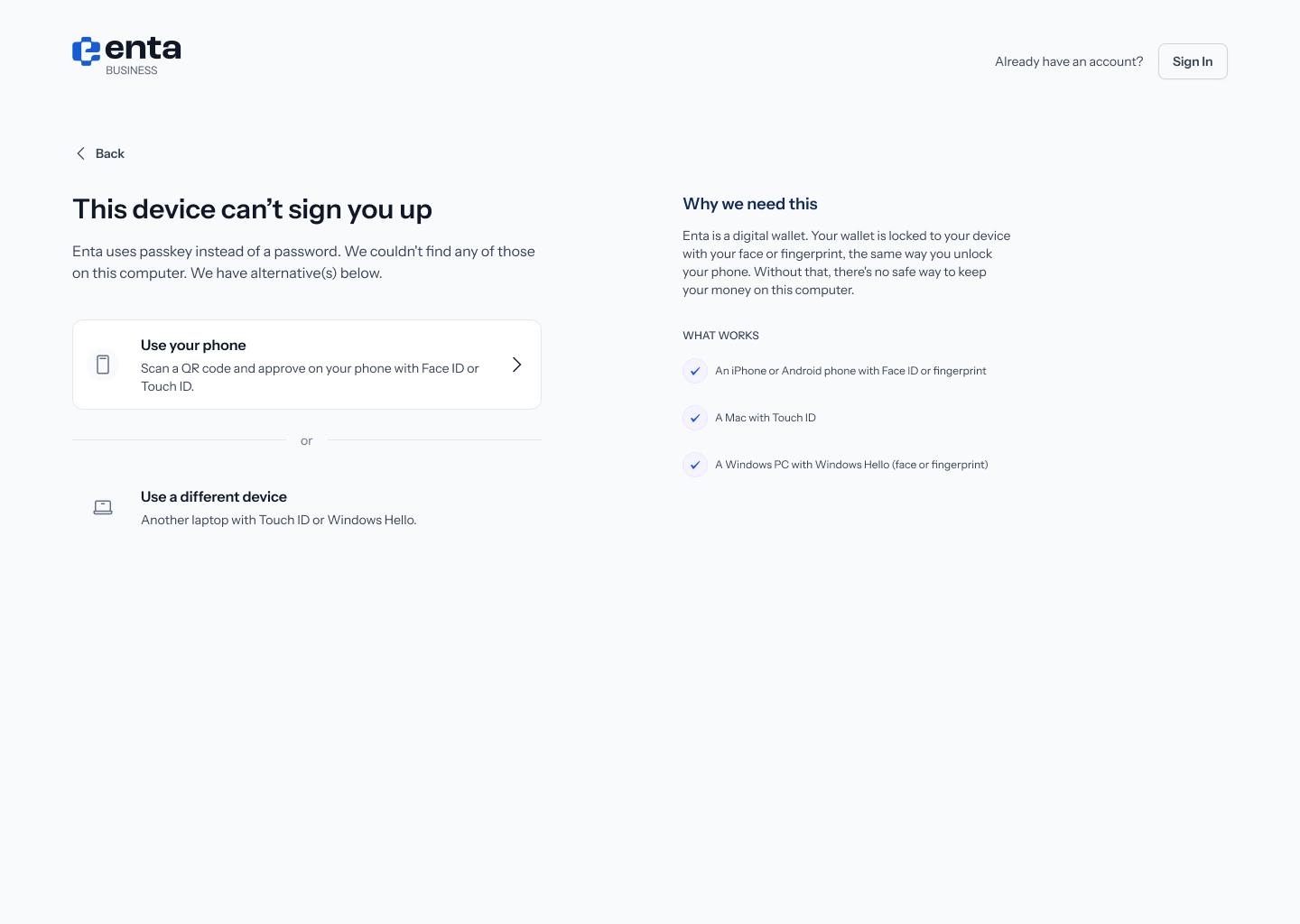
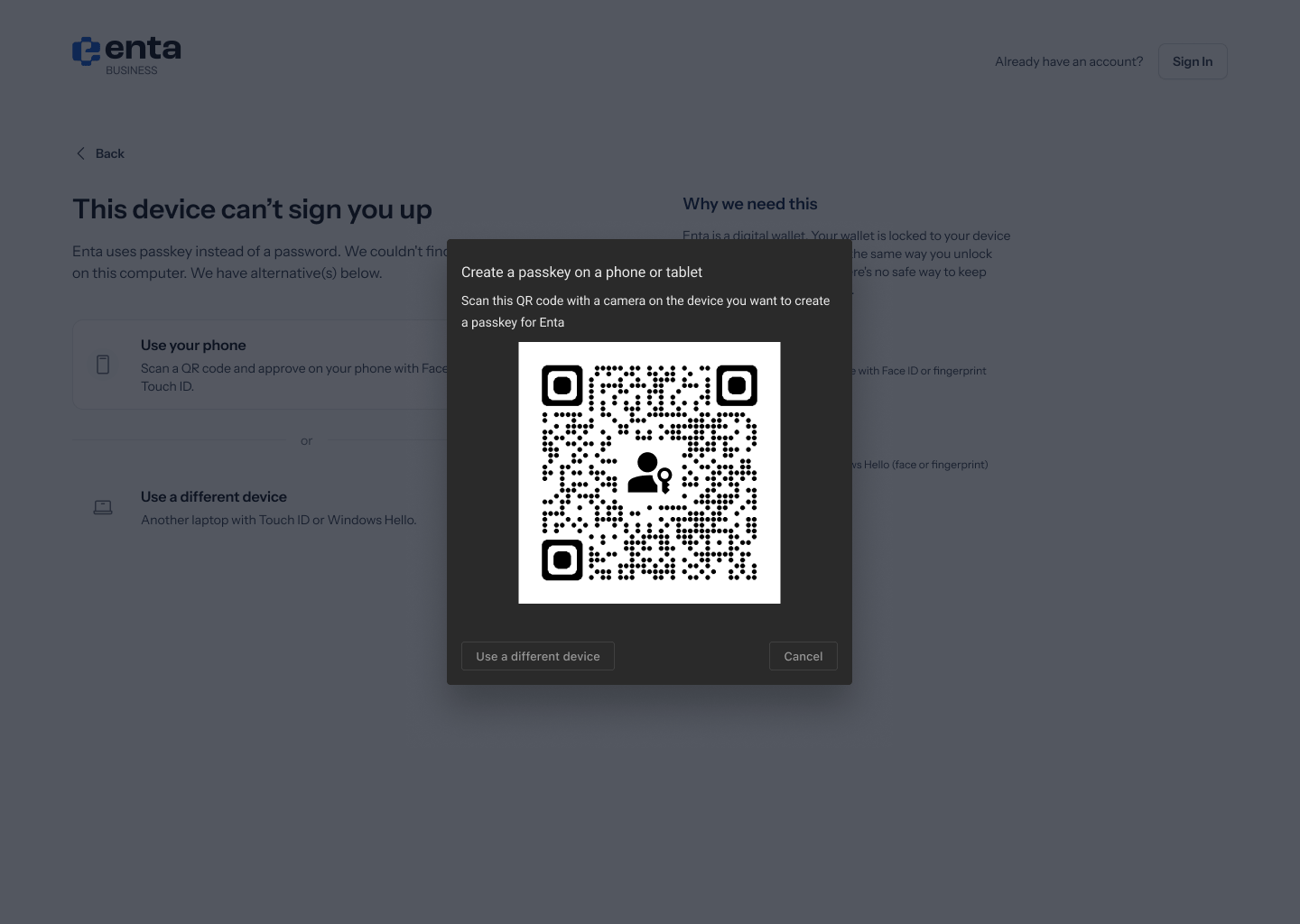
Some computers have no fingerprint reader, no face camera and no Windows Hello. On those, sign-up stops with “This device can’t sign you up” — “Enta uses passkey instead of a password. We couldn’t find any of those on this computer. We have alternative(s) below.” Two options are offered:- Use your phone — “Scan a QR code and approve on your phone with Face ID or Touch ID.”
- Use a different device — “Another laptop with Touch ID or Windows Hello.”
- An iPhone or Android phone with Face ID or fingerprint
- A Mac with Touch ID
- A Windows PC with Windows Hello (face or fingerprint)