Buy
Buying crypto directly from your home screen takes 6 screens, from picking what you want to buy to paying for it. This guide walks through the exact example shown in the design: buying USD₮ with Naira.
1. Select what you’re buying
 Tapping Buy from your home screen (alongside the Receive, Send, and Swap tabs) opens two stacked cards: You pay (defaults to your local currency, e.g. Naira) and You get — tap the You get card to pick which crypto asset you want to buy.
2. Enter an amount
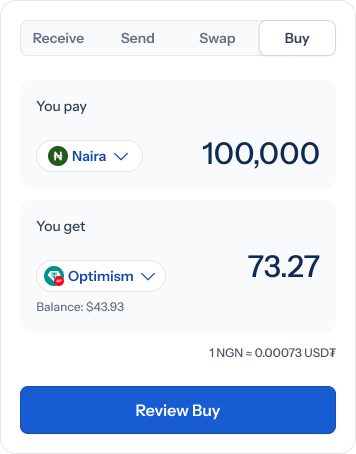 Once you’ve picked an asset (e.g. USD₮ on the Optimism network), you’ll see your current balance and a live exchange rate — for example “1 NGN ≈ 0.00073 USD₮.” Both amount fields start at 0, and Review buy stays disabled until you type something in.
3. Watch the conversion update live
As you type an amount into You pay (e.g. 100,000 Naira), You get updates automatically using the live rate (e.g. 73.27 USD₮). Once there’s a valid amount, Review buy becomes active.
4. Review before you commit
 Tapping Review buy shows a clean summary: the amount you’ll receive front and center (73.27 USD₮), paid for with Naira. Underneath, a details card confirms where it’s going — your own Shiga Wallet — and restates the amount you’re paying (100,000).
Tap Place Order to lock in the trade.
Tapping Review buy shows a clean summary: the amount you’ll receive front and center (73.27 USD₮), paid for with Naira. Underneath, a details card confirms where it’s going — your own Shiga Wallet — and restates the amount you’re paying (100,000).
Tap Place Order to lock in the trade.
5. Pay for your order
 This is the key step: “73.27 USD₮ reserved for 100,000 Naira.” You’re given a one-time bank transfer instruction — an account number, bank name, and account name — to pay from your own bank app. A countdown timer (starting at 10:00) shows how long that account stays valid for this specific transaction.
This bank account is generated just for this transaction and expires after the countdown. If it expires before you pay, you’ll need to start a new order.
6. Success
 Once your payment is received, your crypto arrives automatically and you’ll see “73.27 USD₮ purchased” with a confirmation checkmark. From here, tap Done to return to your wallet, or View transaction for the full record.
