

Wallet Details
Tapping any network on your Wallets page opens that wallet on its own. Everything you can do with that specific balance happens here.The examples below use the Arbitrum wallet, but every network works the same way.
1. The wallet header
A breadcrumb at the top shows where you are — Wallets / Arbitrum — and tapping Wallets takes you back. Below it, the balance for this network alone: Arbitrum wallet balance, for example USD 300.59, with an eye icon to hide it. Underneath sit the network’s fee status (Free to send), its truncated wallet address with a copy icon, and View on-chain, which opens the address in a block explorer. Three actions sit on the right: Deposit, Withdraw and Swap.2. Deposit
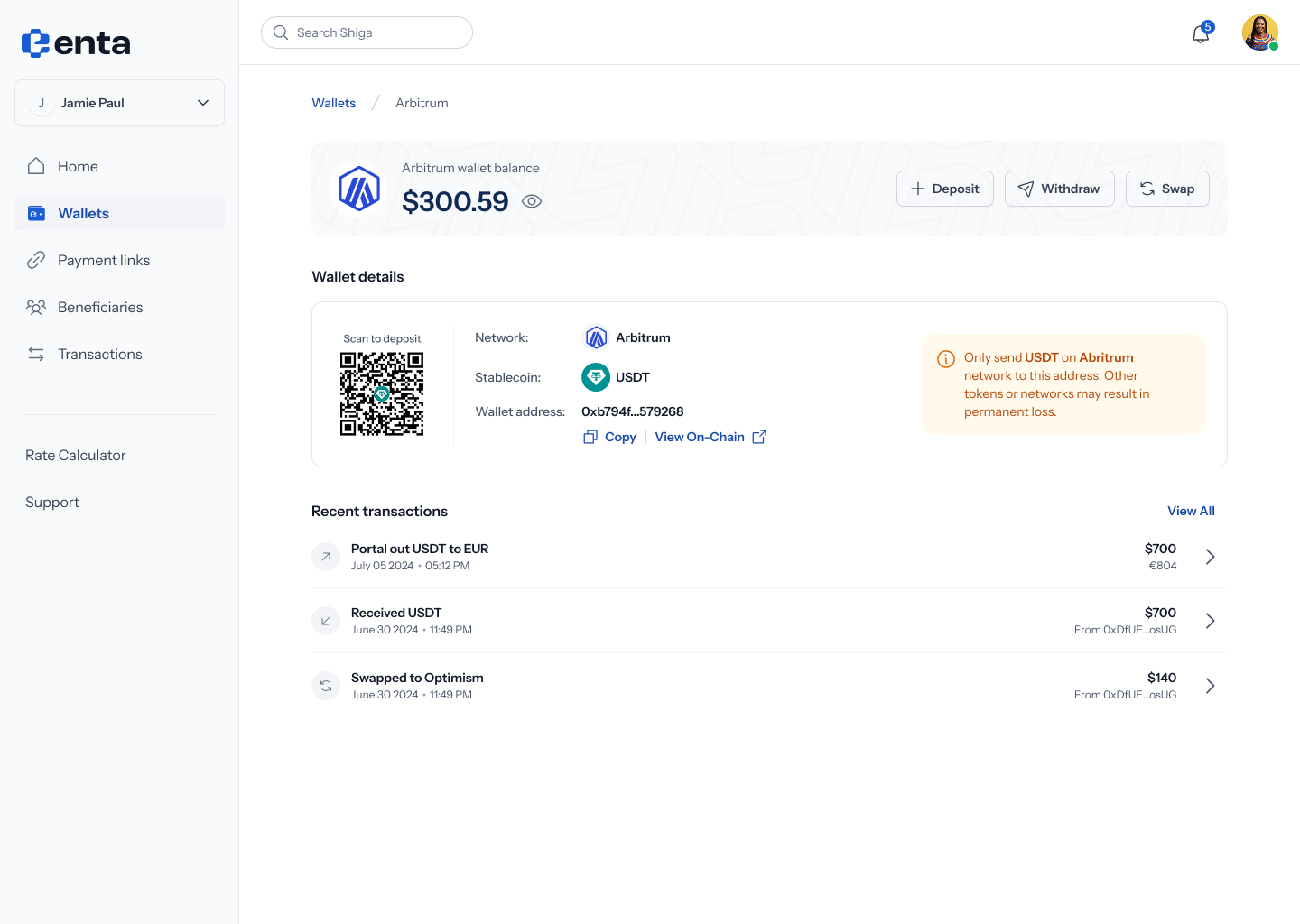
Deposit opens a Wallet details panel with everything someone needs to send you funds on this network:- A QR code labelled Scan to deposit
- Network — the chain this address belongs to, e.g. Arbitrum
- Stablecoin — the asset, e.g. USDT
- Wallet address — the full address, with Copy and View On-Chain
3. Withdraw
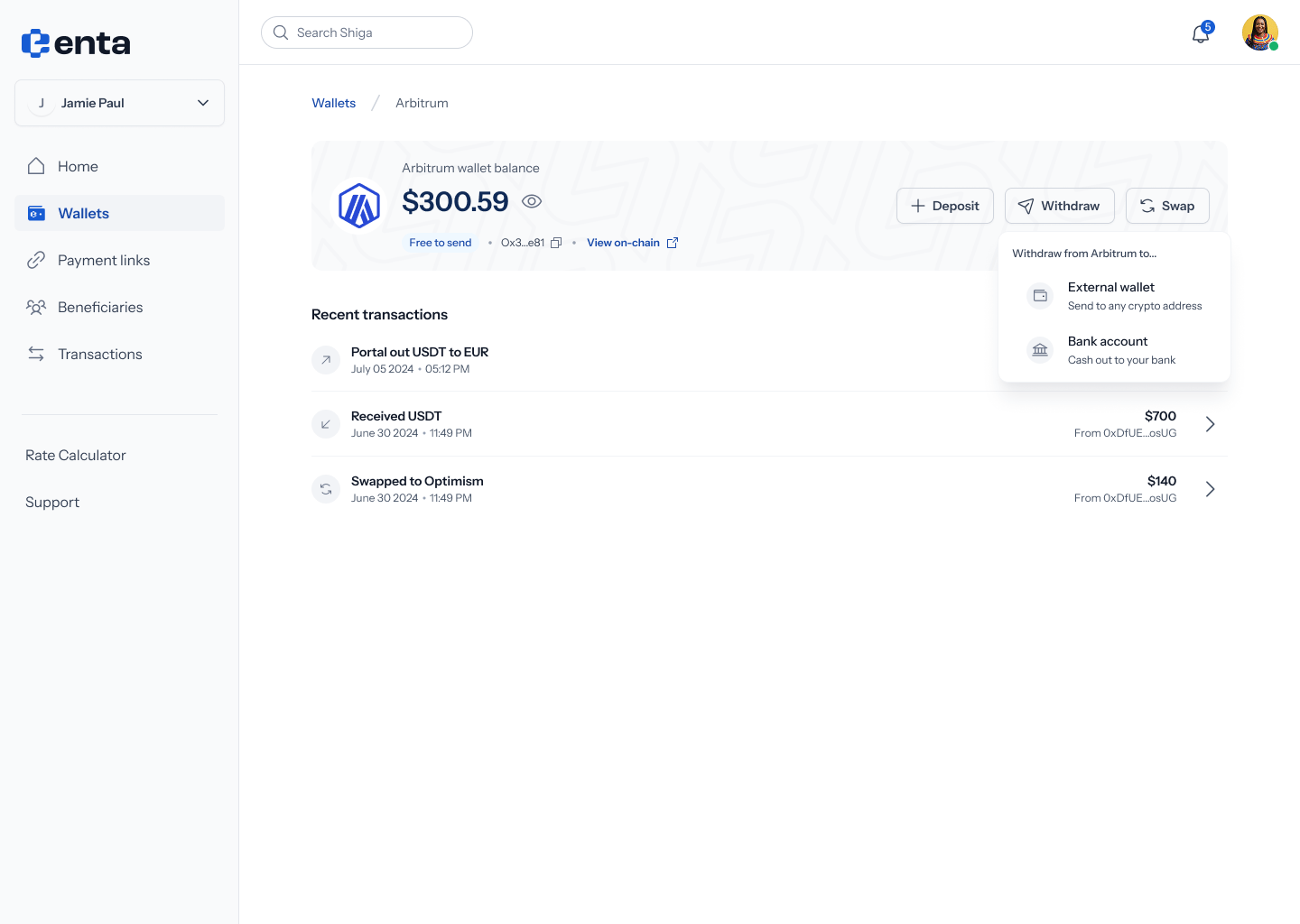
Withdraw opens a short menu headed “Withdraw from Arbitrum to…” with two destinations:- External wallet — “Send to any crypto address”
- Bank account — “Cash out to your bank”
4. Swap
Swap converts this balance into another asset or moves it to another network without leaving Enta. The full walkthrough is in Wallet to Wallet (Swap).5. Recent transactions
Below the wallet details, Recent transactions lists activity for this network only, with View All opening the complete history. Each row shows what happened, when, and how much:
Tap any row to expand it for the full detail — description, transaction hash, and receipt. See Transactions for the complete history across every network.