This is one of five OTC flows under Product > Shiga STS. See also: the OTC Guided Tour, Bank Account to Shiga Wallet, Shiga Wallet to Bank Account, and Shiga Wallet to Shiga Wallet.
1. Start the transfer
- From the sidebar, go to Product > Shiga STS.
- On the Move money screen, choose From: Bank account and To: Bank account.
- Click Get started.
2. Choose a recipient
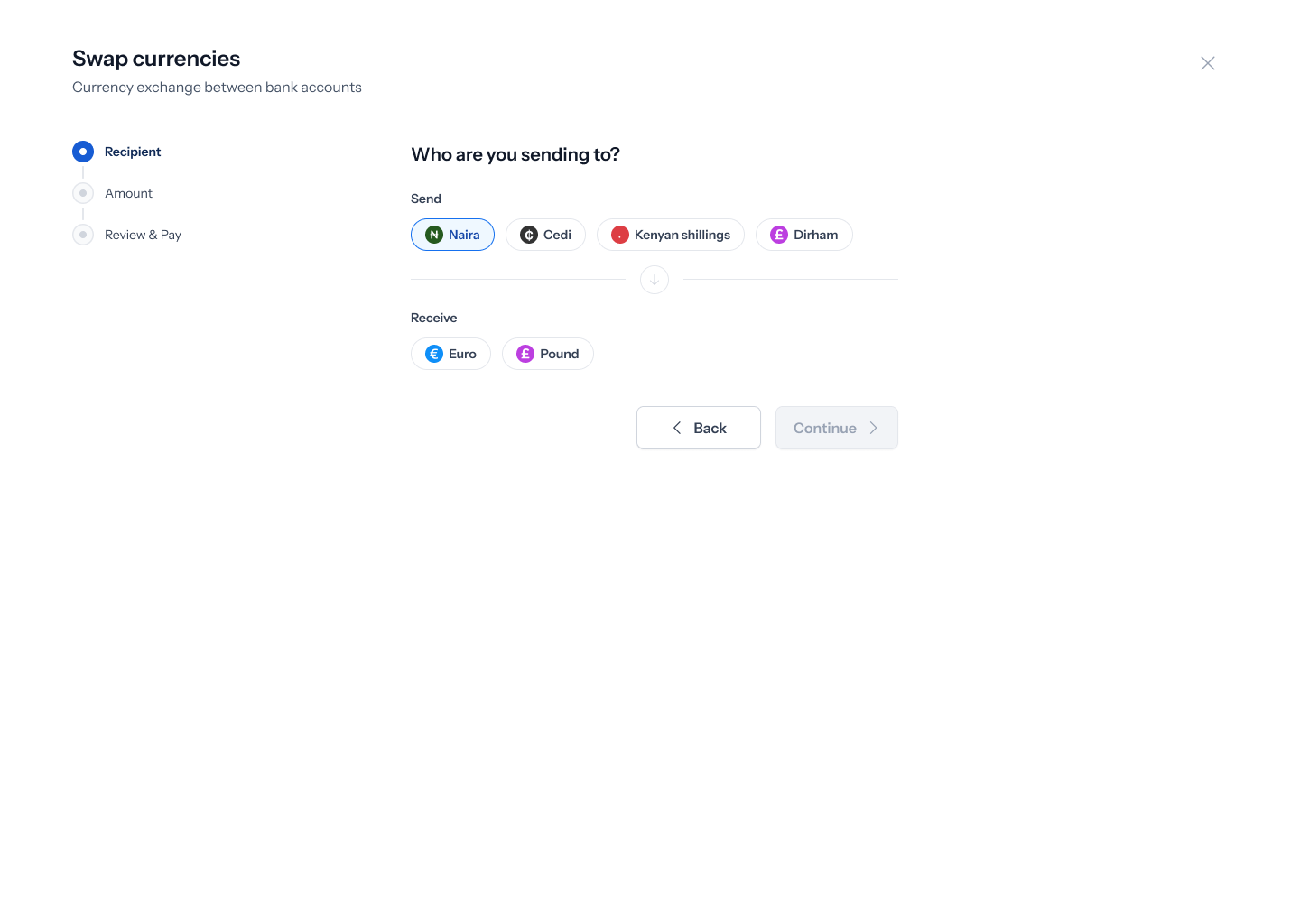
- Pick the currency you’re sending and the currency your recipient will receive (for example, Naira in, Euro out).
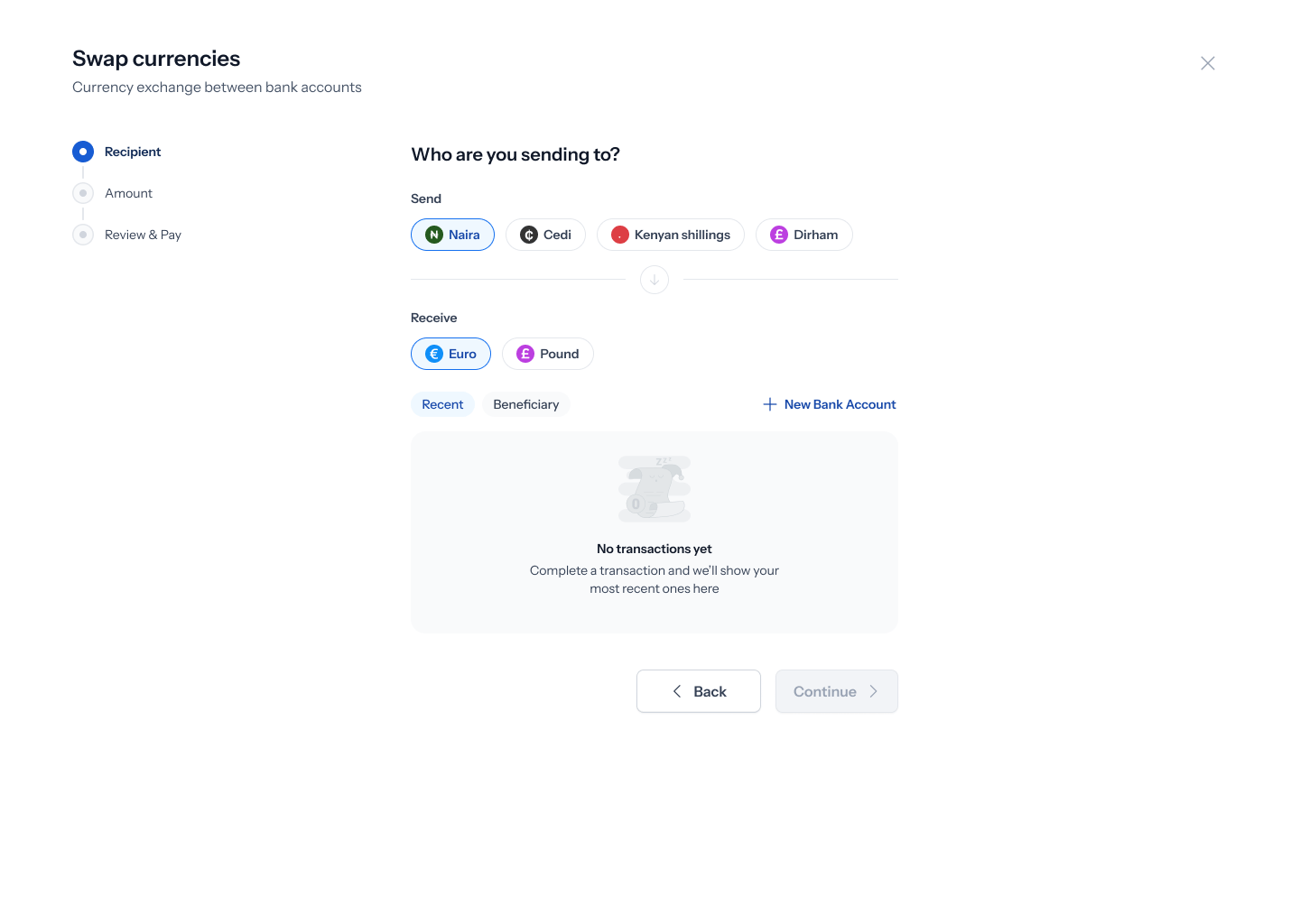
- Choose a recipient from Recent or your saved Beneficiary list, or click + New Bank Account to add one.
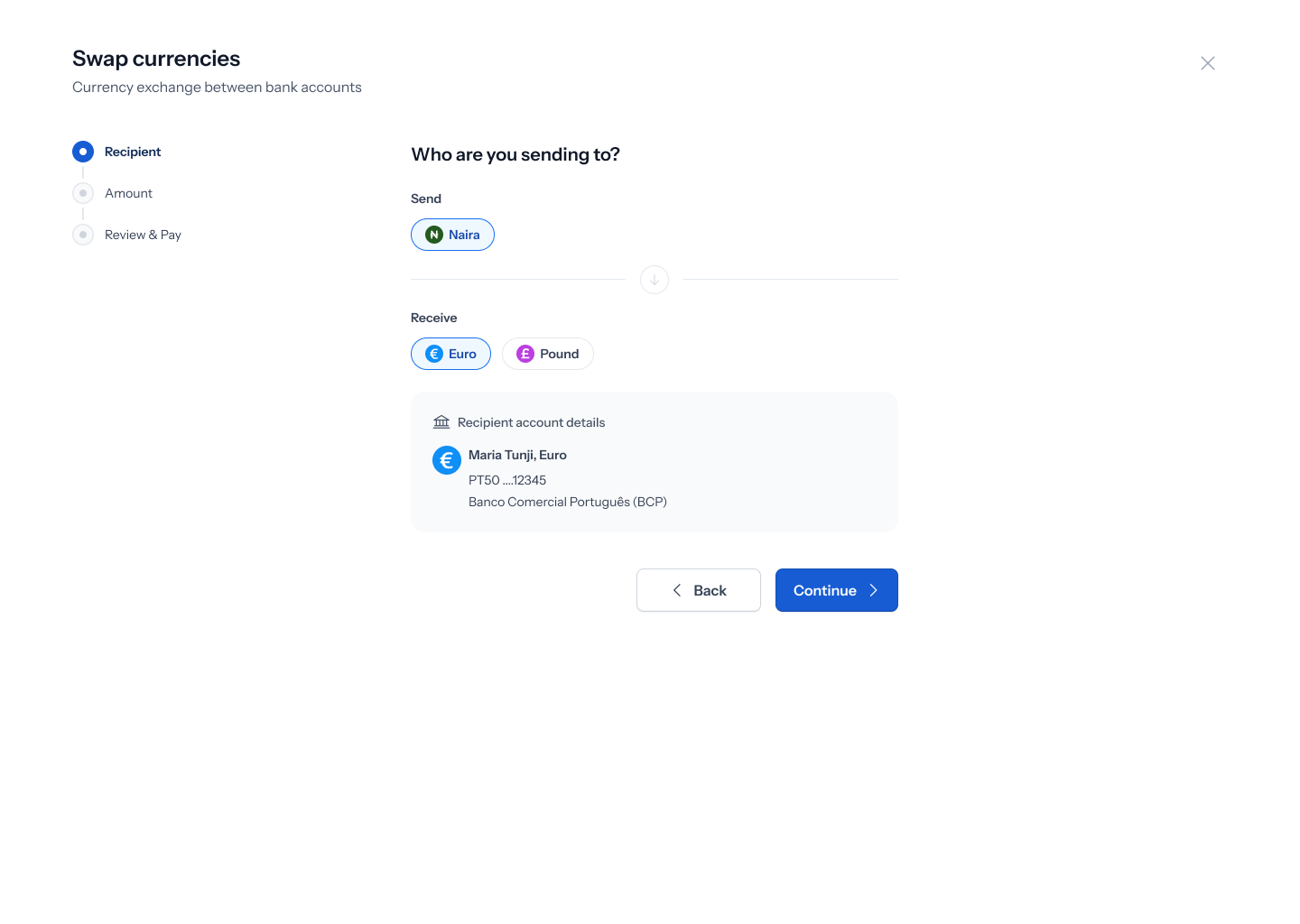
- Click Continue.
3. Verify a new recipient (if applicable)
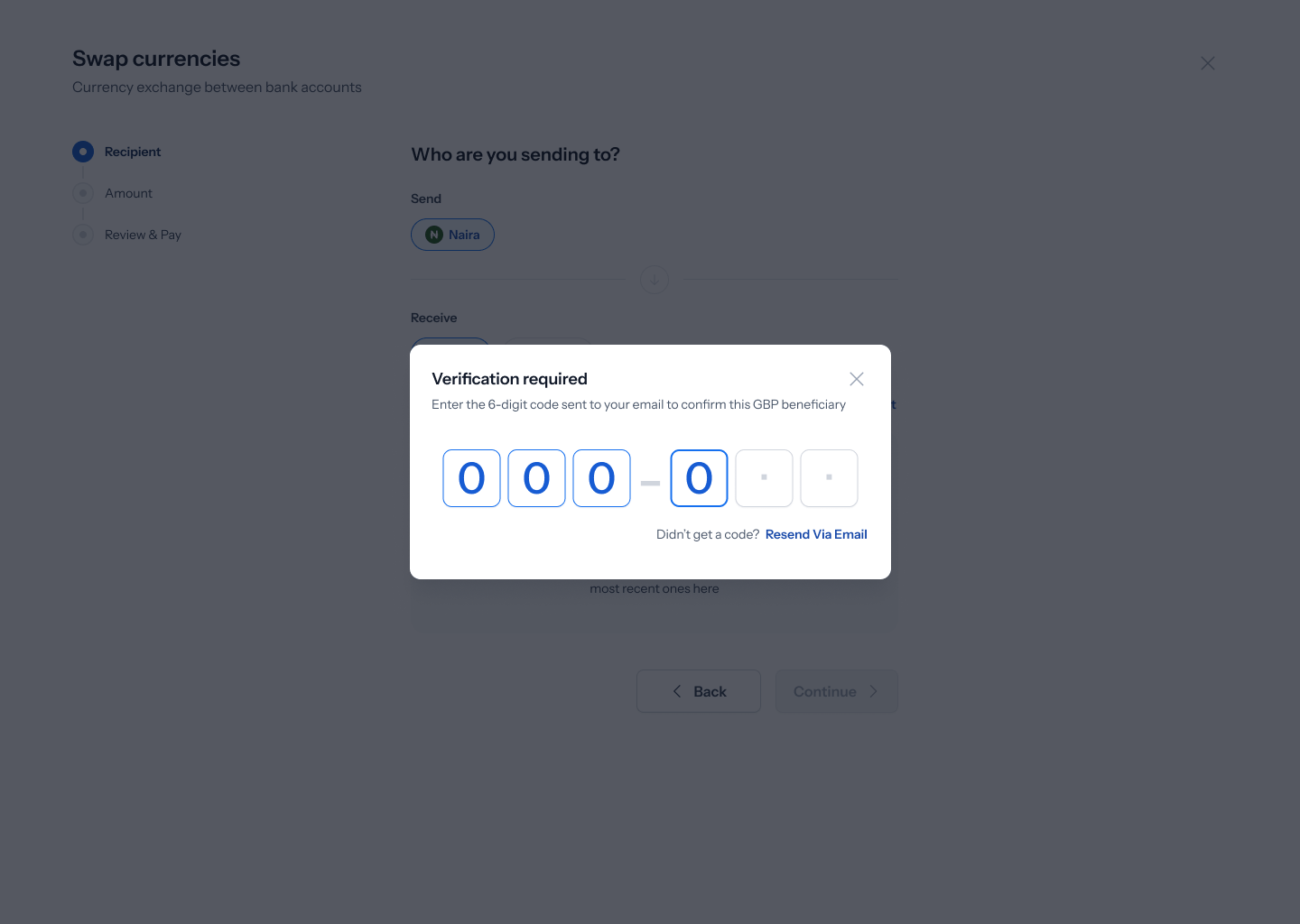
4. Enter the amount
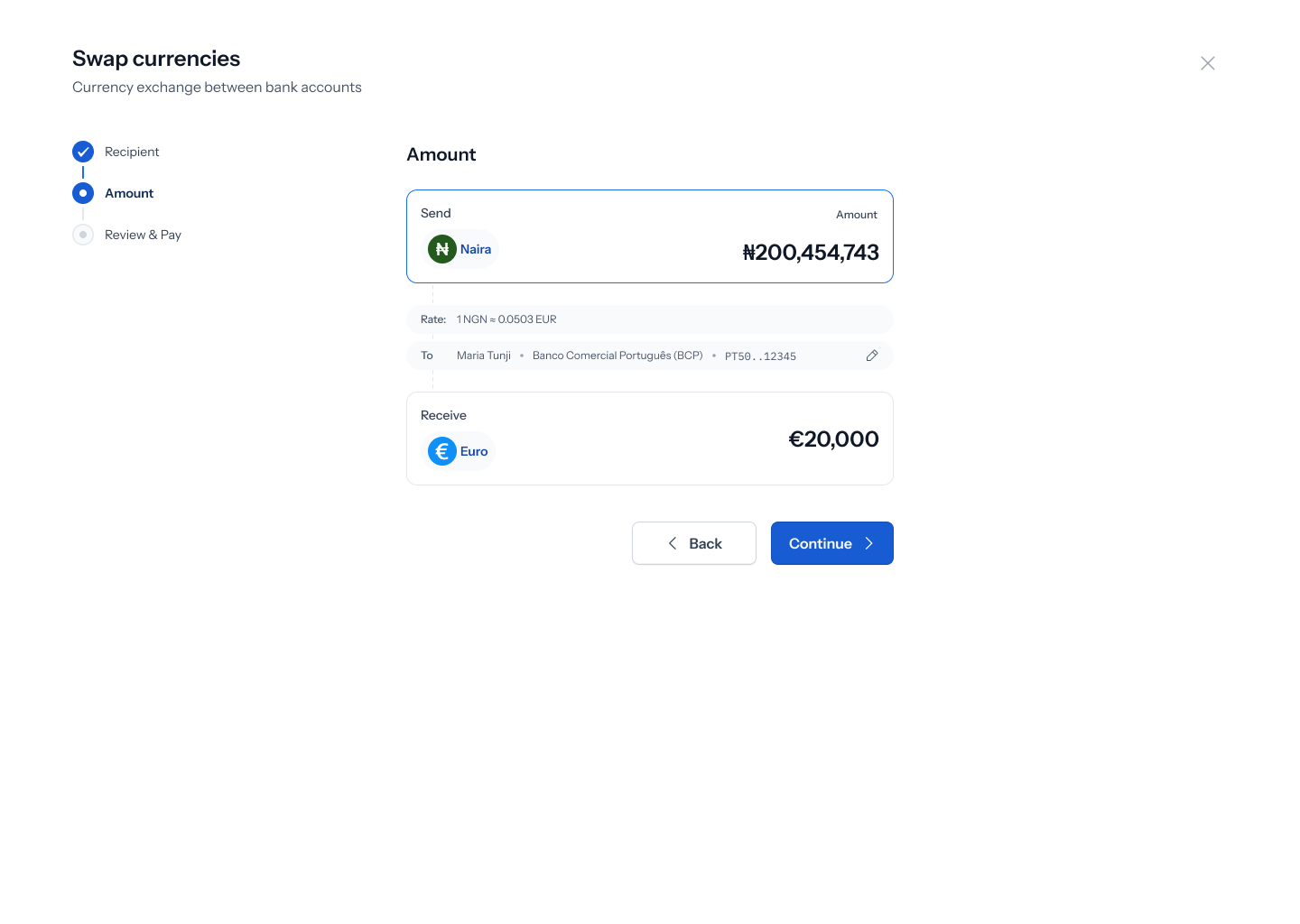
- Enter how much you want to send and confirm how much your recipient will receive, based on the live rate shown.
- A notice on this screen explains that a Shiga trader will review and confirm the exact details with you directly.
- Click Continue.
The exact turnaround time quoted for OTC bank-to-bank orders varies between screens in the current design — you may see “within 2 minutes” on one screen and “within one business day” on another. Treat this as approximate; your dedicated OTC contact will confirm actual timing.
5. Review and submit
- Review the order: amount sent, currency and amount your recipient gets, purpose of transfer, and your recipient’s full bank account details (name, currency, account number, SWIFT code, country, address).
- Click Confirm & Submit.
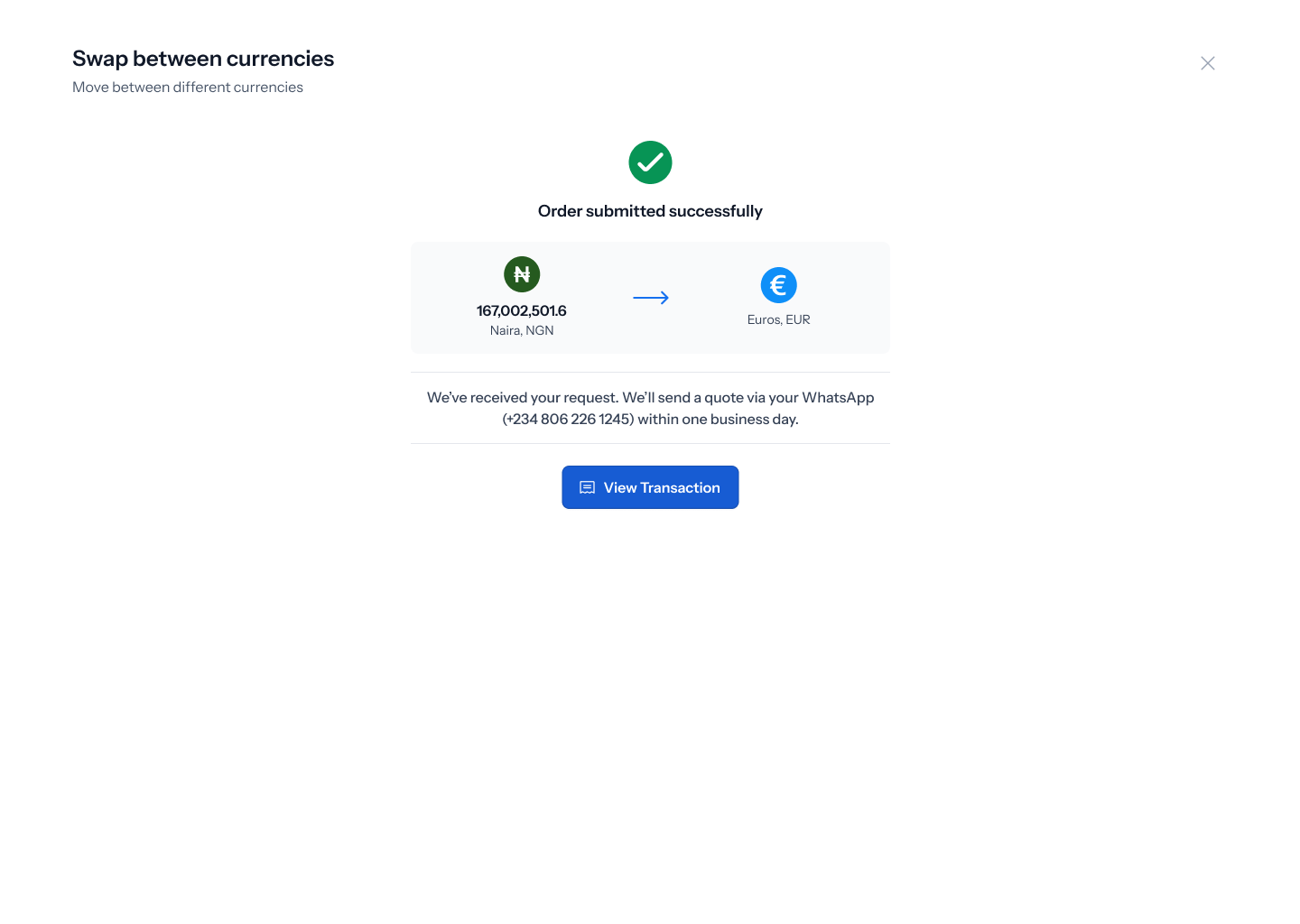
6. Confirmation