

Payment Link Details
Every payment link you’ve created — one-time or reusable, active or archived — has a details view where you can check its status, see who’s paid, and archive or restore it.This is a different guide from Create a One-Time Payment Link, Create a Reusable Payment Link, Archive a Payment Link, and Restore a Payment Link.
1. Open a link from your Payment Links list
The Payment Links list shows every link you’ve created, with a Create payment link button, a search field (placeholder “Search title, amount”), and filters for One-time / Reusable and Active / Archived. Each row shows the link’s title (e.g. “Logo design”, “Games night”, “Donation link”), when it was created, its type, amount (or “Open amount” for a reusable any-amount link), settlement method, and a Payments column (e.g. ₦500,000 “1 payment”, ₦1,200,000 “6 payments”, or ”—” “No payments”). Tap any row to open its details.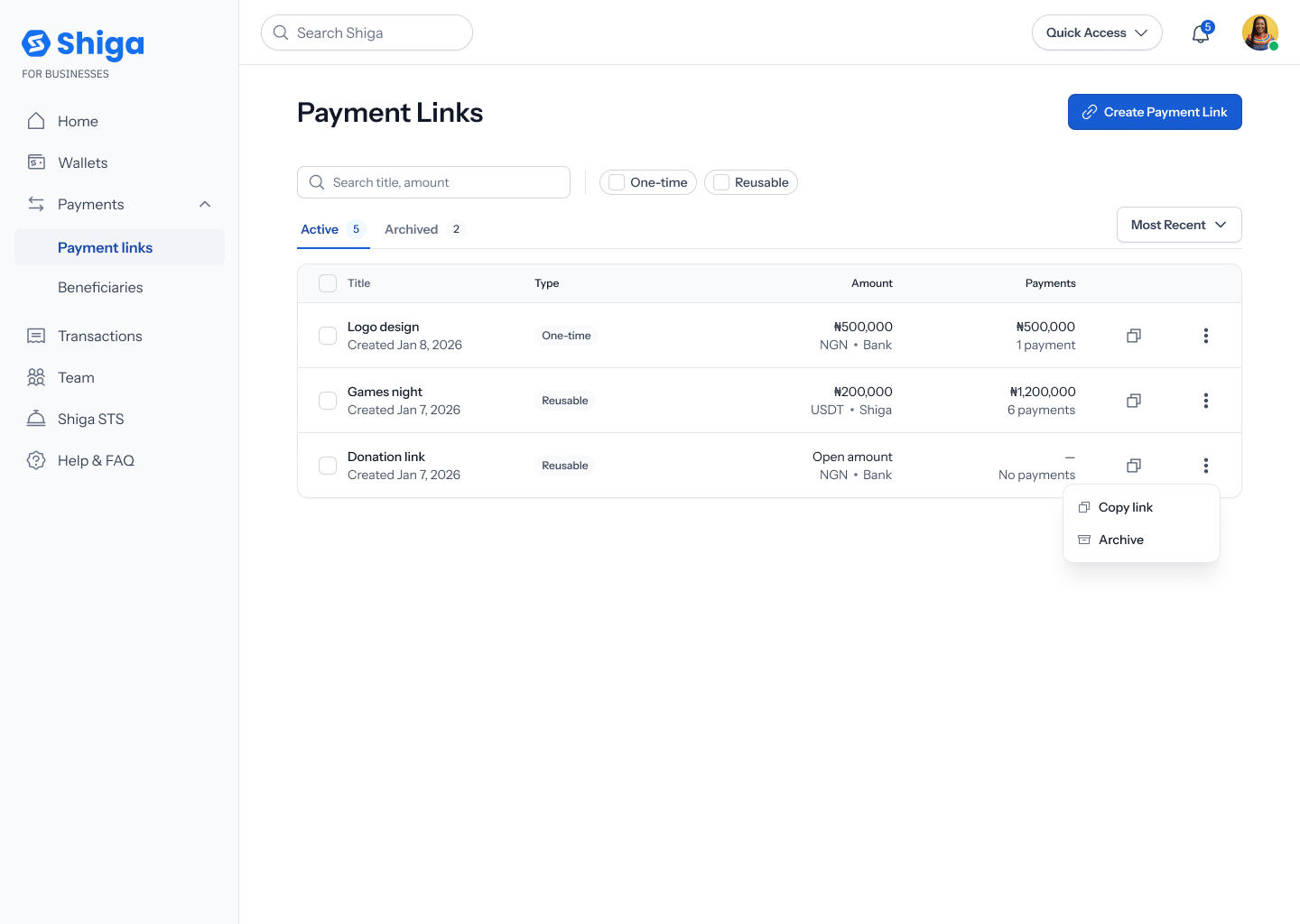
2. Check the Details tab
A link’s details view opens on the Details tab, with two badges up top (e.g. One-time / Active, or Reusable / Active) and a header showing the amount and the shareable link (e.g. ₦500,000, pay.shiga.co/lnk/m3pL5, with a copy icon), plus the title and description you gave it (e.g. “Logo design” — “Covers logo design costs and print”).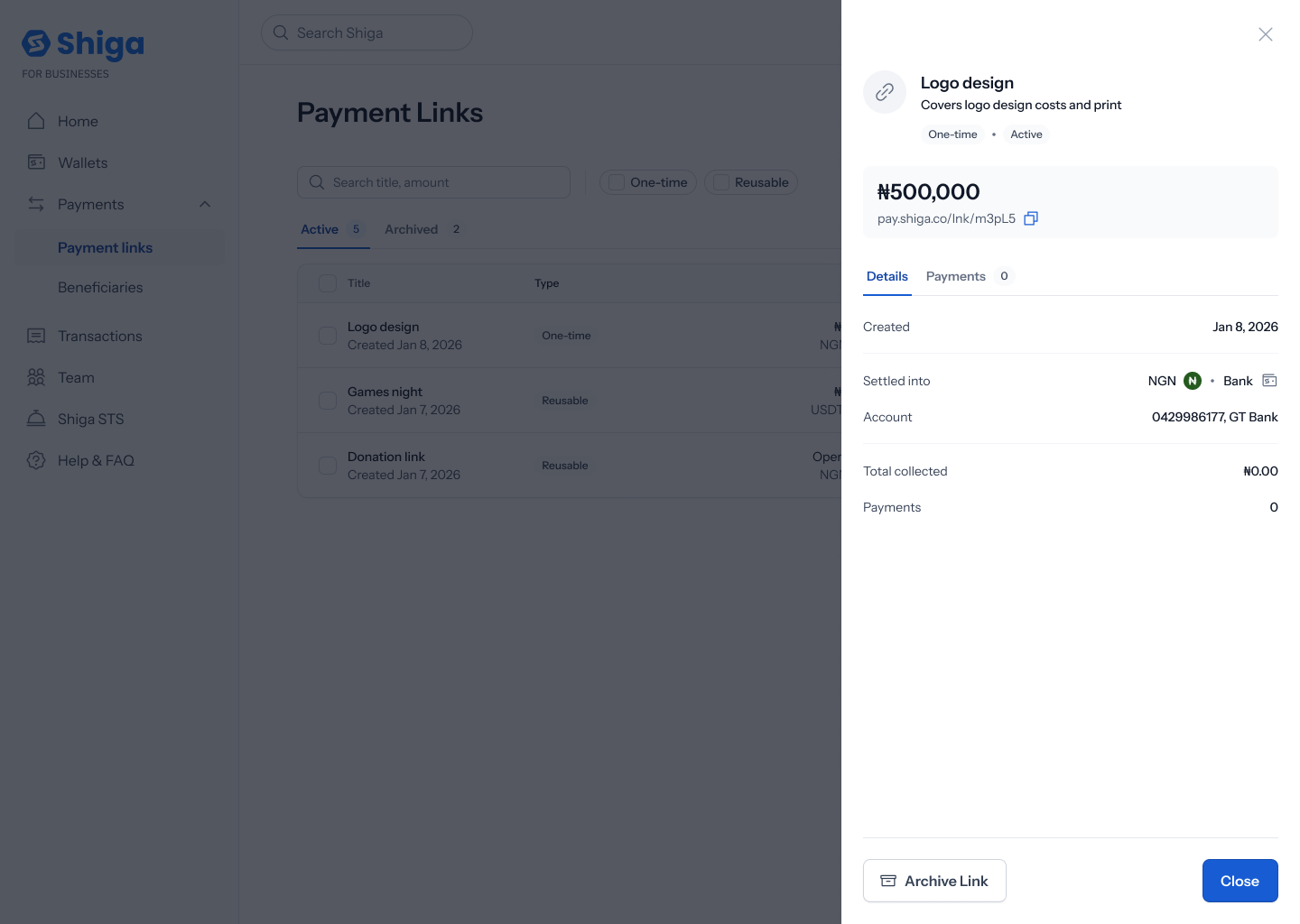
3. Check the Payments tab
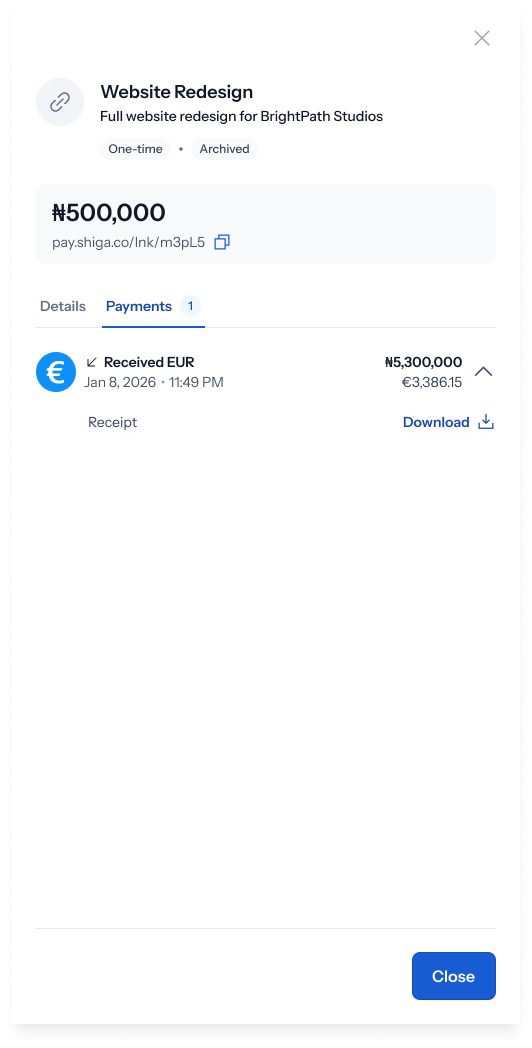
Switching to the Payments tab — which carries a badge showing how many payments have come in — either shows an empty state (“No payments yet” / “When someone pays using this link, it will show up here”) or a list of payments received. Each payment row shows how it was received (e.g. “Received EUR”, “Received USDT”), the date and time, and the amount in both the settled currency and its converted value (e.g. ₦5,300,000 / €3,386.15).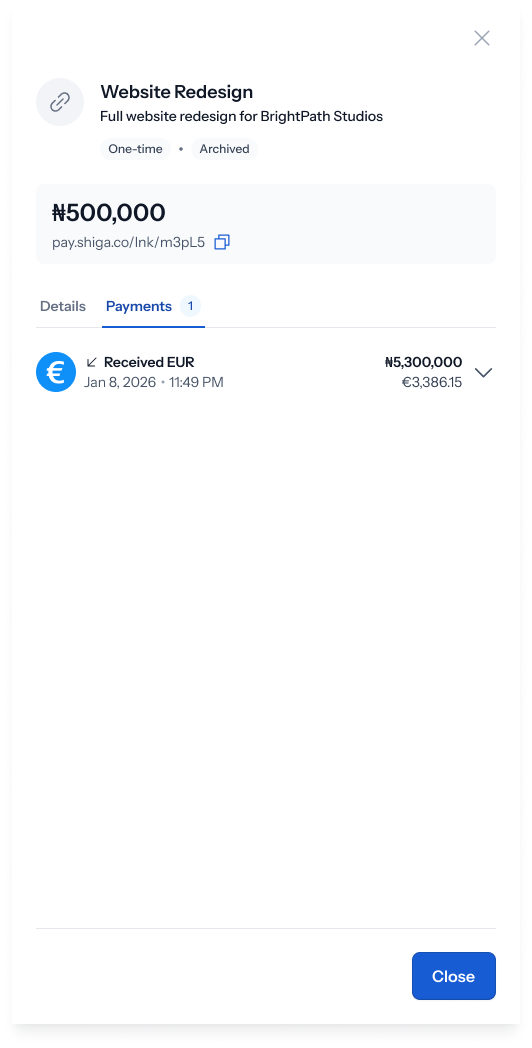
The empty-state copy on the Payments tab isn’t perfectly consistent across the Figma file — one version reads “When someone pays using this link, it will show up here” and another reads “When you receive payments using link they’ll appear here”. Both describe the same thing; worth a copy pass to standardize on one.
4. Archive or restore the link
An active link’s details view has an Archive Link button at the bottom. Tapping it asks you to confirm: “Archive this payment link?” — “This link will stop accepting payments. You can find it in your Archived tab” — with No, cancel and Yes, Archive buttons. An archived link’s details view instead shows a Restore Link button. Tapping it asks: “Restore this payment link?” — “This link will resume accepting payments” — with No, cancel and Yes, Restore buttons.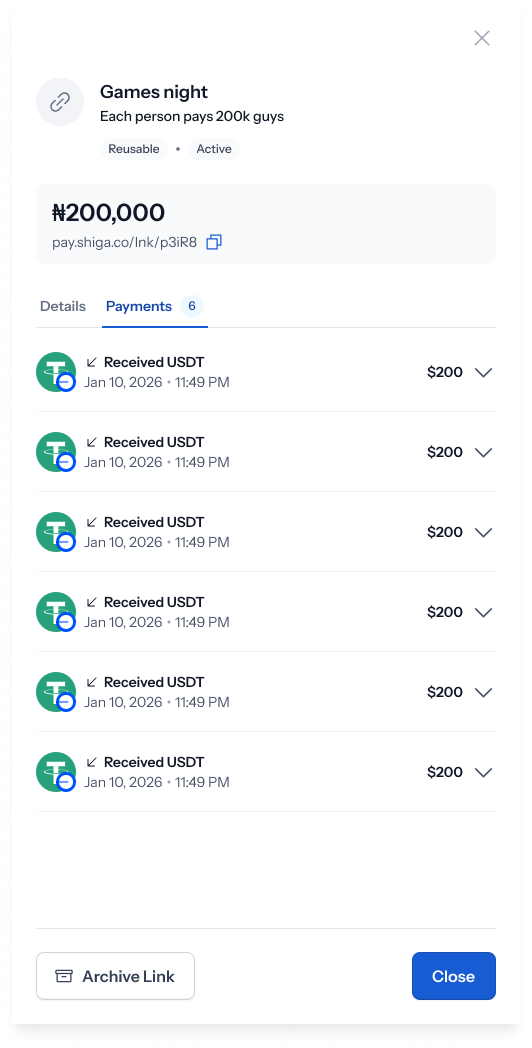 See Archive a Payment Link and Restore a Payment Link for the full walkthroughs, including the confirmation screens.