Create a One-Time Payment Link
A one-time link requests a specific amount from a specific person — useful for invoices, one-off sales, or asking a particular person to pay you back. The person you send it to doesn’t need an Enta account to pay.This is a different guide from Create a Reusable Payment Link, Payment Link Details, Archive a Payment Link, and Restore a Payment Link.
1. Choose the link type
Starting a new payment link opens “Create payment link” — “Set up a link to request or collect a payment” — with a stepper across the top: Link type, Payment details, Review. The first question is “What type of link do you need?”, with a banner reminding you: “Anyone can pay. No Shiga account needed.”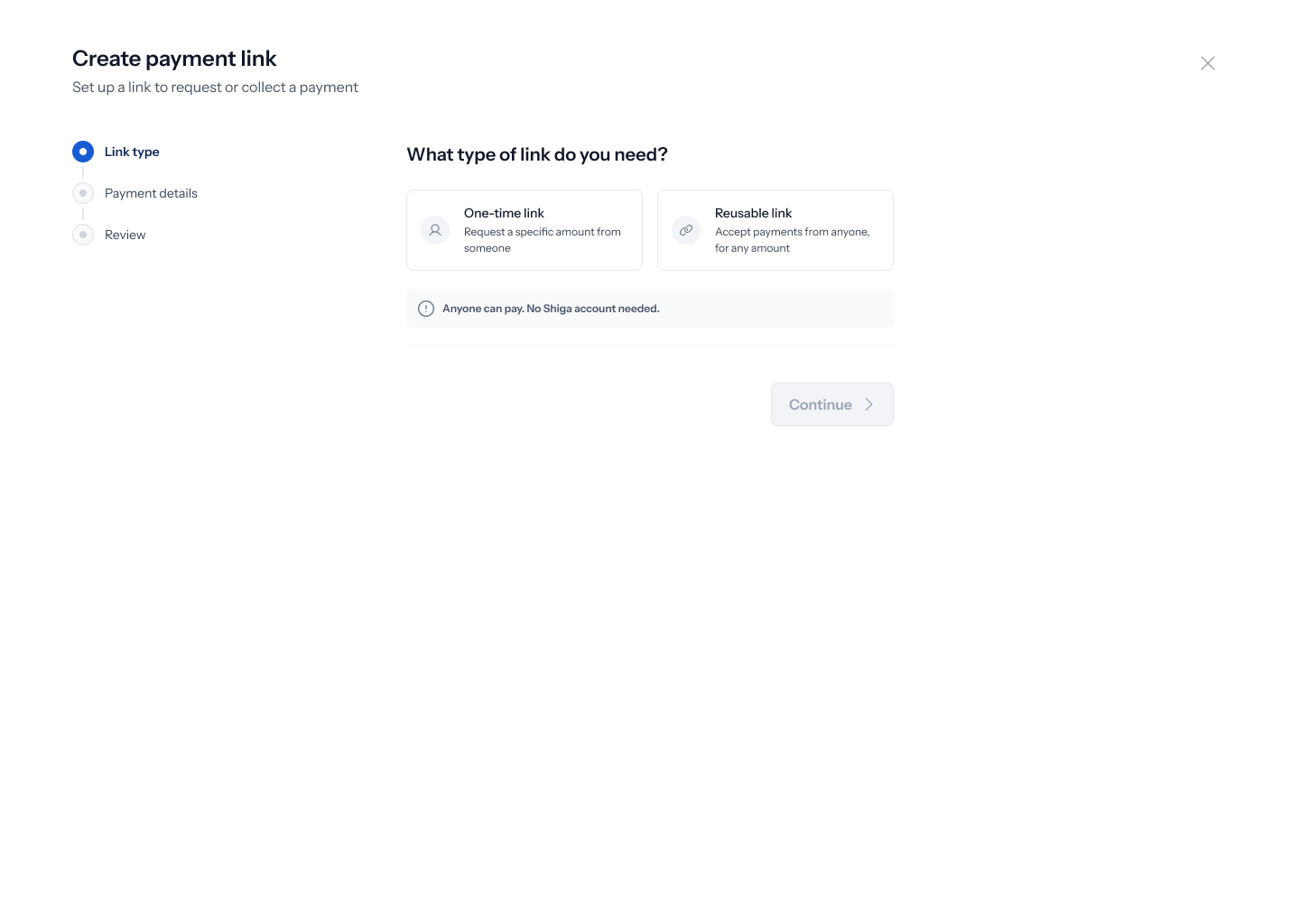
2. Name the link
With One-time link selected, two fields appear: Link title (placeholder “e.g., Design work payment”) and Who is this payment for? (optional). Fill in a title — for example “Inv24902 Payment” — and, if you like, the recipient’s name, e.g. “Timothy Adigun”. Tap Continue.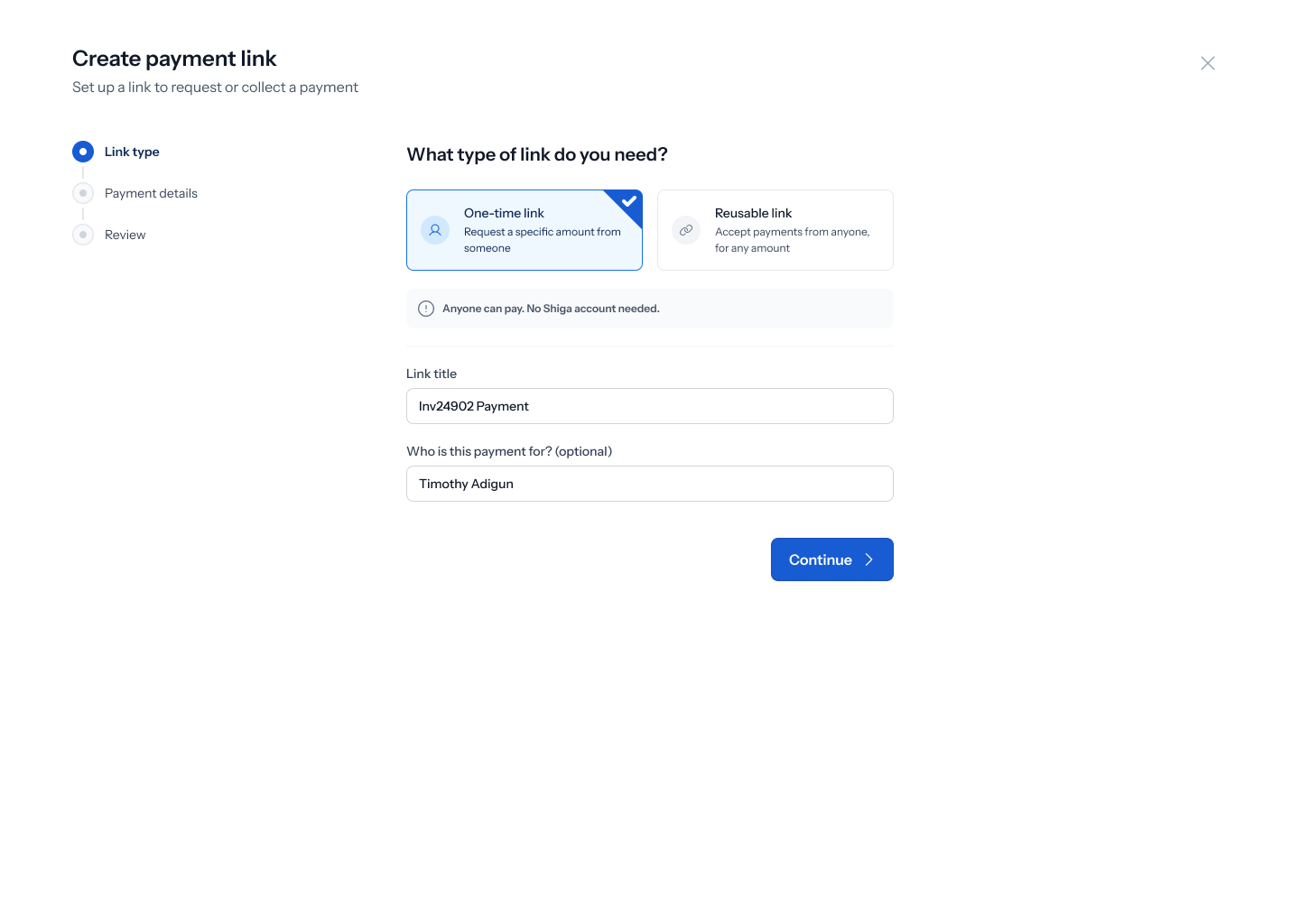
3. Set the amount and how you want to be notified
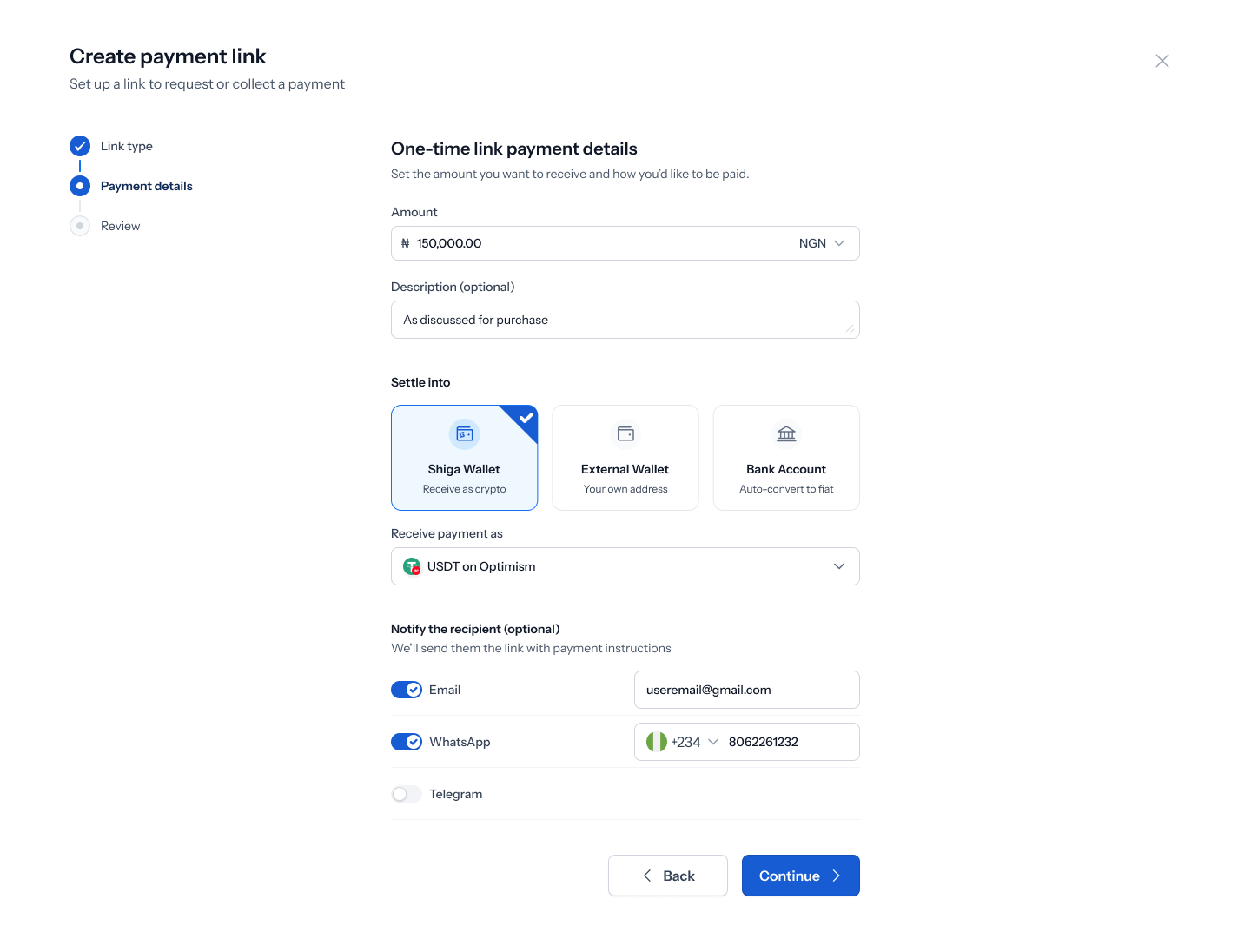
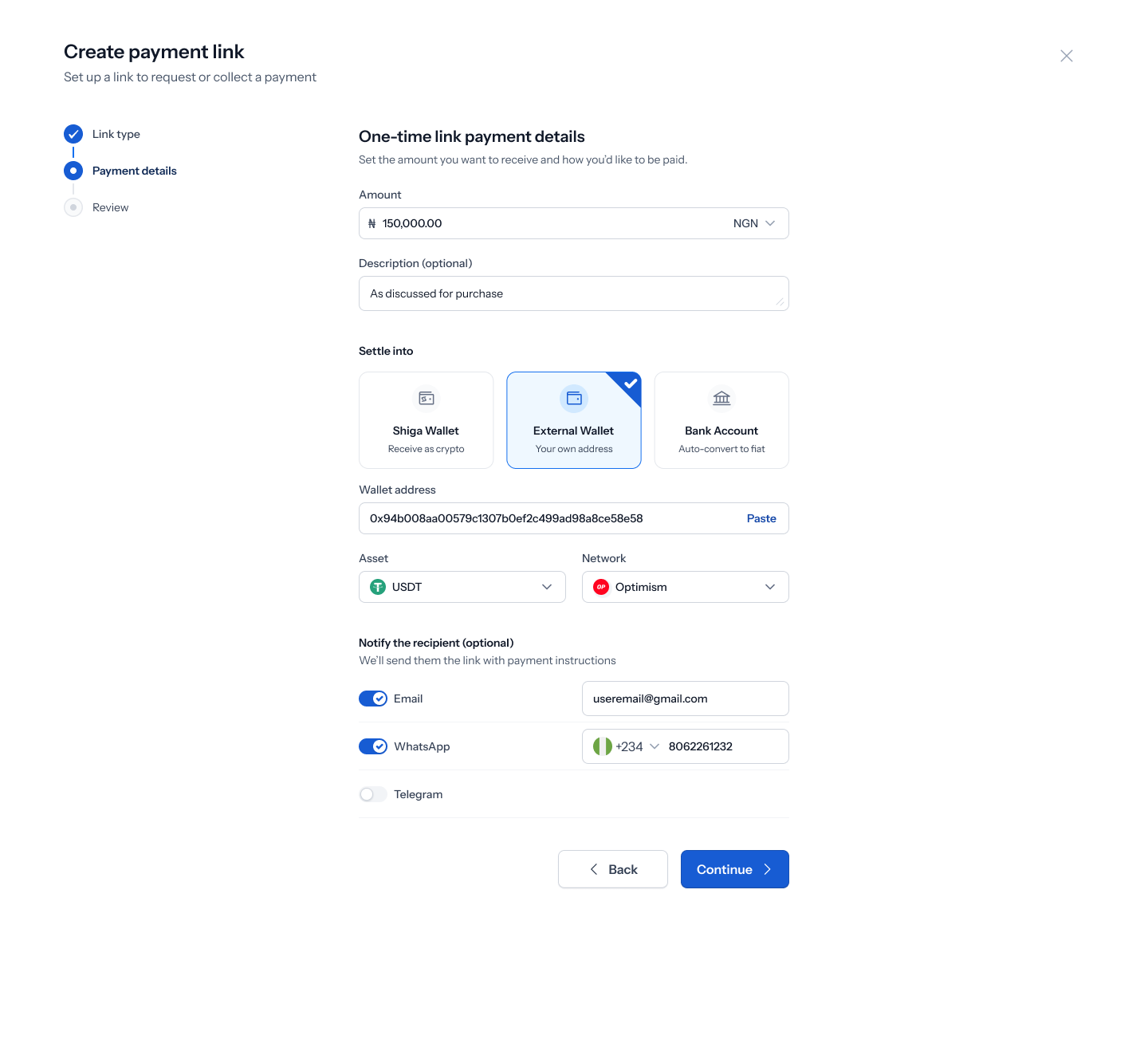
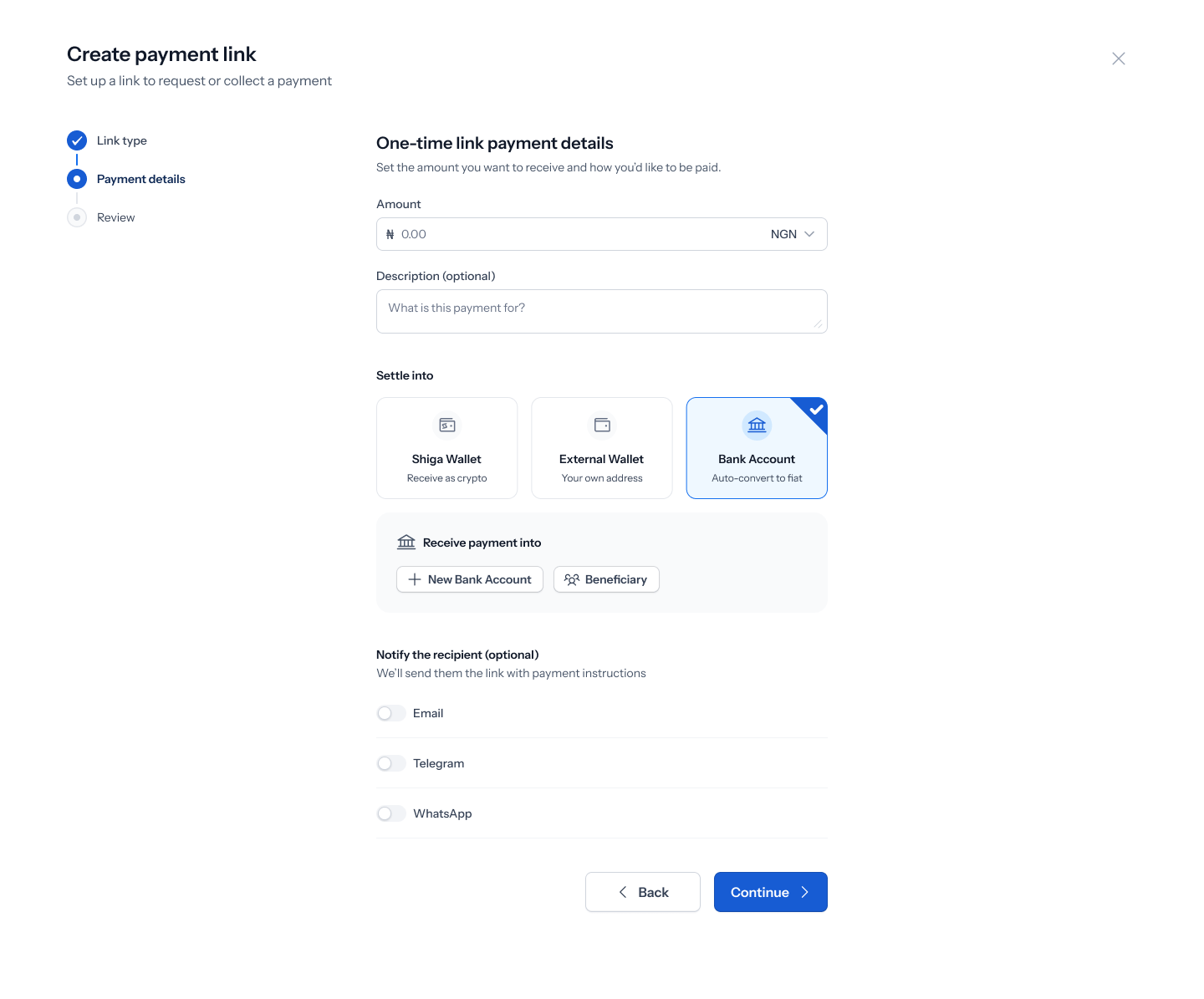
The “One-time link payment details” screen — “Set the amount you want to receive and how you’d like to be paid” — starts with an Amount field (currency prefix, e.g. ₦, with a currency dropdown offering USDT, BTC, Naira, Euro, Pound) and an optional Description (placeholder “What is this payment for?”). Below that, a Notify the recipient (optional) section — “We’ll send them the link with payment instructions” — lets you toggle on Email, Telegram, and WhatsApp and fill in the corresponding email address, Telegram number, or WhatsApp number so Enta sends the link for you.4. Choose where the money settles
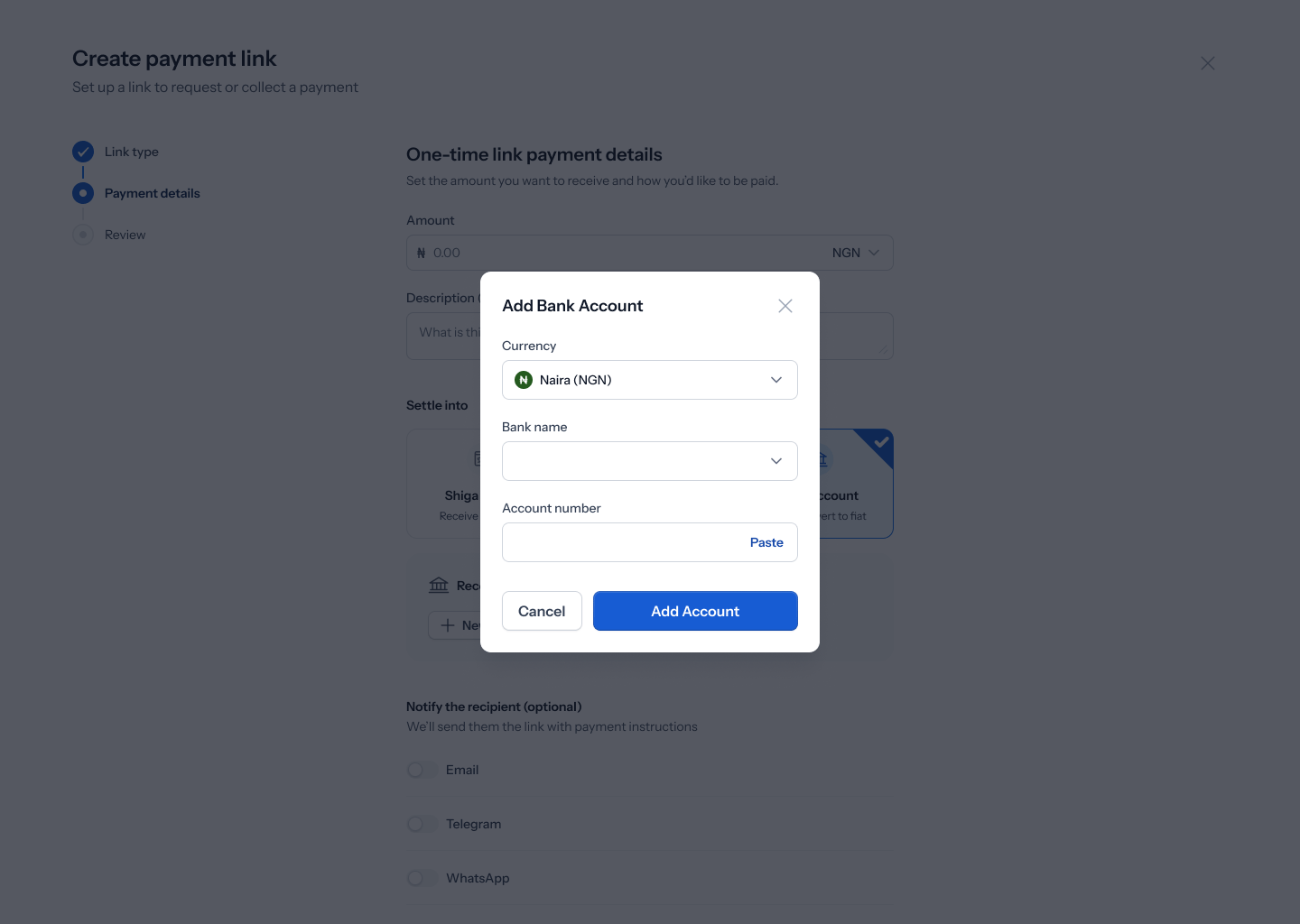
The same screen’s Settle into section offers three cards: Shiga Wallet (“Receive as crypto”), External Wallet (“Your own address”), and Bank Account (“Auto-convert to fiat”). Which one you pick changes what shows up next.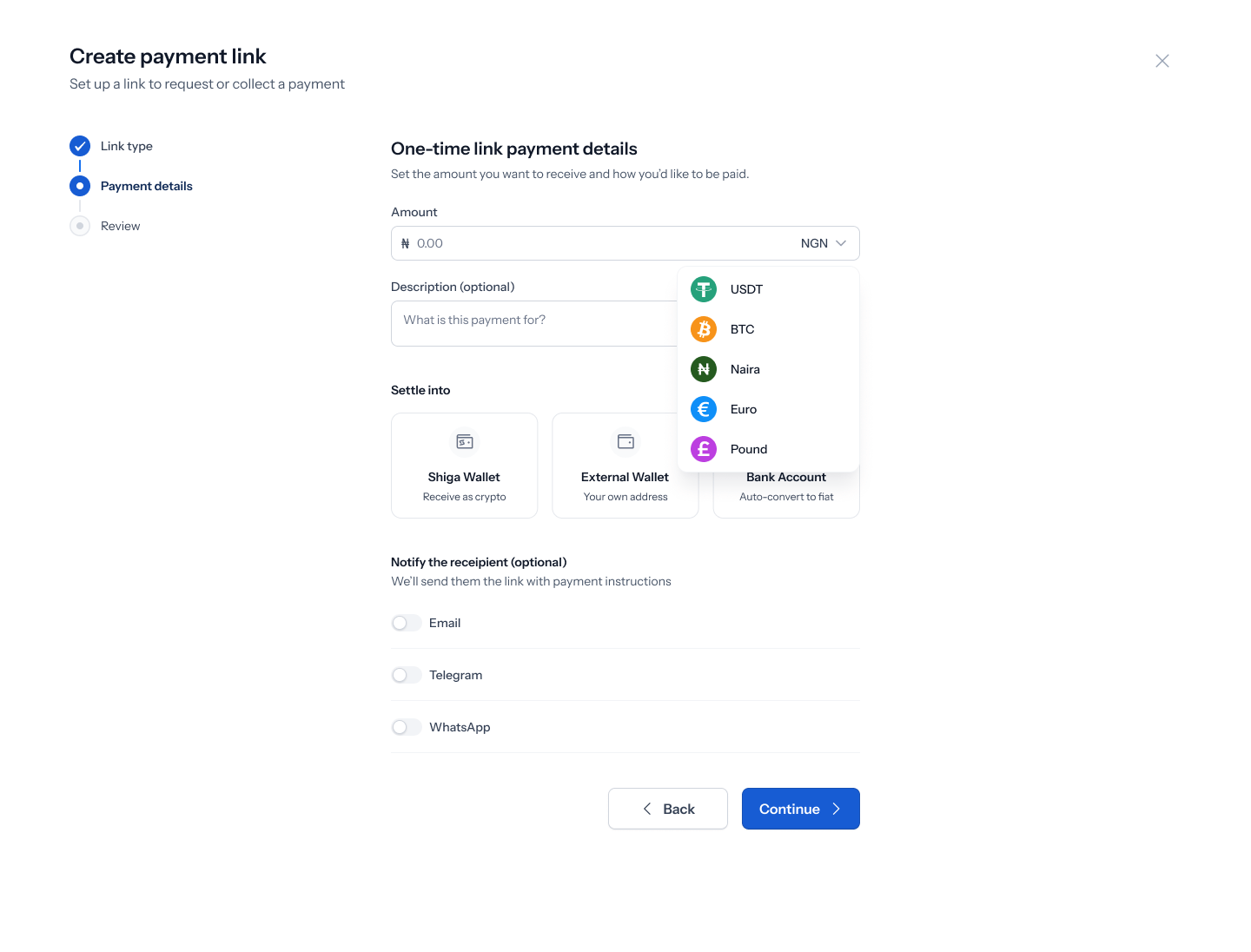
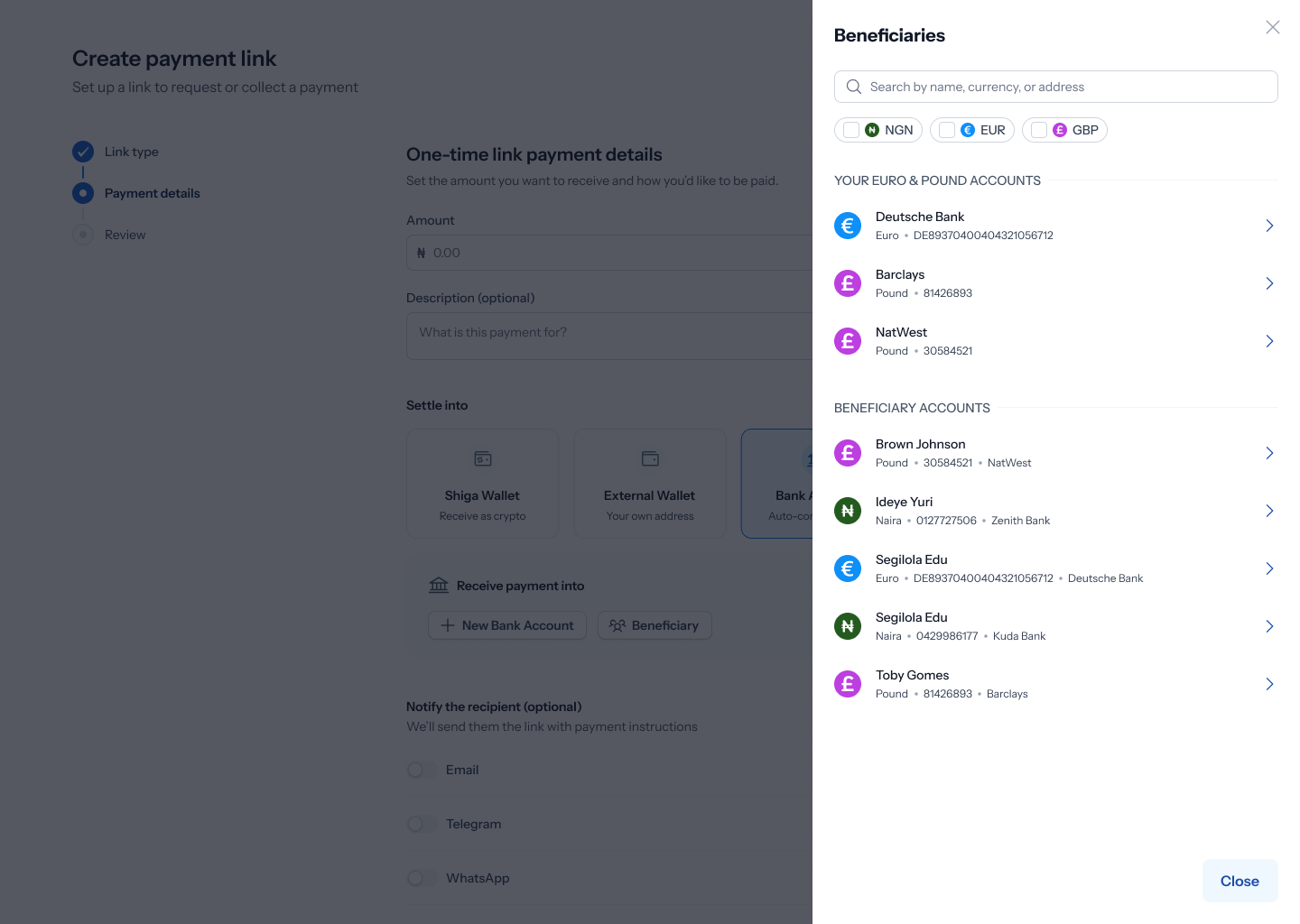
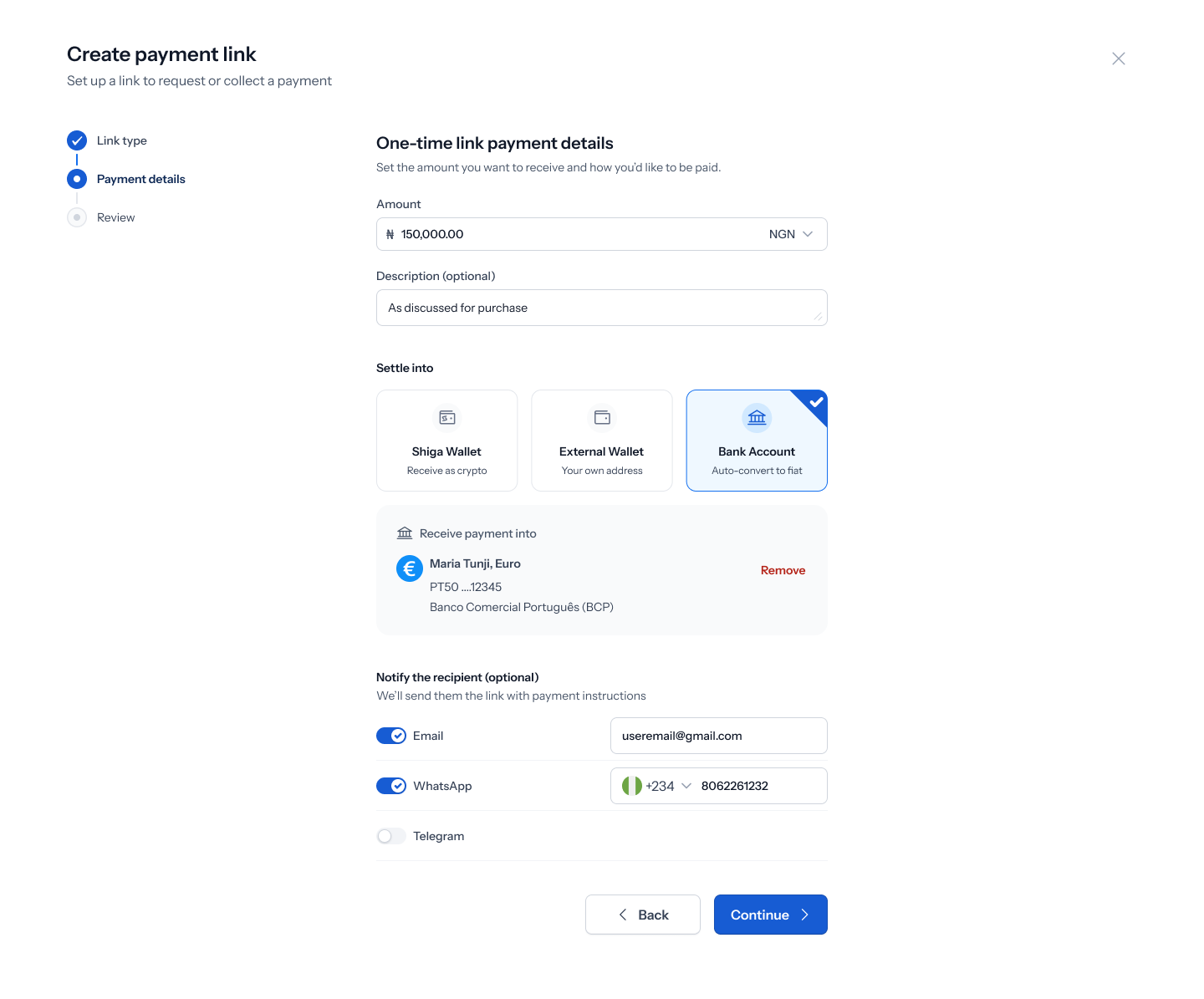
5. Review and create the link
The Review screen summarizes everything: Amount (e.g. ₦200,000), your title and reference (e.g. “iPhone 14 payment” / “#Inv24902”), Type (“One-time link” — “Expires after payment is received”), Settle payment into (a badge showing your chosen destination — Shiga Wallet, an external address, or a bank account), and Recipient details (name, email, Telegram, WhatsApp, if you filled them in). Tap Back to change anything, or Create Payment Link to finish.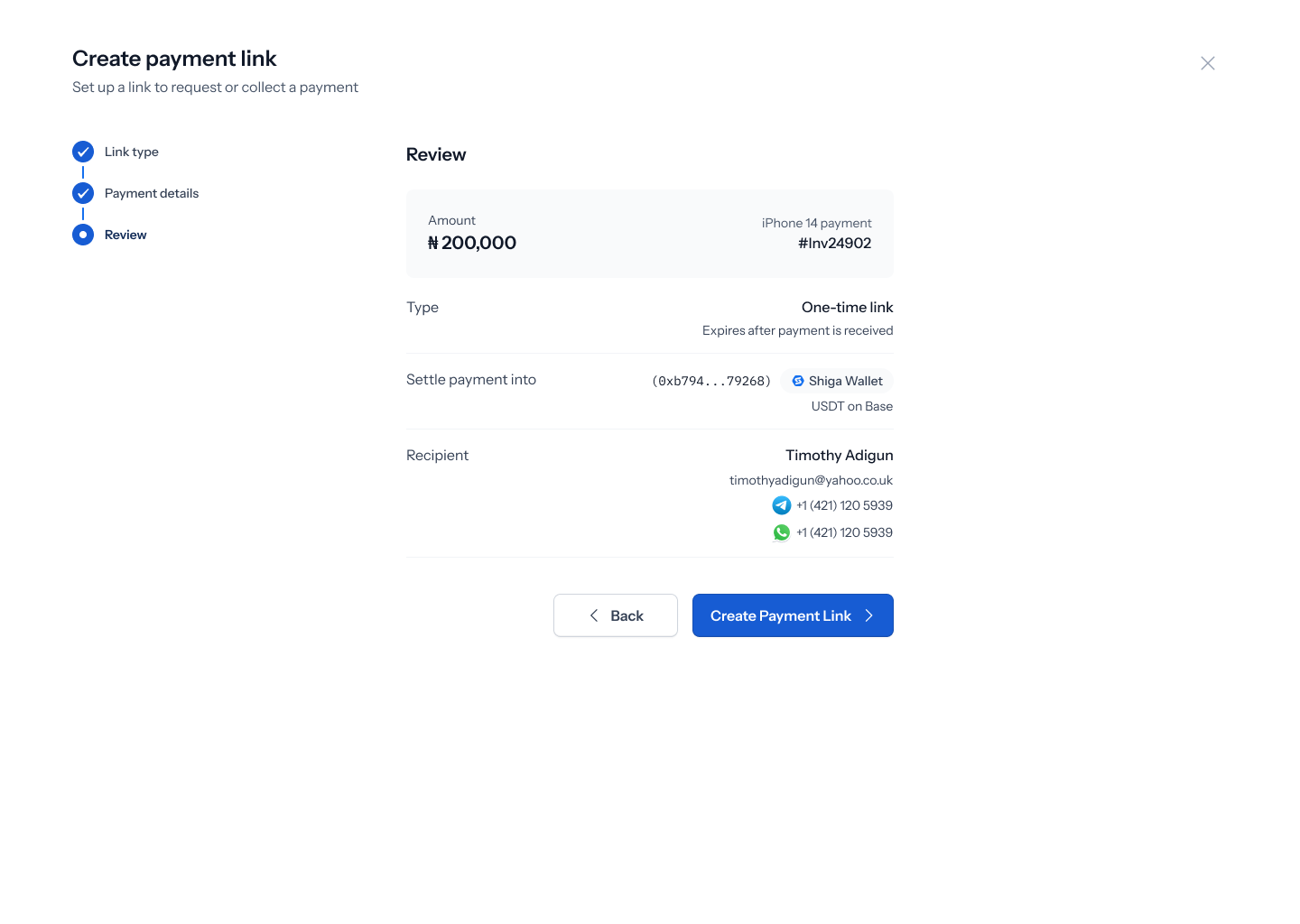
6. Share the link
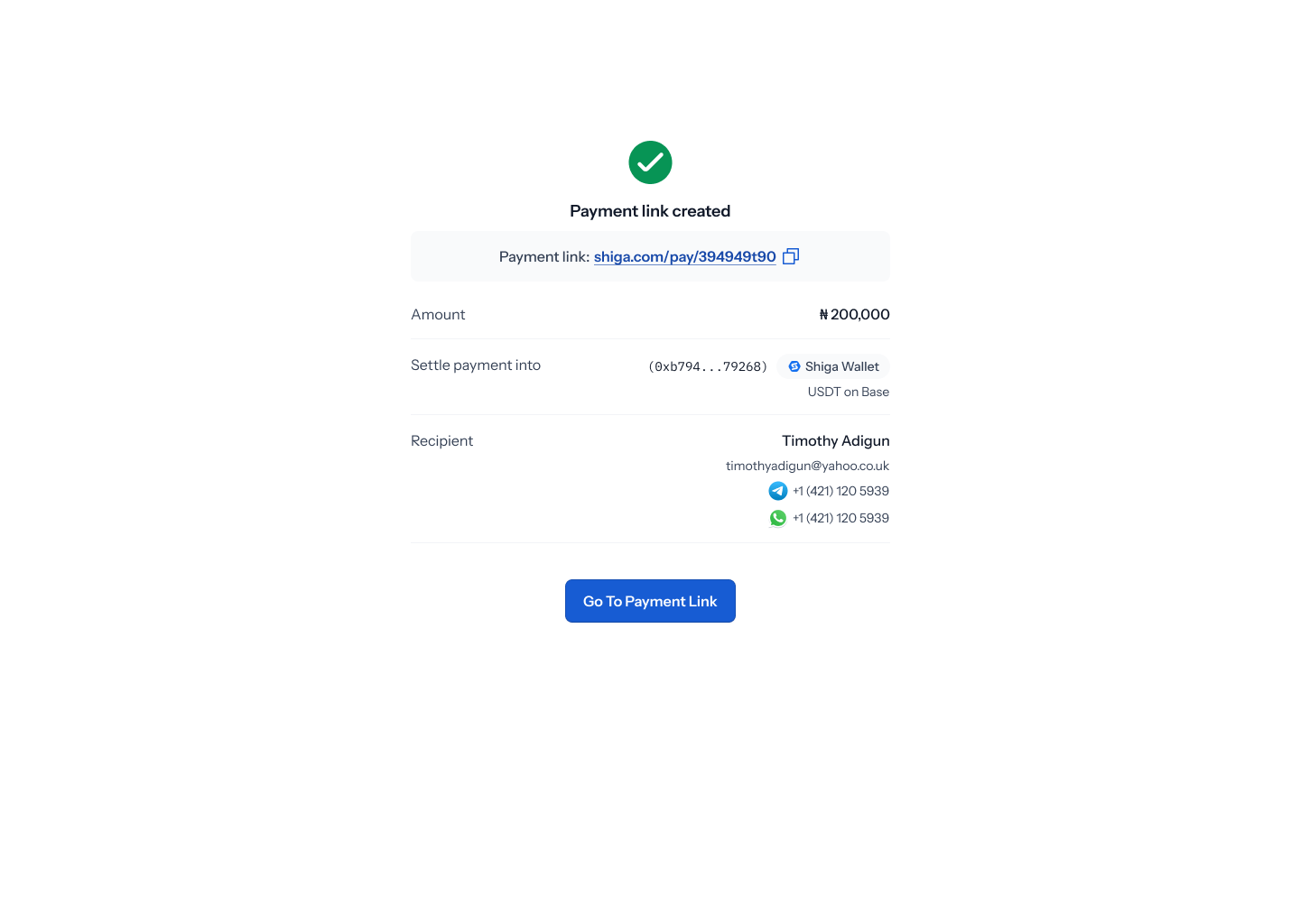
Once created, “Payment link created” shows your shareable Payment link (e.g. shiga.com/pay/394949t90) with a copy icon, plus a summary of the Amount, Settle payment into destination, and Recipient. Tap Go to Payment Link to view it.